Release date: June 12, 2025
Security update: The following extension has security updates: ms-python.python.
Update 1.101.1: The update addresses these issues.
Update 1.101.2: The update addresses these issues.
Downloads: Windows: x64 Arm64 | Mac: Universal Intel silicon | Linux: deb rpm tarball Arm snap
Welcome to the May 2025 release of Visual Studio Code. There are many updates in this version that we hope you'll like, some of the key highlights include:
-
MCP
-
Chat
- Group and manage related tools by combining them in a tool set (Show more).
-
Source Control
If you'd like to read these release notes online, go to Updates on code.visualstudio.com. Insiders: Want to try new features as soon as possible? You can download the nightly Insiders build and try the latest updates as soon as they are available.
Chat
Chat tool sets
VS Code now enables you to define tool sets, either through a proposed API or through the UI. A tool set is a collection of different tools that can be used just like individual tools. Tool sets make it easier to group related tools together, and quickly enable or disable them in agent mode. For instance, the tool set below is for managing GitHub notifications (using the GitHub MCP server).
{
  "servers": {
    "gistpad": {
      "command": "node",
      "args": ["build/index.js"],
+     "dev": {
+       "watch": "build/**/*.js",
+       "debug": { "type": "node" }
+     },
Chat UX improvements
We're continuously working to improve the chat user experience in VS Code based on your feedback. One such feedback was that it can be difficult to distinguish between user messages and AI responses in the chat. To address this, we've made the appearance of user messages more distinct.
Undoing previous requests is now also more visible - just hover over a request and select the X button to undo that request and any following requests. Or even quicker, use the ⌘Backspace (Windows, Linux Delete) keyboard shortcut!
Finally, attachments from the chat input box are now more navigable.
Learn more about using chat in VS Code in our documentation.
Apply edits more efficiently
When editing files, VS Code can take two different approaches: it either rewrites the file top to bottom or it makes multiple, smaller edits. Both approaches differ, for example the former can be slower for large files and intermediate states do often not compile successfully. Because of that the UI adopts and conditionally disables auto-save and squiggles, but only when needed.
We have also aligned the keybindings for the Keep and Undo commands. Keeping and undoing individual changes is now done with ⌘Y (Windows, Linux Ctrl+Y) and ⌘N (Windows, Linux Ctrl+N). In the same spirit, we have also aligned the keybinding for keeping and undoing all changes in a file, they are now ⇧⌘Y (Windows, Linux Ctrl+Shift+Y) and ⇧⌘N (Windows, Linux Ctrl+Shift+N). This is not just for alignment but also removes prior conflicts with popular editing commands (like Delete All Left).
Implicit context
We've streamlined and simplified the way that adding your current file as context works in chat. Many people found the "eyeball toggle" that we previously had to be a bit clunky. Now, your current file is offered as a suggested context item. Just select the item to add or remove it from chat context. From prompt input field, press Shift+Tab, Enter to quickly do this with the keyboard.
Additionally, in agent mode, we include a hint about your current editor. This doesn't include the contents of the file, just the file name and cursor position. The agent can then use the tools it has to read the contents of the file on its own, if it thinks that it's relevant to your query.
Learn more about adding context in chat in our documentation.
Fix task configuration errors
Configuring tasks and problem matchers can be tricky. Use the Fix with Github Copilot action that is offered when there are errors in your task configuration to address them quickly and efficiently.
Custom chat modes (Preview)
By default, the chat view supports three built-in chat modes: Ask, Edit and Agent. Each chat mode comes with a set of base instructions that describe how the LLM should handle a request, as well as the list of tools that can be used for that.
You can now define your own custom chat modes, which can be used in the Chat view. Custom chat modes allow you to tailor the behavior of chat and specify which tools are available in that mode. This is particularly useful for specialized workflows or when you want to provide specific instructions to the LLM. For example, you can create a custom chat mode for planning new features, which only has read-only access to your codebase.
To define and use a custom chat mode, follow these steps:
- Define a custom mode by using the Chat: Configure Chat Modes command from the Command Palette.
- Provide the instructions and available tools for your custom chat mode in the
*.chatprompt.mdfile that is created. - In the Chat view, select the chat mode from the chat mode dropdown list.
- Submit your chat prompt.

The following example shows a custom "Planning" chat mode:
By default, semantic search is only run when you explicitly request it. We have now added a setting to control when you want semantic search to be triggered:
manual(default): only run semantic search when triggered manually from the UI (⌘I (Windows, Linux Ctrl+I))runOnEmpty: run semantic search automatically when the text search returns no resultsauto: always run semantic search in parallel with text search for every search query
Edit Context
Setting: editor.editContext
We have enabled the editor.editContext setting by default on Stable. This means that the input of the editor is now powered by the EditContext API. This fixes numerous bugs, especially in relation to the IME experience, and going forward will pave the way for a more versatile and robust input experience within the editor.
See the MDN docs for more detail on the EditContext API.
Code Editing
NES import suggestions
Setting: github.copilot.nextEditSuggestions.fixes
Last month, we introduced support for next edit suggestions to automatically suggest adding missing import statements for TypeScript and JavaScript. In this release, we've improved the accuracy and reliability of these suggestions and expanded support to Python files as well.

NES is enabled for all VS Code Insiders users, and it will progressively be enabled by default for Stable users during June. You can enable NES yourself via its setting at any time.
NES acceptance flow
Accepting next edit suggestions is now more seamless with improved keyboard navigation. Once you accept a suggestion, you can continue accepting subsequent suggestions with a single Tab press, as long as you haven't started typing again. Once you start typing, press Tab to first move the cursor to the next suggestion before you can accept it.
Notebooks
Follow mode for agent cell execution
Setting: github.copilot.chat.notebook.followCellExecution.enabled
With follow mode, the Notebook view will automatically scroll to the cell that is currently being executed by the agent. Use the github.copilot.chat.notebook.followCellExecution.enabled setting to enable or disable follow mode for agent cell execution in Jupyter Notebooks.
Once the agent has used the run cell tool, the Notebook toolbar is updated with a pin icon, indicating the state of follow mode. You can toggle the behavior mid agent response without changing the base setting value, allowing you to follow the work of the agent in real-time, and toggle it off when you want to review a specific portion of code while the agent continues to iterate. When you wish to follow again, simply toggle the mode, and join at the next execution.
Notebook tools for agent mode
Configure notebook
The Jupyter extension contributes tools for configuring the Kernel of a Jupyter Notebook. This tool ensures that a Kernel is selected and is ready for use in the Notebook. This involves walking you through the process of creating a Virtual Environment if required (the recommended approach), or prompting you to select an existing Python environment.
This tool ensures the LLM can perform operations on the Notebook such as running cells with minimal user interaction, thereby improving the overall user experience in agent mode.
Long running agent workflows
The agent has access to an internal Notebook Summary tool to help keep it on track with an accurate context. That summary is also included when summarizing the conversation history when the context gets too large to keep the agent going through complex operations.
Cell preview in run confirmation
A snippet of the code is shown from a notebook cell when the agent requests confirmation to run that cell. The cell links in the Chat view now also enable you to directly navigate to cells in the notebook.
Source Control
Copilot coding agent integration
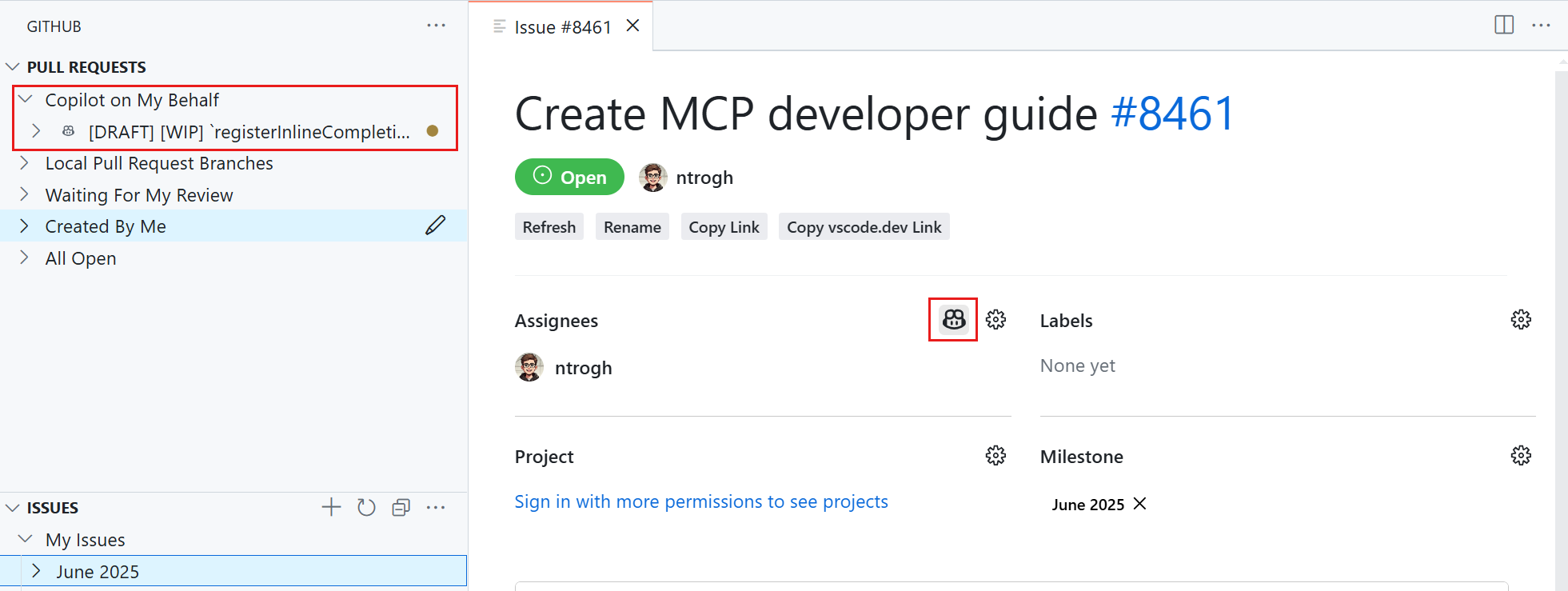
With Copilot coding agent, GitHub Copilot can work independently in the background to complete tasks, just like a human developer. We have expanded the GitHub Pull Requests extension to make it easier to assign and track tasks for the agent from within VS Code.
We have added the following features to the extension:
- Assign to Copilot: assign a pull request or issue to Copilot from the issue or PR view in VS Code
- Copilot on My Behalf PR query: quickly see all pull requests that Copilot is working on for you.
- PR view: see the status of the Copilot coding agent and open the session details in the browser.
Source control history item details
Upon popular demand, selecting an item in the Source Control Graph view now reveals the resources of that history item. You can choose between a tree view or list view representation from the ... menu.
To open all resources of a history item in the multi-file diff editor, use the Open Changes action on hover. Selecting a particular resource from the Graph view opens a diff editor only for that resource. Select the Open File action to open the file for that particular version.
Add history item to chat context
You can now add a source control history item as context to a chat request. This can be useful when you want to provide the contents of a specific commit or pull request as context for your chat prompt.
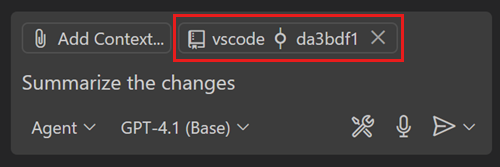
To add a history item to chat, use Add Context > Source Control from the Chat view and then choose a particular history item. Alternatively, right-click the history item in the source control graph and then select Copilot > Add History Item to Chat from the context menu.
Tasks
Instance policy
Task runOptions now has an instancePolicy property, which determines what happens when a task has reached its instanceLimit.
Options include prompt (default), silent, terminateNewest, terminateOldest, and warn.

Terminal
Language server based terminal suggest
Language server completions are now available in the terminal for interactive Python REPL sessions. This brings the same language completions you receive in the editor now inside the terminal. We are starting with support for Python via Pylance, with plans to expand to more languages in the future.
To try it out, ensure the following settings are enabled:
- terminal.integrated.shellIntegration.enabled
- python.terminal.shellIntegration.enabled
- terminal.integrated.suggest.enabled
- python.analysis.supportAllPythonDocuments
Remote Development
The Remote Development extensions, allow you to use a Dev Container, remote machine via SSH or Remote Tunnels, or the Windows Subsystem for Linux (WSL) as a full-featured development environment.
Highlights include:
- SSH pre-connection script
- Remote Explorer improvements
You can learn more about these features in the Remote Development release notes.
Contributions to extensions
Python
Python chat tools
The Python Extension now includes the following chat tools: “Get information for a Python Environment”, “Get executable information for a Python Environment”, “Install Python Package” and “Configure Python Environment”. You can either directly reference them in your prompt by adding #getPythonEnvironmentInfo #installPythonPackage, or agent mode will automatically call the tool as applicable. These tools seamlessly detect appropriate environment information, based on file or workspace context, and handle package installation with accurate environment resolution.
The “Configure Python Environment” tool ensures that the Python Environment is set up correctly for the workspace. This includes creating a Virtual Environment if needed, and selecting that as the active Python Environment for the workspace.
Tools that were previously introduced in the Python Environments extension (preview) have been migrated to the Python extension, thereby making these tools available to all users with the Python extension installed.
Create a project from a template
The Python Environments extension now supports project creation for Python packages and basic scripts, allowing you to bypass scaffolding and get coding more quickly. Use the command Python Envs: Create Project from Template to select whether you want to create a package or a script.
For package creation, you are able to name the package, create a virtual environment, and receive a scaffolded project which includes a tests subfolder, pyproject.toml, dev-requirements.txt, and boilerplate __main__.py and __init__.py files.
For scripts, it creates a new python file with the name of your choice and include boilerplate code.
PyEnv and Poetry support
We added support for pyenv for environment management, and poetry for both package and environment management in the Python Environments extension.
GitHub Pull Requests
There has been more progress on the GitHub Pull Requests extension, which enables you to work on, create, and manage pull requests and issues. New features include:
- Images in comments from private repositories are now shown in pull request file comments.
- The "Notifications" view is now shown by default, collapsed. -- Issue and pull request links in the timeline an in the issue/pull request body are now opened in VS Code, rather than going to the browser.
- The "Assigned to Me" query in the "Pull Requests" view has been removed, and the "Local Pull Request Branches" and "All Open" queries can be removed using the setting
githubPullRequests.queries. For repositories with Copilot, a "Copilot on My Behalf" query is added when the setting is unconfigured. - Copilot "start working", "stop working", and "View Session" are now shown in the timeline.
Review the changelog for the 0.112.0 release of the extension to learn about the other highlights.
MCP extension APIs
Extensions can now publish collections of MCP servers. This enables you to bundle MCP servers with your extension or build extensions that dynamically discover MCP servers from other sources. Learn more in our MCP extension development guide or by checking out the MCP extension sample.
Secret scanning when packaging extensions
VSCE now scans for secrets when packaging your extension. If any potential secrets (for example, API keys, tokens, credentials, or environment variable files like .env) are detected in your source files, VSCE displays an error during the packaging process. This helps you avoid accidentally publishing sensitive information to the Marketplace. Make sure to review and address any error before publishing your extension.
If you need to bypass specific checks, you can use the --allow-package-secrets <secret_type> or --allow-package-env-file flags when running VSCE. These flags let you configure which secret or environment file checks should be skipped during packaging.
Web environment detection
⚠️ Breaking change ⚠️
Setting: extensions.supportNodeGlobalNavigator
The Node.js extension host is now updated to v22 from v20, as part of our Electron 35 runtime update. This update brings in support for the navigator global object in the desktop and remote extension hosts.
This change could introduce a breaking change for extensions that rely on the presence of the navigator object to detect the web environment.
To help extension authors migrate, we have created a polyfill for globalThis.navigator that is initialized to undefined, so your extension continues to work correctly. The polyfill is behind the
extensions.supportNodeGlobalNavigator
VS Code setting. By default, this setting is disabled and the polyfill is in place. We capture telemetry and log an error (in extension development mode) when your extension tries to access the navigator in this way.
In the future, this setting might be enabled by default, so we urge extension authors to migrate their code to be compatible with the new navigator global object. Follow these steps to migrate your code:
- Check the extension host log for a
PendingMigrationErrorthat has error stack originating your extension. - Ensure checks like
typeof navigator === 'object'are migrated totypeof process === 'object' && process.versions.nodeas needed. - Enable extensions.supportNodeGlobalNavigator .
- Verify extension behavior remains unchanged.
Proposed APIs
Authentication Providers: Supported Authorization Servers for MCP
Currently only leveraged in MCP authentication, this API proposal enables your AuthenticationProvider to declare the authorization servers that are associated with it.
For example, if you look at the GitHub Authentication Provider, it includes the typical GitHub authorization URL in the authorizationServerGlobs property of the auth provider contribution:
vscode.authentication.registerAuthenticationProvider(
  type,
  this._githubServer.friendlyName,
  this,
  {
    supportsMultipleAccounts: true,
    supportedAuthorizationServers: [
      ghesUri ?? vscode.Uri.parse('https://github.com/login/oauth')
    ]
  }
);
For a more complex example, look to Microsoft Authentication. The authorization server depends on the tenant being placed in the path. So for this, we use a wildcard in the contribution:
authentication.registerAuthenticationProvider('microsoft', 'Microsoft', authProvider, {
  supportsMultipleAccounts: true,
  supportedAuthorizationServers: [Uri.parse('https://login.microsoftonline.com/*/v2.0')]
});
Then, when a caller passes in an authorization server URL when it asks for auth, it is passed down to both the getSessions and createSession functions via the AuthenticationProviderSessionOptions that are already present.
As mentioned, this functionality is currently used in MCP support, where we receive the authorization server URL to authenticate with from the MCP server. That URL is then mapped to an auth provider, or if none exists, an auth provider is dynamically created for that auth server.
The full API proposal can be found in the vscode repo and we'd love to hear your feedback in the GitHub issue!
Engineering
Electron 35 update
In this milestone, we are promoting the Electron 35 update to users on our Stable release. This update comes with Chromium 134.0.6998.205 and Node.js 22.15.1. We want to thank everyone who self-hosted on Insiders builds and provided early feedback.
Adopting ESM in a real-world extension
Last milestone, we have announced support for JavaScript-modules (ESM). This enables extensions to use import and export statements, but currently only when targeting the NodeJS extension host.
This month, we have done a real-world adoption with GitHub Issue Notebooks. It is not trivial because this extension can be run in the NodeJS extension host (which supports ESM extensions) and the web worker extension host, which currently does not support ESM extensions. This required a more complex bundler configuration and you might want to take inspiration from its esbuild-config.
Notable fixes
- 250077 - Tree-Sitter based syntax highlighting depends on the model service
Thank you
Last but certainly not least, a big Thank You to the contributors of VS Code.
Issue tracking
Contributions to our issue tracking:
- @gjsjohnmurray (John Murray)
- @albertosantini (Alberto Santini)
- @RedCMD (RedCMD)
- @IllusionMH (Andrii Dieiev)
Pull requests
Contributions to vscode:
- @alpalla (Alessio Palladino): Add a task instancePolicy to task runOptions PR ##117129
- @0xEbrahim (Ebrahim El-Sayed): Fix Typo and Grammar PR #248814
- @a-stewart (Anthony Stewart): For editor font choice, if OS is not detected assume Linux PR #248133
- @adnval (kevin): Add installed filter PR #248055
- @bhack: Add to new source format and the mandatory signed-by PR #239390
- @dylanchu: TerminalTaskSystem: Add support for nushell PR #238440
- @eronnen (Ely Ronnen)
- make maximum number of lines in debug console configurable PR #245915
- Update log tmLanguage from vscode-logfile-highlighter 3.4.1 PR #249046
- Disassembly View: don't display invalid memory instructions PR #249779
- disasembly view: handle negative line height returned by debug adapter PR #250081
- @gabritto (Gabriela Araujo Britto): [typescript-language-features] Add configuration for maximum hover length PR #248181
- @hickford (M Hickford): Highlight active line number correctly regardless of word wrap PR #240029
- @imfing (Xin): fix: conditionally append scope parameter in authorization URL for DynamicAuthProvider PR #250084
- @jeanp413 (Jean Pierre)
- Fix timeline git requests are not cancelled when switching editors too fast PR #244335
- Fix vscode.env.onDidChangeShell not firing in the webworker extension host PR #249824
- @joyceerhl (Joyce Er)
- refactor: reuse chat attachment widgets in chat list renderer PR #248163
- fix: register widgets in chat attachments content part PR #249054
- fix: set content reference description on historical chat attachments PR #249112
- fix: use markdown string for MCP tool confirmation PR #249497
- fix: allow Continue On if edit session identity provider mutates edit session payload PR #250057
- @JoyceGu (Joyce Gu): Joycegu/add genai packages 05222025 PR #249589
- @mawosoft (Matthias Wolf): Fix PowerShell shell integration when strict mode is enabled. PR #248625
- @mortalYoung (野迂迂): fix(search): fix expand all not working PR #248207
- @nojaf (Florian Verdonck): Close all unused ports command PR #244245
- @nomike (nomike): Enhance GithHub publishing logic to handle renamed repositories PR #245024
- @Parasaran-Python (Parasaran): Fix #248222 | Regex changes to allow multiple leading dots in relative paths PR #248340
- @pelmers-db (Peter Elmers): Fix cancellation logic in Picker onDidChangeValue handler (fixes #247945) PR #247946
- @randy3k (Randy Lai): Update upstream repo for R syntax PR #248880
- @rbuckton (Ron Buckton): Add casts to silence breaks due to updated DOM types PR #248346
- @RedCMD (RedCMD): Support
@builtin @disabledPR #235885 - @xzakharov (Oleksandr Zakharov): fix(devcontainer): bump rust feature to fix container build PR #250430
- @y0sh1ne (y0sh1ne): Fix Copy Message with multiple selections (#_247927) PR #248172
Contributions to vscode-copilot-release:
- @joyceerhl (Joyce Er): chore: update bug report template PR #9702
Contributions to vscode-css-languageservice:
- @Legend-Master (Tony): Add basic media query auto complete support PR #443
- @rgant (J Rob Gant)
Contributions to vscode-custom-data:
- @Legend-Master (Tony): Add media query support PR #118
Contributions to vscode-eslint:
Contributions to vscode-generator-code:
- @SamB (Samuel Bronson): Do not link to top of vscode docs PR #518
Contributions to vscode-js-debug:
- @kdy1 (Donny/강동윤): chore: Fix default url for turbopack PR #2223
- @mikaelwaltersson (Mikael Waltersson): Fix bug where the WasmWorker instance is disposed but never re-spawned on page reloads + writeMemory when WASM memory is SharedArrayBuffer PR #2211
Contributions to vscode-jupyter:
- @WillHirsch: Downgrade diagnostic severity for use of bang instead of percent for package installs PR #16601
Contributions to vscode-languageserver-node:
- @martijnwalraven (Martijn Walraven): Fix
workspace/textDocumentContent/refreshrequest PR #1637
Contributions to vscode-markdown-tm-grammar:
- @Barros1902 (Tomás Barros ): Fix strikethrough with underscores in Markdown syntax (Fixes microsoft#173) PR #174
Contributions to vscode-prompt-tsx:
- @joyceerhl (Joyce Er): chore: npm audit fix PR #175
Contributions to vscode-pull-request-github:
- @kabel (Kevin Abel): Allow verified GitHub emails when none are private PR #6921
Contributions to vscode-python-debugger:
- @kycutler (Kyle Cutler): Fix
TypeErrorfrom trying to read directory PR #692
Contributions to debug-adapter-protocol:
- @DrSergei: Fix some typos PR #543
- @robertoaloi (Roberto Aloi): Add Erlang EDB Debugger PR #544
Contributions to language-server-protocol:
- @asukaminato0721 (Asuka Minato)
- @brynne8 (Brynne Taylor): fix typo in glob pattern spec PR #2132
- @leon-bckl (Leon): Added c++20 lsp-framework PR #2144
- @nieomylnieja (Mateusz Hawrus): chore: Add Nobl9 VSCode extension to servers.md PR #2136
- @zonuexe (USAMI Kenta): Add LSP clients for Emacs PR #2145
Contributions to lsprotocol:
- @debonte (Erik De Bonte)
- @myleshyson (Myles Hyson): Add golang to plugin table PR #418