Release date: May 8, 2025
Update: Enable Next Edit Suggestions (NES) by default in VS Code Stable (more...).
Update 1.100.1: The update addresses these security issues.
Update 1.100.2: The update addresses these issues.
Update 1.100.3: The update addresses these issues.
Downloads: Windows: x64 Arm64 | Mac: Universal Intel silicon | Linux: deb rpm tarball Arm snap
Welcome to the April 2025 release of Visual Studio Code. There are many updates in this version that we hope you'll like, some of the key highlights include:
-
Chat
-
Chat performance
-
Editor experience
If you'd like to read these release notes online, go to Updates on code.visualstudio.com. Insiders: Want to try new features as soon as possible? You can download the nightly Insiders build and try the latest updates as soon as they are available.
Chat
Prompt and instructions files
You can tailor your AI experience in VS Code to your specific coding practices and technology stack by using Markdown-based instructions and prompt files. We've aligned the implementation and usage of these two related concepts, however they each have distinct purposes.
Instructions files
Setting: chat.instructionsFilesLocations
Instructions files (also known as custom instructions or rules) provide a way to describe common guidelines and context for the AI model in a Markdown file, such as code style rules, or which frameworks to use. Instructions files are not standalone chat requests, but rather provide context that you can apply to a chat request.
Instructions files use the .instructions.md file suffix. They can be located in your user data folder or in the workspace. The
chat.instructionsFilesLocations
setting lists the folders that contain instruction files.
You can manually attach instructions to a specific chat request, or they can be automatically added:
-
To add them manually, use the Add Context button in the Chat view, and then select Instructions.... Alternatively use the Chat: Attach Instructions... command from the Command Palette. This brings up a picker that lets you select existing instructions files or create a new one to attach.
-
To automatically add instructions to a prompt, add the
applyToFront Matter header to the instructions file to indicate which files the instructions apply to. If a chat request contains a file that matches the given glob pattern, the instructions file is automatically attached.The following example provides instructions for TypeScript files (
applyTo: '**/*.ts'):--- mode: 'agent' tools: ['getCurrentMilestone', 'getReleaseFeatures', 'file_search', 'semantic_search', 'read_file', 'insert_edit_into_file', 'create_file', 'replace_string_in_file', 'fetch_webpage', 'vscode_search_extensions_internal'] --- Generate release notes for the features I worked in the current release and update them in the release notes file. Use [release notes writing instructions file](.github/instructions/release-notes-writing.instructions.md) as a guide.To create a prompt file, use the Chat: New Prompt File... command from the Command Palette.
Learn more about prompt files in our documentation.
Improvements and notes
- Instructions and prompt files now have their own language IDs, configurable in the language mode dialog for any file open document ("Prompt" and "Instructions" respectively). This allows, for instance, using untitled documents as temporary prompt files before saving them as files to disk.
- We renamed the Chat: Use Prompt command to Chat: Run Prompt. Furthermore, the command now runs the selected prompt immediately, as opposed to attaching it as chat context as it did before.
- Both file types now also support the
descriptionmetadata in their headers, providing a common place for short and user-friendly prompt summaries. In the future, this header is planned to be used along with theapplyToheader as the rule that determines if the file needs to be auto-included with chat requests (for example,description: 'Code style rules for front-end components written in TypeScript.')
Faster agent mode edits
We've implemented support for OpenAI's apply patch editing format (GPT 4.1 and o4-mini) and Anthropic’s replace string tool (Claude Sonnet 3.7 and 3.5) in agent mode. This means that you benefit from significantly faster edits, especially in large files.
The update for OpenAI models is on by default in VS Code Insiders and gradually rolling out to Stable. The Anthropic update is available for all users in both Stable and Insiders.
Base model in chat
We're gradually rolling out GPT-4.1 as the default base model in chat in VS Code. You can use the model switcher in the Chat view to change to another model at any time.
Search code of a GitHub repository with the
#githubRepotoolImagine you need to ask a question about a GitHub repository, but you don't have it open in your editor. For example, you want to know how a specific function is implemented in the
microsoft/vscoderepository.You can now use the
#githubRepotool to search for code snippets in any GitHub repository that you have access to. This tool takes auser/repoas extra input. For example, "how to implement factory pattern in TS #githubRepo microsoft/vscode".You can also use custom instructions to hint when and how to use this tool, as shown in the following example:
{
  "servers": {
    "my-mcp-server": {
      "url": "http://localhost:3000/mcp"
    }
  }
}
Learn more about MCP support in VS Code.
MCP support for image output
We now support MCP servers that generate images as part of their tool output.
Note that not all language models support reading images from tool output. For example, although GPT-4.1 has vision capability, it does not currently support reading images from tools.
Enhanced input, output, and progress from MCP servers
We have enhanced the UI that shows MCP server tool input and output, and have also added support for MCP's new progress messages.
Theme: Codesong (preview on vscode.dev)
MCP config generation uses inputs
To help keep your secrets secure, AI-assisted configurations generated by the MCP: Add Server command now generate
inputsfor any secrets, rather than inlining them into the resulting configuration.Inline chat V2 (Preview)
Setting: inlineChat.enableV2
We have been working on a revamped version of inline chat ⌘I (Windows, Linux Ctrl+I). Its theme is still "bringing chat into code", but behind the scenes it uses the same logic as chat edits. This means better use of the available context and a better code-editing strategy. You can enable inline chat v2 via inlineChat.enableV2
Further, there is now a more lightweight UX that can optionally be enabled. With the inlineChat.hideOnRequest setting, inline chat hides as soon as a request is made. It then minimizes into the chat-editing overlay, which enables accepting or discarding changes, or restoring the inline chat control.
Select and attach UI elements to chat (Experimental)
Setting: chat.sendElementsToChat.enabled
While you're developing a web application, you might want to ask chat about specific UI elements of a web page. You can now use the built-in Simple Browser to attach UI elements as context to chat.
After opening any locally-hosted site via the built-in Simple Browser (launch it with the Simple Browser: Show command), a new toolbar is now shown where you can select Start to select any element in the site that you want. This attaches a screenshot of the selected element, and the HTML and CSS of the element.
Configure what is attached to chat with:
- chat.sendElementsToChat.attachCSS : enable or disable attaching the associated CSS
- chat.sendElementsToChat.attachImages : enable or disable attaching the screenshot of the selected element
This experimental feature is enabled by default for all Simple Browsers, but can be disabled with chat.sendElementsToChat.enabled .
Create and launch tasks in agent mode (Experimental)
Setting: github.copilot.chat.newWorkspaceCreation.enabled
In the previous release, we introduced the github.copilot.chat.newWorkspaceCreation.enabled (Experimental) setting to enable workspace creation with agent mode.
Now, at the end of this creation flow, you are prompted to create and run a task for launching your app or project. This streamlines the project launch process and enables easy task reuse.
Accessibility
Merge editor improvements
The merge editor is now more accessible. To learn about available actions, open the accessibility help dialog within the merge editor (⌥F1 (Windows Alt+F1, Linux Shift+Alt+F1)). Key actions include
Merge Editor: Complete Merge(⌘Enter (Windows, Linux Ctrl+Enter)) andToggle Between Merge Editor Inputs(⇧⌘T (Windows, Linux Ctrl+Shift+T)). The currently focused input is also now announced to assistive technologies.Next edit suggestion enhancements
The new setting accessibility.signals.nextEditSuggestion notifies you when a predicted suggestion is available. Review and accept suggestions through the accessible view (⌥F2 (Windows Alt+F2, Linux Shift+Alt+F2)). Additionally, accessibility.signals.diffLineAdded and accessibility.signals.diffLineRemoved provide audio cues during navigation to make diff review accessible.
Review Copilot user requests from the accessible view
When in agent mode, tool invocations or terminal commands sometimes require user permission to run. Review these actions within the accessible view (⌥F2 (Windows Alt+F2, Linux Shift+Alt+F2)).
Unique accessibility sounds
accessibility.signals.save.sound now has its own distinct sound and no longer shares audio with accessibility.signals.terminalCommandSucceeded.sound .
Editor Experience
Floating window modes
Floating windows in VS Code allow you to move editors and certain views out of the main window into a smaller window for lightweight multi-window setups. There are two new modes a floating window can have:
- Compact: we hide certain UI elements to make more room for the actual content
- Always-on-top: the window stays on top of all other windows until you leave this mode
Here is an example of how to turn a floating editor window into compact mode:
We use compact mode by default for when you create a chat in a new window. Combined with the option to have the window always on top, you can always keep the Chat view around for asking questions!
We introduced new commands if you prefer to use keyboard shortcuts for these actions:
workbench.action.toggleWindowAlwaysOnTop: to toggle always on top modeworkbench.action.enableWindowAlwaysOnTop: to set the floating window always on topworkbench.action.disableWindowAlwaysOnTop: to set the floating window to normalworkbench.action.toggleCompactAuxiliaryWindow: to toggle compact modeworkbench.action.enableCompactAuxiliaryWindow: to enable compact modeworkbench.action.disableCompactAuxiliaryWindow: to disable compact mode
Note: even in compact mode you can create complex editor layouts and open other editors.
Secondary Side Bar default visibility
Setting: workbench.secondarySideBar.defaultVisibility
By default, the Secondary Side Bar is hidden when you open a new workspace or window. With the new setting workbench.secondarySideBar.defaultVisibility , you can control if the Secondary Side Bar should open automatically in new workspaces or windows. You can pick from:
hidden: this is the default and keeps the Secondary Side Bar hiddenvisibleInWorkspace: this opens the Secondary Side Bar if you open a folder or multi-root workspacevisible: this always opens the Secondary Side Bar
Note that after a workspace or window has been opened, the visibility becomes a workspace state and overrides the setting value. If you close the Secondary Side Bar, it will remain closed in that workspace or window.
Mandatory extension signature verification
Extension signature verification is now required on all platforms: Windows, macOS, and Linux. Previously, this verification was only mandatory on Windows and macOS. With this release, Linux now also enforces extension signature verification, ensuring that all extensions are properly validated before installation.
This change further strengthens security by preventing the installation of potentially malicious extensions. For more information, see the Extension Signing.
Note: Mandatory extension signature verification remains disabled on Linux ARM32 builds due to issue #248308. This is expected to be resolved in the next release.
Learn more links for malicious extensions
When an extension is identified as malicious, VS Code now provides links to additional information explaining why the extension was flagged. These "Learn More" links connect users to GitHub issues or documentation with details about the security concerns, helping you better understand the potential risks.
Prevent installation of Copilot Chat pre-release versions in VS Code stable
VS Code now prevents the installation of the pre-release version of the Copilot Chat extension in VS Code Stable. This helps avoid situations where you inadvertently install the Copilot Chat pre-release version and get stuck in a broken state. This means that you can only install the Copilot Chat extension pre-release version in the Insiders build of VS Code.
Command to open a view without focus
Views (tree views and webview views) can now be opened without focusing them. This is useful for extensions and keyboard shortcuts that want to open a view but not take focus away from the current editor. The command is
your-view-id.open, and it takes a property bag argument:{ preserveFocus: boolean}.Semantic text search with keyword suggestions (Experimental)
Setting: github.copilot.chat.search.keywordSuggestions
Semantic text search now supports AI-powered keyword suggestions. By enabling this feature, you will start seeing relevant references or definitions that might help you find the code you are looking for.
Code Editing
New Next Edit Suggestions (NES) model
Setting: github.copilot.nextEditSuggestions.enabled
We're excited to introduce a new model powering NES, designed to provide faster and more contextually relevant code recommendations. This updated model offers improved performance, delivering suggestions with reduced latency, and offering suggestions that are less intrusive and align more closely with your recent edits. This update is part of our ongoing commitment to refining AI-assisted development tools within Visual Studio Code.
Import suggestions
Setting: github.copilot.nextEditSuggestions.fixes
Next Edit Suggestions (NES) can now automatically suggest adding missing import statements in JavaScript and TypeScript files. Enable this feature by setting github.copilot.nextEditSuggestions.fixes . We plan to further enhance this capability by supporting imports from additional languages in future updates.

Next Edit Suggestions (NES) on by default
Next Edit Suggestions are now on by default in VS Code Insiders and we're gradually rolling them out to Stable.
Generate alt text in HTML or Markdown
You can now generate or update existing alt text in HTML and Markdown files. Navigate to any line containing an embedded image and trigger the quick fix via ⌘. (Windows, Linux Ctrl+.) or by selecting the lightbulb icon.

Notebooks
Find and replace history persistence
The Notebook Find control now supports persistent history for both the find and replace input fields. This persists across reloads, and is controlled by the settings editor.find.history and editor.find.replaceHistory .
Drag and drop cell outputs to chat
To enhance existing support for cell output usage within chat, outputs are now able to be dragged into the Chat view for a seamless attachment experience. Currently, only image and textual outputs are supported. Outputs with an image mime type are directly draggable, however to avoid clashing with text selection, textual outputs require holding the alt modifier key to enable dragging. We are exploring UX improvements in the coming releases.
Notebook tools for agent mode
Run cell
Chat now has an LLM tool to run notebook cells, which allows the agent to perform updates based on cell run results or perform its own data exploration as it builds out a notebook.
Get kernel state
The agent can find out which cells have been executed in the current kernel session, and read the active variables by using the Kernel State tool.
List/Install packages
The Jupyter extension contributes tools for listing and installing packages into the environment that's being used as the notebook's kernel. The operation is delegated to the Python Environments extension if available; otherwise, it attempts to use the pip package manager.
Source Control
Quick diff decorations for staged changes
To address a long-time feature request, this milestone we have added quick diff editor decorations for staged changes. Now you can view your staged changes directly from the editor, without needing to open the Source Control view.
You can customize the color of the staged changes quick diff decorations by using the following theme tokens:
editorGutter.addedSecondaryBackground,editorGutter.modifiedSecondaryBackground,editorGutter.deletedSecondaryBackground.If you do not want to see quick diff decorations for staged changes, you can hide them by using the Diff Decorations submenu that is available in the editor gutter context menu.
Debugging
Thanks to a community contribution, we now have a context menu in the disassembly view.

JavaScript debugger Network view
Recent versions of Node.js have enhanced its network debugging capabilities. The experimental network view will be enabled by default on recent versions of Node.js that support it well (v22.14.0 and above).
Languages
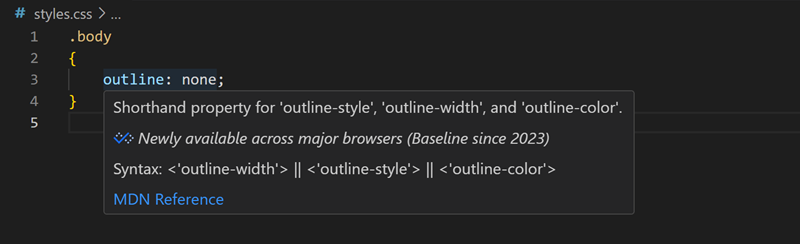
Show browser support for CSS and HTML
When hovering over a CSS property, HTML element, or HTML attribute, you now see a summary of how well that property or element is supported across browsers using Baseline.
Default syntax highlighting for
.*.envfilesFiles with name format
.*.envare now syntax highlighted as.inifiles.Expandable hovers for JavaScript and TypeScript (Experimental)
Setting: typescript.experimental.expandableHover
We've continued to iterate on the expandable hover feature for JavaScript and TypeScript. This feature lets you use a
+and-in the hover control to show more or less type information.This feature is still experimental but you can try it today by enabling typescript.experimental.expandableHover . You must be using TypeScript version 5.9 or above, for example by installing the TypeScript nightly extension.
Remote Development
The Remote Development extensions, allow you to use a Dev Container, remote machine via SSH or Remote Tunnels, or the Windows Subsystem for Linux (WSL) as a full-featured development environment.
Dev container instructions files
Dev Container features and images now include instructions files describing their tools and configuration. VS Code chat can automatically use this context, improving the relevance and accuracy of its suggestions during development.
Contributions to extensions
Python
Branch coverage support
Branch coverage is now supported in the Testing Explorer for Python! Note that your
coveragepyversion must be >= 7.7 for this feature. You can upgrade coverage by runningpip install coverage==7.7.Python Environments Quick Create command
The Python Environments extension has added support for Quick Create, making the environment creation process more seamless. Quick Create minimizes the input needed from you to create new virtual environments by detecting the latest Python version on your machine to create the virtual environment and install any workspace dependencies with a single click. This will create a
.venvin your workspace for venv-based environments, and.condafor-conda based environments. You can access Quick Create via the Python: Create Environment command in the Command Palette.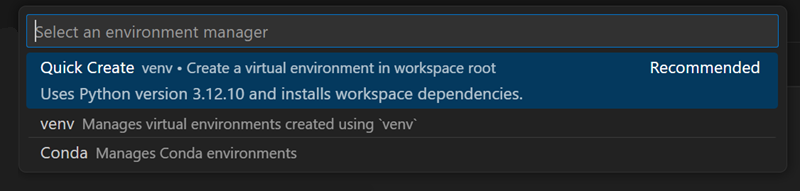
Python Environments chat tools
The Python Environments extension (preview) now includes two chat tools: “Get Python Environment Information” and “Install Python Package”. To use these tools, you can either directly reference them in your prompt by adding
#pythonGetEnvironmentInfo#pythonInstallPackage, or agent mode will automatically call the tool as applicable. These tools seamlessly detect appropriate environment information based on file or workspace context, and handle package installation with accurate environment resolution.Color picker when using Pylance
Pylance can now display an interactive color swatch directly in the editor for recognized color values in Python files, making it easier to visualize and pick colors on the fly. To try it out, you can enable python.analysis.enableColorPicker . Supported formats include #RGB (like "#001122") and #RGBA (like "#001122FF").

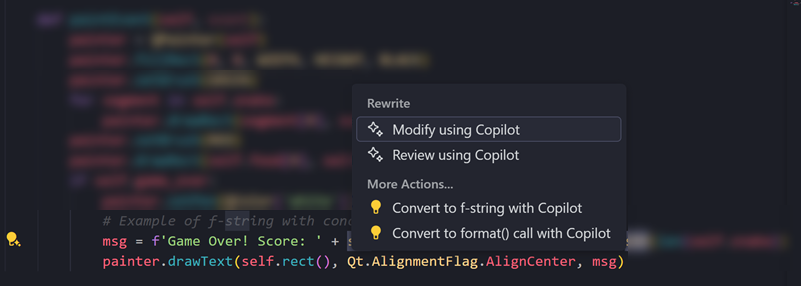
AI Code Actions: Convert Format String (Experimental)
When using Pylance, there's a new experimental AI Code Action for converting string concatenations to f-string or format(). To try it out, select the Convert to f-string with Copilot or the Convert to format() call with Copilot Code Actions through the light bulb when selecting a symbol in the string you wish to convert, or through Ctrl + ./Cmd + ..
This experience is enabled via the following setting:
">PR #4742