TypeScript is a typed superset of JavaScript that compiles to plain JavaScript. It offers classes, modules, and interfaces to help you build robust components.
Installing the TypeScript compiler
Visual Studio Code includes TypeScript language support but does not include the TypeScript compiler, tsc. You will need to install the TypeScript compiler either globally or in your workspace to transpile TypeScript source code to JavaScript (tsc HelloWorld.ts).
The easiest way to install TypeScript is through npm, the Node.js Package Manager. If you have npm installed, you can install TypeScript globally (-g) on your computer by:
tsc --version
Another option is to install the TypeScript compiler locally in your project (npm install --save-dev typescript) and has the benefit of avoiding possible interactions with other TypeScript projects you may have.
Hello World
Let's start with a simple Hello World Node.js example. Create a new folder HelloWorld and launch VS Code.
let message: string = 'Hello World';
console.log(message);
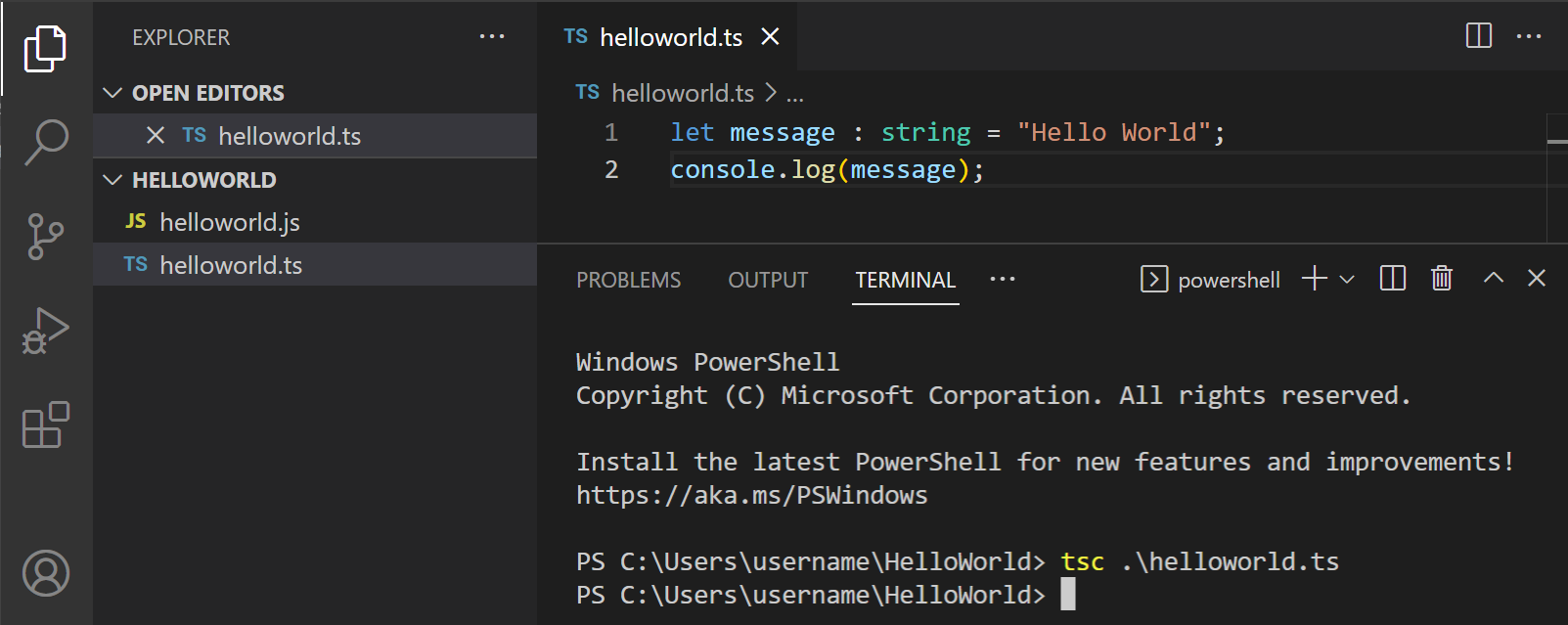
To compile your TypeScript code, you can open the Integrated Terminal (⌃` (Windows, Linux Ctrl+`)) and type tsc helloworld.ts. This will compile and create a new helloworld.js JavaScript file.
If you have Node.js installed, you can run node helloworld.js.
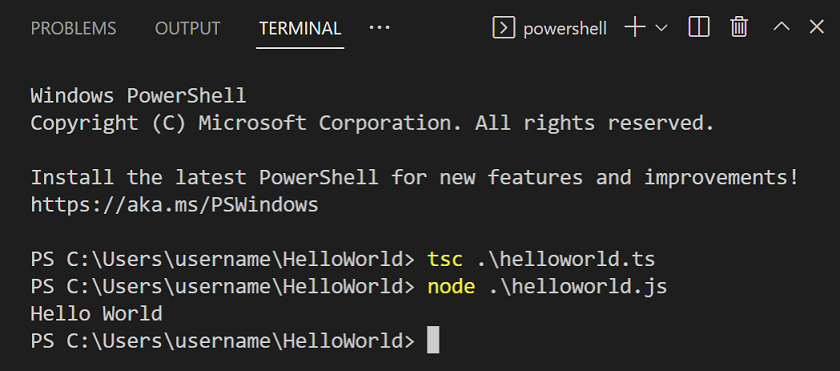
If you open helloworld.js, you'll see that it doesn't look very different from helloworld.ts. The type information has been removed and let is now var.
">configure VS Code to use a specific TypeScript version.
                8/12/2026