Using the Go extension for Visual Studio Code, you get features like IntelliSense, code navigation, symbol search, testing, debugging, and many more that will help you in Go development.

You can install the Go extension from the VS Code Marketplace.
Watch "Getting started with VS Code Go" for an explanation of how to build your first Go application using VS Code Go.
This article describes only a subset of the features the Go extension provides. See the extension's documentation for the full, up-to-date list of supported features.
IntelliSense
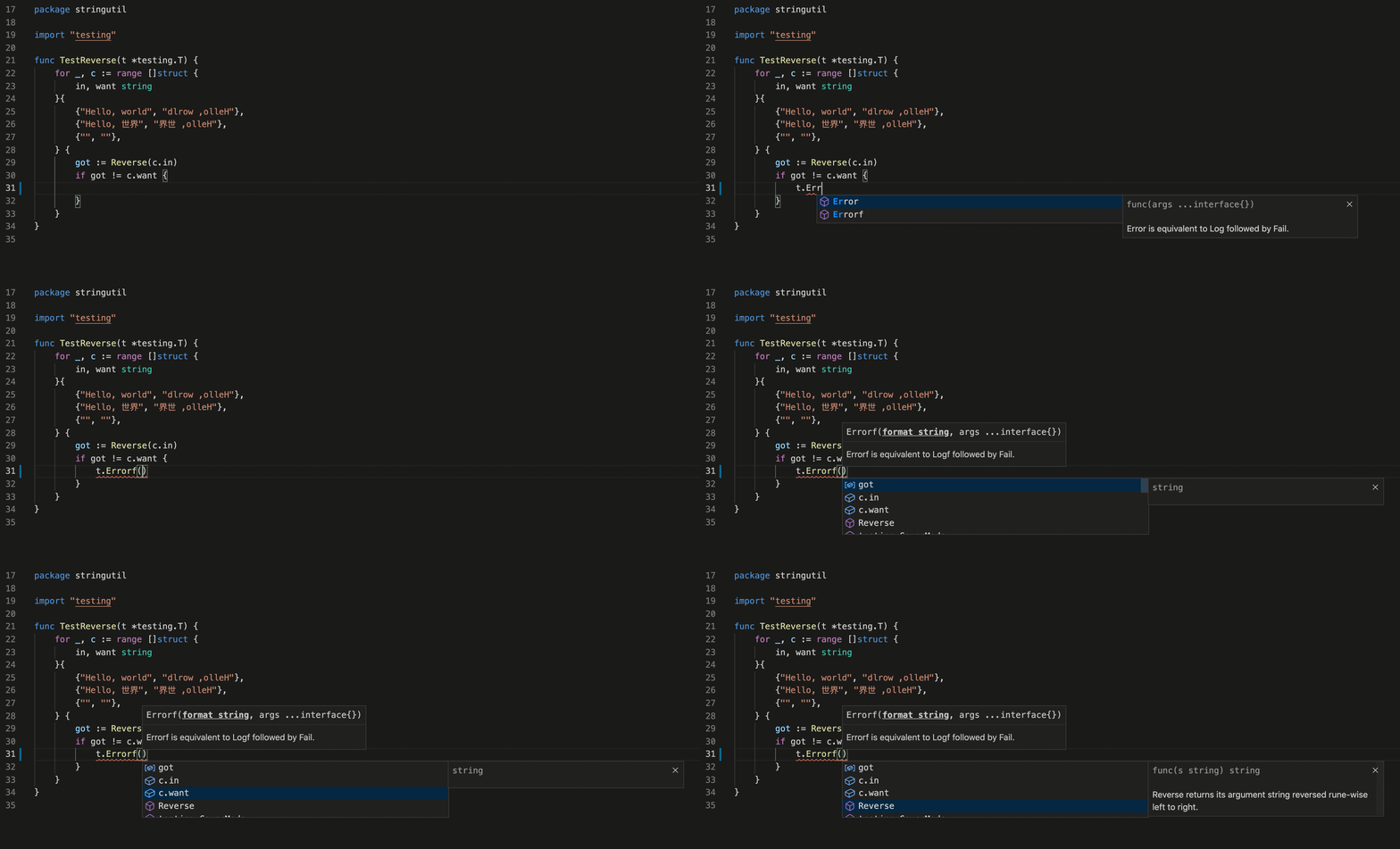
IntelliSense features are provided by the Go language server, gopls, maintained by the Go team. You can configure the behavior of gopls using the gopls settings.
Semantic syntax highlighting
For better syntax highlighting than the default TextMate-based syntax highlighting, we recommend enabling semantic highlighting by turning on Gopls' ui.semanticTokens setting.
"[go]": {
        "editor.formatOnSave": false
}
When you have multiple formatters activated for Go files, you can select the Go extension as the default formatter.
"gopls": {
    "formatting.gofumpt": true
}
Test
The VS Code Test UI and editor CodeLens elements allow users to easily run tests, benchmarks, profiles for a given function, file, package, or workspace.
Alternatively, the same functionality is available through a set of commands:
There are many test-related commands that you can explore by typing "Go: test" in the Command Palette.
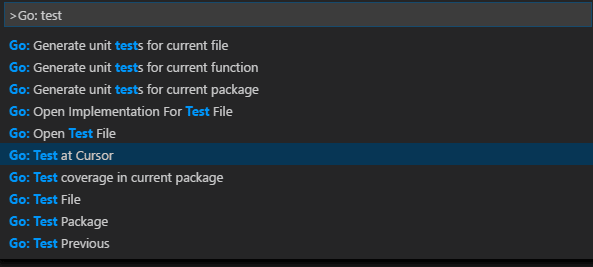
The first three above can be used to generate test skeletons for the functions in the current package, file, or at the cursor using gotests. The last few can be used to run tests in the current package, file, or at the cursor using go test. There is also a command for getting test coverage.
You can configure the extension to run tests and compute test coverage using:
go.testOnSavego.coverOnSavego.testFlags
Import packages
The extension organizes imports, and removes unused imports by default. For different behavior, you can override per-language default settings following these instructions.
Run the command Go: Add Import to get a list of packages that can be imported to your Go file. Choose one and it will get added in the import block of your Go file.
Refactoring
Select the area for refactoring (for example variable, function body, etc.). Click on the Code Action light bulb icon that appears in the selected area, or select Refactoring... or Rename Symbol (F2) from the VS Code context menu.
Debugging
The Go extension lets you debug Go code by utilizing the Delve debugger.
Read Debug Go programs in VS Code for setup steps, supported features, configurations, information on remote debugging and a troubleshooting guide. For general debugging features such as inspecting variables, setting breakpoints, and other activities that aren't language-dependent, review VS Code debugging.
Some features unique to Go are:
- Local & remote debugging
- Data inspection using Delve's expression syntax
- Dynamic configuration change and inspection options with
dlvcommand from DEBUG CONSOLE - Ability to hide/show system goroutines (use
hideSystemGoroutinesconfiguration) - Disassembly view support (right-click your source code and select Open Disassembly View)
- Experimental function call, core inspection, Mozilla
rrsupport
Next steps
This has been a brief overview showing the Go extension features within VS Code. For more information, see the details provided in the Go extension README.
To stay up to date on the latest features/bug fixes for the Go extension, see the CHANGELOG.
If you have any issues or feature requests, feel free to log them in the Go extension vscode-go repo.
If you'd like to learn more about VS Code, try these topics:
- Basic Editing - A quick introduction to the basics of the VS Code editor.
- Install an Extension - Learn about other extensions are available in the Marketplace.
- Code Navigation - Move quickly through your source code.
8/12/2026