Color Themes
Color themes enable you to modify the colors in the Visual Studio Code user interface to match your preferences and work environment. A Color Theme affects both the VS Code user interface elements and the editor highlighting colors.
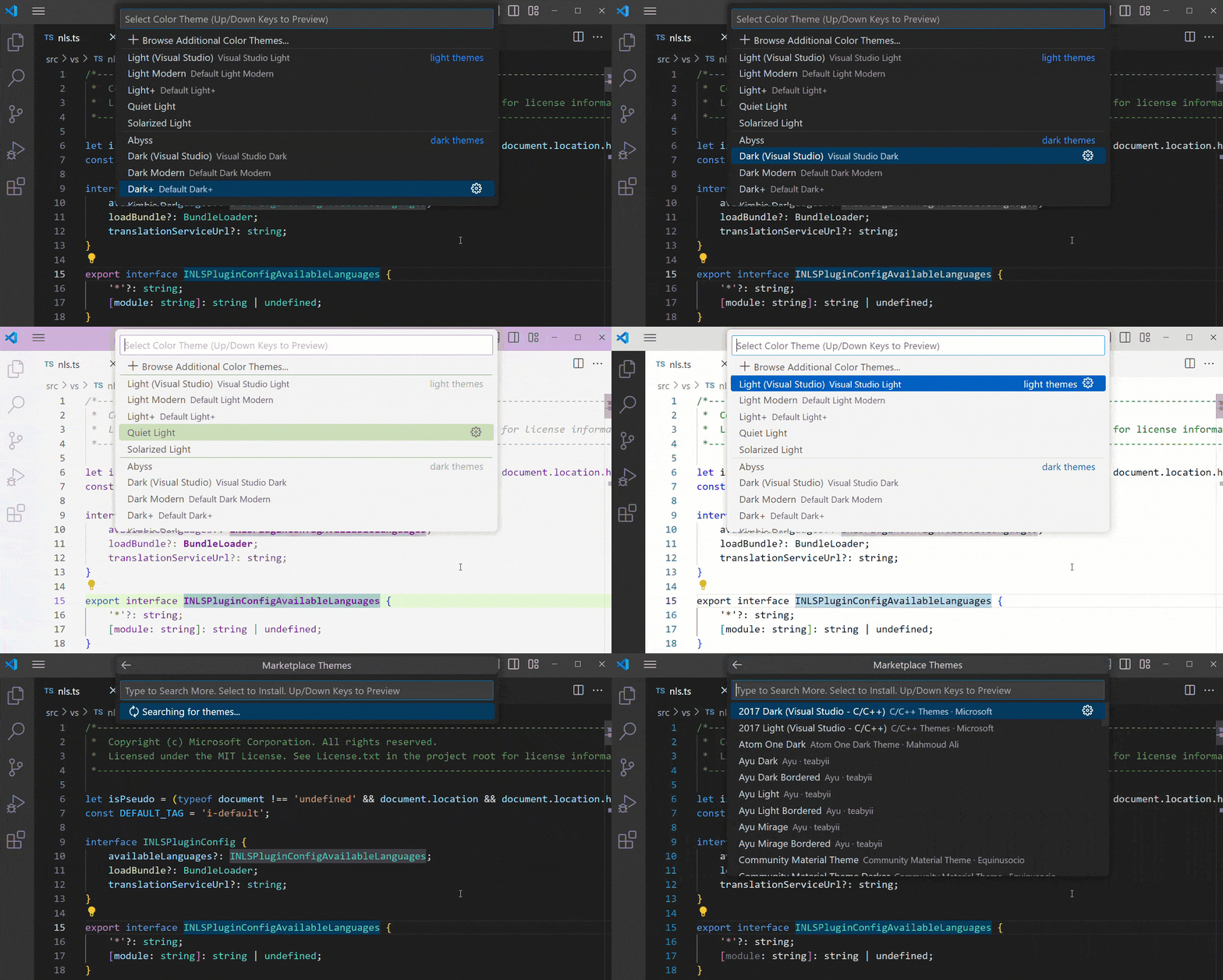
To select a different Color Theme:
-
Select the File > Preferences > Theme > Color Theme menu item, or use the Preferences: Color Theme command (⌘K ⌘T (Windows, Linux Ctrl+K Ctrl+T)) to display the Color Theme picker.
-
Use the Up and Down keys to navigate through the list and preview the colors of the theme.
-
Select the theme you want and press Enter.
The active color theme is stored in your user settings (keyboard shortcut ⌘, (Windows, Linux Ctrl+,)).
"workbench.colorCustomizations": {
    "[Monokai]": {
        "sideBar.background": "#347890"
    }
}
If a customization applies to more than one theme, you can name multiple themes or use * as a wildcard at the beginning and end of the name:
  "workbench.colorCustomizations": {
      "diffEditor.removedTextBorder": "default"
  }
Editor syntax highlighting
To tune the editor's syntax highlighting colors, use
editor.tokenColorCustomizations
in your user settings settings.json file:
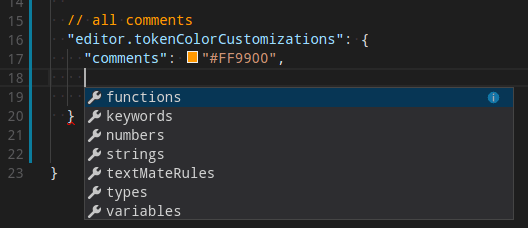
A preconfigured set of syntax tokens ('comments', 'strings', ...) is available for the most common constructs. If you want more, you can do so by directly specifying TextMate theme color rules:
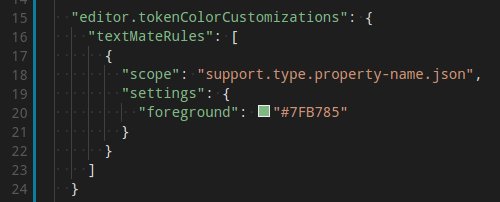
Note
Directly configuring TextMate rules is an advanced skill, as you need to understand how TextMate grammars work. Go to the Color Theme guide for more information.
To customize specific themes, you can do this in one of the following ways:
"editor.semanticTokenColorCustomizations": {
    "[Rouge]": {
        "enabled": true
    }
}
When semantic highlighting is enabled and available for a language, it is up to the theme to configure whether and how semantic tokens are colored. Some semantic tokens are standardized and map to well-established TextMate scopes. If the theme has a coloring rule for these TextMate scopes, the semantic tokens are rendered with that color, without the need for any additional coloring rules.
Additional styling rules can be configured in editor.semanticTokenColorCustomizations":
  // Specifies the file icon theme used in the workbench.
  "workbench.iconTheme": "vs-seti"
Create your own File Icon Theme
You can create your own File Icon Theme from icons (preferably SVG), see the File Icon Theme article in our Extension API section for details.
VS Code for the Web
VS Code for the Web provides a free, zero-install VS Code experience running entirely in your browser at https://vscode.dev.
You can share and experience color themes through VS Code for the Web through the URL schema: https://vscode.dev/editor/theme/<extensionId>.
For instance, you can go to https://vscode.dev/editor/theme/sdras.night-owl to experience the Night Owl theme without having to go through the download and install process.
You can learn more about previewing and sharing themes with in the VS Code for the Web documentation.
Product Icon Themes
Product Icon Themes enable you to change the icons in the VS Code user interface, other than the icons for specific file types. For example, you can modify the icons for the views in the Activity Bar, or the icons in the title bar for changing the layout.
Notice in the following image how the Activity Bar icons are updated when selecting a different Product Icon Theme.
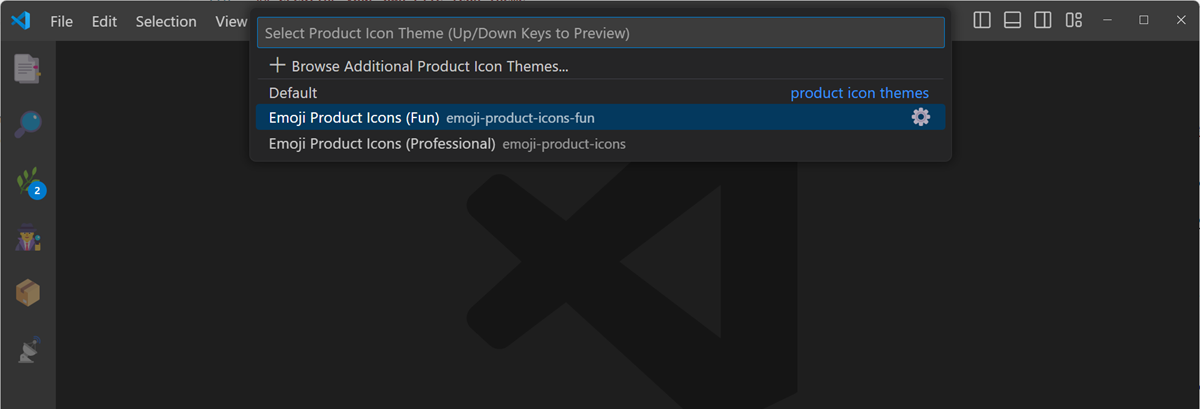
To select a different Product Icon Theme:
-
Select the File > Preferences > Theme > Product Icon Theme menu item, or use the Preferences: Product Icon Theme command to display the Product Icon Theme picker.
-
Use the Up and Down keys to navigate through the list and preview the icons of the theme.
-
Select the theme you want and press Enter.
By default, VS Code comes with one Product Icon Theme, Default. You can select more Product Icon Themes from the VS Code Marketplace directly from the Product Icon Theme picker by selecting Browse Additional Product Icon Themes....
Next steps
Themes are just one way to customize VS Code. If you'd like to learn more about VS Code customization and extensibility, try these articles:
- Settings - Learn how to configure VS Code to your preferences through user and workspace settings.
- Snippets - Add extra snippets to your favorite language.
- Extension API - Learn about other ways to extend VS Code.
- Color Theme - Color Theme extension API.
- File Icon Theme - File Icon Theme extension API.
02/04/2026