Visual Studio Code lets you perform most tasks directly from the keyboard. This article explains how you can modify the default keyboard shortcuts that come with VS Code.
Note
If you visit this page on a Mac, you will see the keyboard shortcuts for the Mac. If you visit using Windows or Linux, you will see the keys for that platform. If you need the keyboard shortcuts for another platform, hover your mouse over the key you are interested in.
Keyboard Shortcuts editor
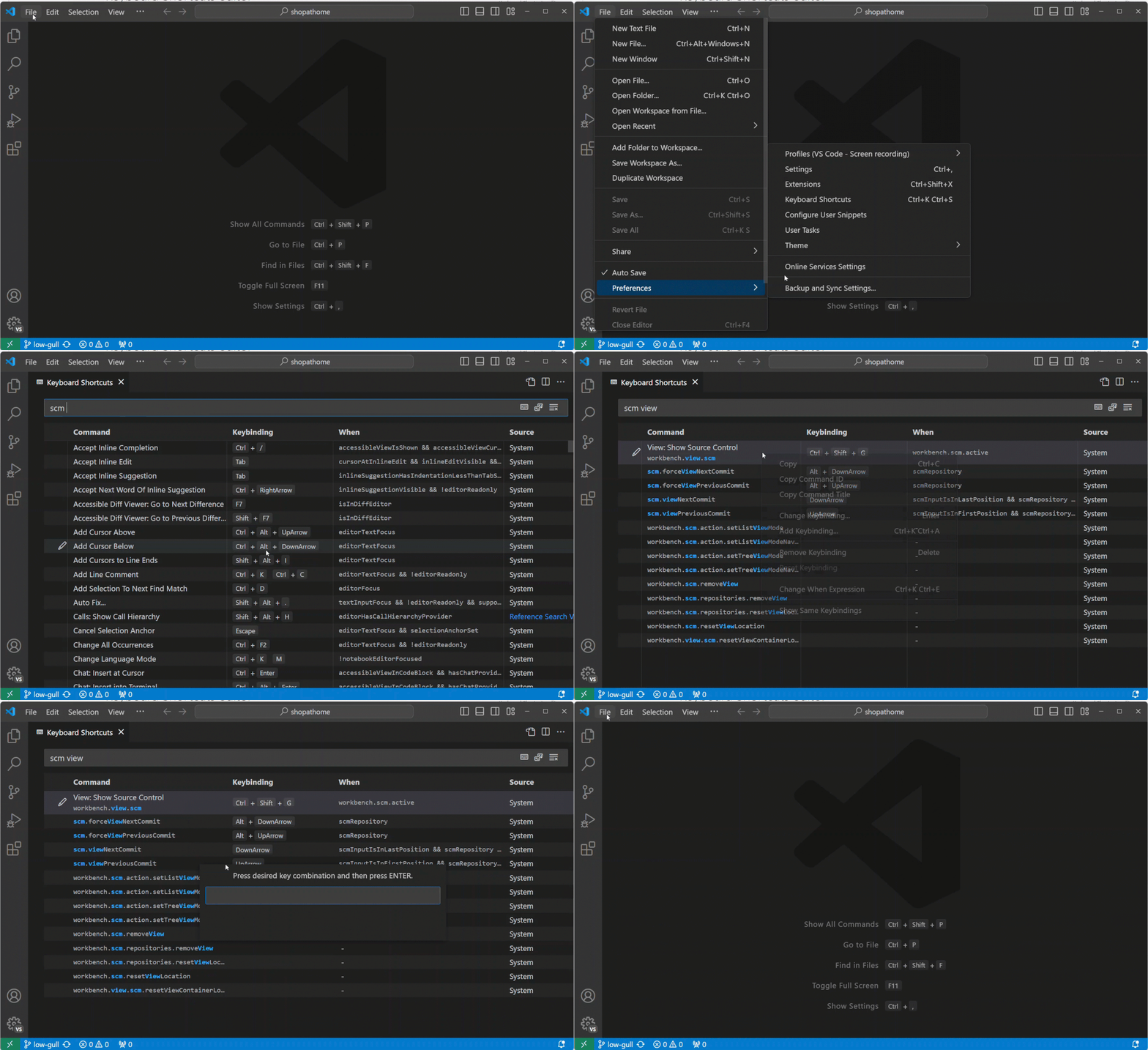
VS Code provides a rich keyboard shortcut editing experience with the Keyboard Shortcuts editor. The editor lists all available commands with and without keyboard shortcuts, and enables you to change, remove, or reset their keyboard shortcuts using the available actions. To find commands or keyboard shortcuts, use the search box and enter a command or shortcut to filter the list.
To open the Keyboard Shortcuts editor, select the File > Preferences > Keyboard Shortcuts menu, or use the Preferences: Open Keyboard Shortcuts command (⌘K ⌘S (Windows, Linux Ctrl+K Ctrl+S)) in the Command Palette. The Keyboard Shortcuts editor opens by default in a modal overlay on top of the editor area.
Note
The keyboard shortcuts match your current keyboard layout. For example, keyboard shortcut Cmd+\ in US keyboard layout will be shown as Ctrl+Shift+Alt+Cmd+7 when the layout is changed to German. The dialog to change a keyboard shortcut assigns the correct and desired keyboard shortcut according to your keyboard layout.
Customize shortcuts for UI actions
To customize a keyboard shortcut for a UI action, right-click on any action item in your workbench, and select Configure Keybinding. This opens the Keyboard Shortcuts editor, filtered to the corresponding command. If the action has a when clause, it's automatically included, making it easier to set up your keyboard shortcuts just the way you need them.
Keymap extensions
Keymap extensions modify the VS Code shortcuts to match those of other editors, so you don't need to learn new keyboard shortcuts.
Select the File > Preferences > Migrate Keyboard Shortcuts from... menu to get a list of popular keymap extensions. There is also a Keymaps category of extensions in the Marketplace.
Keyboard Shortcuts reference
We have a printable version of the default keyboard shortcuts. Select Help > Keyboard Shortcut Reference to display a condensed PDF version suitable for printing as an easy reference.
The following links provide access to the three platform-specific versions (US English keyboard):
Detecting keyboard shortcut conflicts
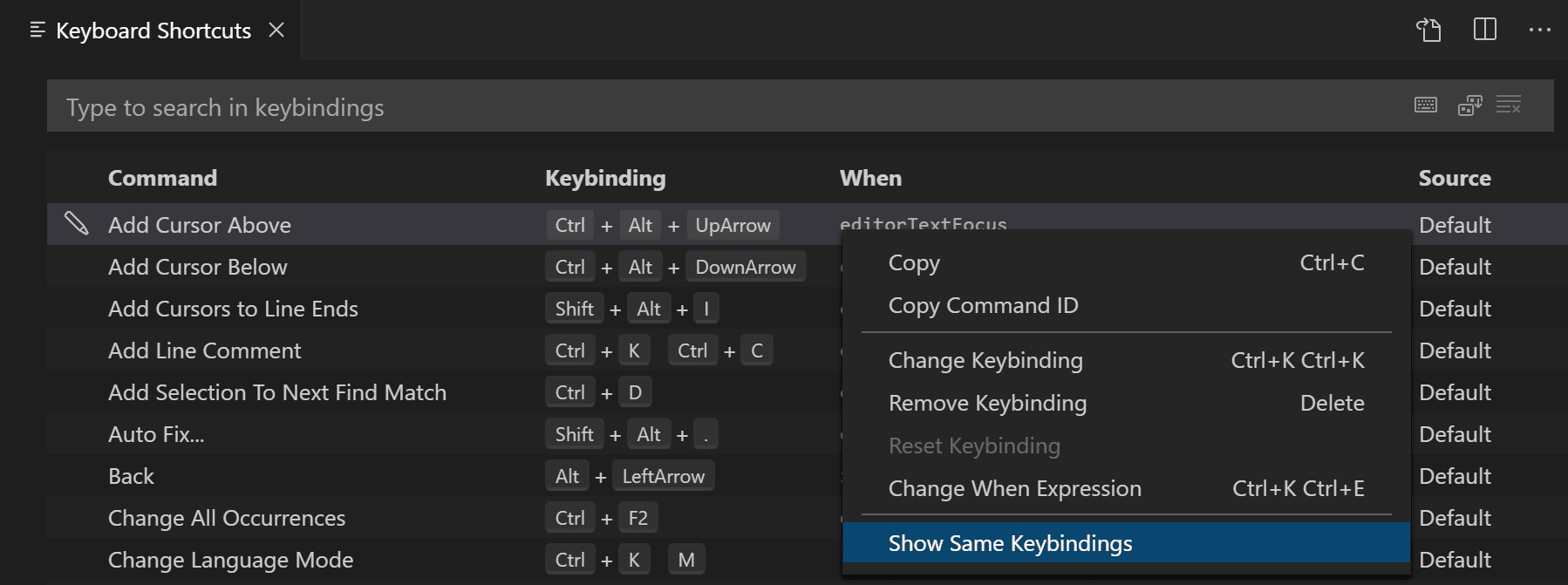
If you have many extensions installed or you have modified your keyboard shortcuts, there might be keyboard shortcut conflicts, where the same keyboard shortcut is mapped to multiple commands. This can result in confusing behavior, especially if different keyboard shortcuts are going in and out of scope as you move around the editor.
Right-click on an item in the list of keyboard shortcuts, and select Show Same Keybindings to view all entries with the same keyboard shortcut.
Troubleshooting keyboard shortcuts
To troubleshoot keyboard shortcut problems, you can execute the command Developer: Toggle Keyboard Shortcuts Troubleshooting. This activates logging of dispatched keyboard shortcuts and opens the Output panel with the corresponding log file.
You can then press your desired keyboard shortcut and check what keyboard shortcut VS Code detects and what command is invoked.
For example, when pressing cmd+/ in a code editor on macOS, the logging output would be:
{
  "key": "cmd+shift+a",
  "command": "workbench.action.openAgentsWindow",
  "systemWide": true
}
System-wide keyboard shortcuts have the following restrictions:
- They are available only in the desktop version of VS Code.
- They apply only to user-defined keyboard shortcuts, not default or extension-contributed shortcuts.
- They support a single key combination, not chords.
- For the system-wide trigger, they ignore the
whenclause and remain active while VS Code is running. - They might fail to register if the operating system or another application uses the same key combination. VS Code shows a notification when registration fails.
Note
A system-wide keyboard shortcut captures its key combination from other applications while VS Code is running.
The command determines whether to bring a VS Code window to the foreground. To reveal the current window before running a command, use runCommands with workbench.action.focusWindow. For example:
// Keyboard shortcuts that are active when the focus is in the editor
{ "key": "home",            "command": "cursorHome",                  "when": "editorTextFocus" },
{ "key": "shift+home",      "command": "cursorHomeSelect",            "when": "editorTextFocus" },

// Keyboard shortcuts that are complementary
{ "key": "f5",              "command": "workbench.action.debug.continue", "when": "inDebugMode" },
{ "key": "f5",              "command": "workbench.action.debug.start",    "when": "!inDebugMode" },

// Global keyboard shortcuts
{ "key": "ctrl+f",          "command": "actions.find" },
{ "key": "alt+left",        "command": "workbench.action.navigateBack" },
{ "key": "alt+right",       "command": "workbench.action.navigateForward" },

// Global keyboard shortcuts using chords (two separate keypress actions)
{ "key": "ctrl+k enter",    "command": "workbench.action.keepEditor" },
{ "key": "ctrl+k ctrl+w",   "command": "workbench.action.closeAllEditors" },
Accepted keys
The key is made up of modifiers and the key itself.
The following modifiers are accepted:
| Platform | Modifiers |
|---|---|
| macOS | Ctrl+, Shift+, Alt+, Cmd+ |
| Windows | Ctrl+, Shift+, Alt+, Win+ |
| Linux | Ctrl+, Shift+, Alt+, Meta+ |
The following keys are accepted:
- f1-f19, a-z, 0-9
- `, -, =, [, ], \, ;, ', ,, ., /
- left, up, right, down, pageup, pagedown, end, home
- tab, enter, escape, space, backspace, delete
- pausebreak, capslock, insert
- numpad0-numpad9, numpad_multiply, numpad_add, numpad_separator
- numpad_subtract, numpad_decimal, numpad_divide
Command arguments
You can invoke a command with arguments. This is useful if you often perform the same operation on a specific file or folder. You can add a custom keyboard shortcut to do exactly what you want.
The following is an example overriding the Enter key to print some text:
{
  "key": "ctrl+alt+c",
  "command": "runCommands",
  "args": {
    "commands": [
      "editor.action.copyLinesDownAction",
      "cursorUp",
      "editor.action.addCommentLine",
      "cursorDown"
    ]
  }
},
To pass arguments to commands:
This example creates a new untitled TypeScript file and inserts a custom snippet.
\n\tconstructor() {\n\t\t$0\n\t}\n}"
        }
      }
    ]
  }
},
Note that commands run by runCommands receive the value of "args" as the first argument. In the previous example, workbench.action.files.newUntitledFile receives {"languageId": "typescript" } as its first and only argument.
To pass several arguments, you need to have "args" as an array:
// In Default Keyboard Shortcuts
...
{ "key": "tab", "command": "tab", "when": ... },
{ "key": "tab", "command": "jumpToNextSnippetPlaceholder", "when": ... },
{ "key": "tab", "command": "acceptSelectedSuggestion", "when": ... },
...

// To remove the second rule, for example, add in keybindings.json:
{ "key": "tab", "command": "-jumpToNextSnippetPlaceholder" }
To override a specific keyboard shortcut rule with an empty action, you can specify an empty command:
{ "key": "cmd+[Slash]", "command": "editor.action.commentLine", "when": "editorTextFocus" }
Accepted scan codes:
- [F1]-[F19], [KeyA]-[KeyZ], [Digit0]-[Digit9]
- [Backquote], [Minus], [Equal], [BracketLeft], [BracketRight], [Backslash], [Semicolon], [Quote], [Comma], [Period], [Slash]
- [ArrowLeft], [ArrowUp], [ArrowRight], [ArrowDown], [PageUp], [PageDown], [End], [Home]
- [Tab], [Enter], [Escape], [Space], [Backspace], [Delete]
- [Pause], [CapsLock], [Insert]
- [Numpad0]-[Numpad9], [NumpadMultiply], [NumpadAdd], [NumpadComma]
- [NumpadSubtract], [NumpadDecimal], [NumpadDivide]
when clause contexts
VS Code gives you precise control over when your keyboard shortcuts are enabled through the optional when clause. If your keyboard shortcut doesn't have a when clause, the keyboard shortcut is globally available at all times. A when clause evaluates to either true or false for enabling keyboard shortcuts.
VS Code sets various context keys and specific values depending on what elements are visible and active in the VS Code UI. For example, the built-in Start Debugging command has the keyboard shortcut F5, which is only enabled when there is an appropriate debugger available (context debuggersAvailable is true) and the editor isn't in debug mode (context inDebugMode is false):
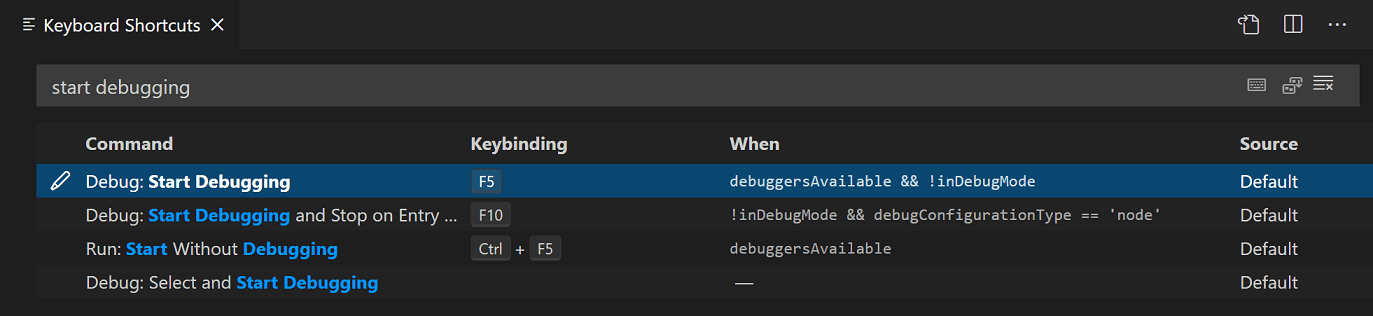
You can also view a keyboard shortcut's when clause directly in the default keybinding.json (Preferences: Open Default Keyboard Shortcuts (JSON)):
||isWindows"And &&"textInputFocus && !editorReadonly"Matches =~"resourceScheme =~ /^untitled$|^file$/"You can find the full list of when clause conditional operators in the when clause contexts reference.
Available contexts
You can find some of the available
whenclause contexts in the when clause context reference.The list there isn't exhaustive and you can find other
whenclause contexts by searching and filtering in the Keyboard Shortcuts editor (Preferences: Open Keyboard Shortcuts ) or reviewing the defaultkeybindings.jsonfile (Preferences: Open Default Keyboard Shortcuts (JSON)).Custom keyboard shortcuts for refactorings
The
editor.action.codeActioncommand lets you configure keyboard shortcuts for specific Refactorings (Code Actions). For example, the keyboard shortcut below triggers the Extract function refactoring Code Action:// Original, in Default Keyboard Shortcuts { "key": "ctrl+shift+k", "command": "editor.action.deleteLines", "when": "editorTextFocus" }, // Modified, in User/keybindings.json, Ctrl+D now will also trigger this action { "key": "ctrl+d", "command": "editor.action.deleteLines", "when": "editorTextFocus" },How can I add a keyboard shortcut for only certain file types?
Use the
editorLangIdcontext key in yourwhenclause:">I have modified my keyboard shortcuts inkeybindings.json; why don't they work?The most common problem is a syntax error in the file. Otherwise, try removing the
whenclause or picking a differentkey. Unfortunately, at this point, it is a trial and error process.08/05/2026