Source code refactoring can improve the quality and maintainability of your project by restructuring your code, while not modifying the runtime behavior. Visual Studio Code supports refactoring operations (refactorings) such as Extract Method and Extract Variable to improve your codebase from within the editor.
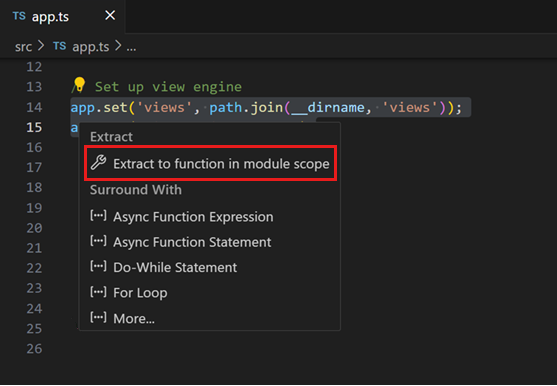
For example, a common refactoring used to avoid duplicating code (a maintenance headache) is the Extract Method refactoring, where you select source code and pull it out into its own shared method, so that you can reuse the code elsewhere.
Refactorings are provided by a language service. VS Code has built-in support for TypeScript and JavaScript refactoring through the TypeScript language service. Refactoring support for other programming languages is enabled through VS Code extensions that contribute language services.
The UI elements and VS Code commands for refactoring are the same across the different languages. This article demonstrates refactoring support in VS Code with the TypeScript language service.
Code Actions = Quick Fixes and refactorings
In VS Code, Code Actions can provide both refactorings and Quick Fixes for detected issues (highlighted with red squiggles). When the cursor is on a squiggle or on a selected text region, VS Code shows a light bulb icon in the editor to indicate that a Code Action is available. If you select the Code Action light bulb or use the Quick Fix command ⌘. (Windows, Linux Ctrl+.), the Quick Fixes and refactorings control is presented.
If you prefer to only see refactorings without Quick Fixes, then you can use the Refactor command (⌃⇧R (Windows, Linux Ctrl+Shift+R)).
Note: You can completely disable Code Action lightbulbs in the editor with the
editor.lightbulb.enablesetting. You can still open Quick Fixes through Quick Fix command and ⌘. (Windows, Linux Ctrl+.) keyboard shortcut.
Code Actions on save
With the editor.codeActionsOnSave setting, you can configure a set of Code Actions that are automatically applied when you save a file, for example to organize imports. Based on your workspace files and active extensions, IntelliSense provides a list of available Code Actions.
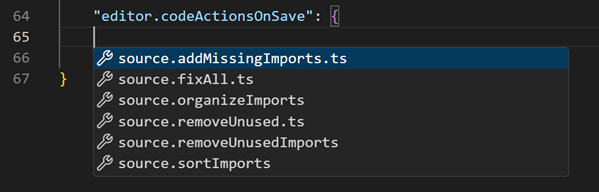
You can configure one or more Code Actions for editor.codeActionsOnSave . The Code Actions are then run in the order they're listed.
The following example shows how to configure multiple Code Actions on save:
{
  "key": "ctrl+shift+r ctrl+e",
  "command": "editor.action.codeAction",
  "args": {
    "kind": "refactor.extract.function"
  }
}
Code Action kinds are specified by extensions using the enhanced CodeActionProvider API. Kinds are hierarchical, so "kind": "refactor" shows all refactoring Code Actions, whereas "kind": "refactor.extract.function" only shows Extract function refactorings.
Using the above keyboard shortcut, if only a single "refactor.extract.function" Code Action is available, it is automatically applied. If multiple Extract function Code Actions are available, VS Code brings up a context menu to select them:
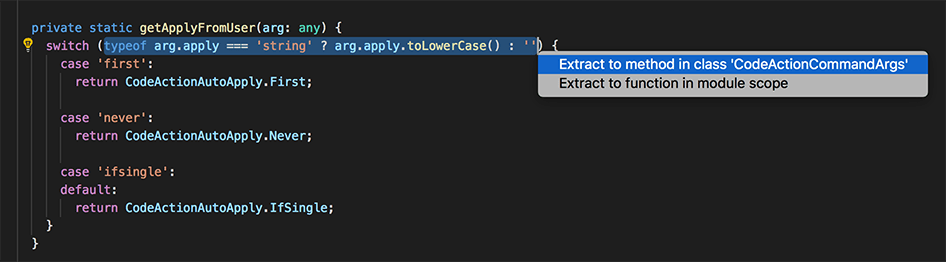
You can also control how and when Code Actions are automatically applied by using the apply argument:
{
  "key": "shift+ctrl+e",
  "command": "editor.action.codeAction",
  "args": {
    "kind": "refactor.extract.constant",
    "preferred": true,
    "apply": "ifSingle"
  }
}
Extensions with refactorings
You can find extensions that support refactoring by looking in the VS Code Marketplace. You can go to the Extensions view (⇧⌘X (Windows, Linux Ctrl+Shift+X)) and type 'refactor' in the search box. You can then sort by install count or ratings to see which extensions are popular.
Tip: The extensions shown above are dynamically queried. Select an extension tile above to read the description and reviews to decide which extension is best for you.
Next steps
- Intro Video - Code Editing - Watch an introductory video on code editing features.
- Code Navigation - VS Code lets you move quickly through your source code.
- Debugging - Learn about debugging with VS Code.
Common questions
Why don't I see any light bulbs when there are errors in my code?
Light bulbs (Code Actions) are only shown when the cursor is over the text showing the error. Hovering over the text shows the error description, but you need to move the cursor or select text to see light bulbs for Quick Fixes and refactorings.
8/12/2026