Visual Studio Code has many features to help make the editor accessible to all users. Zoom levels and High Contrast colors improve editor visibility, keyboard-only navigation supports use without a mouse, and the editor is optimized for screen readers.
Zoom
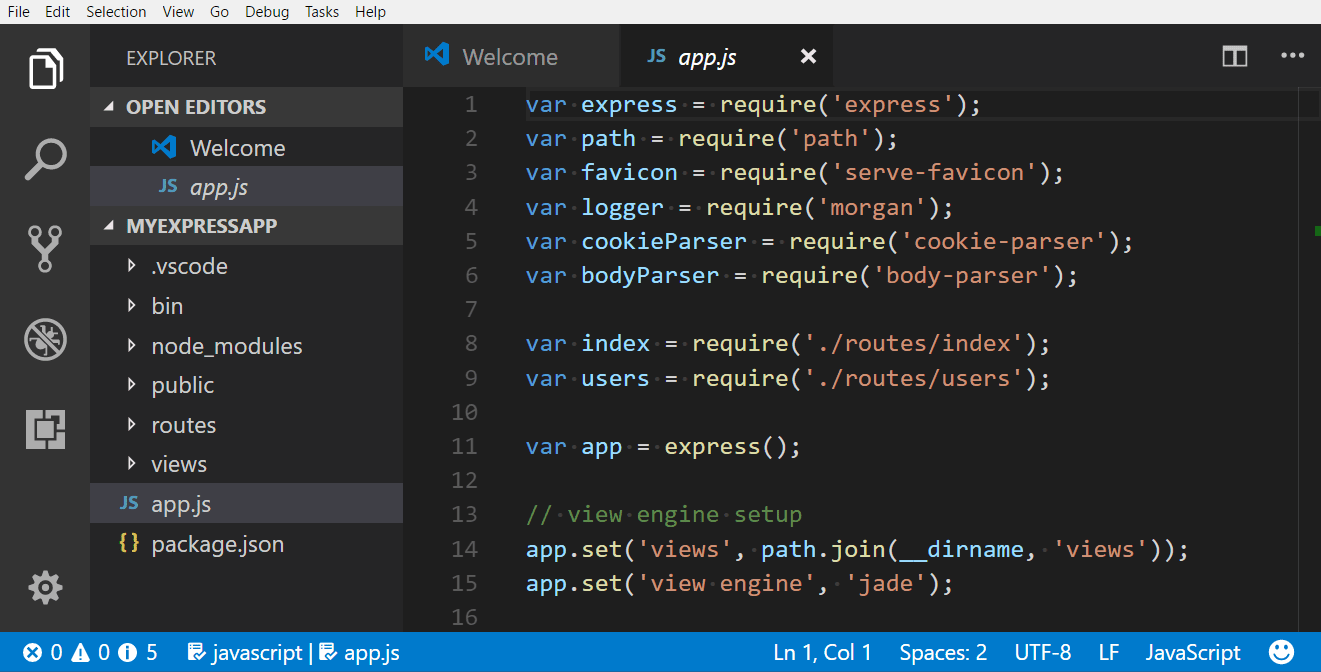
You can adjust the zoom level in VS Code with the View > Appearance > Zoom commands. Each Zoom command increases or decreases the zoom level by 20 percent.
- View > Appearance > Zoom In (⌘= (Windows, Linux Ctrl+=)) - increase the zoom level.
- View > Appearance > Zoom Out (⌘- (Windows, Linux Ctrl+-)) - decrease the zoom level.
- View > Appearance > Reset Zoom (⌘Numpad0 (Windows, Linux Ctrl+Numpad0)) - reset the zoom level to 0.
Note: If you are using a magnifier, hold down the Alt key while viewing the hover to move the cursor over the hover.
Persisted zoom level
When you adjust the zoom level with the View > Appearance > Zoom In / Out commands, the zoom level is persisted in the window.zoomLevel setting. The default value is 0. Each increment above or below 0 represents zooming 20% in or out. You can also enter decimals to adjust the zoom level with a finer granularity.
Accessibility help
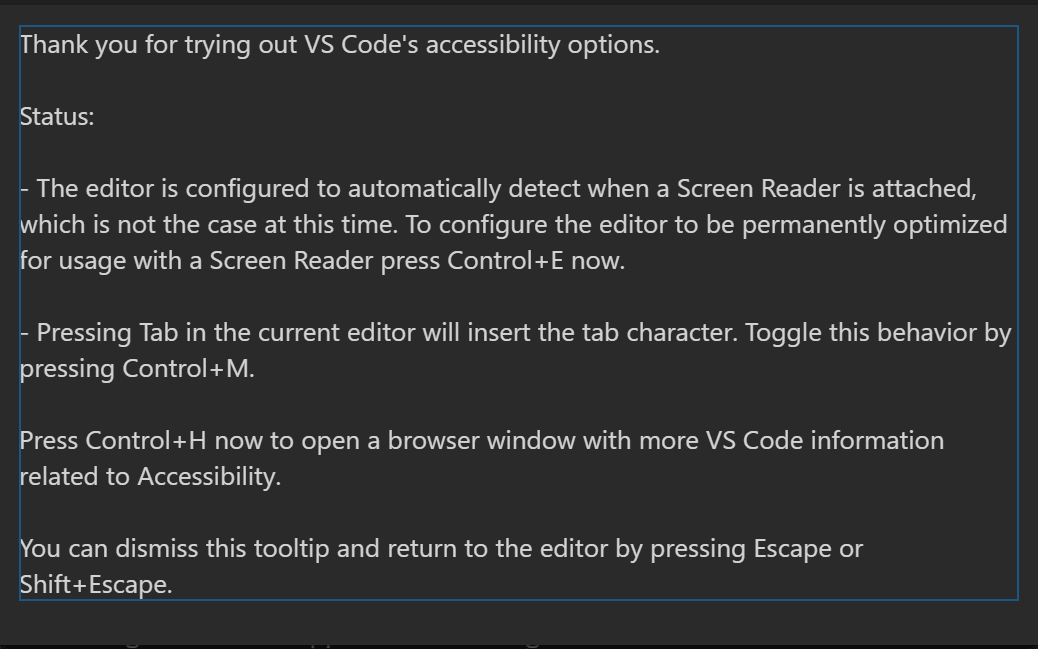
The command Open Accessibility Help ⌥F1 (Windows Alt+F1, Linux Shift+Alt+F1) opens a help menu based on the current context. It currently applies to the editor, terminal, notebook, Chat view, and Inline Chat features.
You can dismiss the accessibility help menu or open additional documentation from within the help menu.
High Contrast theme
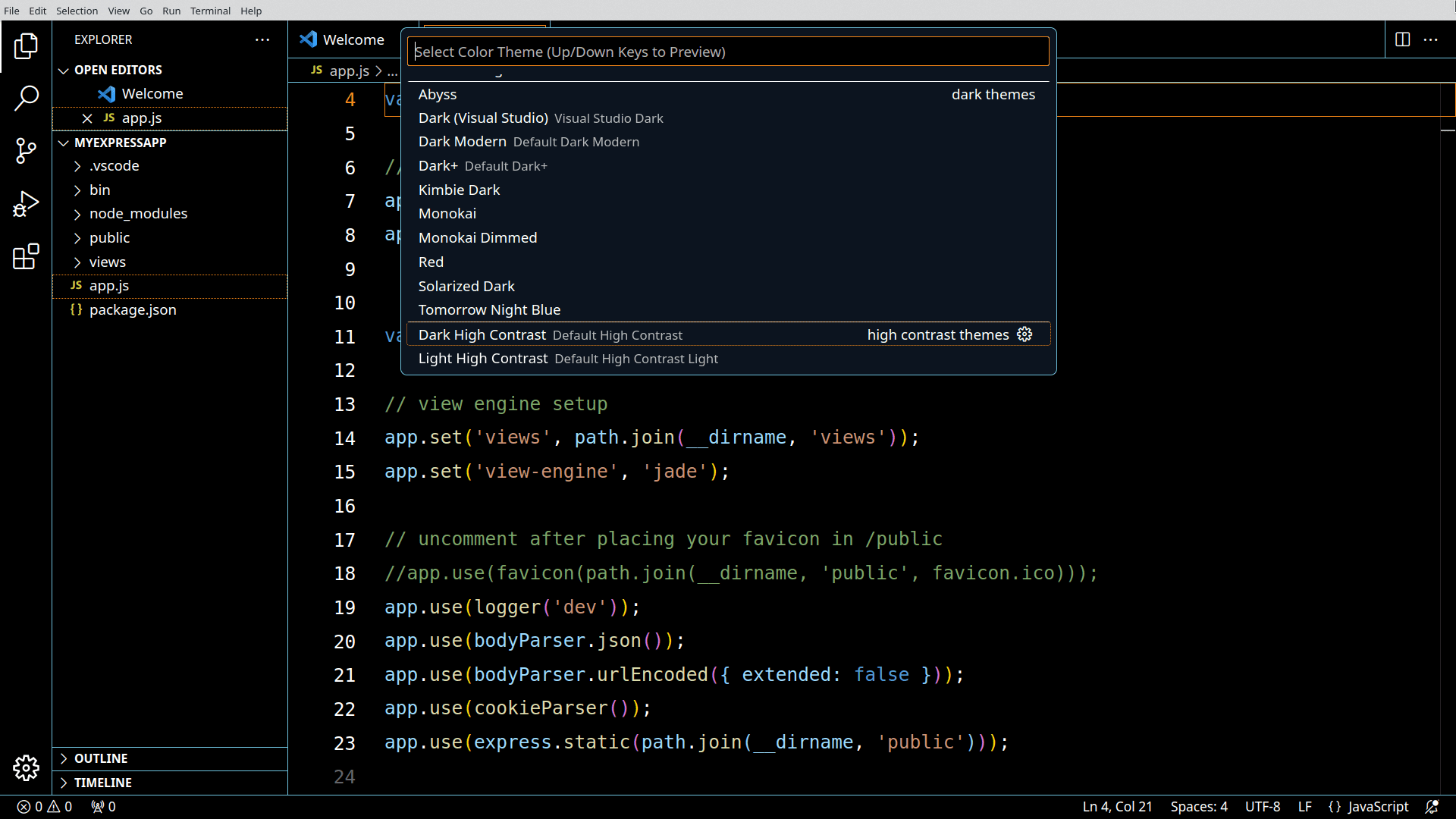
VS Code supports a High Contrast color theme on all platforms. Use File > Preferences > Theme > Color Theme (⌘K ⌘T (Windows, Linux Ctrl+K Ctrl+T)) to display the Select Color Theme dropdown and select the High Contrast theme.
Color vision accessibility
You can search for extensions in Visual Studio Marketplace that are compatible with color vision deficiency. Use the Extensions view ⇧⌘X (Windows, Linux Ctrl+Shift+X) and search for "color blind" to populate relevant options.
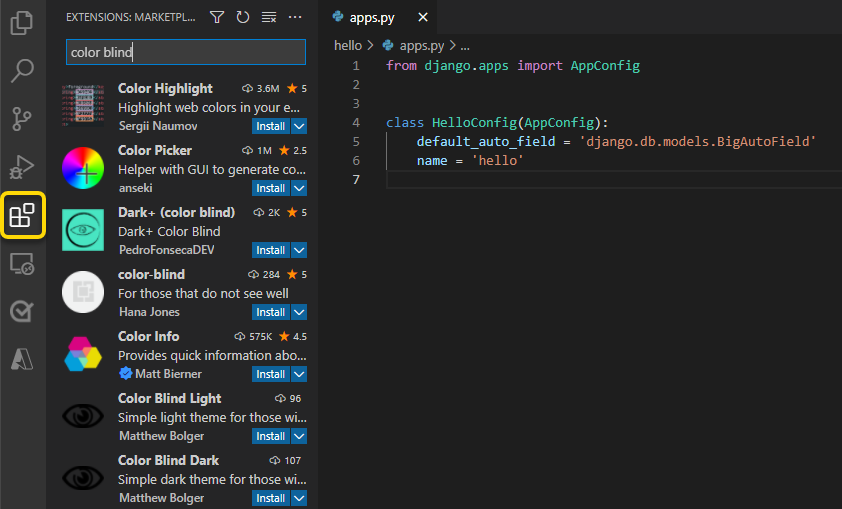
Once you have installed a color theme from the Marketplace, you can change the color theme with File > Preferences > Theme > Color Theme ⌘K ⌘T (Windows, Linux Ctrl+K Ctrl+T).
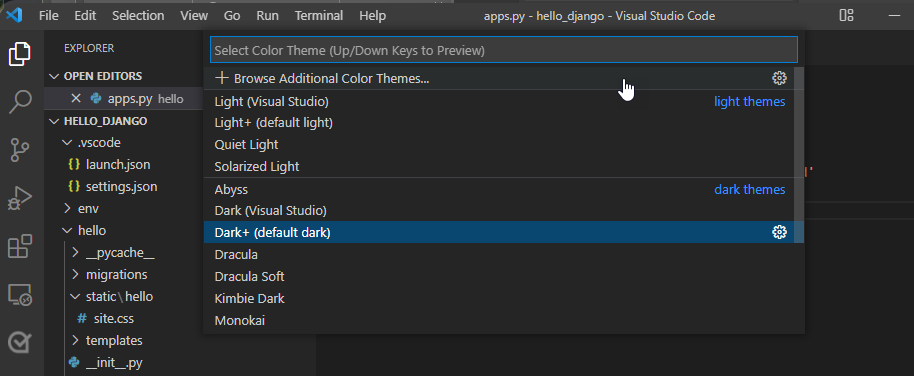
Recommended themes for color vision accessibility
- GitHub - Accessible to most forms of color blindness and matches the themes in GitHub's settings.
- Gotthard - Optimized for approximately 20 programming languages.
- Blinds - Created for people with deuteranopia, featuring a high contrast color ratio.
- Greative - Considers both color blindness and light sensitivity.
- Pitaya Smoothie - Accessible to most forms of color blindness and compliant with WCAG 2.1 criteria for color contrast.
Customizing warning colors
The default Color Theme for VS Code is Dark+. However, you can customize both the theme and property colors in the user interface.
Note: Go to Customizing a Color Theme for more information about overriding the colors in your current theme.
To customize the error and warning squiggles, go to File > Preferences > Settings for user settings. Search for "color customizations" to find the Workbench: Color Customizations setting, and open your user settings.json file by selecting Edit in settings.json.
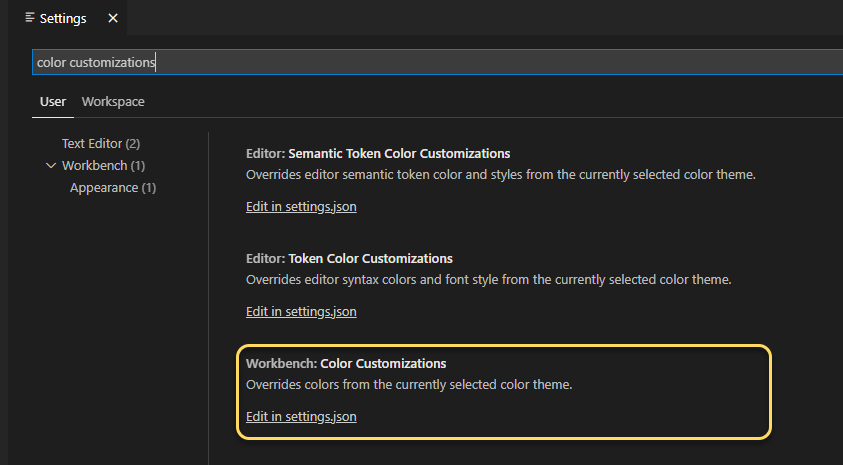
In your settings.json file, nest the following code inside the outermost curly braces. You can assign a color to each object by entering a hex code.
">Code Navigation - Move quickly through your source code.
                02/04/2026