IntelliSense is a general term for various code editing features including: code completion, parameter info, quick info, and member lists. IntelliSense features are sometimes called by other names such as "code completion", "content assist", and "code hinting."
IntelliSense for your programming language
Visual Studio Code IntelliSense is provided for JavaScript, TypeScript, JSON, HTML, CSS, SCSS, and Less out of the box. VS Code supports word-based completions for any programming language but can also be configured to have richer IntelliSense by installing a language extension.
Below are the most popular language extensions in the Visual Studio Marketplace. Select an extension tile below to read the description and reviews to decide which extension is best for you.
IntelliSense features
VS Code IntelliSense features are powered by a language service. A language service provides intelligent code completions based on language semantics and an analysis of your source code. If a language service knows possible completions, the IntelliSense suggestions will pop up as you type. If you continue typing characters, the list of members (variables, methods, and more) is filtered to only include members containing your typed characters. Pressing Tab or Enter will insert the selected member.
You can trigger IntelliSense in any editor window by typing ⌃Space (Windows, Linux Ctrl+Space) or by typing a trigger character (such as the dot character (.) in JavaScript).
Tip
The suggestions control supports CamelCase filtering, which means that you can type the letters that are upper cased in a method name to limit the suggestions. For example, "cra" brings up "createApplication".
If you prefer, you can turn off IntelliSense while you type. See Customizing IntelliSense, to learn how to disable or customize VS Code's IntelliSense features.
As provided by the language service, you can see quick info for each method by either pressing ⌃Space (Windows, Linux Ctrl+Space) or selecting the > icon. The accompanying documentation for the method expands to the side. The expanded documentation remains available and updates as you navigate the list. You can close this by pressing ⌃Space (Windows, Linux Ctrl+Space) again or by selecting the close icon.
After choosing a method, you are provided with parameter info.
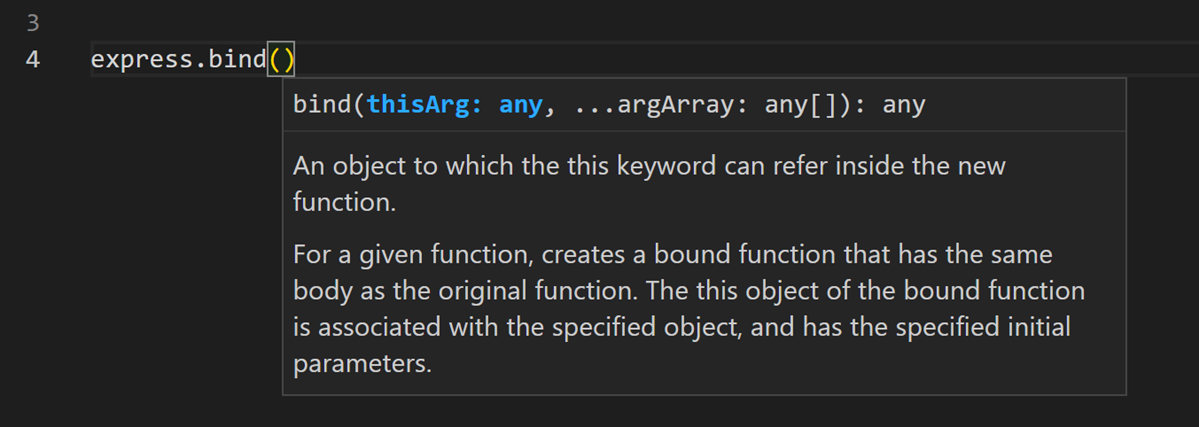
When applicable, a language service surfaces the underlying types in the quick info and method signatures. In the previous screenshot, you can see several any types. Because JavaScript is dynamic and doesn't need or enforce types, any suggests that the variable can be of any type.
Types of completions
The JavaScript code in the following screenshot illustrates IntelliSense completions. IntelliSense gives both inferred proposals and the global identifiers of the project. The inferred symbols are presented first, followed by the global identifiers (indicated by the abc word icon).
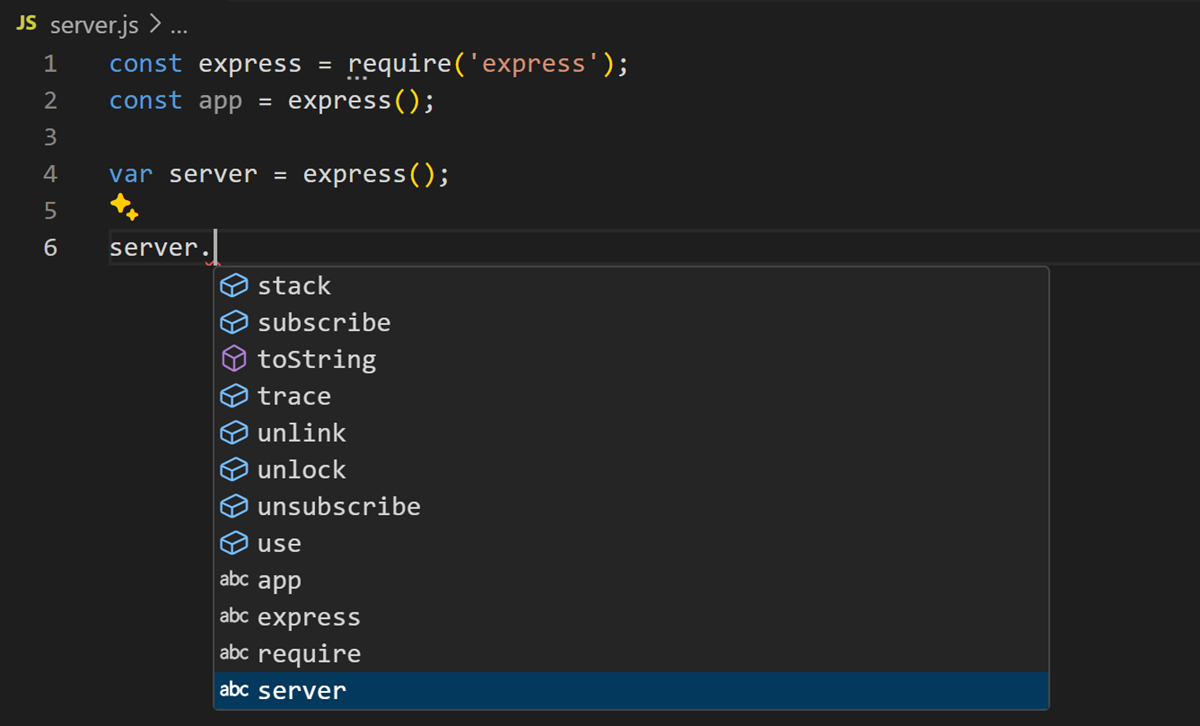
VS Code IntelliSense offers different types of completions, including language server suggestions, snippets, and simple word-based textual completions.
| Icon | Name | Symbol type |
|---|---|---|
| Methods and Functions | method, function, constructor |
|
| Variables | variable |
|
| Fields | field |
|
| Type parameters | typeParameter |
|
| Constants | constant |
|
| Classes | class |
|
| Interfaces | interface |
|
| Structures | struct |
|
| Events | event |
|
| Operators | operator |
|
| Modules | module |
|
| Properties and Attributes | property |
|
| Enumerations | enum |
|
| Enumeration members | enumMember |
|
| References | reference |
|
| Keywords | keyword |
|
| Files | file |
|
| Folders | folder |
|
| Colors | color |
|
| Unit | unit |
|
| Snippet prefixes | snippet |
|
| Words | text |
Customizing IntelliSense
You can customize your IntelliSense experience in settings and keyboard shortcuts.
Settings
The settings shown below are the default settings. You can change these settings in the Settings editor (⌘, (Windows, Linux Ctrl+,)).
">Working with JavaScript article. For other languages, please consult the extension's documentation.
                8/12/2026