Visual Studio Code includes built-in JavaScript IntelliSense, debugging, formatting, code navigation, refactorings, and many other advanced language features.
Most of these features just work out of the box, while some may require basic configuration to get the best experience. This page summarizes the JavaScript features that VS Code ships with. Extensions from the VS Code Marketplace can augment or change most of these built-in features. For a more in-depth guide on how these features work and can be configured, see Working with JavaScript.
IntelliSense
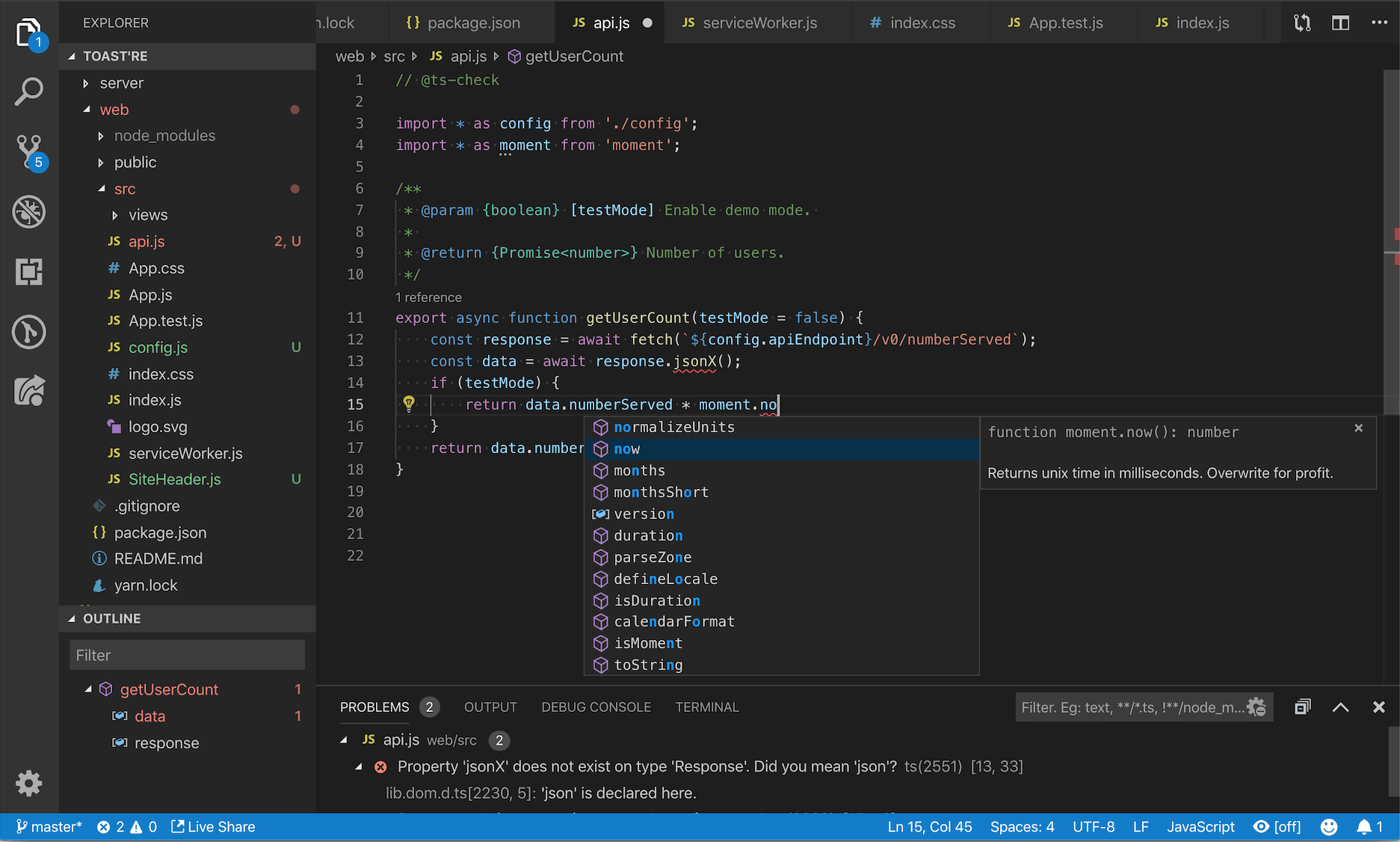
IntelliSense shows you intelligent code completion, hover information, and signature information so that you can write code more quickly and correctly.
VS Code provides IntelliSense within your JavaScript projects; for many npm libraries such as React, lodash, and express; and for other platforms such as node, serverless, or IoT.
See Working with JavaScript for information about VS Code's JavaScript IntelliSense, how to configure it, and help troubleshooting common IntelliSense problems.
JavaScript projects (jsconfig.json)
A jsconfig.json file defines a JavaScript project in VS Code. While jsconfig.json files are not required, you will want to create one in cases such as:
- If not all JavaScript files in your workspace should be considered part of a single JavaScript project.
jsconfig.jsonfiles let you exclude some files from showing up in IntelliSense. - To ensure that a subset of JavaScript files in your workspace is treated as a single project. This is useful if you are working with legacy code that uses implicit globals dependencies instead of
importsfor dependencies. - If your workspace contains more than one project context, such as front-end and back-end JavaScript code. For multi-project workspaces, create a
jsconfig.jsonat the root folder of each project. - You are using the TypeScript compiler to down-level compile JavaScript source code.
To define a basic JavaScript project, add a jsconfig.json at the root of your workspace:
"editor.codeActionsOnSave": {
    "source.organizeImports": "explicit"
}
Update imports on file move
When you move or rename a file that is imported by other files in your JavaScript project, VS Code can automatically update all import paths that reference the moved file:
The setting(js/ts.updateImportsOnFileMove.enabled) setting controls this behavior. Valid settings values are:
"prompt"- The default. Asks if paths should be updated for each file move."always"- Always automatically update paths."never"- Do not update paths automatically and do not prompt.
Formatting
VS Code's built-in JavaScript formatter provides basic code formatting with reasonable defaults.
The js/ts.format.* settings configure the built-in formatter. Or, if the built-in formatter is getting in the way, set "js/ts.format.enable" to false to disable it.
For more specialized code formatting styles, try installing one of the JavaScript formatting extensions from the Marketplace.
All of VS Code's JavaScript features also work with JSX:
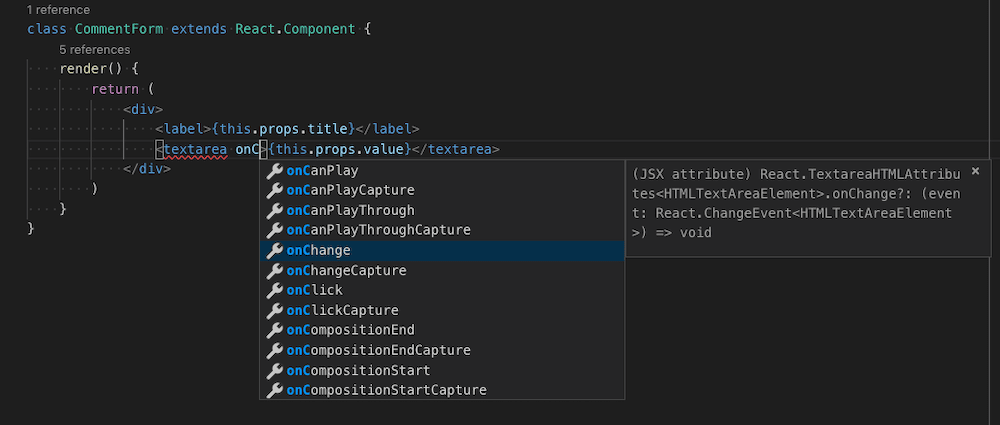
You can use JSX syntax in both normal *.js files and in *.jsx files.
VS Code also includes JSX-specific features such as autoclosing of JSX tags:
Set "js/ts.autoClosingTags" to false to disable JSX tag closing.
Code navigation
Code navigation lets you quickly navigate JavaScript projects.
- Go to Definition F12 - Go to the source code of a symbol definition.
- Peek Definition ⌥F12 (Windows Alt+F12, Linux Ctrl+Shift+F10) - Bring up a Peek window that shows the definition of a symbol.
- Go to References ⇧F12 (Windows, Linux Shift+F12) - Show all references to a symbol.
- Go to Type Definition - Go to the type that defines a symbol. For an instance of a class, this will reveal the class itself instead of where the instance is defined.
You can navigate via symbol search using the Go to Symbol commands from the Command Palette (⇧⌘P (Windows, Linux Ctrl+Shift+P)).
- Go to Symbol in File ⇧⌘O (Windows, Linux Ctrl+Shift+O)
- Go to Symbol in Workspace ⌘T (Windows, Linux Ctrl+T)
Rename
Press F2 to rename the symbol under the cursor across your JavaScript project:

Refactoring
VS Code includes some handy refactorings for JavaScript such as Extract function and Extract constant. Just select the source code you'd like to extract and then click on the lightbulb in the gutter or press (⌘. (Windows, Linux Ctrl+.)) to see available refactorings.

Available refactorings include:
- Extract to method or function.
- Extract to constant.
- Convert between named imports and namespace imports.
- Move to new file.
See Refactorings for more information about refactorings and how you can configure keyboard shortcuts for individual refactorings.
Additionally, Code Action Widget: Include Nearby Quick Fixes (
editor.codeActionWidget.includeNearbyQuickFixes
) is a setting that is enabled on default, which will activate the nearest Quick Fix in a line from ⌘. (Windows, Linux Ctrl+.) (command ID editor.action.quickFix), no matter where your cursor is in that line.
The command highlights the source code that will be refactored or fixed with Quick Fixes. Normal Code Actions and non-fix refactorings can still be activated at the cursor location.
Unused variables and unreachable code
Unused JavaScript code, such as the else block of an if statement that is always true or an unreferenced import, is faded out in the editor:
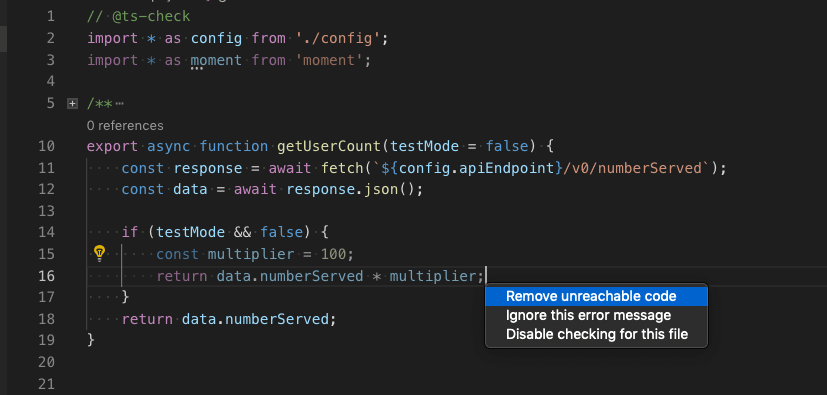
You can quickly remove this unused code by placing the cursor on it and triggering the Quick Fix command (⌘. (Windows, Linux Ctrl+.)) or clicking on the lightbulb.
To disable fading out of unused code, set "editor.showUnused" to false. You can also disable fading of unused code only in JavaScript by setting:
// On explicit save, run fixAll source action. On auto save (window or focus change), run organizeImports source action.
"editor.codeActionsOnSave": {
    "source.fixAll": "explicit",
    "source.organizeImports": "always",
}
As of today, the following enums are supported:
explicit(default): Triggers Code Actions when explicitly saved. Same astrue.always: Triggers Code Actions when explicitly saved and on Auto Saves from window or focus changes.never: Never triggers Code Actions on save. Same asfalse.
You can also set editor.codeActionsOnSave to an array of Code Actions to execute in order.
Here are some source actions:
"organizeImports"- Enables organize imports on save."fixAll"- Auto Fix on Save computes all possible fixes in one round (for all providers including ESLint)."fixAll.eslint"- Auto Fix only for ESLint."addMissingImports"- Adds all missing imports on save.
See Node.js/JavaScript for more information.
Code suggestions
VS Code automatically suggests some common code simplifications such as converting a chain of .then calls on a promise to use async and await
Set "js/ts.suggestionActions.enabled" to false to disable suggestions.
Enhance completions with AI
GitHub Copilot can give you AI-powered inline suggestions that help you write code faster and smarter. GitHub Copilot provides suggestions for numerous languages and a wide variety of frameworks, and it works especially well for Python, JavaScript, TypeScript, Ruby, Go, C# and C++.Learn more about how to get started with Copilot in VS Code.
Create a new file - you can use the File: New File command in the Command Palette (F1).
In the JavaScript file, type the following function header:
{
  "compilerOptions": {
    "module": "CommonJS",
    "target": "ES6",
    // This is the line you want to add
    "allowSyntheticDefaultImports": true
  },
  "exclude": ["node_modules", "**/node_modules/*"]
}
Yes, you can. You can see this working using JavaScript source maps in the Node.js Debugging topic.
How do I disable Syntax Validation when using non-ES6 constructs?Some users want to use syntax constructs like the proposed pipeline (|>) operator. However, these are currently not supported by VS Code's JavaScript language service and are flagged as errors. For users who still want to use these future features, we provide the setting(js/ts.validate.enable) setting.
With js/ts.validate.enable: false, you disable all built-in syntax checking. If you do this, we recommend that you use a linter like ESLint to validate your source code.
Yes, but some of Flow's language features such as type and error checking may interfere with VS Code's built-in JavaScript support. To learn how to disable VS Code's built-in JavaScript support, see Disable JavaScript support.
8/12/2026