-
18 Introduction
-
18.1 Samplers
- FTP Request
- HTTP Request
- JDBC Request
- Java Request
- LDAP Request
- LDAP Extended Request
- Access Log Sampler
- BeanShell Sampler
- JSR223 Sampler
- TCP Sampler
- JMS Publisher
- JMS Subscriber
- JMS Point-to-Point
- JUnit Request
- Mail Reader Sampler
- Flow Control Action (was: Test Action )
- SMTP Sampler
- OS Process Sampler
- MongoDB Script (DEPRECATED)
- Bolt Request
-
18.2 Logic Controllers
- Simple Controller
- Loop Controller
- Once Only Controller
- Interleave Controller
- Random Controller
- Random Order Controller
- Throughput Controller
- Runtime Controller
- If Controller
- While Controller
- Switch Controller
- ForEach Controller
- Module Controller
- Include Controller
- Transaction Controller
- Recording Controller
- Critical Section Controller
-
18.3 Listeners
- Sample Result Save Configuration
- Graph Results
- Assertion Results
- View Results Tree
- Aggregate Report
- View Results in Table
- Simple Data Writer
- Aggregate Graph
- Response Time Graph
- Mailer Visualizer
- BeanShell Listener
- Summary Report
- Save Responses to a file
- JSR223 Listener
- Generate Summary Results
- Comparison Assertion Visualizer
- Backend Listener
-
18.4 Configuration Elements
- CSV Data Set Config
- FTP Request Defaults
- DNS Cache Manager
- HTTP Authorization Manager
- HTTP Cache Manager
- HTTP Cookie Manager
- HTTP Request Defaults
- HTTP Header Manager
- Java Request Defaults
- JDBC Connection Configuration
- Keystore Configuration
- Login Config Element
- LDAP Request Defaults
- LDAP Extended Request Defaults
- TCP Sampler Config
- User Defined Variables
- Random Variable
- Counter
- Simple Config Element
- MongoDB Source Config (DEPRECATED)
- Bolt Connection Configuration
- 18.5 Assertions
- 18.6 Timers
- 18.7 Pre Processors
- 18.8 Post-Processors
- 18.9 Miscellaneous Features
18 Introduction
Several test elements use JMeter properties to control their behaviour. These properties are normally resolved when the class is loaded. This generally occurs before the test plan starts, so it's not possible to change the settings by using the __setProperty() function.
18.1 Samplers
Samplers perform the actual work of JMeter. Each sampler (except Flow Control Action) generates one or more sample results. The sample results have various attributes (success/fail, elapsed time, data size etc.) and can be viewed in the various listeners.
FTP Request
This controller lets you send an FTP "retrieve file" or "upload file" request to an FTP server. If you are going to send multiple requests to the same FTP server, consider using a FTP Request Defaults Configuration Element so you do not have to enter the same information for each FTP Request Generative Controller. When downloading a file, it can be stored on disk (Local File) or in the Response Data, or both.
Latency is set to the time it takes to login.
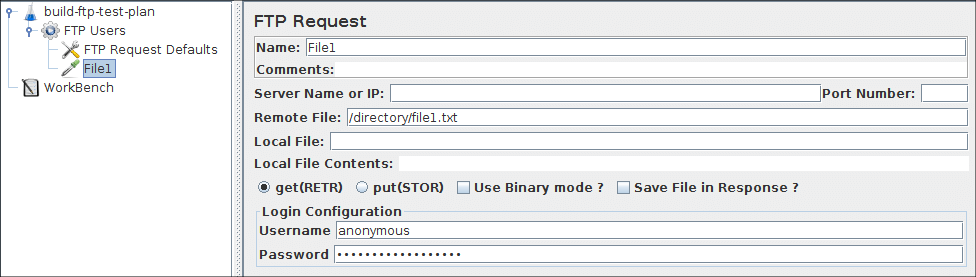
Parameters 
Attribute
Description
Required
Name
Descriptive name for this sampler that is shown in the tree.
No
Server Name or IP
Domain name or IP address of the FTP server.
Yes
Port
Port to use. If this is >0, then this specific port is used, otherwise JMeter uses the default FTP port.
No
Remote File:
File to retrieve or name of destination file to upload.
Yes
Local File:
File to upload, or destination for downloads (defaults to remote file name).
Yes, if uploading (*)
Local File Contents:
Provides the contents for the upload, overrides the Local File property.
Yes, if uploading (*)
get(RETR) / put(STOR)
Whether to retrieve or upload a file.
Yes
Use Binary mode?
Check this to use Binary mode (default ASCII)
Yes
Save File in Response?
Whether to store contents of retrieved file in response data. If the mode is ASCII, then the contents will be visible in the View Results Tree.
Yes, if downloading
Username
FTP account username.
Usually
Password
FTP account password. N.B. This will be visible in the test plan.
Usually
HTTP Request
This sampler lets you send an HTTP/HTTPS request to a web server. It also lets you control whether or not JMeter parses HTML files for images and other embedded resources and sends HTTP requests to retrieve them. The following types of embedded resource are retrieved:
- images
- applets
- stylesheets (CSS) and resources referenced from those files
- external scripts
- frames, iframes
- background images (body, table, TD, TR)
- background sound
The default parser is org.apache.jmeter.protocol.http.parser.LagartoBasedHtmlParser. This can be changed by using the property "htmlparser.className" - see jmeter.properties for details.
If you are going to send multiple requests to the same web server, consider using an HTTP Request Defaults Configuration Element so you do not have to enter the same information for each HTTP Request.
Or, instead of manually adding HTTP Requests, you may want to use JMeter's HTTP(S) Test Script Recorder to create them. This can save you time if you have a lot of HTTP requests or requests with many parameters.
There are three different test elements used to define the samplers:
- AJP/1.3 Sampler
- uses the Tomcat mod_jk protocol (allows testing of Tomcat in AJP mode without needing Apache httpd) The AJP Sampler does not support multiple file upload; only the first file will be used.
- HTTP Request
-
this has an implementation drop-down box, which selects the HTTP protocol implementation to be used:
- Java
- uses the HTTP implementation provided by the JVM. This has some limitations in comparison with the HttpClient implementations - see below.
- HTTPClient4
- uses Apache HttpComponents HttpClient 4.x.
- Blank Value
- does not set implementation on HTTP Samplers, so relies on HTTP Request Defaults if present or on jmeter.httpsampler property defined in jmeter.properties
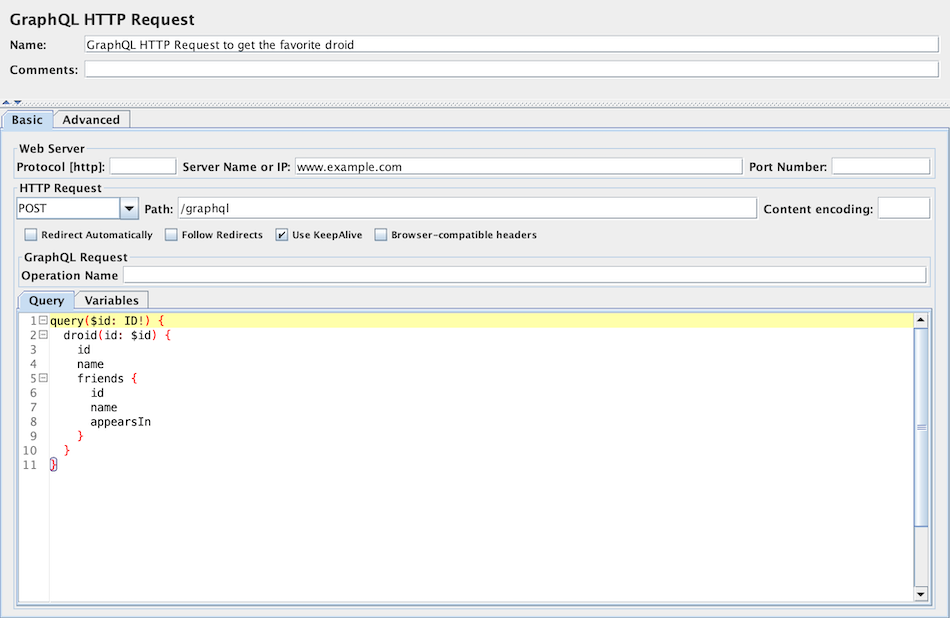
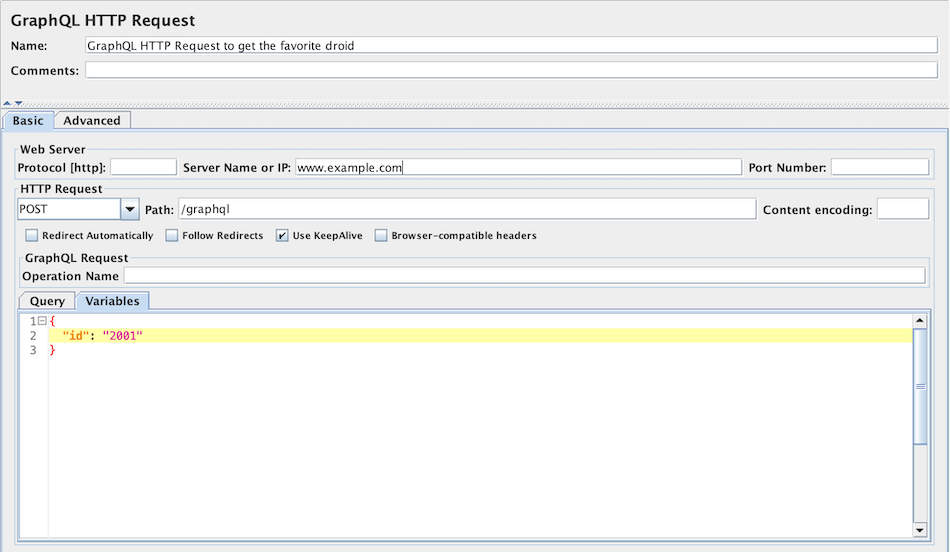
- GraphQL HTTP Request
-
this is a GUI variation of the HTTP Request to provide more convenient UI elements
to view or edit GraphQL Query, Variables and Operation Name, while converting them into HTTP Arguments automatically under the hood
using the same sampler.
This hides or customizes the following UI elements as they are less convenient for or irrelevant to GraphQL over HTTP/HTTPS requests:
- Method: Only POST and GET methods are available conforming the GraphQL over HTTP specification. POST method is selected by default.
- Parameters and Post Body tabs: you may view or edit parameter content through Query, Variables and Operation Name UI elements instead.
- File Upload tab: irrelevant to GraphQL queries.
- Embedded Resources from HTML Files section in the Advanced tab: irrelevant in GraphQL JSON responses.
The Java HTTP implementation has some limitations:
- There is no control over how connections are re-used. When a connection is released by JMeter, it may or may not be re-used by the same thread.
- The API is best suited to single-threaded usage - various settings are defined via system properties, and therefore apply to all connections.
- No support of Kerberos authentication
- It does not support client based certificate testing with Keystore Config.
- Better control of Retry mechanism
- It does not support virtual hosts.
- It supports only the following methods: GET, POST, HEAD, OPTIONS, PUT, DELETE and TRACE
- Better control on DNS Caching with DNS Cache Manager
Note: the FILE protocol is intended for testing purposes only. It is handled by the same code regardless of which HTTP Sampler is used.
If the request requires server or proxy login authorization (i.e. where a browser would create a pop-up dialog box), you will also have to add an HTTP Authorization Manager Configuration Element. For normal logins (i.e. where the user enters login information in a form), you will need to work out what the form submit button does, and create an HTTP request with the appropriate method (usually POST) and the appropriate parameters from the form definition. If the page uses HTTP, you can use the JMeter Proxy to capture the login sequence.
A separate SSL context is used for each thread. If you want to use a single SSL context (not the standard behaviour of browsers), set the JMeter property:
https.sessioncontext.shared=true
By default, since version 5.0, the SSL context is retained during a Thread Group iteration and reset for each test iteration. If in your test plan the same user iterates multiple times, then you should set this to false.
httpclient.reset_state_on_thread_group_iteration=true
Note: this does not apply to the Java HTTP implementation.
JMeter defaults to the SSL protocol level TLS. If the server needs a different level, e.g. SSLv3, change the JMeter property, for example:
https.default.protocol=SSLv3
JMeter also allows one to enable additional protocols, by changing the property https.socket.protocols.
If the request uses cookies, then you will also need an HTTP Cookie Manager. You can add either of these elements to the Thread Group or the HTTP Request. If you have more than one HTTP Request that needs authorizations or cookies, then add the elements to the Thread Group. That way, all HTTP Request controllers will share the same Authorization Manager and Cookie Manager elements.
If the request uses a technique called "URL Rewriting" to maintain sessions, then see section 6.1 Handling User Sessions With URL Rewriting for additional configuration steps.
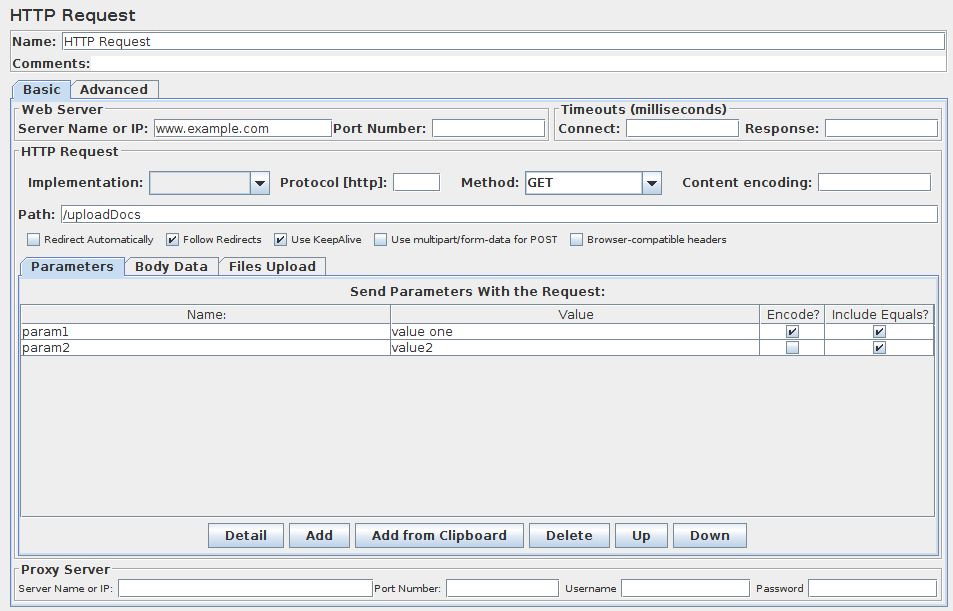
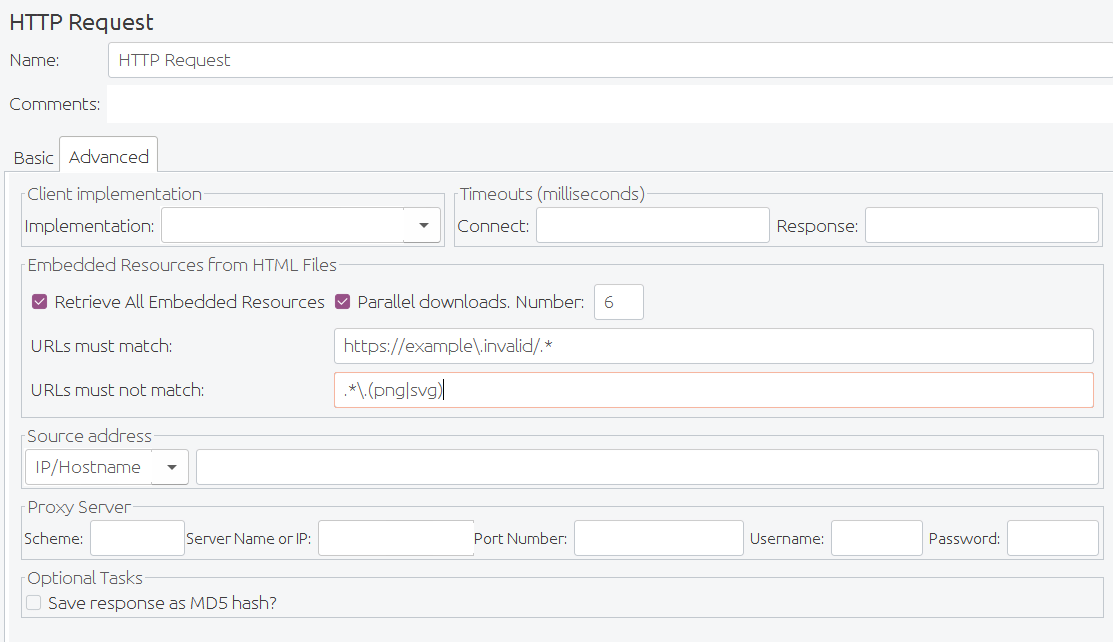
Parameters 
Attribute
Description
Required
Name
Descriptive name for this sampler that is shown in the tree.
No
Server
Domain name or IP address of the web server, e.g. www.example.com. [Do not include the http:// prefix.] Note: If the "Host" header is defined in a Header Manager, then this will be used as the virtual host name.
Server is required, unless:
- it is provided by HTTP Request Defaults
- or a full URL including scheme, host and port (scheme://host:port) is set in Path field
No
Port
Port the web server is listening to. Default: 80
No
Connect Timeout
Connection Timeout. Number of milliseconds to wait for a connection to open.
No
Response Timeout
Response Timeout. Number of milliseconds to wait for a response. Note that this applies to each wait for a response. If the server response is sent in several chunks, the overall elapsed time may be longer than the timeout.
A Duration Assertion can be used to detect responses that take too long to complete.
No
Server (proxy)
Hostname or IP address of a proxy server to perform request. [Do not include the http:// prefix.]
No
Port
Port the proxy server is listening to.
No, unless proxy hostname is specified
Username
(Optional) username for proxy server.
No
Password
(Optional) password for proxy server. (N.B. this is stored unencrypted in the test plan)
No
Implementation
Java, HttpClient4. If not specified (and not defined by HTTP Request Defaults), the default depends on the value of the JMeter property jmeter.httpsampler, failing that, the HttpClient4 implementation is used.
No
Protocol
HTTP, HTTPS or FILE. Default: HTTP
No
Method
GET, POST, HEAD, TRACE, OPTIONS, PUT, DELETE, PATCH (not supported for JAVA implementation). With HttpClient4, the following methods related to WebDav are also allowed: COPY, LOCK, MKCOL, MOVE, PROPFIND, PROPPATCH, UNLOCK, REPORT, MKCALENDAR, SEARCH.
More methods can be pre-defined for the HttpClient4 by using the JMeter property httpsampler.user_defined_methods.
Yes
Content Encoding
Content encoding to be used (for POST, PUT, PATCH and FILE). This is the character encoding to be used, and is not related to the Content-Encoding HTTP header.
No
Redirect Automatically
Sets the underlying http protocol handler to automatically follow redirects, so they are not seen by JMeter, and thus will not appear as samples. Should only be used for GET and HEAD requests. The HttpClient sampler will reject attempts to use it for POST or PUT.
Warning: see below for information on cookie and header handling.
No
Follow Redirects
This only has any effect if "Redirect Automatically" is not enabled. If set, the JMeter sampler will check if the response is a redirect and follow it if so. The initial redirect and further responses will appear as additional samples. The URL and data fields of the parent sample will be taken from the final (non-redirected) sample, but the parent byte count and elapsed time include all samples. The latency is taken from the initial response. Note that the HttpClient sampler may log the following message:
"Redirect requested but followRedirects is disabled"
This can be ignored.
JMeter will collapse paths of the form '/../segment' in
both absolute and relative redirect URLs. For example http://host/one/../two will be collapsed into http://host/two.
If necessary, this behaviour can be suppressed by setting the JMeter property
httpsampler.redirect.removeslashdotdot=false
No
Use KeepAlive
JMeter sets the Connection: keep-alive header. This does not work properly with the default HTTP implementation, as connection re-use is not under user-control. It does work with the Apache HttpComponents HttpClient implementations.
No
Use multipart/form-data for HTTP POST
Use a multipart/form-data or application/x-www-form-urlencoded post request
No
Browser-compatible headers
When using multipart/form-data, this suppresses the Content-Type and Content-Transfer-Encoding headers; only the Content-Disposition header is sent.
No
Path
The path to resource (for example, /servlets/myServlet). If the resource requires query string parameters, add them below in the "Send Parameters With the Request" section.
As a special case, if the path starts with "http://" or "https://" then this is used as the full URL.
In this case, the server, port and protocol fields are ignored; parameters are also ignored for GET and DELETE methods. Also please note that the path is not encoded - apart from replacing spaces with %20 - so unsafe characters may need to be encoded to avoid errors such as URISyntaxException.
No
Send Parameters With the Request
The query string will be generated from the list of parameters you provide. Each parameter has a name and value, the options to encode the parameter, and an option to include or exclude an equals sign (some applications don't expect an equals sign when the value is the empty string). The query string will be generated in the correct fashion, depending on the choice of "Method" you made (i.e. if you chose GET or DELETE, the query string will be appended to the URL, if POST or PUT, then it will be sent separately). Also, if you are sending a file using a multipart form, the query string will be created using the multipart form specifications. See below for some further information on parameter handling.
Additionally, you can specify whether each parameter should be URL encoded. If you are not sure what this means, it is probably best to select it. If your values contain characters such as the following then encoding is usually required.:
- ASCII Control Chars
- Non-ASCII characters
- Reserved characters:URLs use some characters for special use in defining their syntax. When these characters are not used in their special role inside a URL, they need to be encoded, example: '$', '&', '+', ',' , '/', ':', ';', '=', '?', '@'
- Unsafe characters: Some characters present the possibility of being misunderstood within URLs for various reasons. These characters should also always be encoded, example: ' ', '<', '>', '#', '%', …
No
File Path:
Name of the file to send. If left blank, JMeter does not send a file, if filled in, JMeter automatically sends the request as a multipart form request.
When MIME Type is empty, JMeter will try to guess the MIME type of the given file.
If it is a POST or PUT or PATCH request and there is a single file whose 'Parameter name' attribute (below) is omitted, then the file is sent as the entire body of the request, i.e. no wrappers are added. This allows arbitrary bodies to be sent. This functionality is present for POST requests, and also for PUT requests. See below for some further information on parameter handling.
No
Parameter name:
Value of the "name" web request parameter.
No
MIME Type
MIME type (for example, text/plain). If it is a POST or PUT or PATCH request and either the 'name' attribute (below) are omitted or the request body is constructed from parameter values only, then the value of this field is used as the value of the content-type request header.
No
Retrieve All Embedded Resources from HTML Files
Tell JMeter to parse the HTML file and send HTTP/HTTPS requests for all images, Java applets, JavaScript files, CSSs, etc. referenced in the file. See below for more details.
No
Save response as MD5 hash?
If this is selected, then the response is not stored in the sample result. Instead, the 32 character MD5 hash of the data is calculated and stored instead. This is intended for testing large amounts of data.
No
URLs must match:
If present, this must be a regular expression that is used to match against any embedded URLs found. So if you only want to download embedded resources from http://example.invalid/, use the expression: http://example\.invalid/.*
No
URLs must not match:
If present, this must be a regular expression that is used to filter out any embedded URLs found. So if you don't want to download PNG or SVG files from any source, use the expression: .*\.(?i:svg|png)
No
Use concurrent pool
Use a pool of concurrent connections to get embedded resources.
No
Size
Pool size for concurrent connections used to get embedded resources.
No
Source address type
[Only for HTTP Request with HTTPClient implementation]
To distinguish the source address value, select the type of these:
- Select IP/Hostname to use a specific IP address or a (local) hostname
- Select Device to pick the first available address for that interface which this may be either IPv4 or IPv6
- Select Device IPv4 to select the IPv4 address of the device name (like eth0, lo, em0, etc.)
- Select Device IPv6 to select the IPv6 address of the device name (like eth0, lo, em0, etc.)
No
Source address field
[Only for HTTP Request with HTTPClient implementation]
This property is used to enable IP Spoofing.
It overrides the default local IP address for this sample.
The JMeter host must have multiple IP addresses (i.e. IP aliases, network interfaces, devices).
The value can be a host name, IP address, or a network interface device such as "eth0" or "lo" or "wlan0".
If the property httpclient.localaddress is defined, that is used for all HttpClient requests.
No
The following parameters are available only for GraphQL HTTP Request:
Parameters 
Attribute
Description
Required
Query
GraphQL query (or mutation) statement.
Yes
Variables
GraphQL query (or mutation) variables in a valid JSON string. Note: If the input string is not a valid JSON string, this will be ignored with an ERROR log.
No
Operation Name
Optional GraphQL operation name when making a request for multi-operation documents.
No
When using Automatic Redirection, cookies are only sent for the initial URL. This can cause unexpected behaviour for web-sites that redirect to a local server. E.g. if www.example.com redirects to www.example.co.uk. In this case the server will probably return cookies for both URLs, but JMeter will only see the cookies for the last host, i.e. www.example.co.uk. If the next request in the test plan uses www.example.com, rather than www.example.co.uk, it will not get the correct cookies. Likewise, Headers are sent for the initial request, and won't be sent for the redirect. This is generally only a problem for manually created test plans, as a test plan created using a recorder would continue from the redirected URL.
Parameter Handling:
For the POST and PUT method, if there is no file to send, and the name(s) of the parameter(s) are omitted,
then the body is created by concatenating all the value(s) of the parameters.
Note that the values are concatenated without adding any end-of-line characters.
These can be added by using the __char() function in the value fields.
This allows arbitrary bodies to be sent.
The values are encoded if the encoding flag is set.
See also the MIME Type above how you can control the content-type request header that is sent.
For other methods, if the name of the parameter is missing,
then the parameter is ignored. This allows the use of optional parameters defined by variables.
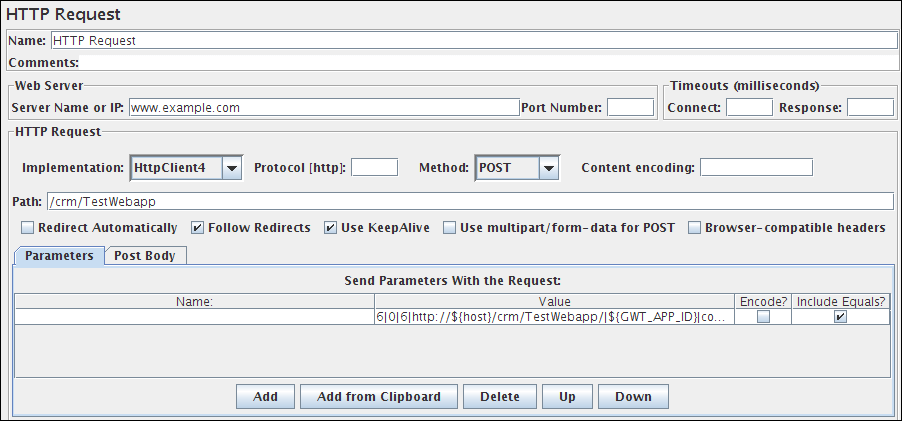
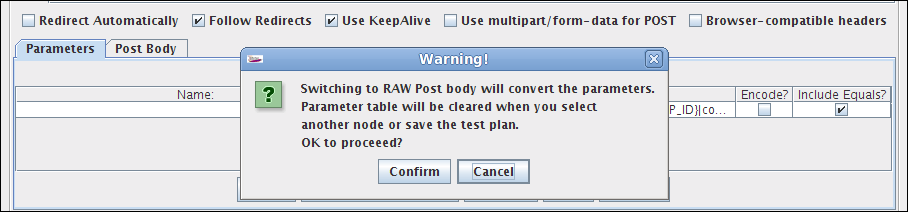
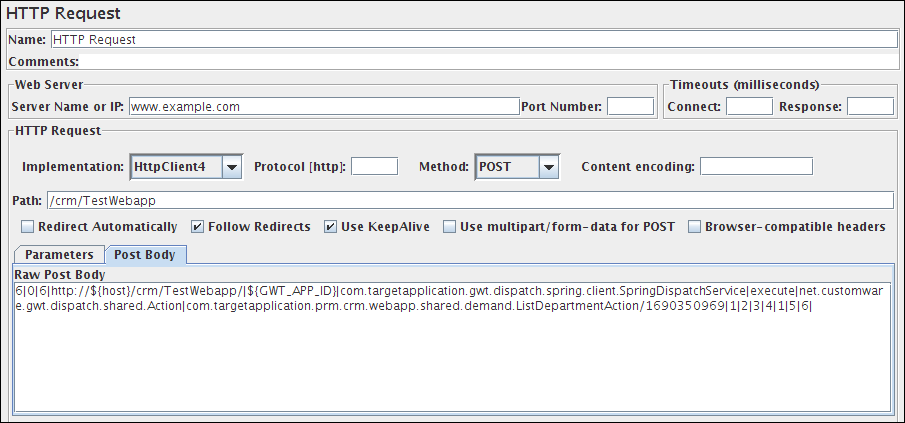
You have the option to switch to Body Data tab when a request has only unnamed parameters (or no parameters at all). This option is useful in the following cases (amongst others):
- GWT RPC HTTP Request
- JSON REST HTTP Request
- XML REST HTTP Request
- SOAP HTTP Request
Note that once you leave the Tree node, you cannot switch back to the parameter tab unless you clear the Body Data tab from its data.
In Body Data mode, each line will be sent with CRLF appended, apart from the last line. To send a CRLF after the last line of data, just ensure that there is an empty line following it. (This cannot be seen, except by noting whether the cursor can be placed on the subsequent line.)
Method Handling:
The GET, DELETE, POST, PUT and PATCH request methods work similarly, except that as of 3.1, only POST method supports multipart requests
or file upload.
The PUT and PATCH method body must be provided as one of the following:
- define the body as a file with empty Parameter name field; in which case the MIME Type is used as the Content-Type
- define the body as parameter value(s) with no name
- use the Body Data tab
The GET, DELETE and POST methods have an additional way of passing parameters by using the Parameters tab. GET, DELETE, PUT and PATCH require a Content-Type. If not using a file, attach a Header Manager to the sampler and define the Content-Type there.
JMeter scan responses from embedded resources. It uses the property HTTPResponse.parsers, which is a list of parser ids, e.g. htmlParser, cssParser and wmlParser. For each id found, JMeter checks two further properties:
- id.types - a list of content types
- id.className - the parser to be used to extract the embedded resources
See jmeter.properties file for the details of the settings. If the HTTPResponse.parser property is not set, JMeter reverts to the previous behaviour, i.e. only text/html responses will be scanned
Emulating slow connections:
HttpClient4 and Java Sampler support emulation of slow connections; see the following entries in jmeter.properties:
# Define characters per second > 0 to emulate slow connections
#httpclient.socket.http.cps=0
#httpclient.socket.https.cps=0
However the Java sampler only supports slow HTTPS connections.
Response size calculation
The Java implementation does not include transport overhead such as
chunk headers in the response body size.
The HttpClient4 implementation does include the overhead in the response body size,
so the value may be greater than the number of bytes in the response content.
Retry handling
By default retry has been set to 0 for both HttpClient4 and Java implementations, meaning no retry is attempted.
For HttpClient4, the retry count can be overridden by setting the relevant JMeter property, for example:
httpclient4.retrycount=3
With HC4 Implementation, retry will be done on Idempotent Http Methods by default. If you want to retry for all methods, then set property
httpclient4.request_sent_retry_enabled=true
Note that the Java implementation does not retry neither by default, you can change this by setting
http.java.sampler.retries=3
Note: Certificates does not conform to algorithm constraints
You may encounter the following error: java.security.cert.CertificateException: Certificates does not conform to algorithm constraints
if you run a HTTPS request on a web site with a SSL certificate (itself or one of SSL certificates in its chain of trust) with a signature
algorithm using MD2 (like md2WithRSAEncryption) or with a SSL certificate with a size lower than 1024 bits.
This error is related to increased security in Java 8.
To allow you to perform your HTTPS request, you can downgrade the security of your Java installation by editing the Java jdk.certpath.disabledAlgorithms property. Remove the MD2 value or the constraint on size, depending on your case.
This property is in this file:
JAVA_HOME/jre/lib/security/java.security
See Bug 56357 for details.
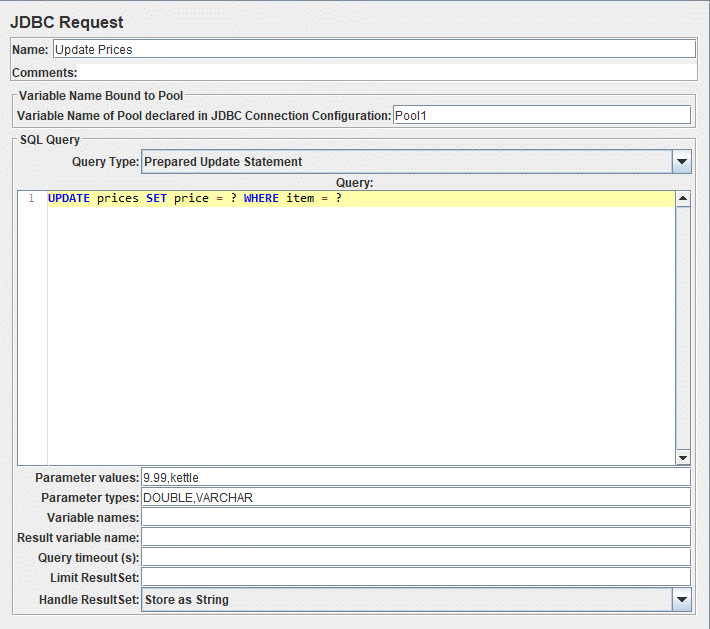
JDBC Request
This sampler lets you send a JDBC Request (an SQL query) to a database.
Before using this you need to set up a JDBC Connection Configuration Configuration element
If the Variable Names list is provided, then for each row returned by a Select statement, the variables are set up with the value of the corresponding column (if a variable name is provided), and the count of rows is also set up. For example, if the Select statement returns 2 rows of 3 columns, and the variable list is A,,C, then the following variables will be set up:
A_#=2 (number of rows)
A_1=column 1, row 1
A_2=column 1, row 2
C_#=2 (number of rows)
C_1=column 3, row 1
C_2=column 3, row 2
If the Select statement returns zero rows, then the A_# and C_# variables would be set to 0, and no other variables would be set.
Old variables are cleared if necessary - e.g. if the first select retrieves six rows and a second select returns only three rows, the additional variables for rows four, five and six will be removed.
The latency time is set from the time it took to acquire a connection.
Parameters 
Attribute
Description
Required
Name
Descriptive name for this sampler that is shown in the tree.
No
Variable Name of Pool declared in JDBC Connection Configuration
Name of the JMeter variable that the connection pool is bound to. This must agree with the 'Variable Name' field of a JDBC Connection Configuration.
Yes
Query Type
Set this according to the statement type:
- Select Statement
- Update Statement - use this for Inserts and Deletes as well
- Callable Statement
- Prepared Select Statement
- Prepared Update Statement - use this for Inserts and Deletes as well
- Commit
- Rollback
- Autocommit(false)
- Autocommit(true)
- Edit - this should be a variable reference that evaluates to one of the above
The types Commit, Rollback, Autocommit(false) and Autocommit(true) are special, as they are ignoring the given SQL statements and are changing the state of the connection, only.
Yes
SQL Query
SQL query.
Do not enter a trailing semi-colon.
There is generally no need to use { and } to enclose Callable statements; however they may be used if the database uses a non-standard syntax.
The JDBC driver automatically converts the statement if necessary when it is enclosed in {}.
For example:
- select * from t_customers where id=23
-
CALL SYSCS_UTIL.SYSCS_EXPORT_TABLE (null, ?, ?, null, null, null)
- Parameter values: tablename,filename
- Parameter types: VARCHAR,VARCHAR
The second example assumes you are using Apache Derby.
Yes
Parameter values
Comma-separated list of parameter values. Use ]NULL[ to indicate a NULL parameter.
(If required, the null string can be changed by defining the property "jdbcsampler.nullmarker".)
The list must be enclosed in double-quotes if any of the values contain a comma or double-quote,
and any embedded double-quotes must be doubled-up, for example:
"Dbl-Quote: "" and Comma: ,"
There must be as many values as there are placeholders in the statement even if your parameters are OUT ones. Be sure to set a value even if the value will not be used (for example in a CallableStatement).
Yes, if a prepared or callable statement has parameters
Parameter types
Comma-separated list of SQL parameter types (e.g. INTEGER, DATE, VARCHAR, DOUBLE) or integer values of Constants. Those integer values can be used, when you use custom database types proposed by driver (For example OracleTypes.CURSOR could be represented by its integer value -10).
These are defined as fields in the class java.sql.Types, see for example:
Javadoc for java.sql.Types.
Note: JMeter will use whatever types are defined by the runtime JVM, so if you are running on a different JVM, be sure to check the appropriate documentation
If the callable statement has INOUT or OUT parameters, then these must be indicated by prefixing the
appropriate parameter types, e.g. instead of "INTEGER", use "INOUT INTEGER".
If not specified, "IN" is assumed, i.e. "DATE" is the same as "IN DATE".
If the type is not one of the fields found in java.sql.Types, JMeter also
accepts the corresponding integer number, e.g. since OracleTypes.CURSOR == -10, you can use "INOUT -10".
There must be as many types as there are placeholders in the statement.
Yes, if a prepared or callable statement has parameters
Variable Names
Comma-separated list of variable names to hold values returned by Select statements, Prepared Select Statements or CallableStatement. Note that when used with CallableStatement, list of variables must be in the same sequence as the OUT parameters returned by the call. If there are less variable names than OUT parameters only as many results shall be stored in the thread-context variables as variable names were supplied. If more variable names than OUT parameters exist, the additional variables will be ignored
No
Result Variable Name
If specified, this will create an Object variable containing a list of row maps. Each map contains the column name as the key and the column data as the value. Usage:
columnValue = vars.getObject("resultObject").get(0).get("Column Name");
No
Query timeout(s)
Set a timeout in seconds for query, empty value means 0 which is infinite. -1 means don't set any query timeout which might be needed for use case or when certain drivers don't support timeout. Defaults to 0.
No
Limit ResultSet
Limits the number of rows to iterate through the ResultSet. Empty value means -1, e.g. no limitation, which is also the default. This can help to reduce the amount of data to be fetched from the database via the JDBC driver, but affects all possible options of Handle ResultSet respectively – e.g. incomplete ResultSet and a record count ≤ the limit.
No
Handle ResultSet
Defines how ResultSet returned from callable statements be handled:
- Store As String (default) - All variables on Variable Names list are stored as strings, will not iterate through a ResultSet when present on the list. CLOBs will be converted to Strings. BLOBs will be converted to Strings as if they were an UTF-8 encoded byte-array. Both CLOBs and BLOBs will be cut off after jdbcsampler.max_retain_result_size bytes.
- Store As Object - Variables of ResultSet type on Variables Names list will be stored as Object and can be accessed in subsequent tests/scripts and iterated, will not iterate through the ResultSet. CLOBs will be handled as if Store As String was selected. BLOBs will be stored as a byte array. Both CLOBs and BLOBs will be cut off after jdbcsampler.max_retain_result_size bytes.
- Count Records - Variables of ResultSet types will be iterated through showing the count of records as result. Variables will be stored as Strings. For BLOBs the size of the object will be stored.
No
Current Versions of JMeter use UTF-8 as the character encoding. Previously the platform default was used.
Ensure Variable Name is unique across Test Plan.
Java Request
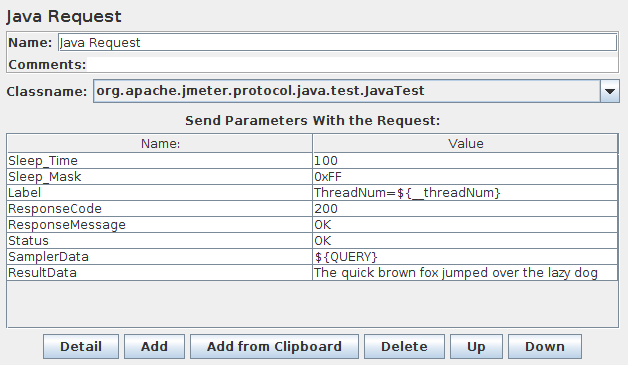
This sampler lets you control a java class that implements the org.apache.jmeter.protocol.java.sampler.JavaSamplerClient interface. By writing your own implementation of this interface, you can use JMeter to harness multiple threads, input parameter control, and data collection.
The pull-down menu provides the list of all such implementations found by JMeter in its classpath. The parameters can then be specified in the table below - as defined by your implementation. Two simple examples (JavaTest and SleepTest) are provided.
The JavaTest example sampler can be useful for checking test plans, because it allows one to set values in almost all the fields. These can then be used by Assertions, etc. The fields allow variables to be used, so the values of these can readily be seen.
If the method teardownTest is not overridden by a subclass of AbstractJavaSamplerClient, its teardownTest method will not be called. This reduces JMeter memory requirements. This will not have any impact on existing Test plans.
The Add/Delete buttons don't serve any purpose at present.
Parameters 
Attribute
Description
Required
Name
Descriptive name for this sampler that is shown in the tree.
No
Classname
The specific implementation of the JavaSamplerClient interface to be sampled.
Yes
Send Parameters with Request
A list of arguments that will be passed to the sampled class. All arguments are sent as Strings. See below for specific settings.
No
The following parameters apply to the SleepTest and JavaTest implementations:
Parameters 
Attribute
Description
Required
Sleep_time
How long to sleep for (ms)
Yes
Sleep_mask
How much "randomness" to add:
The sleep time is calculated as follows:
totalSleepTime = SleepTime + (System.currentTimeMillis() % SleepMask)
Yes
The following parameters apply additionally to the JavaTest implementation:
Parameters 
Attribute
Description
Required
Label
The label to use. If provided, overrides Name
No
ResponseCode
If provided, sets the SampleResult ResponseCode.
No
ResponseMessage
If provided, sets the SampleResult ResponseMessage.
No
Status
If provided, sets the SampleResult Status. If this equals "OK" (ignoring case) then the status is set to success, otherwise the sample is marked as failed.
No
SamplerData
If provided, sets the SampleResult SamplerData.
No
ResultData
If provided, sets the SampleResult ResultData.
No
LDAP Request
This Sampler lets you send a different LDAP request(Add, Modify, Delete and Search) to an LDAP server.
If you are going to send multiple requests to the same LDAP server, consider using an LDAP Request Defaults Configuration Element so you do not have to enter the same information for each LDAP Request.
The same way the Login Config Element also using for Login and password.
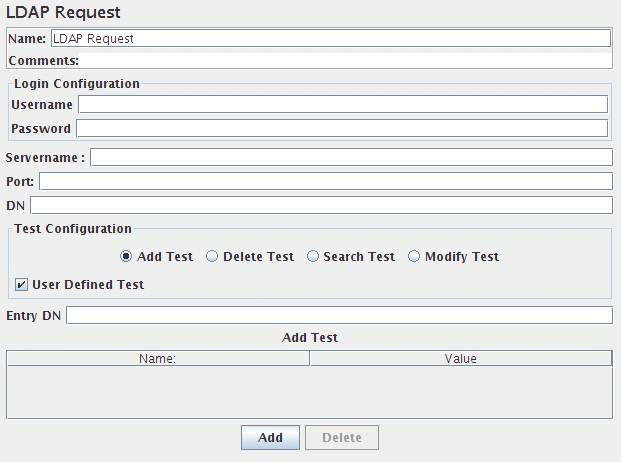
There are two ways to create test cases for testing an LDAP Server.
- Inbuilt Test cases.
- User defined Test cases.
There are four test scenarios of testing LDAP. The tests are given below:
-
Add Test
-
Inbuilt test:
This will add a pre-defined entry in the LDAP Server and calculate the execution time. After execution of the test, the created entry will be deleted from the LDAP Server.
-
User defined test:
This will add the entry in the LDAP Server. User has to enter all the attributes in the table.The entries are collected from the table to add. The execution time is calculated. The created entry will not be deleted after the test.
-
Inbuilt test:
-
Modify Test
-
Inbuilt test:
This will create a pre-defined entry first, then will modify the created entry in the LDAP Server.And calculate the execution time. After execution of the test, the created entry will be deleted from the LDAP Server.
-
User defined test:
This will modify the entry in the LDAP Server. User has to enter all the attributes in the table. The entries are collected from the table to modify. The execution time is calculated. The entry will not be deleted from the LDAP Server.
-
Inbuilt test:
-
Search Test
-
Inbuilt test:
This will create the entry first, then will search if the attributes are available. It calculates the execution time of the search query. At the end of the execution,created entry will be deleted from the LDAP Server.
-
User defined test:
This will search the user defined entry(Search filter) in the Search base (again, defined by the user). The entries should be available in the LDAP Server. The execution time is calculated.
-
Inbuilt test:
-
Delete Test
-
Inbuilt test:
This will create a pre-defined entry first, then it will be deleted from the LDAP Server. The execution time is calculated.
-
User defined test:
This will delete the user-defined entry in the LDAP Server. The entries should be available in the LDAP Server. The execution time is calculated.
-
Inbuilt test:
Parameters 
Attribute
Description
Required
Name
Descriptive name for this sampler that is shown in the tree.
No
Server Name or IP
Domain name or IP address of the LDAP server. JMeter assumes the LDAP server is listening on the default port (389).
Yes
Port
Port to connect to (default is 389).
Yes
root DN
Base DN to use for LDAP operations
Yes
Username
LDAP server username.
Usually
Password
LDAP server password. (N.B. this is stored unencrypted in the test plan)
Usually
Entry DN
the name of the context to create or Modify; may not be empty.
You have to set the right attributes of the object yourself. So if you want to add cn=apache,ou=test you have to add in the table name and value to cn and apache.
Yes, if User Defined Test and Add Test or Modify Test is selected
Delete
the name of the context to Delete; may not be empty
Yes, if User Defined Test and Delete Test is selected
Search base
the name of the context or object to search
Yes, if User Defined Test and Search Test is selected
Search filter
the filter expression to use for the search; may not be null
Yes, if User Defined Test and Search Test is selected
add test
Use these name, value pairs for creation of the new object in the given context
Yes, if User Defined Test and add Test is selected
modify test
Use these name, value pairs for modification of the given context object
Yes, if User Defined Test and Modify Test is selected
LDAP Extended Request
This Sampler can send all 8 different LDAP requests to an LDAP server. It is an extended version of the LDAP sampler, therefore it is harder to configure, but can be made much closer resembling a real LDAP session.
If you are going to send multiple requests to the same LDAP server, consider using an LDAP Extended Request Defaults Configuration Element so you do not have to enter the same information for each LDAP Request.
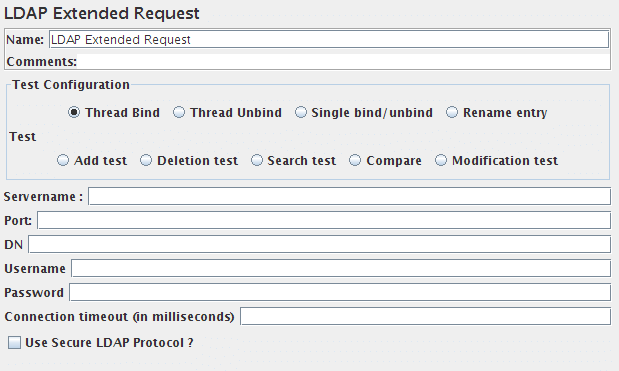
There are nine test operations defined. These operations are given below:
- Thread bind
-
Any LDAP request is part of an LDAP session, so the first thing that should be done is starting a session to the LDAP server. For starting this session a thread bind is used, which is equal to the LDAP "bind" operation. The user is requested to give a username (Distinguished name) and password, which will be used to initiate a session. When no password, or the wrong password is specified, an anonymous session is started. Take care, omitting the password will not fail this test, a wrong password will. (N.B. this is stored unencrypted in the test plan)
Parameters
Attribute
Description
Required
Name
Descriptive name for this sampler that is shown in the tree.
No
Servername
The name (or IP-address) of the LDAP server.
Yes
Port
The port number that the LDAP server is listening to. If this is omitted JMeter assumes the LDAP server is listening on the default port(389).
No
DN
The distinguished name of the base object that will be used for any subsequent operation. It can be used as a starting point for all operations. You cannot start any operation on a higher level than this DN!
No
Username
Full distinguished name of the user as which you want to bind.
No
Password
Password for the above user. If omitted it will result in an anonymous bind. If it is incorrect, the sampler will return an error and revert to an anonymous bind. (N.B. this is stored unencrypted in the test plan)
No
Connection timeout (in milliseconds)
Timeout for connection, if exceeded connection will be aborted
No
Use Secure LDAP Protocol
Use ldaps:// scheme instead of ldap://
No
Trust All Certificates
Trust all certificates, only used if Use Secure LDAP Protocol is checked
No
- Thread unbind
-
This is simply the operation to end a session. It is equal to the LDAP "unbind" operation.
Parameters
Attribute
Description
Required
Name
Descriptive name for this sampler that is shown in the tree.
No
- Single bind/unbind
-
This is a combination of the LDAP "bind" and "unbind" operations. It can be used for an authentication request/password check for any user. It will open a new session, just to check the validity of the user/password combination, and end the session again.
Parameters
Attribute
Description
Required
Name
Descriptive name for this sampler that is shown in the tree.
No
Username
Full distinguished name of the user as which you want to bind.
Yes
Password
Password for the above user. If omitted it will result in an anonymous bind. If it is incorrect, the sampler will return an error. (N.B. this is stored unencrypted in the test plan)
No
- Rename entry
-
This is the LDAP "moddn" operation. It can be used to rename an entry, but also for moving an entry or a complete subtree to a different place in the LDAP tree.
Parameters
Attribute
Description
Required
Name
Descriptive name for this sampler that is shown in the tree.
No
Old entry name
The current distinguished name of the object you want to rename or move, relative to the given DN in the thread bind operation.
Yes
New distinguished name
The new distinguished name of the object you want to rename or move, relative to the given DN in the thread bind operation.
Yes
- Add test
-
This is the LDAP "add" operation. It can be used to add any kind of object to the LDAP server.
Parameters
Attribute
Description
Required
Name
Descriptive name for this sampler that is shown in the tree.
No
Entry DN
Distinguished name of the object you want to add, relative to the given DN in the thread bind operation.
Yes
Add test
A list of attributes and their values you want to use for the object. If you need to add a multiple value attribute, you need to add the same attribute with their respective values several times to the list.
Yes
- Delete test
-
This is the LDAP "delete" operation, it can be used to delete an object from the LDAP tree
Parameters
Attribute
Description
Required
Name
Descriptive name for this sampler that is shown in the tree.
No
Delete
Distinguished name of the object you want to delete, relative to the given DN in the thread bind operation.
Yes
- Search test
-
This is the LDAP "search" operation, and will be used for defining searches.
Parameters
Attribute
Description
Required
Name
Descriptive name for this sampler that is shown in the tree.
No
Search base
Distinguished name of the subtree you want your search to look in, relative to the given DN in the thread bind operation.
No
Search Filter
searchfilter, must be specified in LDAP syntax.
Yes
Scope
Use 0 for baseobject-, 1 for onelevel- and 2 for a subtree search. (Default=0)
No
Size Limit
Specify the maximum number of results you want back from the server. (default=0, which means no limit.) When the sampler hits the maximum number of results, it will fail with errorcode 4
No
Time Limit
Specify the maximum amount of (cpu)time (in milliseconds) that the server can spend on your search. Take care, this does not say anything about the response time. (default is 0, which means no limit)
No
Attributes
Specify the attributes you want to have returned, separated by a semicolon. An empty field will return all attributes
No
Return object
Whether the object will be returned (true) or not (false). Default=false
No
Dereference aliases
If true, it will dereference aliases, if false, it will not follow them (default=false)
No
Parse the search results?
If true, the search results will be added to the response data. If false, a marker - whether results where found or not - will be added to the response data.
No
- Modification test
-
This is the LDAP "modify" operation. It can be used to modify an object. It can be used to add, delete or replace values of an attribute.
Parameters
Attribute
Description
Required
Name
Descriptive name for this sampler that is shown in the tree.
No
Entry name
Distinguished name of the object you want to modify, relative to the given DN in the thread bind operation
Yes
Modification test
The attribute-value-opCode triples.
The opCode can be any valid LDAP operationCode (add, delete, remove or replace).
If you don't specify a value with a delete operation, all values of the given attribute will be deleted.
If you do specify a value in a delete operation, only the given value will be deleted.
If this value is non-existent, the sampler will fail the test.Yes
- Compare
-
This is the LDAP "compare" operation. It can be used to compare the value of a given attribute with some already known value. In reality this is mostly used to check whether a given person is a member of some group. In such a case you can compare the DN of the user as a given value, with the values in the attribute "member" of an object of the type groupOfNames. If the compare operation fails, this test fails with errorcode 49.
Parameters
Attribute
Description
Required
Name
Descriptive name for this sampler that is shown in the tree.
No
Entry DN
The current distinguished name of the object of which you want to compare an attribute, relative to the given DN in the thread bind operation.
Yes
Compare filter
In the form "attribute=value"
Yes
Access Log Sampler
AccessLogSampler was designed to read access logs and generate http requests. For those not familiar with the access log, it is the log the webserver maintains of every request it accepted. This means every image, CSS file, JavaScript file, html file, …
Tomcat uses the common format for access logs. This means any webserver that uses the common log format can use the AccessLogSampler. Server that use common log format include: Tomcat, Resin, Weblogic, and SunOne. Common log format looks like this:
127.0.0.1 - - [21/Oct/2003:05:37:21 -0500] "GET /index.jsp?%2Findex.jsp= HTTP/1.1" 200 8343
The current implementation of the parser only looks at the text within the quotes that contains one of the HTTP protocol methods (GET, PUT, POST, DELETE, …). Everything else is stripped out and ignored. For example, the response code is completely ignored by the parser.
For the future, it might be nice to filter out entries that do not have a response code of 200. Extending the sampler should be fairly simple. There are two interfaces you have to implement:
- org.apache.jmeter.protocol.http.util.accesslog.LogParser
- org.apache.jmeter.protocol.http.util.accesslog.Generator
The current implementation of AccessLogSampler uses the generator to create a new HTTPSampler. The servername, port and get images are set by AccessLogSampler. Next, the parser is called with integer 1, telling it to parse one entry. After that, HTTPSampler.sample() is called to make the request.
samp = (HTTPSampler) GENERATOR.generateRequest();
samp.setDomain(this.getDomain());
samp.setPort(this.getPort());
samp.setImageParser(this.isImageParser());
PARSER.parse(1);
res = samp.sample();
res.setSampleLabel(samp.toString());
The required methods in LogParser are:
- setGenerator(Generator)
- parse(int)
Classes implementing Generator interface should provide concrete implementation for all the methods. For an example of how to implement either interface, refer to StandardGenerator and TCLogParser.
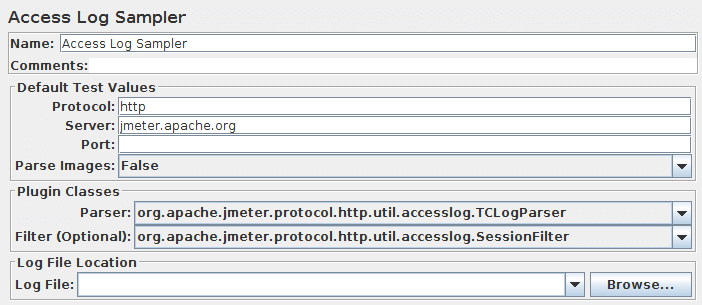
(Beta Code)
Parameters 
Attribute
Description
Required
Name
Descriptive name for this sampler that is shown in the tree.
No
Server
Domain name or IP address of the web server.
Yes
Protocol
Scheme
No (defaults to http
Port
Port the web server is listening to.
No (defaults to 80)
Log parser class
The log parser class is responsible for parsing the logs.
Yes (default provided)
Filter
The filter class is used to filter out certain lines.
No
Location of log file
The location of the access log file.
Yes
The TCLogParser processes the access log independently for each thread. The SharedTCLogParser and OrderPreservingLogParser share access to the file, i.e. each thread gets the next entry in the log.
The SessionFilter is intended to handle Cookies across threads. It does not filter out any entries, but modifies the cookie manager so that the cookies for a given IP are processed by a single thread at a time. If two threads try to process samples from the same client IP address, then one will be forced to wait until the other has completed.
The LogFilter is intended to allow access log entries to be filtered by filename and regex, as well as allowing for the replacement of file extensions. However, it is not currently possible to configure this via the GUI, so it cannot really be used.
BeanShell Sampler
This sampler allows you to write a sampler using the BeanShell scripting language.
For full details on using BeanShell, please see the BeanShell website.
Migration to JSR223 Sampler+Groovy is highly recommended for performance, support of new Java features and limited maintenance of the BeanShell library.
The test element supports the ThreadListener and TestListener interface methods. These must be defined in the initialisation file. See the file BeanShellListeners.bshrc for example definitions.
The BeanShell sampler also supports the Interruptible interface. The interrupt() method can be defined in the script or the init file.
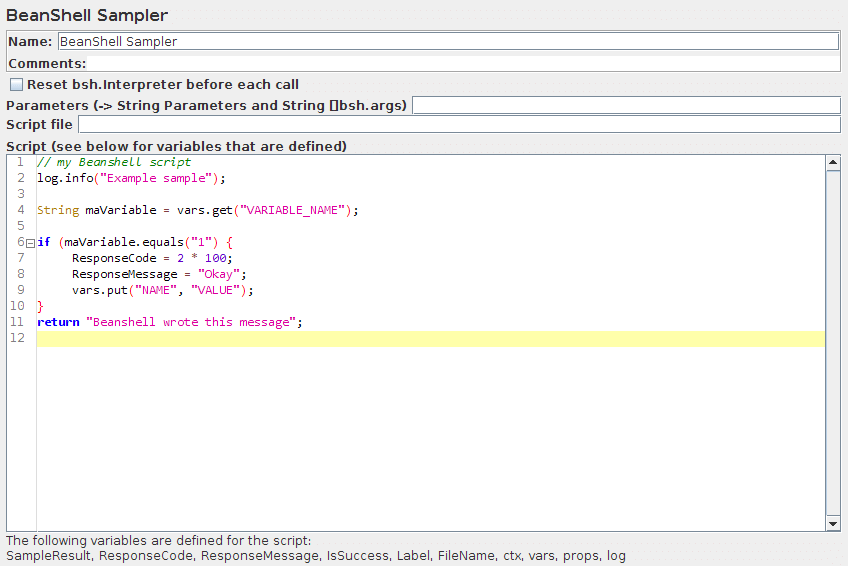
Parameters 
Attribute
Description
Required
Name
Descriptive name for this sampler that is shown in the tree. The name is stored in the script variable Label
No
Reset bsh.Interpreter before each call
If this option is selected, then the interpreter will be recreated for each sample. This may be necessary for some long running scripts. For further information, see Best Practices - BeanShell scripting.
Yes
Parameters
Parameters to pass to the BeanShell script. This is intended for use with script files; for scripts defined in the GUI, you can use whatever variable and function references you need within the script itself. The parameters are stored in the following variables:
- Parameters
- string containing the parameters as a single variable
- bsh.args
- String array containing parameters, split on white-space
No
Script file
A file containing the BeanShell script to run. The file name is stored in the script variable FileName
No
Script
The BeanShell script to run. The return value (if not null) is stored as the sampler result.
Yes (unless script file is provided)
N.B. Each Sampler instance has its own BeanShell interpreter, and Samplers are only called from a single thread
If the property "beanshell.sampler.init" is defined, it is passed to the Interpreter as the name of a sourced file. This can be used to define common methods and variables. There is a sample init file in the bin directory: BeanShellSampler.bshrc.
If a script file is supplied, that will be used, otherwise the script will be used.
JMeter processes function and variable references before passing the script field to the interpreter,
so the references will only be resolved once.
Variable and function references in script files will be passed
verbatim to the interpreter, which is likely to cause a syntax error.
In order to use runtime variables, please use the appropriate props methods,
e.g.props.get("START.HMS"); props.put("PROP1","1234");
BeanShell does not currently support Java 5 syntax such as generics and the enhanced for loop.
Before invoking the script, some variables are set up in the BeanShell interpreter:
The contents of the Parameters field is put into the variable "Parameters". The string is also split into separate tokens using a single space as the separator, and the resulting list is stored in the String array bsh.args.
The full list of BeanShell variables that is set up is as follows:
- log - the Logger
- Label - the Sampler label
- FileName - the file name, if any
- Parameters - text from the Parameters field
- bsh.args - the parameters, split as described above
- SampleResult - pointer to the current SampleResult
- ResponseCode defaults to 200
- ResponseMessage defaults to "OK"
- IsSuccess defaults to true
- ctx - JMeterContext
-
vars - JMeterVariables - e.g.
vars.get("VAR1"); vars.put("VAR2","value"); vars.remove("VAR3"); vars.putObject("OBJ1",new Object()); -
props - JMeterProperties (class java.util.Properties) - e.g.
props.get("START.HMS");
props.put("PROP1","1234");
When the script completes, control is returned to the Sampler, and it copies the contents of the following script variables into the corresponding variables in the SampleResult:
- ResponseCode - for example 200
- ResponseMessage - for example "OK"
- IsSuccess - true or false
The SampleResult ResponseData is set from the return value of the script. If the script returns null, it can set the response directly, by using the method SampleResult.setResponseData(data), where data is either a String or a byte array. The data type defaults to "text", but can be set to binary by using the method SampleResult.setDataType(SampleResult.BINARY).
The SampleResult variable gives the script full access to all the fields and methods in the SampleResult. For example, the script has access to the methods setStopThread(boolean) and setStopTest(boolean). Here is a simple (not very useful!) example script:
if (bsh.args[0].equalsIgnoreCase("StopThread")) {
    log.info("Stop Thread detected!");
    SampleResult.setStopThread(true);
}
return "Data from sample with Label "+Label;
//or
SampleResult.setResponseData("My data");
return null;
Another example:
ensure that the property beanshell.sampler.init=BeanShellSampler.bshrc is defined in jmeter.properties.
The following script will show the values of all the variables in the ResponseData field:
return getVariables();
For details on the methods available for the various classes (JMeterVariables, SampleResult etc.) please check the Javadoc or the source code. Beware however that misuse of any methods can cause subtle faults that may be difficult to find.
JSR223 Sampler
The JSR223 Sampler allows JSR223 script code to be used to perform a sample or some computation required to create/update variables.
If you don't want to generate a SampleResult when this sampler is run, call the following method:
SampleResult.setIgnore();
This call will have the following impact:
- SampleResult will not be delivered to SampleListeners like View Results Tree, Summariser ...
- SampleResult will not be evaluated in Assertions nor PostProcessors
- SampleResult will be evaluated to computing last sample status (${JMeterThread.last_sample_ok}), and ThreadGroup "Action to be taken after a Sampler error" (since JMeter 5.4)
The JSR223 test elements have a feature (compilation) that can significantly increase performance. To benefit from this feature:
- Use Script files instead of inlining them. This will make JMeter compile them if this feature is available on ScriptEngine and cache them.
-
Or Use Script Text and check Cache compiled script if available property.
When using this feature, ensure your script code does not use JMeter variables or JMeter function calls directly in script code as caching would only cache first replacement. Instead use script parameters.
To benefit from caching and compilation, the language engine used for scripting must implement JSR223 Compilable interface (Groovy is one of these, java, beanshell and javascript are not)
When using Groovy as scripting language and not checking Cache compiled script if available (while caching is recommended), you should set this JVM Property -Dgroovy.use.classvalue=true due to a Groovy Memory leak as of version 2.4.6, see:
Cache size is controlled by the following JMeter property (jmeter.properties):
jsr223.compiled_scripts_cache_size=100
Unlike the BeanShell Sampler, the interpreter is not saved between invocations.
JSR223 Test Elements using Script file or Script text + checked Cache compiled script if available are now compiled if ScriptEngine supports this feature, this enables great performance enhancements.
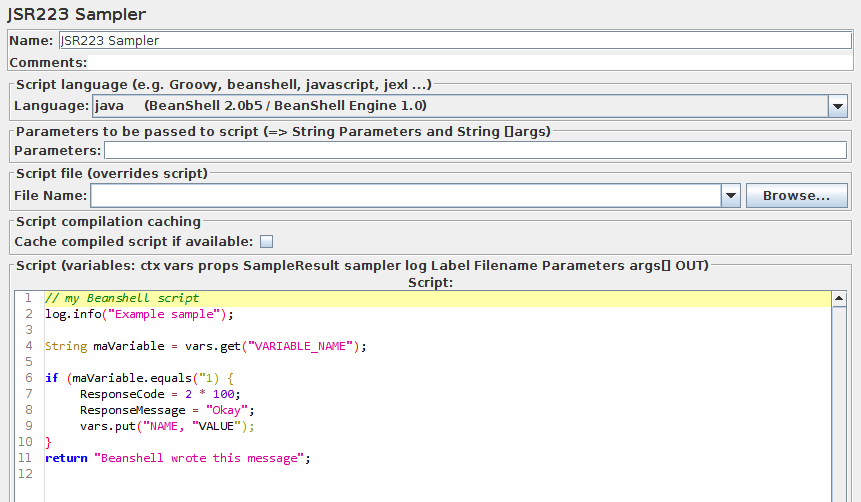
JMeter processes function and variable references before passing the script field to the interpreter, so the references will only be resolved once. Variable and function references in script files will be passed verbatim to the interpreter, which is likely to cause a syntax error. In order to use runtime variables, please use the appropriate props methods, e.g.
props.get("START.HMS");
props.put("PROP1","1234");
Parameters 
Attribute
Description
Required
Name
Descriptive name for this sampler that is shown in the tree.
No
Scripting Language
Name of the JSR223 scripting language to be used.
There are other languages supported than those that appear in the drop-down list.
Others may be available if the appropriate jar is installed in the JMeter lib directory.
Notice that some languages such as Velocity may use a different syntax for JSR223 variables,
e.g.
$log.debug("Hello " + $vars.get("a"));for Velocity.
Yes
Script File
Name of a file to be used as a JSR223 script, if a relative file path is used, then it will be relative to directory referenced by "user.dir" System property
No
Parameters
List of parameters to be passed to the script file or the script.
No
Cache compiled script if available
If checked (advised) and the language used supports Compilable interface (Groovy is one of these, java, beanshell and javascript are not), JMeter will compile the Script and cache it using its MD5 hash as unique cache key
No
Script
Script to be passed to JSR223 language
Yes (unless script file is provided)
If a script file is supplied, that will be used, otherwise the script will be used.
Before invoking the script, some variables are set up. Note that these are JSR223 variables - i.e. they can be used directly in the script.
- log - the Logger
- Label - the Sampler label
- FileName - the file name, if any
- Parameters - text from the Parameters field
- args - the parameters, split as described above
- SampleResult - pointer to the current SampleResult
- sampler - (Sampler) - pointer to current Sampler
- ctx - JMeterContext
-
vars - JMeterVariables - e.g.
vars.get("VAR1"); vars.put("VAR2","value"); vars.remove("VAR3"); vars.putObject("OBJ1",new Object()); -
props - JMeterProperties (class java.util.Properties) - e.g.
props.get("START.HMS"); props.put("PROP1","1234"); - OUT - System.out - e.g. OUT.println("message")
The SampleResult ResponseData is set from the return value of the script. If the script returns null, it can set the response directly, by using the method SampleResult.setResponseData(data), where data is either a String or a byte array. The data type defaults to "text", but can be set to binary by using the method SampleResult.setDataType(SampleResult.BINARY).
The SampleResult variable gives the script full access to all the fields and methods in the SampleResult. For example, the script has access to the methods setStopThread(boolean) and setStopTest(boolean).
Unlike the BeanShell Sampler, the JSR223 Sampler does not set the ResponseCode, ResponseMessage and sample status via script variables. Currently the only way to changes these is via the SampleResult methods:
- SampleResult.setSuccessful(true/false)
- SampleResult.setResponseCode("code")
- SampleResult.setResponseMessage("message")
TCP Sampler
The TCP Sampler opens a TCP/IP connection to the specified server. It then sends the text, and waits for a response.
If "Re-use connection" is selected, connections are shared between Samplers in the same thread, provided that the exact same host name string and port are used. Different hosts/port combinations will use different connections, as will different threads. If both of "Re-use connection" and "Close connection" are selected, the socket will be closed after running the sampler. On the next sampler, another socket will be created. You may want to close a socket at the end of each thread loop.
If an error is detected - or "Re-use connection" is not selected - the socket is closed. Another socket will be reopened on the next sample.
The following properties can be used to control its operation:
- tcp.status.prefix
- text that precedes a status number
- tcp.status.suffix
- text that follows a status number
- tcp.status.properties
- name of property file to convert status codes to messages
- tcp.handler
- Name of TCP Handler class (default TCPClientImpl) - only used if not specified on the GUI
The class that handles the connection is defined by the GUI, failing that the property tcp.handler. If not found, the class is then searched for in the package org.apache.jmeter.protocol.tcp.sampler.
Users can provide their own implementation. The class must extend org.apache.jmeter.protocol.tcp.sampler.TCPClient.
The following implementations are currently provided.
- TCPClientImpl
- BinaryTCPClientImpl
- LengthPrefixedBinaryTCPClientImpl
The implementations behave as follows:
- TCPClientImpl
- This implementation is fairly basic. When reading the response, it reads until the end of line byte, if this is defined by setting the property tcp.eolByte, otherwise until the end of the input stream. You can control charset encoding by setting tcp.charset, which will default to Platform default encoding.
- BinaryTCPClientImpl
- This implementation converts the GUI input, which must be a hex-encoded string, into binary, and performs the reverse when reading the response. When reading the response, it reads until the end of message byte, if this is defined by setting the property tcp.BinaryTCPClient.eomByte, otherwise until the end of the input stream.
- LengthPrefixedBinaryTCPClientImpl
- This implementation extends BinaryTCPClientImpl by prefixing the binary message data with a binary length byte. The length prefix defaults to 2 bytes. This can be changed by setting the property tcp.binarylength.prefix.length.
- Timeout handling
- If the timeout is set, the read will be terminated when this expires. So if you are using an eolByte/eomByte, make sure the timeout is sufficiently long, otherwise the read will be terminated early.
- Response handling
-
If tcp.status.prefix is defined, then the response message is searched for the text following
that up to the suffix. If any such text is found, it is used to set the response code.
The response message is then fetched from the properties file (if provided).
Response codes in the range "400"-"499" and "500"-"599" are currently regarded as failures; all others are successful. [This needs to be made configurable!]
Usage of pre- and suffix
For example, if the prefix = "[" and the suffix = "]", then the following response:
[J28] XI123,23,GBP,CR
would have the response code J28.
The login name/password are not used by the supplied TCP implementations.
Sockets are disconnected at the end of a test run.
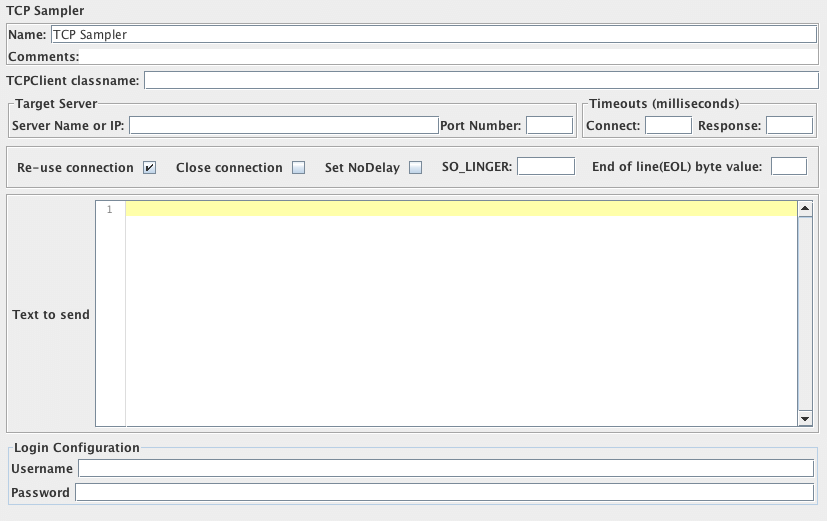
Parameters 
Attribute
Description
Required
Name
Descriptive name for this element that is shown in the tree.
TCPClient classname
Name of the TCPClient class. Defaults to the property tcp.handler, failing that TCPClientImpl.
No
ServerName or IP
Name or IP of TCP server
Yes
Port Number
Port to be used
Yes
Re-use connection
If selected, the connection is kept open. Otherwise it is closed when the data has been read.
Yes
Close connection
If selected, the connection will be closed after running the sampler.
Yes
SO_LINGER
Enable/disable SO_LINGER with the specified linger time in seconds when a socket is created. If you set "SO_LINGER" value as 0, you may prevent large numbers of sockets sitting around with a TIME_WAIT status.
No
End of line(EOL) byte value
Byte value for end of line, set this to a value outside the range -128 to +127 to skip eol checking. You may set this in jmeter.properties file as well with eolByte property. If you set this in TCP Sampler Config and in jmeter.properties file at the same time, the setting value in the TCP Sampler Config will be used.
No
Connect Timeout
Connect Timeout (milliseconds, 0 disables).
No
Response Timeout
Response Timeout (milliseconds, 0 disables).
No
Set NoDelay
See java.net.Socket.setTcpNoDelay(). If selected, this will disable Nagle's algorithm, otherwise Nagle's algorithm will be used.
Yes
Text to Send
Text to be sent
Yes
Login User
User Name - not used by default implementation
No
Password
Password - not used by default implementation (N.B. this is stored unencrypted in the test plan)
No
JMS Publisher
JMS Publisher will publish messages to a given destination (topic/queue). For those not familiar with JMS, it is the J2EE specification for messaging. There are numerous JMS servers on the market and several open source options.
JMeter does not include any JMS implementation jar; this must be downloaded from the JMS provider and put in the lib directory
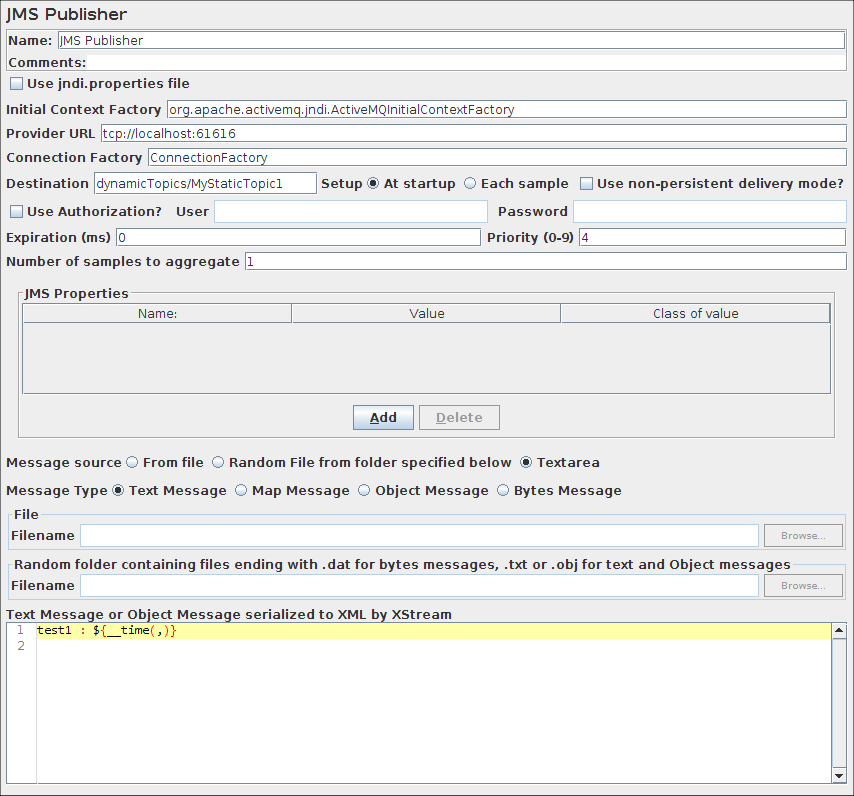
Parameters 
Attribute
Description
Required
Name
Descriptive name for this element that is shown in the tree.
use JNDI properties file
use jndi.properties. Note that the file must be on the classpath - e.g. by updating the user.classpath JMeter property. If this option is not selected, JMeter uses the "JNDI Initial Context Factory" and "Provider URL" fields to create the connection.
Yes
JNDI Initial Context Factory
Name of the context factory
No
Provider URL
The URL for the JMS provider
Yes, unless using jndi.properties
Destination
The message destination (topic or queue name)
Yes
Setup
The destination setup type. With At startup, the destination name is static (i.e. always same name during the test), with Each sample, the destination name is dynamic and is evaluate at each sample (i.e. the destination name may be a variable)
Yes
Authentication
Authentication requirement for the JMS provider
Yes
User
User Name
No
Password
Password (N.B. this is stored unencrypted in the test plan)
No
Expiration
The expiration time (in milliseconds) of the message before it becomes obsolete. If you do not specify an expiration time, the default value is 0 (never expires).
No
Priority
The priority level of the message. There are ten priority levels from 0 (lowest) to 9 (highest). If you do not specify a priority level, the default level is 4.
No
Reconnect on error codes (regex)
Regular expression for JMSException error codes which force reconnection. If empty no reconnection will be done
No
Number of samples to aggregate
Number of samples to aggregate
Yes
Message source
Where to obtain the message:
- From File
- means the referenced file will be read and reused by all samples. If file name changes it is reloaded since JMeter 3.0
- Random File from folder specified below
- means a random file will be selected from folder specified below, this folder must contain either files with extension .dat for Bytes Messages, or files with extension .txt or .obj for Object or Text messages
- Text area
- The Message to use either for Text or Object message
Yes
Message type
Text, Map, Object message or Bytes Message
Yes
Content encoding
Specify the encoding for reading the message source file:
- RAW:
- No variable support from the file and load it with default system charset.
- DEFAULT:
- Load file with default system encoding, except for XML which relies on XML prolog. If the file contain variables, they will be processed.
- Standard charsets:
- The specified encoding (valid or not) is used for reading the file and processing variables
Yes
Use non-persistent delivery mode?
Whether to set DeliveryMode.NON_PERSISTENT (defaults to false)
No
JMS Properties
The JMS Properties are properties specific for the underlying messaging system. You can setup the name, the value and the class (type) of value. Default type is String. For example: for WebSphere 5.1 web services you will need to set the JMS Property targetService to test webservices through JMS.
No
For the MapMessage type, JMeter reads the source as lines of text. Each line must have 3 fields, delimited by commas. The fields are:
- Name of entry
- Object class name, e.g. "String" (assumes java.lang package if not specified)
- Object string value
valueOf(String)
name,String,Example
size,Integer,1234
The Object message is implemented and works as follow:
- Put the JAR that contains your object and its dependencies in jmeter_home/lib/ folder
- Serialize your object as XML using XStream
- Either put result in a file suffixed with .txt or .obj or put XML content directly in Text Area
Note that if message is in a file, replacement of properties will not occur while it will if you use Text Area.
The following table shows some values which may be useful when configuring JMS:
| Apache ActiveMQ | Value(s) | Comment |
|---|---|---|
| Context Factory | org.apache.activemq.jndi.ActiveMQInitialContextFactory | . |
| Provider URL | vm://localhost | |
| Provider URL | vm:(broker:(vm://localhost)?persistent=false) | Disable persistence |
| Queue Reference | dynamicQueues/QUEUENAME | Dynamically define the QUEUENAME to JNDI |
| Topic Reference | dynamicTopics/TOPICNAME | Dynamically define the TOPICNAME to JNDI |
JMS Subscriber
JMS Subscriber will subscribe to messages in a given destination (topic or queue). For those not familiar with JMS, it is the J2EE specification for messaging. There are numerous JMS servers on the market and several open source options.
JMeter does not include any JMS implementation jar; this must be downloaded from the JMS provider and put in the lib directory
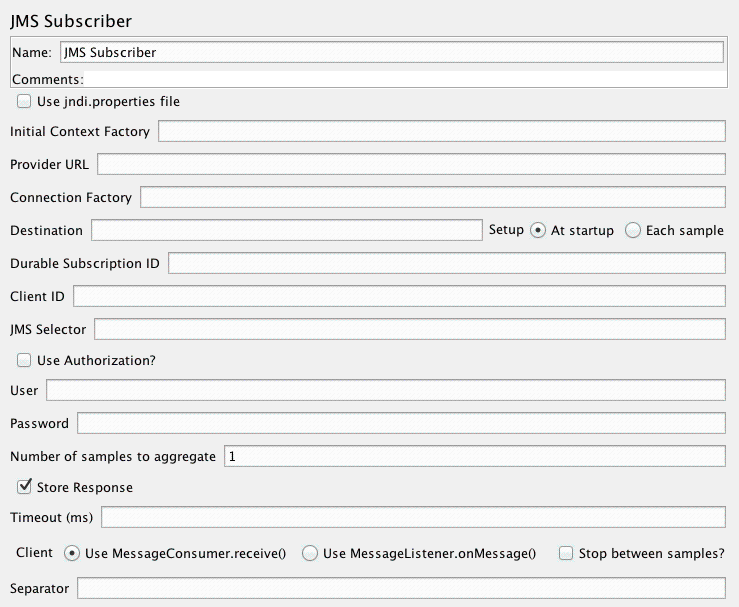
Parameters 
Attribute
Description
Required
Name
Descriptive name for this element that is shown in the tree.
use JNDI properties file
use jndi.properties. Note that the file must be on the classpath - e.g. by updating the user.classpath JMeter property. If this option is not selected, JMeter uses the "JNDI Initial Context Factory" and "Provider URL" fields to create the connection.
Yes
JNDI Initial Context Factory
Name of the context factory
No
Provider URL
The URL for the JMS provider
No
Destination
the message destination (topic or queue name)
Yes
Durable Subscription ID
The ID to use for a durable subscription. On first use the respective queue will automatically be generated by the JMS provider if it does not exist yet.
No
Client ID
The Client ID to use when you use a durable subscription. Be sure to add a variable like ${__threadNum} when you have more than one Thread.
No
JMS Selector
Message Selector as defined by JMS specification to extract only messages that respect the Selector condition. Syntax uses subpart of SQL 92.
No
Setup
The destination setup type. With At startup, the destination name is static (i.e. always same name during the test), with Each sample, the destination name is dynamic and is evaluated at each sample (i.e. the destination name may be a variable)
Yes
Authentication
Authentication requirement for the JMS provider
Yes
User
User Name
No
Password
Password (N.B. this is stored unencrypted in the test plan)
No
Number of samples to aggregate
number of samples to aggregate
Yes
Save response
should the sampler store the response. If not, only the response length is returned.
Yes
Timeout
Specify the timeout to be applied, in milliseconds. 0=none. This is the overall aggregate timeout, not per sample.
Yes
Client
Which client implementation to use. Both of them create connections which can read messages. However they use a different strategy, as described below:
- MessageConsumer.receive()
- calls receive() for every requested message. Retains the connection between samples, but does not fetch messages unless the sampler is active. This is best suited to Queue subscriptions.
- MessageListener.onMessage()
- establishes a Listener that stores all incoming messages on a queue. The listener remains active after the sampler completes. This is best suited to Topic subscriptions.
Yes
Stop between samples?
If selected, then JMeter calls Connection.stop() at the end of each sample (and calls start() before each sample). This may be useful in some cases where multiple samples/threads have connections to the same queue. If not selected, JMeter calls Connection.start() at the start of the thread, and does not call stop() until the end of the thread.
Yes
Separator
Separator used to separate messages when there is more than one (related to setting Number of samples to aggregate). Note that \n, \r, \t are accepted.
No
Reconnect on error codes (regex)
Regular expression for JMSException error codes which force reconnection. If empty no reconnection will be done
No
Pause between errors (ms)
Pause in milliseconds that Subscriber will make when an error occurs
No
JMS Point-to-Point
This sampler sends and optionally receives JMS Messages through point-to-point connections (queues). It is different from pub/sub messages and is generally used for handling transactions.
request_only will typically be used to put load on a JMS System.
request_reply will be used when you want to test response time of a JMS service that processes messages sent to the Request Queue as this mode will wait for the response on the Reply queue sent by this service.
browse returns the current queue depth, i.e. the number of messages on the queue.
read reads a message from the queue (if any).
clear clears the queue, i.e. remove all messages from the queue.
JMeter use the properties java.naming.security.[principal|credentials] - if present - when creating the Queue Connection. If this behaviour is not desired, set the JMeter property JMSSampler.useSecurity.properties=false
JMeter does not include any JMS implementation jar; this must be downloaded from the JMS provider and put in the lib directory
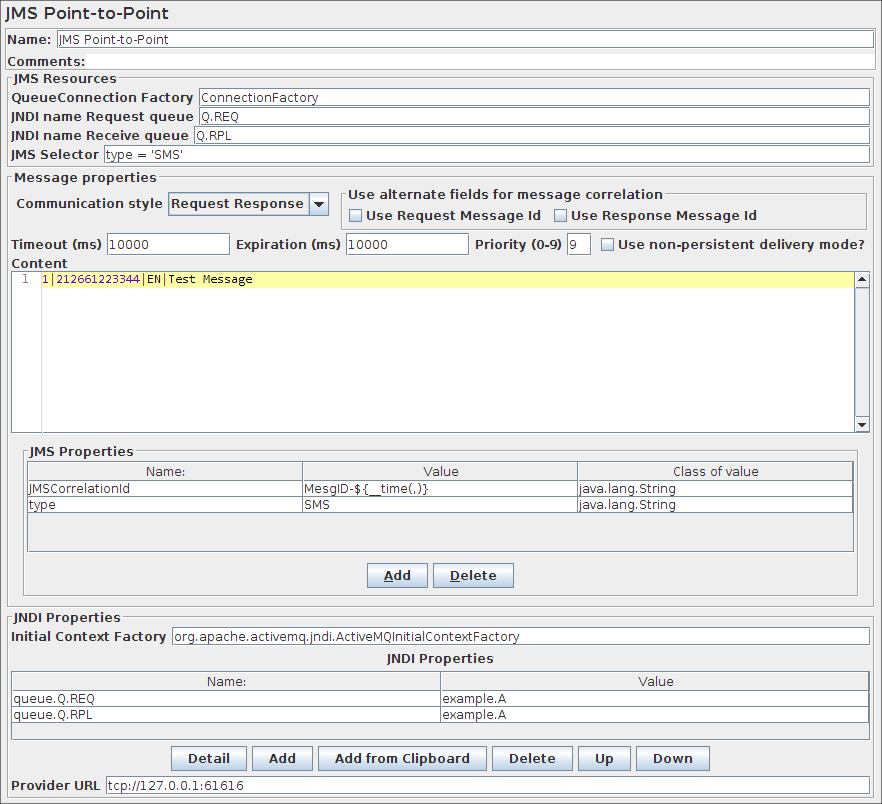
Parameters 
Attribute
Description
Required
Name
Descriptive name for this element that is shown in the tree.
QueueConnection Factory
The JNDI name of the queue connection factory to use for connecting to the messaging system.
Yes
JNDI Name Request queue
This is the JNDI name of the queue to which the messages are sent.
Yes
JNDI Name Reply queue
The JNDI name of the receiving queue. If a value is provided here and the communication style is Request Response this queue will be monitored for responses to the requests sent.
No
Number of samples to aggregate
Number of samples to aggregate. Only applicable for Communication style Read.
Yes
JMS Selector
Message Selector as defined by JMS specification to extract only messages that respect the Selector condition. Syntax uses subpart of SQL 92.
No
Communication style
The Communication style can be Request Only (also known as Fire and Forget), Request Response, Read, Browse, Clear:
- Request Only
- will only send messages and will not monitor replies. As such it can be used to put load on a system.
- Request Response
- will send messages and monitor the replies it receives. Behaviour depends on the value of the JNDI Name Reply Queue. If JNDI Name Reply Queue has a value, this queue is used to monitor the results. Matching of request and reply is done with the message id of the request and the correlation id of the reply. If the JNDI Name Reply Queue is empty, then temporary queues will be used for the communication between the requestor and the server. This is very different from the fixed reply queue. With temporary queues the sending thread will block until the reply message has been received. With Request Response mode, you need to have a Server that listens to messages sent to Request Queue and sends replies to queue referenced by message.getJMSReplyTo().
- Read
- will read a message from an outgoing queue which has no listeners attached. This can be convenient for testing purposes. This method can be used if you need to handle queues without a binding file (in case the jmeter-jms-skip-jndi library is used), which only works with the JMS Point-to-Point sampler. In case binding files are used, one can also use the JMS Subscriber Sampler for reading from a queue.
- Browse
- will determine the current queue depth without removing messages from the queue, returning the number of messages on the queue.
- Clear
- will clear the queue, i.e. remove all messages from the queue.
Yes
Use alternate fields for message correlation
These check-boxes select the fields which will be used for matching the response message with the original request.
- Use Request Message Id
- if selected, the request JMSMessageID will be used, otherwise the request JMSCorrelationID will be used. In the latter case the correlation id must be specified in the request.
- Use Response Message Id
- if selected, the response JMSMessageID will be used, otherwise the response JMSCorrelationID will be used.
There are two frequently used JMS Correlation patterns:
- JMS Correlation ID Pattern
- i.e. match request and response on their correlation Ids => deselect both checkboxes, and provide a correlation id.
- JMS Message ID Pattern
- i.e. match request message id with response correlation id => select "Use Request Message Id" only.
In both cases the JMS application is responsible for populating the correlation ID as necessary.
if the same queue is used to send and receive messages, then the response message will be the same as the request message. In which case, either provide a correlation id and clear both checkboxes; or select both checkboxes to use the message Id for correlation. This can be useful for checking raw JMS throughput.
Yes
Timeout
The timeout in milliseconds for the reply-messages. If a reply has not been received within the specified time, the specific testcase fails and the specific reply message received after the timeout is discarded. Default value is 2000 ms. 0 means no timeout.
Yes
Expiration
The expiration time (in milliseconds) of the message before it becomes obsolete. If you do not specify an expiration time, the default value is 0 (never expires).
No
Priority
The priority level of the message. There are ten priority levels from 0 (lowest) to 9 (highest). If you do not specify a priority level, the default level is 4.
No
Use non-persistent delivery mode?
Whether to set DeliveryMode.NON_PERSISTENT.
Yes
Content
The content of the message.
No
JMS Properties
The JMS Properties are properties specific for the underlying messaging system. You can setup the name, the value and the class (type) of value. Default type is String. For example: for WebSphere 5.1 web services you will need to set the JMS Property targetService to test webservices through JMS.
No
Initial Context Factory
The Initial Context Factory is the factory to be used to look up the JMS Resources.
No
JNDI properties
The JNDI Properties are the specific properties for the underlying JNDI implementation.
No
Provider URL
The URL for the JMS provider.
No
JUnit Request
The current implementation supports standard JUnit convention and extensions. It also includes extensions like oneTimeSetUp and oneTimeTearDown. The sampler works like the Java Request with some differences.
- rather than use JMeter's test interface, it scans the jar files for classes extending JUnit's TestCase class. That includes any class or subclass.
- JUnit test jar files should be placed in jmeter/lib/junit instead of /lib directory. You can also use the "user.classpath" property to specify where to look for TestCase classes.
- JUnit sampler does not use name/value pairs for configuration like the Java Request. The sampler assumes setUp and tearDown will configure the test correctly.
- The sampler measures the elapsed time only for the test method and does not include setUp and tearDown.
- Each time the test method is called, JMeter will pass the result to the listeners.
- Support for oneTimeSetUp and oneTimeTearDown is done as a method. Since JMeter is multi-threaded, we cannot call oneTimeSetUp/oneTimeTearDown the same way Maven does it.
- The sampler reports unexpected exceptions as errors. There are some important differences between standard JUnit test runners and JMeter's implementation. Rather than make a new instance of the class for each test, JMeter creates 1 instance per sampler and reuses it. This can be changed with checkbox "Create a new instance per sample".
The current implementation of the sampler will try to create an instance using the string constructor first. If the test class does not declare a string constructor, the sampler will look for an empty constructor. Example below:
JUnit Constructors
Empty Constructor:
public class myTestCase {
  public myTestCase() {}
}
String Constructor:
public class myTestCase {
  public myTestCase(String text) {
    super(text);
  }
}
By default, JMeter will provide some default values for the success/failure code and message. Users should define a set of unique success and failure codes and use them uniformly across all tests.
General Guidelines
If you use setUp and tearDown, make sure the methods are declared public. If you do not, the test may not run properly.
Here are some general guidelines for writing JUnit tests so they work well with JMeter. Since JMeter runs multi-threaded, it is important to keep certain things in mind.
- Write the setUp and tearDown methods so they are thread safe. This generally means avoid using static members.
- Make the test methods discrete units of work and not long sequences of actions. By keeping the test method to a discrete operation, it makes it easier to combine test methods to create new test plans.
- Avoid making test methods depend on each other. Since JMeter allows arbitrary sequencing of test methods, the runtime behavior is different than the default JUnit behavior.
- If a test method is configurable, be careful about where the properties are stored. Reading the properties from the Jar file is recommended.
- Each sampler creates an instance of the test class, so write your test so the setup happens in oneTimeSetUp and oneTimeTearDown.
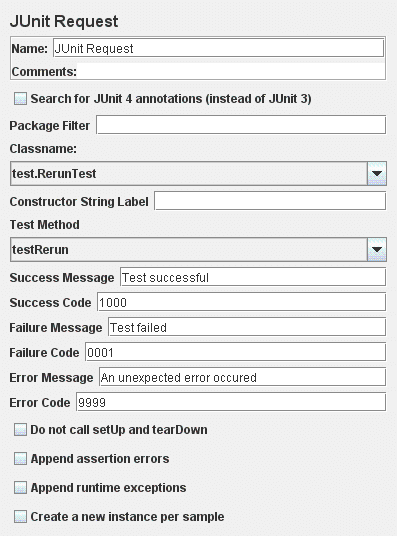
Parameters 
Attribute
Description
Required
Name
Descriptive name for this element that is shown in the tree.
Search for JUnit4 annotations
Select this to search for JUnit4 tests (@Test annotations)
Yes
Package filter
Comma separated list of packages to show. Example, org.apache.jmeter,junit.framework.
Class name
Fully qualified name of the JUnit test class.
Yes
Constructor string
String pass to the string constructor. If a string is set, the sampler will use the string constructor instead of the empty constructor.
Test method
The method to test.
Yes
Success message
A descriptive message indicating what success means.
Success code
An unique code indicating the test was successful.
Failure message
A descriptive message indicating what failure means.
Failure code
An unique code indicating the test failed.
Error message
A description for errors.
Error code
Some code for errors. Does not need to be unique.
Do not call setUp and tearDown
Set the sampler not to call setUp and tearDown. By default, setUp and tearDown should be called. Not calling those methods could affect the test and make it inaccurate. This option should only be used with calling oneTimeSetUp and oneTimeTearDown. If the selected method is oneTimeSetUp or oneTimeTearDown, this option should be checked.
Yes
Append assertion errors
Whether or not to append assertion errors to the response message.
Yes
Append runtime exceptions
Whether or not to append runtime exceptions to the response message. Only applies if "Append assertion errors" is not selected.
Yes
Create a new Instance per sample
Whether or not to create a new JUnit instance for each sample. Defaults to false, meaning JUnit TestCase is created one and reused.
Yes
The following JUnit4 annotations are recognised:
- @Test
- used to find test methods and classes. The "expected" and "timeout" attributes are supported.
- @Before
- treated the same as setUp() in JUnit3
- @After
- treated the same as tearDown() in JUnit3
- @BeforeClass, @AfterClass
- treated as test methods so they can be run independently as required
Note that JMeter currently runs the test methods directly, rather than leaving it to JUnit. This is to allow the setUp/tearDown methods to be excluded from the sample time. As a consequence, the sampler time excludes the time taken to call setUp/tearDown methods and their annotation based alternatives.
Mail Reader Sampler
The Mail Reader Sampler can read (and optionally delete) mail messages using POP3(S) or IMAP(S) protocols.
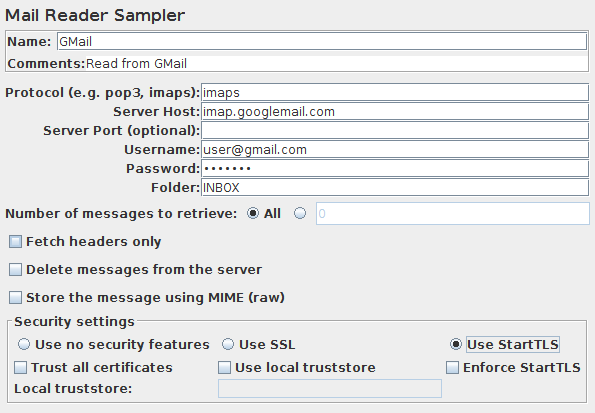
Parameters 
Attribute
Description
Required
Name
Descriptive name for this element that is shown in the tree.
Server Type
The protocol used by the provider: e.g. pop3, pop3s, imap, imaps. or another string representing the server protocol. For example file for use with the read-only mail file provider. The actual provider names for POP3 and IMAP are pop3 and imap
Yes
Server
Hostname or IP address of the server. See below for use with file protocol.
Yes
Port
Port to be used to connect to the server (optional)
No
Username
User login name
Password
User login password (N.B. this is stored unencrypted in the test plan)
Folder
The IMAP(S) folder to use. See below for use with file protocol.
Yes, if using IMAP(S)
Number of messages to retrieve
Set this to retrieve all or some messages
Yes
Fetch headers only
If selected, only the message headers will be retrieved.
Yes
Delete messages from the server
If set, messages will be deleted after retrieval
Yes
Store the message using MIME
Whether to store the message as MIME. If so, then the entire raw message is stored in the Response Data; the headers are not stored as they are available in the data. If not, the message headers are stored as Response Headers. A few headers are stored (Date, To, From, Subject) in the body.
Yes
Use no security features
Indicates that the connection to the server does not use any security protocol.
Use SSL
Indicates that the connection to the server must use the SSL protocol.
Use StartTLS
Indicates that the connection to the server should attempt to start the TLS protocol.
Enforce StartTLS
If the server does not start the TLS protocol the connection will be terminated.
Trust All Certificates
When selected it will accept all certificates independent of the CA.
Use local truststore
When selected it will only accept certificates that are locally trusted.
Local truststore
Path to file containing the trusted certificates.
Relative paths are resolved against the current directory.
Failing that, against the directory containing the test script (JMX file).
You can pass mail related environment properties by adding to user.properties any of the properties described here.
Messages are stored as subsamples of the main sampler. Multipart message parts are stored as subsamples of the message.
Special handling for "file" protocol:
The file JavaMail provider can be used to read raw messages from files.
The server field is used to specify the path to the parent of the folder.
Individual message files should be stored with the name n.msg,
where n is the message number.
Alternatively, the server field can be the name of a file which contains a single message.
The current implementation is quite basic, and is mainly intended for debugging purposes.
Flow Control Action (was: Test Action ) 
The Flow Control Action sampler is a sampler that is intended for use in a conditional controller. Rather than generate a sample, the test element either pauses or stops the selected target.
This sampler can also be useful in conjunction with the Transaction Controller, as it allows pauses to be included without needing to generate a sample. For variable delays, set the pause time to zero, and add a Timer as a child.
The "Stop" action stops the thread or test after completing any samples that are in progress. The "Stop Now" action stops the test without waiting for samples to complete; it will interrupt any active samples. If some threads fail to stop within the 5 second time-limit, a message will be displayed in GUI mode. You can try using the Stop command to see if this will stop the threads, but if not, you should exit JMeter. In CLI mode, JMeter will exit if some threads fail to stop within the 5 second time limit.
The time to wait can be changed using the JMeter property jmeterengine.threadstop.wait. The time is given in milliseconds.
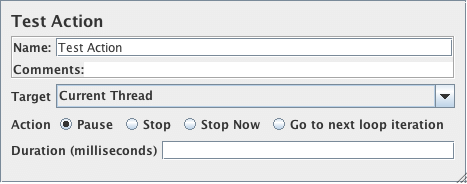
Parameters 
Attribute
Description
Required
Name
Descriptive name for this element that is shown in the tree.
Target
Current Thread / All Threads (ignored for Pause and Go to next loop iteration)
Yes
Action
Pause / Stop / Stop Now / Go to next loop iteration
Yes
Duration
How long to pause for (milliseconds)
Yes, if Pause is selected
SMTP Sampler
The SMTP Sampler can send mail messages using SMTP/SMTPS protocol.
It is possible to set security protocols for the connection (SSL and TLS), as well as user authentication.
If a security protocol is used a verification on the server certificate will occur.
Two alternatives to handle this verification are available:
- Trust all certificates
- This will ignore certificate chain verification
- Use a local truststore
- With this option the certificate chain will be validated against the local truststore file.
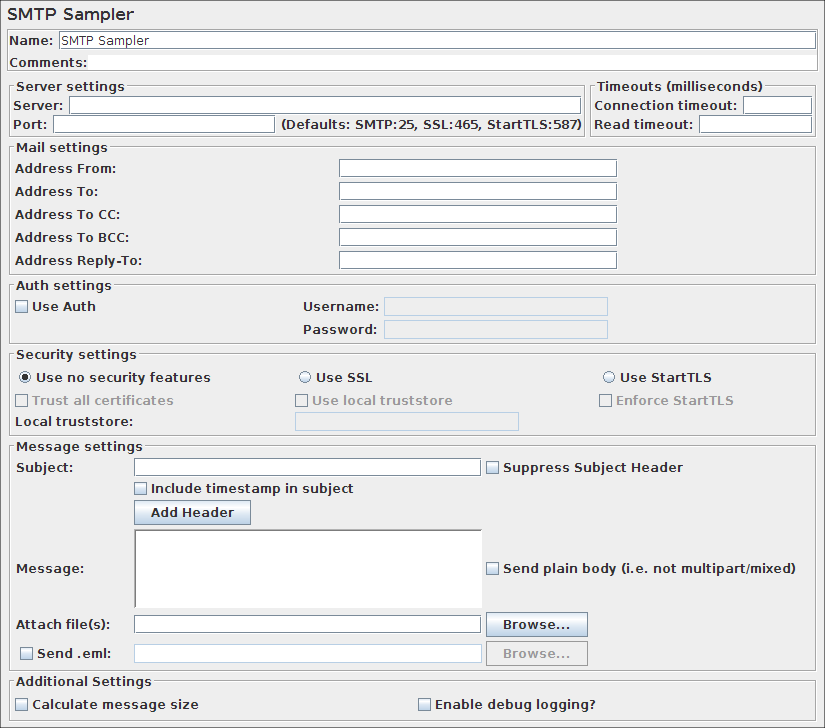
Parameters 
Attribute
Description
Required
Server
Hostname or IP address of the server. See below for use with file protocol.
Yes
Port
Port to be used to connect to the server. Defaults are: SMTP=25, SSL=465, StartTLS=587
No
Connection timeout
Connection timeout value in milliseconds (socket level). Default is infinite timeout.
No
Read timeout
Read timeout value in milliseconds (socket level). Default is infinite timeout.
No
Address From
The from address that will appear in the e-mail
Yes
Address To
The destination e-mail address (multiple values separated by ";")
Yes, unless CC or BCC is specified
Address To CC
Carbon copy destinations e-mail address (multiple values separated by ";")
No
Address To BCC
Blind carbon copy destinations e-mail address (multiple values separated by ";")
No
Address Reply-To
Alternate Reply-To address (multiple values separated by ";")
No
Use Auth
Indicates if the SMTP server requires user authentication
Username
User login name
Password
User login password (N.B. this is stored unencrypted in the test plan)
Use no security features
Indicates that the connection to the SMTP server does not use any security protocol.
Use SSL
Indicates that the connection to the SMTP server must use the SSL protocol.
Use StartTLS
Indicates that the connection to the SMTP server should attempt to start the TLS protocol.
Enforce StartTLS
If the server does not start the TLS protocol the connection will be terminated.
Trust All Certificates
When selected it will accept all certificates independent of the CA.
Use local truststore
When selected it will only accept certificates that are locally trusted.
Local truststore
Path to file containing the trusted certificates.
Relative paths are resolved against the current directory.
Failing that, against the directory containing the test script (JMX file).
Override System SSL/TLS Protocols
Specify a custom SSL/TLS protocol as space separated list to use on handshake example TLSv1 TLSv1.1 TLSv1.2. Defaults to all supported protocols.
No
Subject
The e-mail message subject.
Suppress Subject Header
If selected, the "Subject:" header is omitted from the mail that is sent. This is different from sending an empty "Subject:" header, though some e-mail clients may display it identically.
Include timestamp in subject
Includes the System.currentTimemillis() in the subject line.
Add Header
Additional headers can be defined using this button.
No
Message
The message body.
Send plain body (i.e. not multipart/mixed)
If selected, then send the body as a plain message, i.e. not multipart/mixed, if possible. If the message body is empty and there is a single file, then send the file contents as the message body.
Note: If the message body is not empty, and there is at least one attached file, then the body is sent as multipart/mixed.
No
Attach files
Files to be attached to the message.
Send .eml
If set, the .eml file will be sent instead of the entries in the Subject, Message, and Attach file(s) fields
Calculate message size
Calculates the message size and stores it in the sample result.
Enable debug logging?
If set, then the "mail.debug" property is set to "true"
OS Process Sampler
The OS Process Sampler is a sampler that can be used to execute commands on the local machine.
It should allow execution of any command that can be run from the command line.
Validation of the return code can be enabled, and the expected return code can be specified.
Note that OS shells generally provide command-line parsing. This varies between OSes, but generally the shell will split parameters on white-space. Some shells expand wild-card file names; some don't. The quoting mechanism also varies between OSes. The sampler deliberately does not do any parsing or quote handling. The command and its parameters must be provided in the form expected by the executable. This means that the sampler settings will not be portable between OSes.
Many OSes have some built-in commands which are not provided as separate executables. For example the Windows DIR command is part of the command interpreter (CMD.EXE). These built-ins cannot be run as independent programs, but have to be provided as arguments to the appropriate command interpreter.
For example, the Windows command-line: DIR C:\TEMP needs to be specified as follows:
- Command:
- CMD
- Param 1:
- /C
- Param 2:
- DIR
- Param 3:
- C:\TEMP
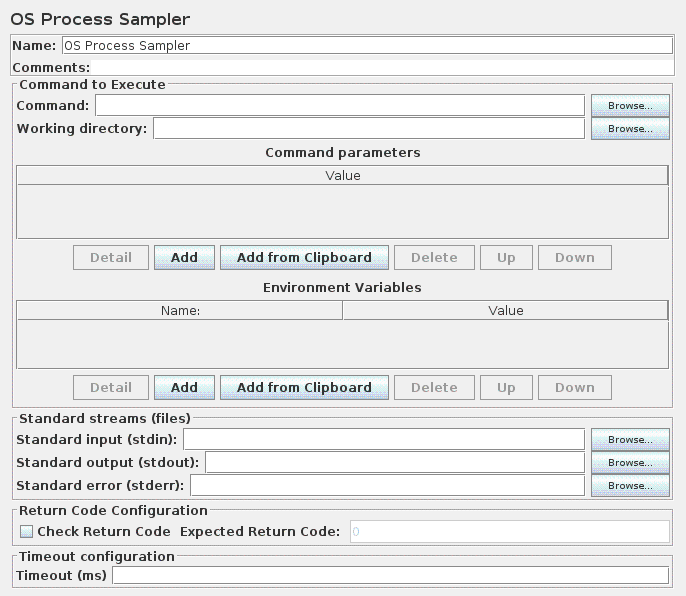
Parameters 
Attribute
Description
Required
Command
The program name to execute.
Yes
Working directory
Directory from which command will be executed, defaults to folder referenced by "user.dir" System property
No
Command Parameters
Parameters passed to the program name.
No
Environment Parameters
Key/Value pairs added to environment when running command.
No
Standard input (stdin)
Name of file from which input is to be taken (STDIN).
No
Standard output (stdout
Name of output file for standard output (STDOUT). If omitted, output is captured and returned as the response data.
No
Standard error (stderr)
Name of output file for standard error (STDERR). If omitted, output is captured and returned as the response data.
No
Check Return Code
If checked, sampler will compare return code with Expected Return Code.
No
Expected Return Code
Expected return code for System Call, required if "Check Return Code" is checked. Note 500 is used as an error indicator in JMeter so you should not use it.
No
Timeout
Timeout for command in milliseconds, defaults to 0, which means no timeout. If the timeout expires before the command finishes, JMeter will attempt to kill the OS process.
No
MongoDB Script (DEPRECATED)
This sampler lets you send a Request to a MongoDB.
Before using this you need to set up a MongoDB Source Config Configuration element
This Element currently uses com.mongodb.DB#eval which takes a global write lock causing a performance impact on the database, see db.eval(). So it is better to avoid using this element for load testing and use JSR223+Groovy scripting using MongoDBHolder instead. MongoDB Script is more suitable for functional testing or test setup (setup/teardown threads)
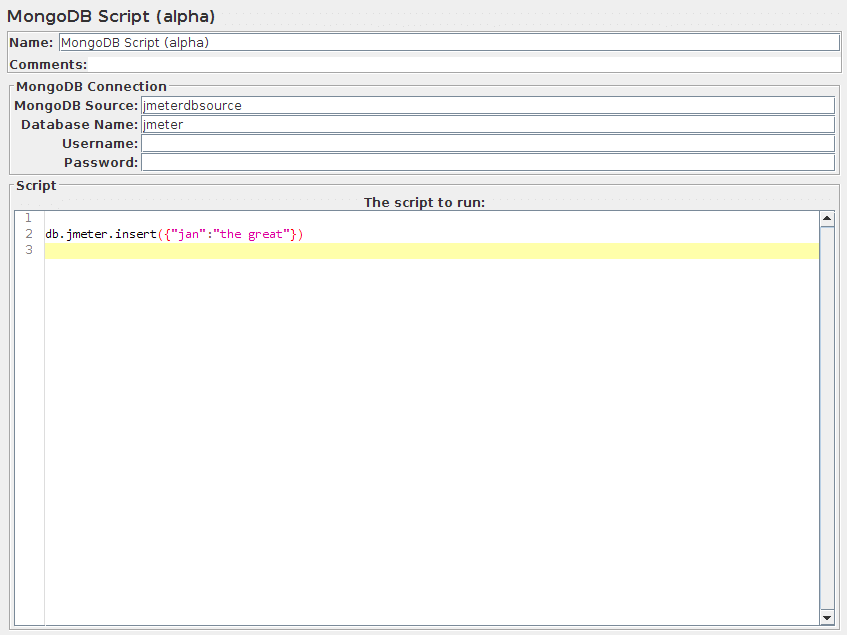
Parameters 
Attribute
Description
Required
Name
Descriptive name for this sampler that is shown in the tree.
No
MongoDB Source
Name of the JMeter variable that the MongoDB connection is bound to. This must agree with the 'MongoDB Source' field of a MongoDB Source Config.
Yes
Database Name
Database Name, will be used in your script
Yes
Username
No
Password
No
Script
Mongo script as it would be used in MongoDB shell
Yes
Ensure Variable Name is unique across Test Plan.
Bolt Request
This sampler allows you to run Cypher queries through the Bolt protocol.
Before using this you need to set up a Bolt Connection Configuration
Every request uses a connection acquired from the pool and returns it to the pool when the sampler completes. The connection pool size defaults to 100 and is configurable.
The measured response time corresponds to the "full" query execution, including both the time to execute the cypher query AND the time to consume the results sent back by the database.
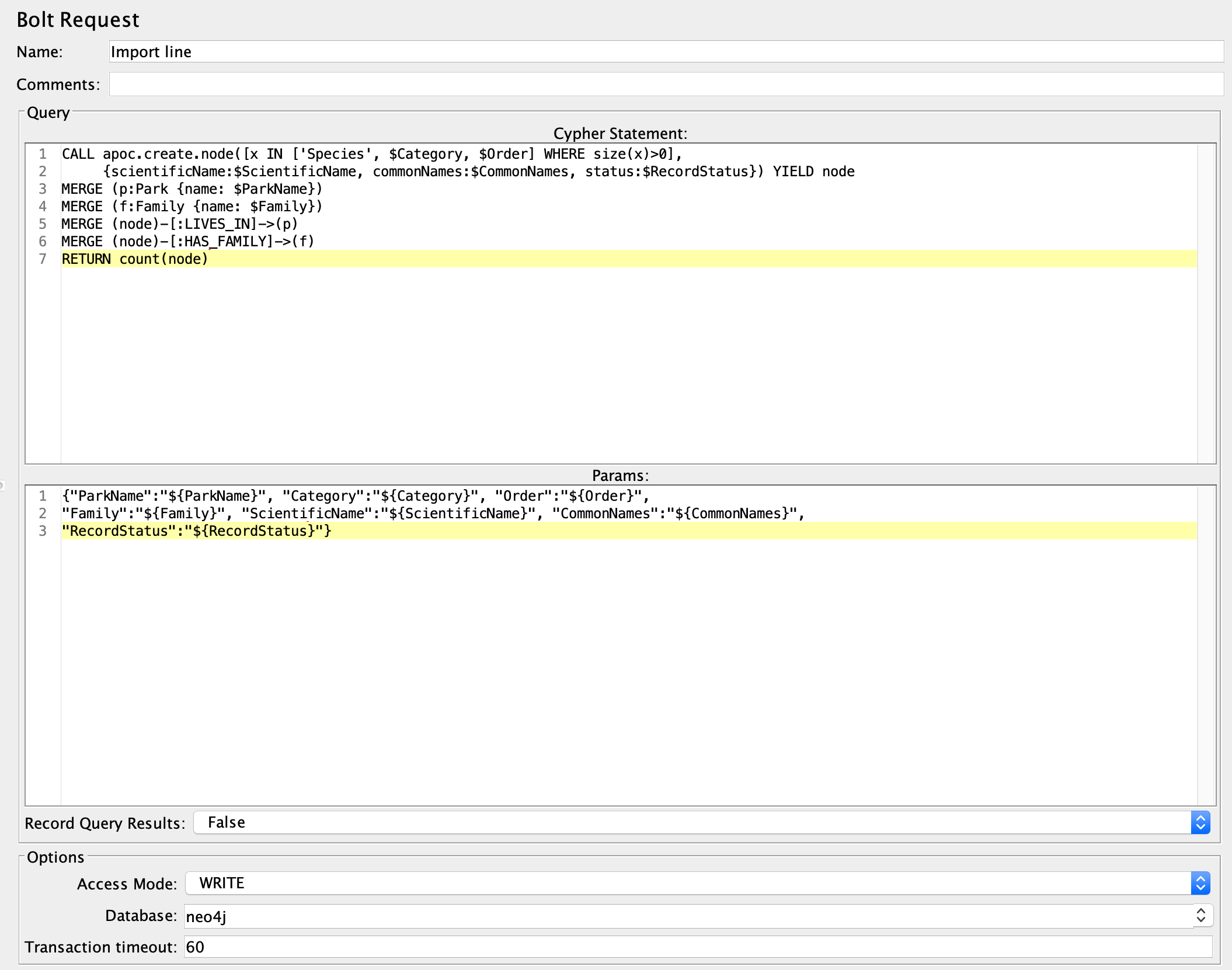
Parameters 
Attribute
Description
Required
Name
Descriptive name for this sampler that is shown in the tree.
No
Comments
Free text for additional details.
No
Cypher statement
The query to execute.
Yes
Params
The parameter values, JSON formatted.
No
Record Query Results
Whether to add or not query result data to the sampler response (default false). Note that activating this has a memory overhead, use it wisely.
No
Access Mode
Whether to access the database in WRITE or READ mode. Use WRITE for a standalone Neo4j instance. For a Neo4j cluster, select mode depending on whether the query writes to the database. That setting will allow correct routing to the cluster leader, followers or read replicas.
Yes
Database
The database to run the query against. Required for Neo4j 4.0+, unless querying the default database. Must be undefined for Neo4j 3.5.
No
Transaction timeout
Timeout for the transaction.
No
It is strongly advised to use query parameters, allowing the database to cache and reuse execution plans.
18.2 Logic Controllers
Logic Controllers determine the order in which Samplers are processed.
Simple Controller
The Simple Logic Controller lets you organize your Samplers and other Logic Controllers. Unlike other Logic Controllers, this controller provides no functionality beyond that of a storage device.
Parameters 
Attribute
Description
Required
Name
Descriptive name for this controller that is shown in the tree.
No
Using the Simple Controller
Download this example (see Figure 6). In this example, we created a Test Plan that sends two Ant HTTP requests and two Log4J HTTP requests. We grouped the Ant and Log4J requests by placing them inside Simple Logic Controllers. Remember, the Simple Logic Controller has no effect on how JMeter processes the controller(s) you add to it. So, in this example, JMeter sends the requests in the following order: Ant Home Page, Ant News Page, Log4J Home Page, Log4J History Page.
Note, the File Reporter is configured to store the results in a file named "simple-test.dat" in the current directory.
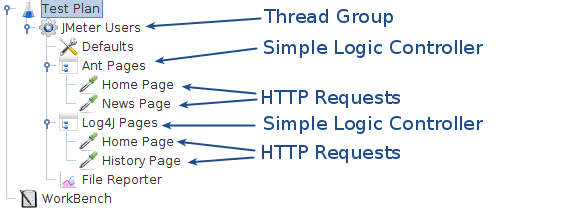
Loop Controller
If you add Generative or Logic Controllers to a Loop Controller, JMeter will loop through them a certain number of times, in addition to the loop value you specified for the Thread Group. For example, if you add one HTTP Request to a Loop Controller with a loop count of two, and configure the Thread Group loop count to three, JMeter will send a total of 2 * 3 = 6 HTTP Requests.
JMeter will expose the looping index as a variable named __jm__<Name of your element>__idx. So for example, if your Loop Controller is named LC, then you can access the looping index through ${__jm__LC__idx}. Index starts at 0
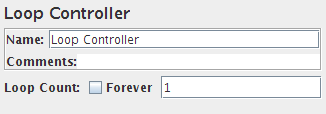
Parameters 
Attribute
Description
Required
Name
Descriptive name for this controller that is shown in the tree.
No
Loop Count
The number of times the subelements of this controller will be iterated each time through a test run.
The value -1 is equivalent to checking the Forever toggle.
Special Case: The Loop Controller embedded in the Thread Group element behaves slightly different. Unless set to forever, it stops the test after the given number of iterations have been done.
When using a function in this field, be aware it may be evaluated multiple times. Example using __Random will evaluate it to a different value for each child samplers of Loop Controller and result into unwanted behaviour.
Yes, unless "Forever" is checked
Looping Example
Download this example (see Figure 4). In this example, we created a Test Plan that sends a particular HTTP Request only once and sends another HTTP Request five times.
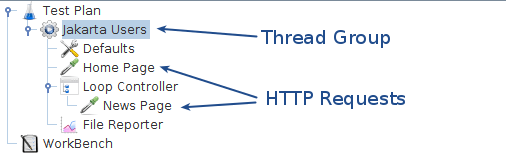
We configured the Thread Group for a single thread and a loop count value of one. Instead of letting the Thread Group control the looping, we used a Loop Controller. You can see that we added one HTTP Request to the Thread Group and another HTTP Request to a Loop Controller. We configured the Loop Controller with a loop count value of five.
JMeter will send the requests in the following order: Home Page, News Page, News Page, News Page, News Page, and News Page.
Note, the File Reporter is configured to store the results in a file named "loop-test.dat" in the current directory.
Once Only Controller
The Once Only Logic Controller tells JMeter to process the controller(s) inside it only once per Thread, and pass over any requests under it during further iterations through the test plan.
The Once Only Controller will now execute always during the first iteration of any looping parent controller. Thus, if the Once Only Controller is placed under a Loop Controller specified to loop 5 times, then the Once Only Controller will execute only on the first iteration through the Loop Controller (i.e. every 5 times).
Note this means the Once Only Controller will still behave as previously expected if put under a Thread Group (runs only once per test per Thread), but now the user has more flexibility in the use of the Once Only Controller.
For testing that requires a login, consider placing the login request in this controller since each thread only needs to login once to establish a session.
Parameters 
Attribute
Description
Required
Name
Descriptive name for this controller that is shown in the tree.
No
Once Only Example
Download this example (see Figure 5). In this example, we created a Test Plan that has two threads that send HTTP request. Each thread sends one request to the Home Page, followed by three requests to the Bug Page. Although we configured the Thread Group to iterate three times, each JMeter thread only sends one request to the Home Page because this request lives inside a Once Only Controller.
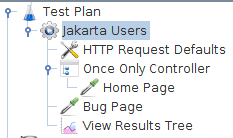
Each JMeter thread will send the requests in the following order: Home Page, Bug Page, Bug Page, Bug Page.
Note, the File Reporter is configured to store the results in a file named "loop-test.dat" in the current directory.
Interleave Controller
If you add Generative or Logic Controllers to an Interleave Controller, JMeter will alternate among each of the other controllers for each loop iteration.
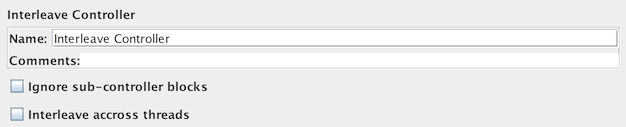
Parameters 
Attribute
Description
Required
name
Descriptive name for this controller that is shown in the tree.
No
ignore sub-controller blocks
If checked, the interleave controller will treat sub-controllers like single request elements and only allow one request per controller at a time.
No
Interleave across threads
If checked, the interleave controller will alternate among each of its children controllers for each loop iteration but across all threads, for example in a configuration with 4 threads and 3 child controllers, on first iteration thread 1 will run first child, thread 2 second child, thread 3 third child, thread 4 first child, on next iteration each thread will run the following child controller
No
Simple Interleave Example
Download this example (see Figure 1). In this example, we configured the Thread Group to have two threads and a loop count of five, for a total of ten requests per thread. See the table below for the sequence JMeter sends the HTTP Requests.
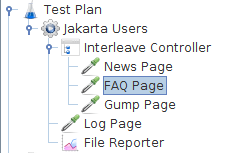
| Loop Iteration | Each JMeter Thread Sends These HTTP Requests |
|---|---|
| 1 | News Page |
| 1 | Log Page |
| 2 | FAQ Page |
| 2 | Log Page |
| 3 | Gump Page |
| 3 | Log Page |
| 4 | Because there are no more requests in the controller,
JMeter starts over and sends the first HTTP Request, which is the News Page. |
| 4 | Log Page |
| 5 | FAQ Page |
| 5 | Log Page |
Useful Interleave Example
Download another example (see Figure 2). In this example, we configured the Thread Group to have a single thread and a loop count of eight. Notice that the Test Plan has an outer Interleave Controller with two Interleave Controllers inside of it.
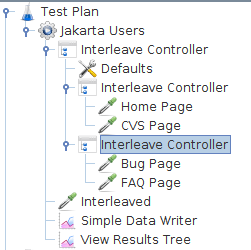
The outer Interleave Controller alternates between the two inner ones. Then, each inner Interleave Controller alternates between each of the HTTP Requests. Each JMeter thread will send the requests in the following order: Home Page, Interleaved, Bug Page, Interleaved, CVS Page, Interleaved, and FAQ Page, Interleaved.
Note, the File Reporter is configured to store the results in a file named "interleave-test2.dat" in the current directory.
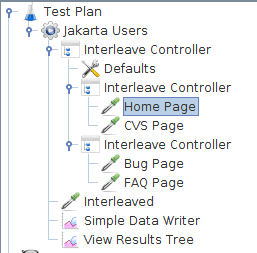
If the two interleave controllers under the main interleave controller were instead simple controllers, then the order would be: Home Page, CVS Page, Interleaved, Bug Page, FAQ Page, Interleaved.
However, if "ignore sub-controller blocks" was checked on the main interleave controller, then the order would be: Home Page, Interleaved, Bug Page, Interleaved, CVS Page, Interleaved, and FAQ Page, Interleaved.
Random Controller
The Random Logic Controller acts similarly to the Interleave Controller, except that instead of going in order through its sub-controllers and samplers, it picks one at random at each pass.
Interactions between multiple controllers can yield complex behavior. This is particularly true of the Random Controller. Experiment before you assume what results any given interaction will give
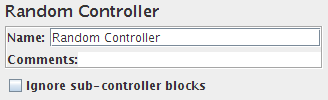
Parameters 
Attribute
Description
Required
Name
Descriptive name for this controller that is shown in the tree.
No
ignore sub-controller blocks
If checked, the interleave controller will treat sub-controllers like single request elements and only allow one request per controller at a time.
No
Random Order Controller
The Random Order Controller is much like a Simple Controller in that it will execute each child element at most once, but the order of execution of the nodes will be random.
Parameters 
Attribute
Description
Required
Name
Descriptive name for this controller that is shown in the tree.
No
Throughput Controller
The Throughput Controller allows the user to control how often it is executed. There are two modes:
- percent execution
- total executions
- Percent executions
- causes the controller to execute a certain percentage of the iterations through the test plan.
- Total executions
- causes the controller to stop executing after a certain number of executions have occurred.
Like the Once Only Controller, this setting is reset when a parent Loop Controller restarts.
This controller is badly named, as it does not control throughput. Please refer to the Constant Throughput Timer for an element that can be used to adjust the throughput.
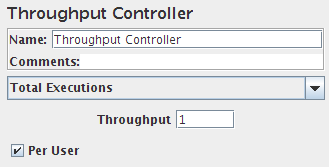
The Throughput Controller can yield very complex behavior when combined with other controllers - in particular with interleave or random controllers as parents (also very useful).
Parameters 
Attribute
Description
Required
Name
Descriptive name for this controller that is shown in the tree.
No
Execution Style
Whether the controller will run in percent executions or total executions mode.
Yes
Throughput
A number. For percent execution mode, a number from 0-100 that indicates the percentage of times the controller will execute. "50" means the controller will execute during half the iterations through the test plan. For total execution mode, the number indicates the total number of times the controller will execute.
Yes
Per User
If checked, per user will cause the controller to calculate whether it should execute on a per user (per thread) basis. If unchecked, then the calculation will be global for all users. For example, if using total execution mode, and uncheck "per user", then the number given for throughput will be the total number of executions made. If "per user" is checked, then the total number of executions would be the number of users times the number given for throughput.
No
Runtime Controller
The Runtime Controller controls how long its children will run. Controller will run its children until configured Runtime(s) is exceeded.
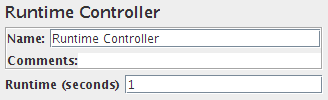
Parameters 
Attribute
Description
Required
Name
Descriptive name for this controller that is shown in the tree, and used to name the transaction.
Yes
Runtime (seconds)
Desired runtime in seconds. 0 means no run.
Yes
If Controller
The If Controller allows the user to control whether the test elements below it (its children) are run or not.
By default, the condition is evaluated only once on initial entry, but you have the option to have it evaluated for every runnable element contained in the controller.
The best option (default one) is to check Interpret Condition as Variable Expression?, then in the condition field you have 2 options:
-
Option 1: Use a variable that contains true or false
If you want to test if last sample was successful, you can use ${JMeterThread.last_sample_ok}
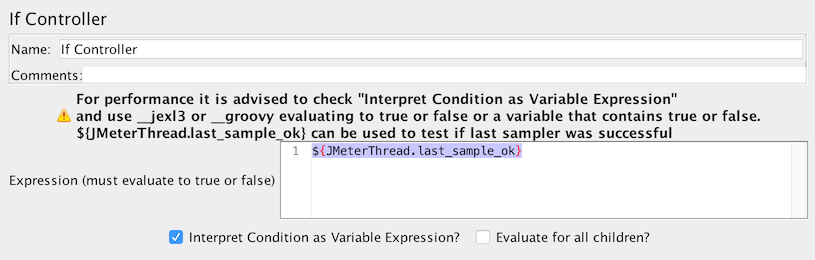
If Controller using Variable -
Option 2: Use a function (${__jexl3()} is advised) to evaluate an expression that must return true or false
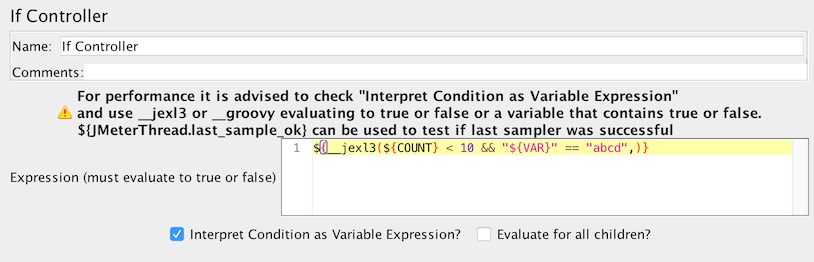
If Controller using expression
For example, previously one could use the condition: ${__jexl3(${VAR} == 23)} and this would be evaluated as true/false, the result would then be passed to JavaScript which would then return true/false. If the Variable Expression option is selected, then the expression is evaluated and compared with "true", without needing to use JavaScript.
To test if a variable is undefined (or null) do the following, suppose var is named myVar, expression will be:
"${myVar}" == "\${myVar}"Or use:
"${myVar}" != "\${myVar}"to test if a variable is defined and is not null.
If you uncheck Interpret Condition as Variable Expression?, If Controller will internally use javascript to evaluate the condition which has a performance penalty that can be very big and make your test less scalable.
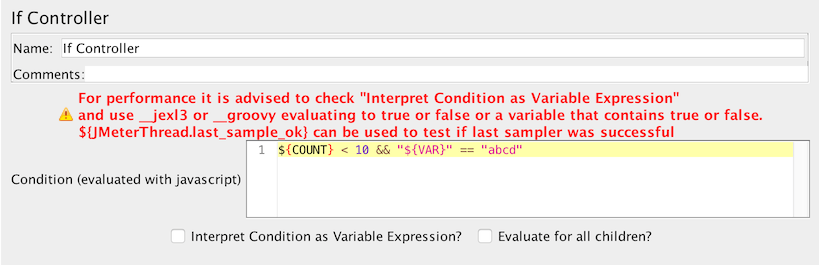
Parameters 
Attribute
Description
Required
Name
Descriptive name for this controller that is shown in the tree.
No
Condition (default JavaScript)
By default the condition is interpreted as JavaScript code that returns "true" or "false", but this can be overridden (see below)
Yes
Interpret Condition as Variable Expression?
If this is selected, then the condition must be an expression that evaluates to "true" (case is ignored). For example, ${FOUND} or ${__jexl3(${VAR} > 100)}. Unlike the JavaScript case, the condition is only checked to see if it matches "true" (case is ignored).
Checking this and using __jexl3 or __groovy function in Condition is advised for performances
Yes
Evaluate for all children
Should condition be evaluated for all children? If not checked, then the condition is only evaluated on entry.
Yes
Examples (JavaScript)
- ${COUNT} < 10
- "${VAR}" == "abcd"
If there is an error interpreting the code, the condition is assumed to be false, and a message is logged in jmeter.log.
Note it is advised to avoid using JavaScript mode for performance.
When using __groovy take care to not use variable replacement in the string, otherwise if using a variable that changes the script cannot be cached. Instead get the variable using: vars.get("myVar"). See the Groovy examples below.
Examples (Variable Expression)
- ${__groovy(vars.get("myVar") != "Invalid" )} (Groovy check myVar is not equal to Invalid)
- ${__groovy(vars.get("myInt").toInteger() <=4 )} (Groovy check myInt is less then or equal to 4)
- ${__groovy(vars.get("myMissing") != null )} (Groovy check if the myMissing variable is not set)
- ${__jexl3(${COUNT} < 10)}
- ${RESULT}
- ${JMeterThread.last_sample_ok} (check if the last sample succeeded)
While Controller
The While Controller runs its children until the condition is "false".
JMeter will expose the looping index as a variable named __jm__<Name of your element>__idx. So for example, if your While Controller is named WC, then you can access the looping index through ${__jm__WC__idx}. Index starts at 0
Possible condition values:
- blank - exit loop when last sample in loop fails
- LAST - exit loop when last sample in loop fails. If the last sample just before the loop failed, don't enter loop.
- Otherwise - exit (or don't enter) the loop when the condition is equal to the string "false"
The condition can be any variable or function that eventually evaluates to the string "false". This allows the use of __jexl3, __groovy function, properties or variables as needed.
Note that the condition is evaluated twice, once before starting sampling children and once at end of children sampling, so putting non idempotent functions in Condition (like __counter) can introduce issues.
For example:
- ${VAR} - where VAR is set to false by some other test element
- ${__jexl3(${C}==10)}
- ${__jexl3("${VAR2}"=="abcd")}
- ${_P(property)} - where property is set to "false" somewhere else
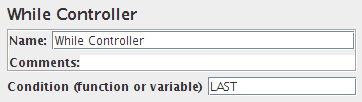
Parameters 
Attribute
Description
Required
Name
Descriptive name for this controller that is shown in the tree, and used to name the transaction.
No
Condition
blank, LAST, or variable/function
No
Switch Controller
The Switch Controller acts like the Interleave Controller in that it runs one of the subordinate elements on each iteration, but rather than run them in sequence, the controller runs the element defined by the switch value.
The switch value can also be a name.
If the switch value is out of range, it will run the zeroth element, which therefore acts as the default for the numeric case. It also runs the zeroth element if the value is the empty string.
If the value is non-numeric (and non-empty), then the Switch Controller looks for the element with the same name (case is significant). If none of the names match, then the element named "default" (case not significant) is selected. If there is no default, then no element is selected, and the controller will not run anything.
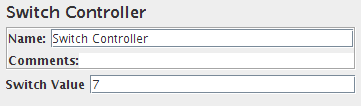
Parameters 
Attribute
Description
Required
Name
Descriptive name for this controller that is shown in the tree.
No
Switch Value
The number (or name) of the subordinate element to be invoked. Elements are numbered from 0. Defaults to 0
No
ForEach Controller
A ForEach controller loops through the values of a set of related variables. When you add samplers (or controllers) to a ForEach controller, every sample (or controller) is executed one or more times, where during every loop the variable has a new value. The input should consist of several variables, each extended with an underscore and a number. Each such variable must have a value. So for example when the input variable has the name inputVar, the following variables should have been defined:
- inputVar_1 = wendy
- inputVar_2 = charles
- inputVar_3 = peter
- inputVar_4 = john
Note: the "_" separator is now optional.
When the return variable is given as "returnVar", the collection of samplers and controllers under the ForEach controller will be executed 4 consecutive times, with the return variable having the respective above values, which can then be used in the samplers.
JMeter will expose the looping index as a variable named __jm__<Name of your element>__idx. So for example, if your Loop Controller is named FEC, then you can access the looping index through ${__jm__FEC__idx}. Index starts at 0
It is especially suited for running with the regular expression post-processor. This can "create" the necessary input variables out of the result data of a previous request. By omitting the "_" separator, the ForEach Controller can be used to loop through the groups by using the input variable refName_g, and can also loop through all the groups in all the matches by using an input variable of the form refName_${C}_g, where C is a counter variable.
The ForEach Controller does not run any samples if inputVar_1 is null. This would be the case if the Regular Expression returned no matches.
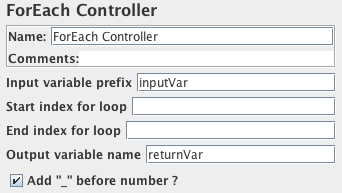
Parameters 
Attribute
Description
Required
Name
Descriptive name for this controller that is shown in the tree.
No
Input variable prefix
Prefix for the variable names to be used as input. Defaults to an empty string as prefix.
No
Start index for loop
Start index (exclusive) for loop over variables (first element is at start index + 1)
No
End index for loop
End index (inclusive) for loop over variables
No
Output variable
The name of the variable which can be used in the loop for replacement in the samplers. Defaults to an empty variable name, which is most probably not wanted.
No
Use Separator
If not checked, the "_" separator is omitted.
Yes
ForEach Example
Download this example (see Figure 7). In this example, we created a Test Plan that sends a particular HTTP Request only once and sends another HTTP Request to every link that can be found on the page.
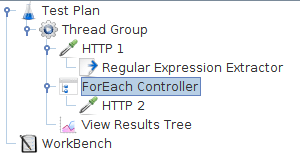
We configured the Thread Group for a single thread and a loop count value of one. You can see that we added one HTTP Request to the Thread Group and another HTTP Request to the ForEach Controller.
After the first HTTP request, a regular expression extractor is added, which extracts all the html links out of the return page and puts them in the inputVar variable
In the ForEach loop, a HTTP sampler is added which requests all the links that were extracted from the first returned HTML page.
ForEach Example
Here is another example you can download. This has two Regular Expressions and ForEach Controllers. The first RE matches, but the second does not match, so no samples are run by the second ForEach Controller
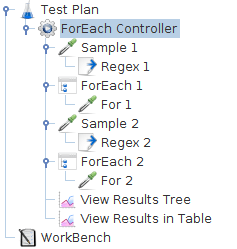
The Thread Group has a single thread and a loop count of two.
Sample 1 uses the JavaTest Sampler to return the string "a b c d".
The Regex Extractor uses the expression (\w)\s which matches a letter followed by a space, and returns the letter (not the space). Any matches are prefixed with the string "inputVar".
The ForEach Controller extracts all variables with the prefix "inputVar_", and executes its sample, passing the value in the variable "returnVar". In this case it will set the variable to the values "a" "b" and "c" in turn.
The For 1 Sampler is another Java Sampler which uses the return variable "returnVar" as part of the sample Label and as the sampler Data.
Sample 2, Regex 2 and For 2 are almost identical, except that the Regex has been changed to "(\w)\sx", which clearly won't match. Thus the For 2 Sampler will not be run.
Module Controller
The Module Controller provides a mechanism for substituting test plan fragments into the current test plan at run-time.
A test plan fragment consists of a Controller and all the test elements (samplers etc.) contained in it. The fragment can be located in any Thread Group. If the fragment is located in a Thread Group, then its Controller can be disabled to prevent the fragment being run except by the Module Controller. Or you can store the fragments in a dummy Thread Group, and disable the entire Thread Group.
There can be multiple fragments, each with a different series of samplers under them. The module controller can then be used to easily switch between these multiple test cases simply by choosing the appropriate controller in its drop down box. This provides convenience for running many alternate test plans quickly and easily.
A fragment name is made up of the Controller name and all its parent names. For example:
Test Plan / Protocol: JDBC / Control / Interleave Controller (Module1)
Any fragments used by the Module Controller must have a unique name, as the name is used to find the target controller when a test plan is reloaded. For this reason it is best to ensure that the Controller name is changed from the default - as shown in the example above - otherwise a duplicate may be accidentally created when new elements are added to the test plan.
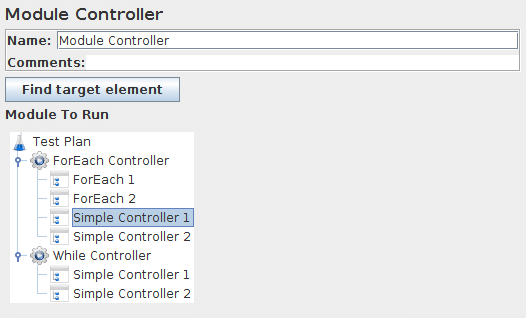
Parameters 
Attribute
Description
Required
Name
Descriptive name for this controller that is shown in the tree.
No
Module to Run
The module controller provides a list of all controllers loaded into the gui. Select the one you want to substitute in at runtime.
Yes
Include Controller
The include controller is designed to use an external JMX file. To use it, create a Test Fragment underneath the Test Plan and add any desired samplers, controllers etc. below it. Then save the Test Plan. The file is now ready to be included as part of other Test Plans.
For convenience, a Thread Group can also be added in the external JMX file for debugging purposes. A Module Controller can be used to reference the Test Fragment. The Thread Group will be ignored during the include process.
If the test uses a Cookie Manager or User Defined Variables, these should be placed in the top-level test plan, not the included file, otherwise they are not guaranteed to work.
This element does not support variables/functions in the filename field.
However, if the property includecontroller.prefix is defined,
the contents are used to prefix the pathname.
When using Include Controller and including the same JMX file, ensure you name the Include Controller differently to avoid facing known issue Bug 50898.
If the file cannot be found at the location given by prefix+Filename, then the controller attempts to open the Filename relative to the JMX launch directory.
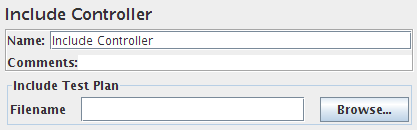
Transaction Controller
The Transaction Controller generates an additional sample which measures the overall time taken to perform the nested test elements.
Note: when the check box "Include duration of timer and pre-post processors in generated sample" is checked, the time includes all processing within the controller scope, not just the samples.
There are two modes of operation:
- additional sample is added after the nested samples
- additional sample is added as a parent of the nested samples
The generated sample time includes all the times for the nested samplers excluding by default (since 2.11) timers and processing time of pre/post processors unless checkbox "Include duration of timer and pre-post processors in generated sample" is checked. Depending on the clock resolution, it may be slightly longer than the sum of the individual samplers plus timers. The clock might tick after the controller recorded the start time but before the first sample starts. Similarly at the end.
The generated sample is only regarded as successful if all its sub-samples are successful.
In parent mode, the individual samples can still be seen in the Tree View Listener, but no longer appear as separate entries in other Listeners. Also, the sub-samples do not appear in CSV log files, but they can be saved to XML files.
In parent mode, Assertions (etc.) can be added to the Transaction Controller. However by default they will be applied to both the individual samples and the overall transaction sample. To limit the scope of the Assertions, use a Simple Controller to contain the samples, and add the Assertions to the Simple Controller. Parent mode controllers do not currently properly support nested transaction controllers of either type.
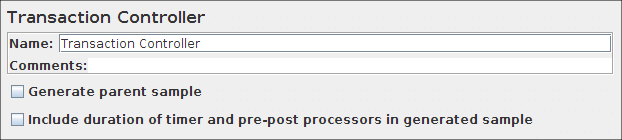
Parameters 
Attribute
Description
Required
Name
Descriptive name for this controller that is shown in the tree, and used to name the transaction.
Yes
Generate Parent Sample
If checked, then the sample is generated as a parent of the other samples, otherwise the sample is generated as an independent sample.
Yes
Include duration of timer and pre-post processors in generated sample
Whether to include timer, pre- and post-processing delays in the generated sample. Default is false
Yes
Recording Controller
The Recording Controller is a place holder indicating where the proxy server should record samples to. During test run, it has no effect, similar to the Simple Controller. But during recording using the HTTP(S) Test Script Recorder, all recorded samples will by default be saved under the Recording Controller.

Parameters 
Attribute
Description
Required
Name
Descriptive name for this controller that is shown in the tree.
No
Critical Section Controller
The Critical Section Controller ensures that its children elements (samplers/controllers, etc.) will be executed by only one thread as a named lock will be taken before executing children of controller.
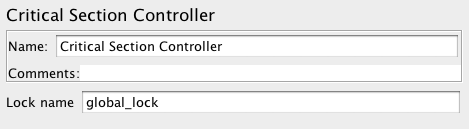
The figure below shows an example of using Critical Section Controller, in the figure below 2 Critical Section Controllers ensure that:
- DS2-${__threadNum} is executed only by one thread at a time
- DS4-${__threadNum} is executed only by one thread at a time
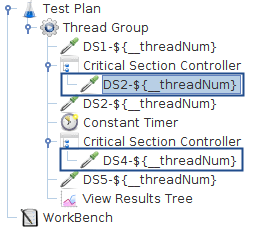
Parameters 
Attribute
Description
Required
Lock Name
Lock that will be taken by controller, ensure you use different lock names for unrelated sections
Yes
Critical Section Controller takes locks only within one JVM, so if using Distributed testing ensure your use case does not rely on all threads of all JVMs blocking.
18.3 Listeners
Most of the listeners perform several roles in addition to "listening" to the test results. They also provide means to view, save, and read saved test results.
Note that Listeners are processed at the end of the scope in which they are found.
The saving and reading of test results is generic. The various listeners have a panel whereby one can specify the file to which the results will be written (or read from). By default, the results are stored as XML files, typically with a ".jtl" extension. Storing as CSV is the most efficient option, but is less detailed than XML (the other available option).
Listeners do not process sample data in CLI mode, but the raw data will be saved if an output file has been configured. In order to analyse the data generated by a CLI run, you need to load the file into the appropriate Listener.
To read existing results and display them, use the file panel Browse button to open the file.
If you want to clear any current data before loading a new file, use the menu item or before loading the file.
Results can be read from XML or CSV format files. When reading from CSV results files, the header (if present) is used to determine which fields are present. In order to interpret a header-less CSV file correctly, the appropriate properties must be set in jmeter.properties.
XML files written by JMeter have version 1.0 declared in header while actual file is serialized with 1.1 rules. (This is done for historical compatibility reasons; see Bug 59973 and Bug 58679) This causes strict XML parsers to fail. Consider using non-strict XML parsers to read JTL files.
The file name can contain function and/or variable references. However variable references do not work in client-server mode (functions work OK). This is because the file is created on the client, and the client does not run the test locally so does not set up variables.
Listeners can use a lot of memory if there are a lot of samples. Most of the listeners currently keep a copy of every sample in their scope, apart from:
- Simple Data Writer
- BeanShell/JSR223 Listener
- Mailer Visualizer
- Summary Report
The following Listeners no longer need to keep copies of every single sample. Instead, samples with the same elapsed time are aggregated. Less memory is now needed, especially if most samples only take a second or two at most.
- Aggregate Report
- Aggregate Graph
To minimise the amount of memory needed, use the Simple Data Writer, and use the CSV format.
JMeter variables can be saved to the output files. This can only be specified using a property. See the Listener Sample Variables for details
For full details on setting up the default items to be saved see the Listener Default Configuration documentation. For details of the contents of the output files, see the CSV log format or the XML log format.
The entries in jmeter.properties are used to define the defaults; these can be overridden for individual listeners by using the Configure button, as shown below. The settings in jmeter.properties also apply to the listener that is added by using the -l command-line flag.
The figure below shows an example of the result file configuration panel

Parameters
Attribute
Description
Required
Filename
Name of the file containing sample results. The file name can be specified using either a relative or an absolute path name. Relative paths are resolved relative to the current working directory (which defaults to the bin/ directory). JMeter also support paths relative to the directory containing the current test plan (JMX file). If the path name begins with "~/" (or whatever is in the jmeter.save.saveservice.base_prefix JMeter property), then the path is assumed to be relative to the JMX file location.
No
Browse …
File Browse Button
No
Errors
Select this to write/read only results with errors
No
Successes
Select this to write/read only results without errors. If neither Errors nor Successes is selected, then all results are processed.
No
Configure
Configure Button, see below
No
Sample Result Save Configuration
Listeners can be configured to save different items to the result log files (JTL) by using the Config popup as shown below. The defaults are defined as described in the Listener Default Configuration documentation. Items with (CSV) after the name only apply to the CSV format; items with (XML) only apply to XML format. CSV format cannot currently be used to save any items that include line-breaks.
Note that cookies, method and the query string are saved as part of the "Sampler Data" option.
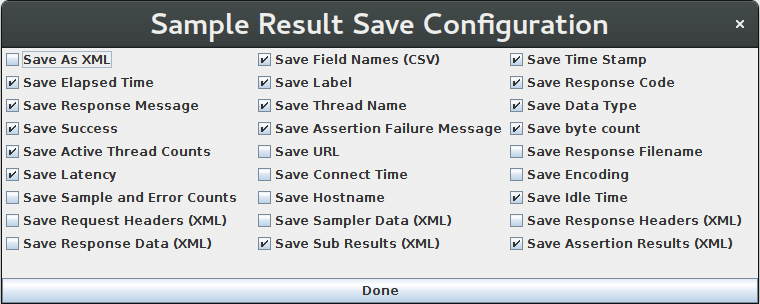
Graph Results
Graph Results MUST NOT BE USED during load test as it consumes a lot of resources (memory and CPU). Use it only for either functional testing or during Test Plan debugging and Validation.
The Graph Results listener generates a simple graph that plots all sample