
JSON is just a particular data format, like a CSV or markdown. It’s a very common format for data that’s being exchanged via an API so learning to use it will almost certainly come in handy if you carry on creating automations in the future.
The JSON format supports the following types of data:
Strings (text)
Numbers
Booleans (true or false)
Null (used by developers to specify that no data exists)
That data is stored in these types of structures:
Object
Objects are made up of fields which are structured as ‘key-value pairs’ like
{"name": "John Doe"}, where"name":is the key and"John Doe"is the valueWe can add fields to our objects to store more than one piece of data in the object like
{"name": "John Doe", "age": 22}Each field in an object is separated by a comma
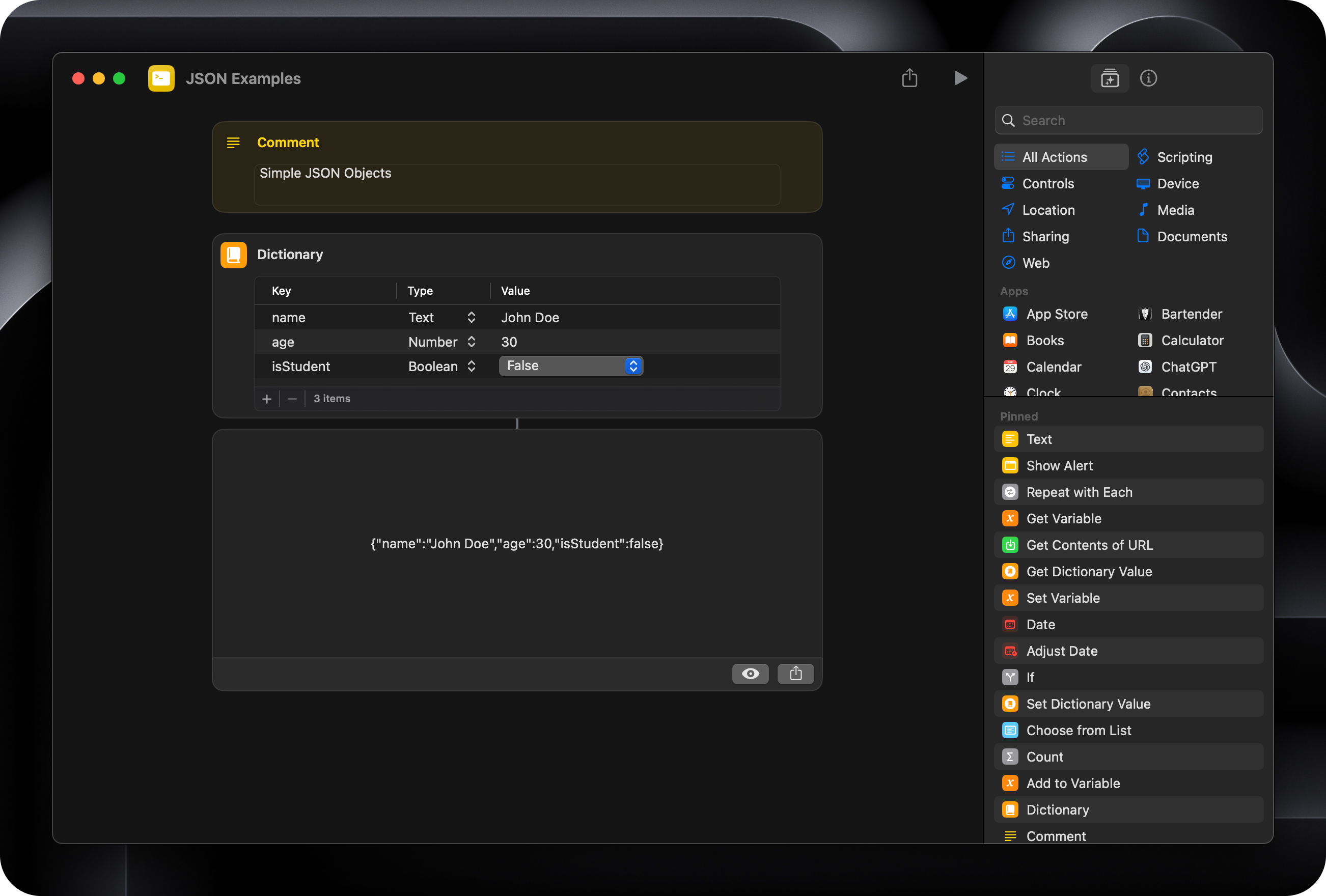
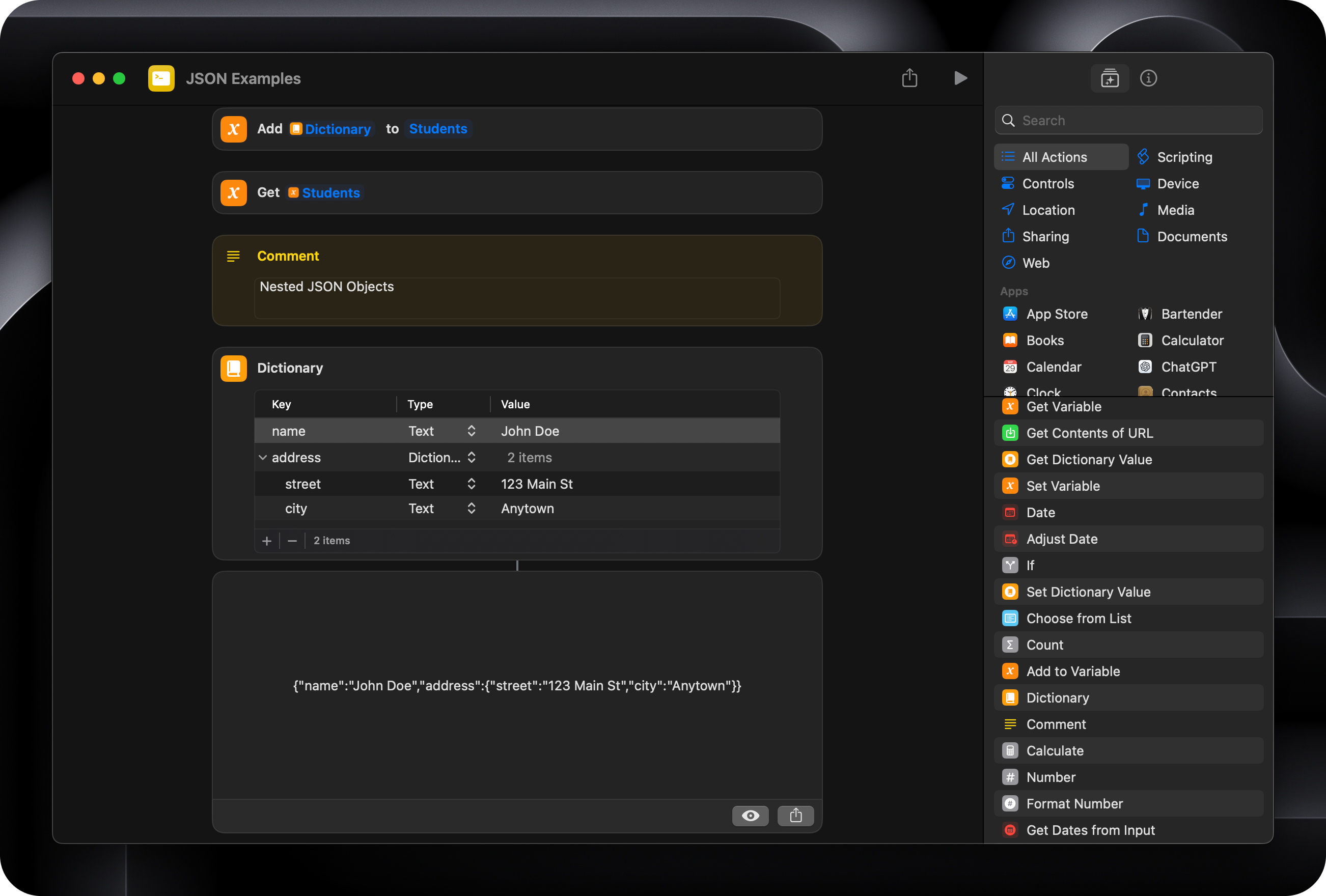
Dictionaries in Apple Shortcuts are JSON objects
Array
Arrays are lists of items like
["John Doe","Jane Doe"]Each item in the list is also separated by a comma
The items can be simple data, like the previous example or objects / arrays. Usually your arrays will contain a list of objects like
[{"name": "John Doe"},{"name":"Jane Doe"}]You might recognise arrays from Notion formulas -
/* This formula lists the name of every task that's linked to a Project. The map function loops through every item in the Tasks array. */
prop("Tasks").map(current.prop("Name"))
The lists that you see in Apple Shortcuts are arrays
When your JSON data is sent in an API request, any spaces or tabs that are not inside speech marks will be ignored so you can format your JSON data like:
{"name": "John Doe", "age": 22}or
{
    "name": "John Doe",
    "age": 22
}
or even
{"name":           "John Doe",
	"age": 22}
The presentation doesn’t matter, which is helpful when you need to stitch JSON together from multiple places in a Shortcut.
But you’ll generally want to prettify your JSON content, using Postman’s built-in feature or a tool like Raycast’s (affiliate link) JSON Formatter extension, to make it easier to read and update. In particular, indenting the content in your JSON makes a big difference and those tools will take care of that for you.
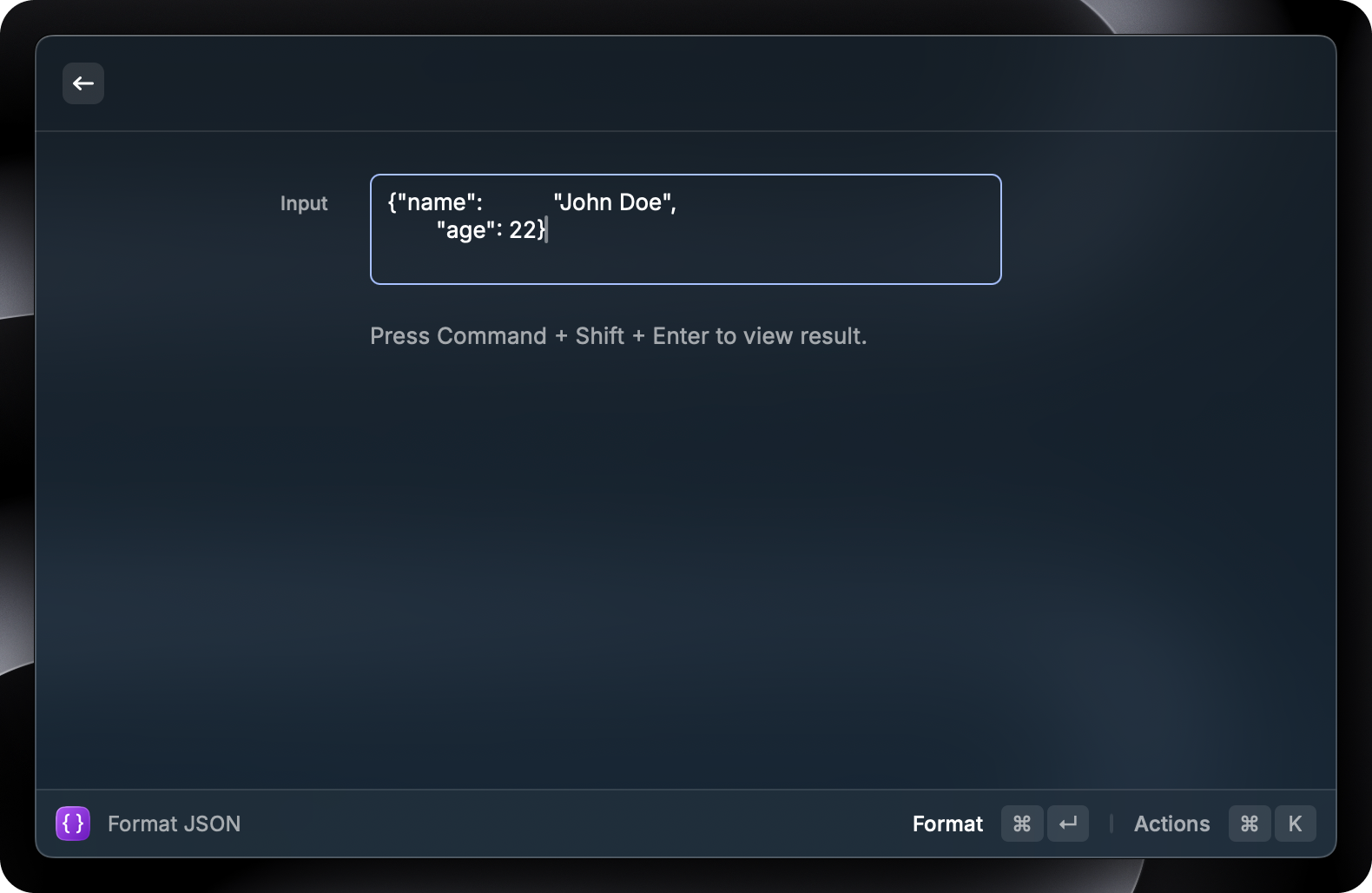
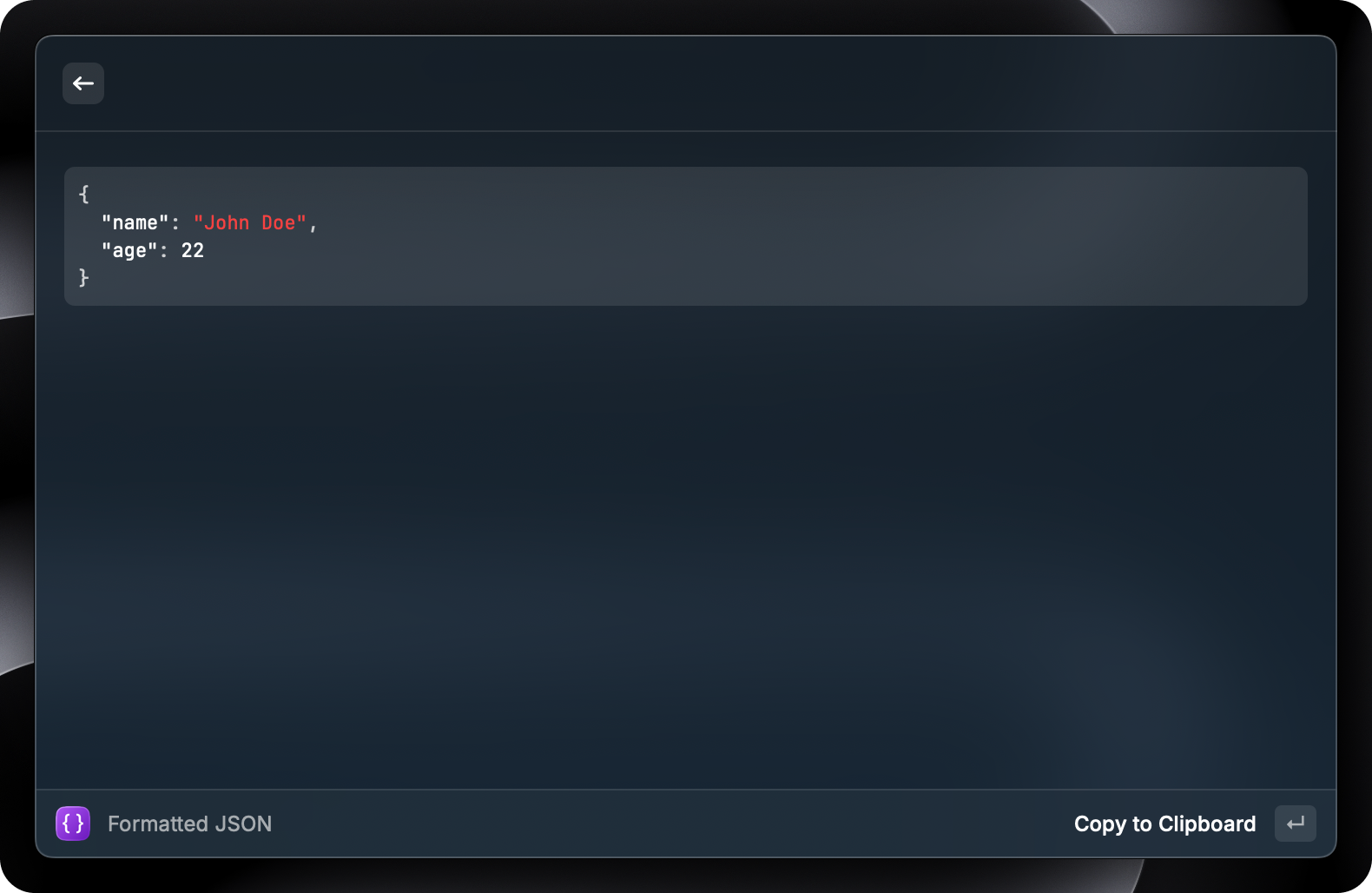
I’m not going to share examples of every JSON structure here, I’ll just focus on the structures that you’ll often use when creating Apple Shortcuts and the Notion API.
You can copy the Shortcut that I used to create these examples here.
{
  "name": "John Doe",
  "age": 30,
  "isStudent": false
}
{
  "person": {
    "name": "John Doe",
    "address": {
      "street": "123 Main St",
      "city": "Anytown"
    }
  }
}
["apple", "banana", "cherry"]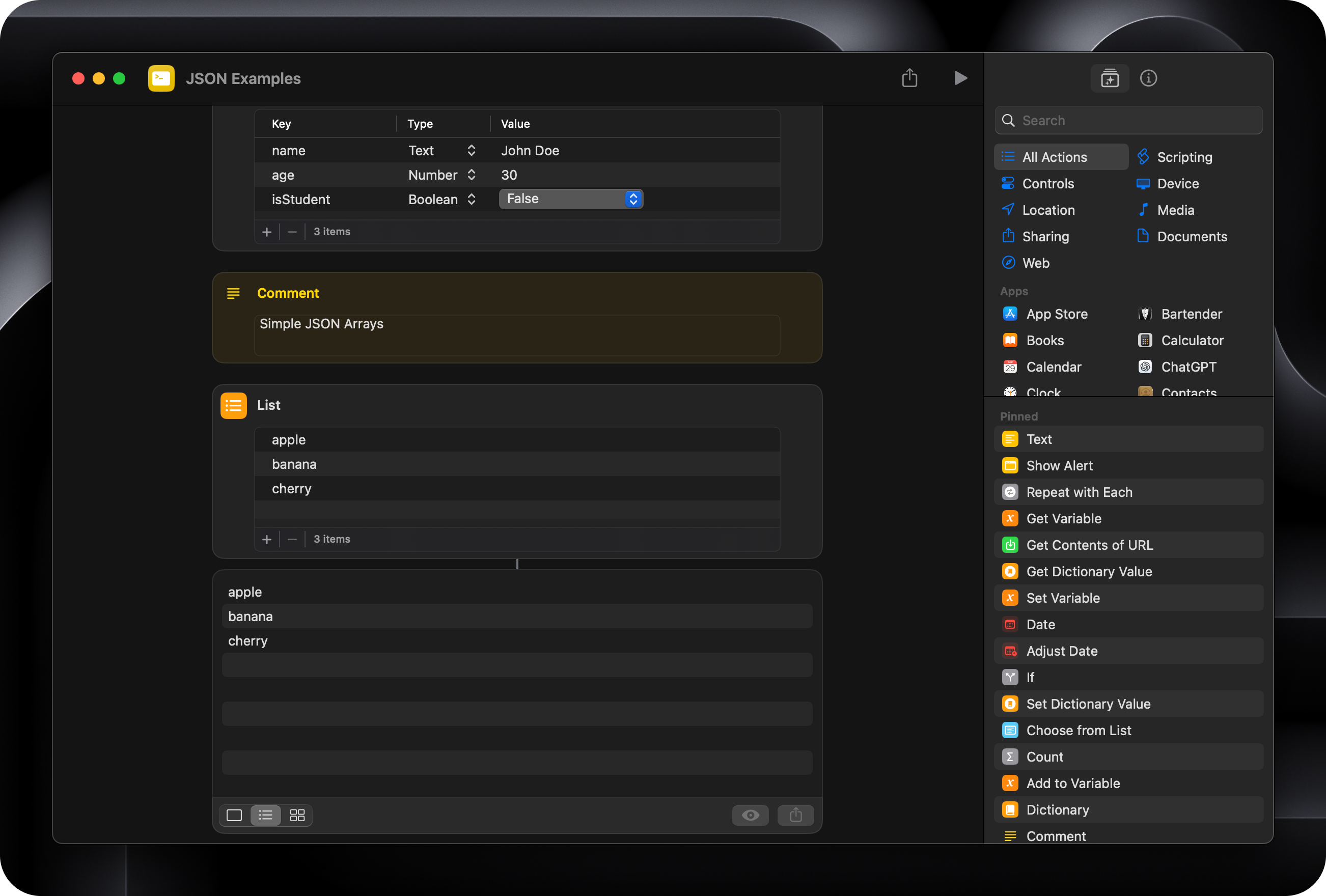
[
  {"name": "John Doe", "age": 22},
  {"name": "Jane Doe", "age": 20}
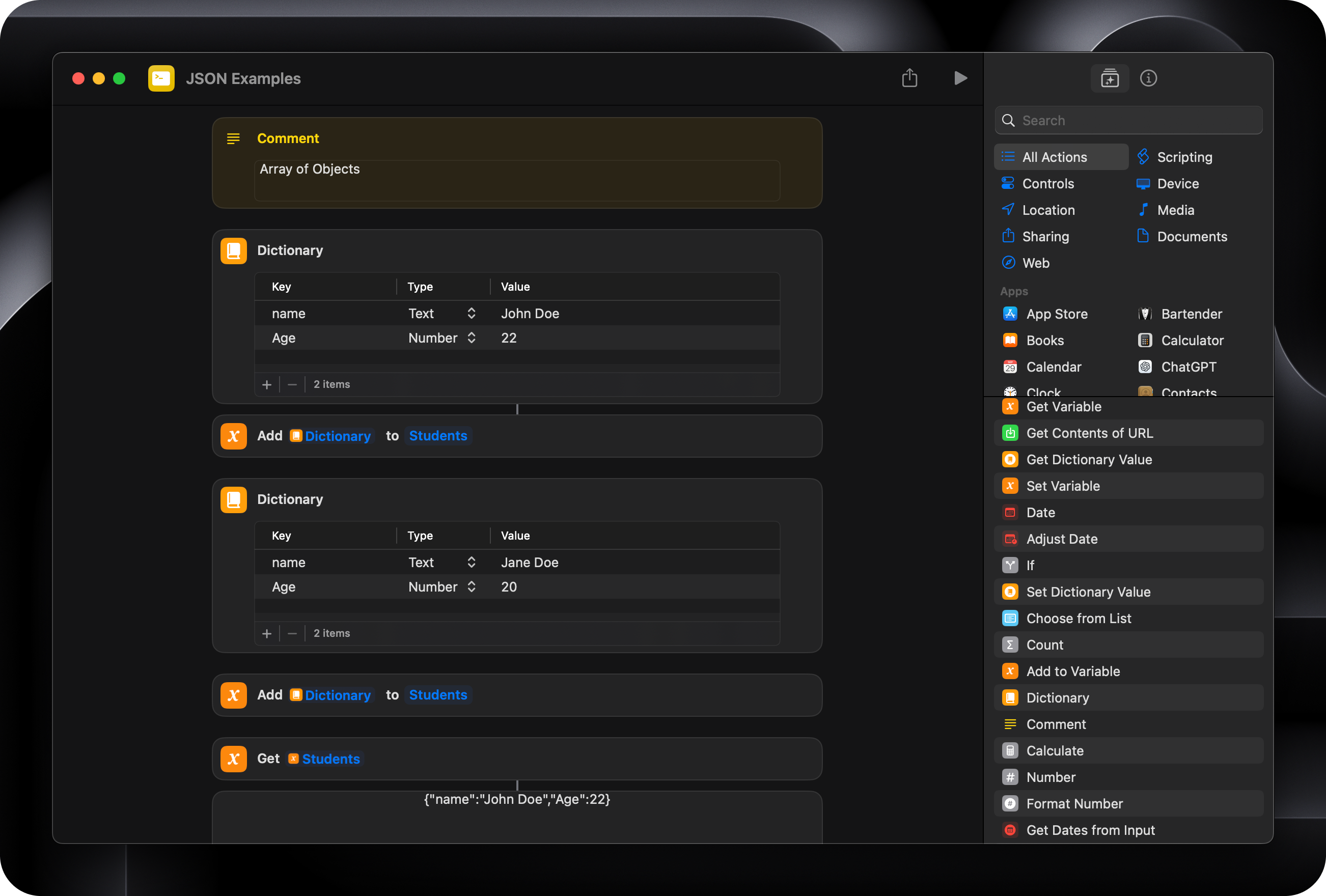
]
{
  "name": "John Doe",
  "grades": [90, 80, 85, 95]
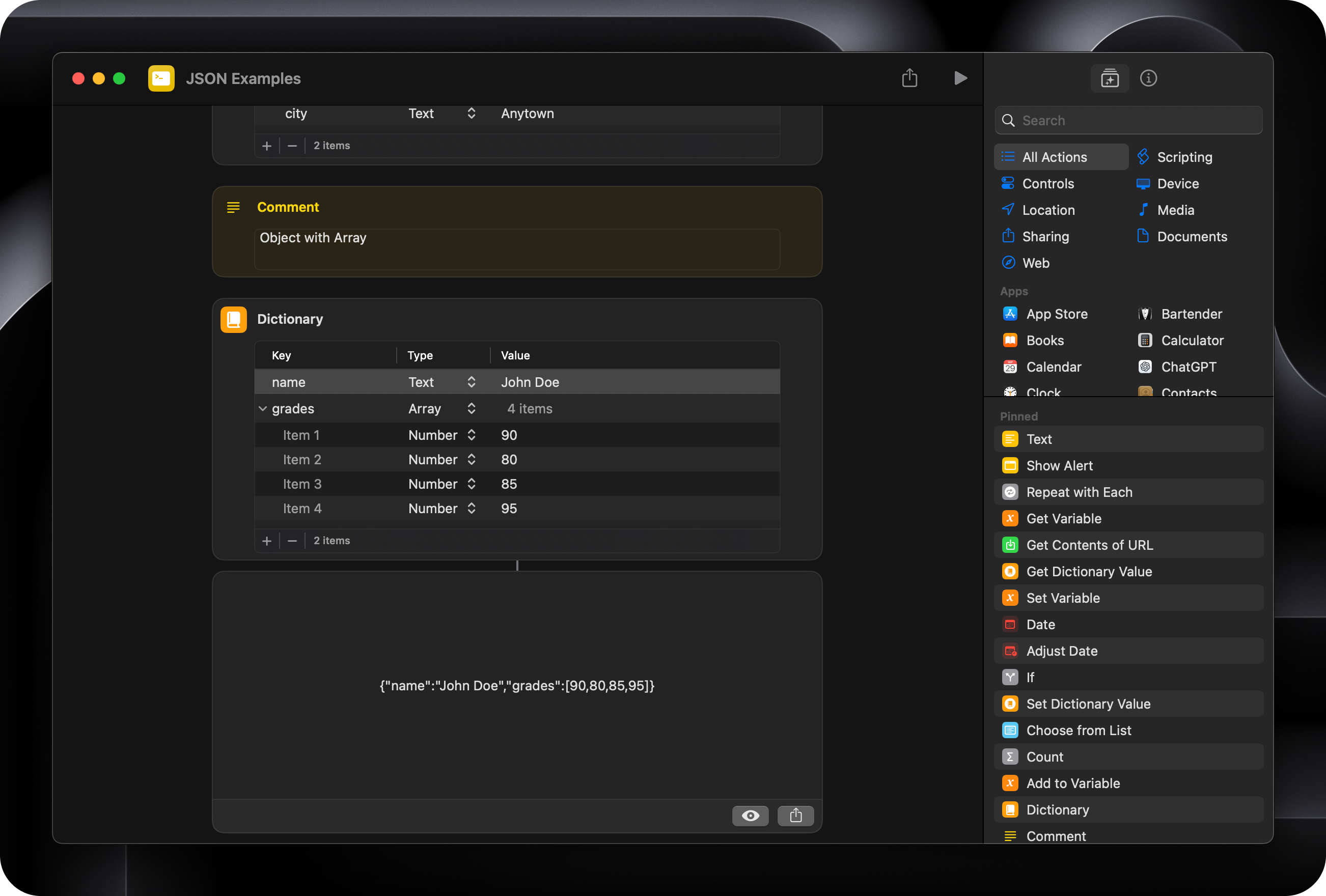
}
{
  "name": "John Doe",
  "examResults": [
    {
      "name": "Math",
      "score": 90,
      "passing": true
    },
    {
      "name": "Science",
      "score": 65,
      "passing": false
    },
    {
      "name": "History",
      "score": 85,
      "passing": true
    }
  ]
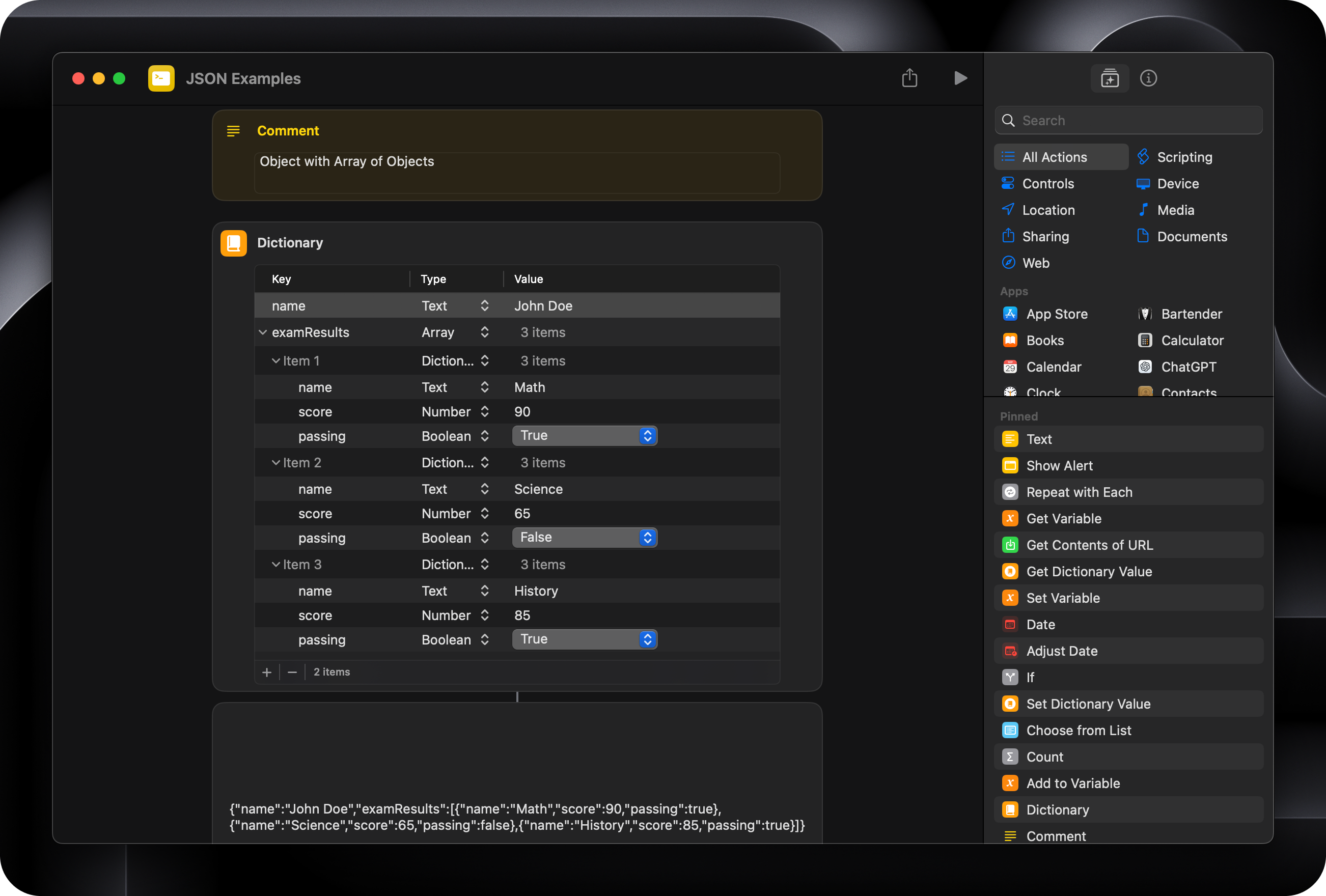
}
Fields objects are not stored in a set order
We use keys to specify which data we want to retrieve from an object
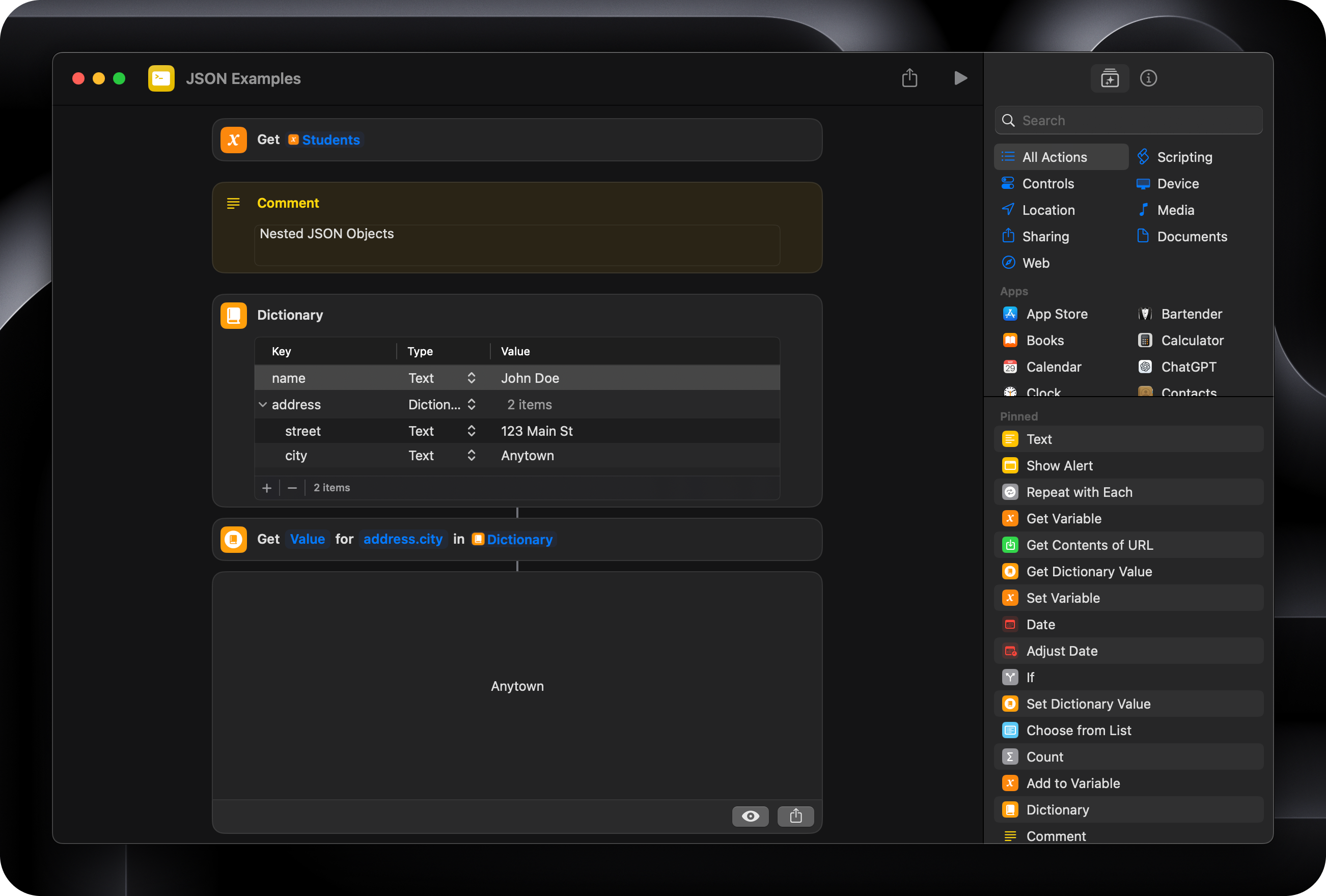
Paths to data are specified using dot notation, like
person.address.city
{
  "person": {
    "name": "John Doe",
    "address": {
      "street": "123 Main St",
      "city": "Anytown"
    }
  }
}
Items in these lists are stored in a set order
We use the position of the item in the list to specify which item we want to retrieve from the array, the “index position”
Some tools set the index position of the first item in the array at 0, some set it at 1
The index position of the first item in an Apple Shortcut is 1
["apple", "banana", "cherry"]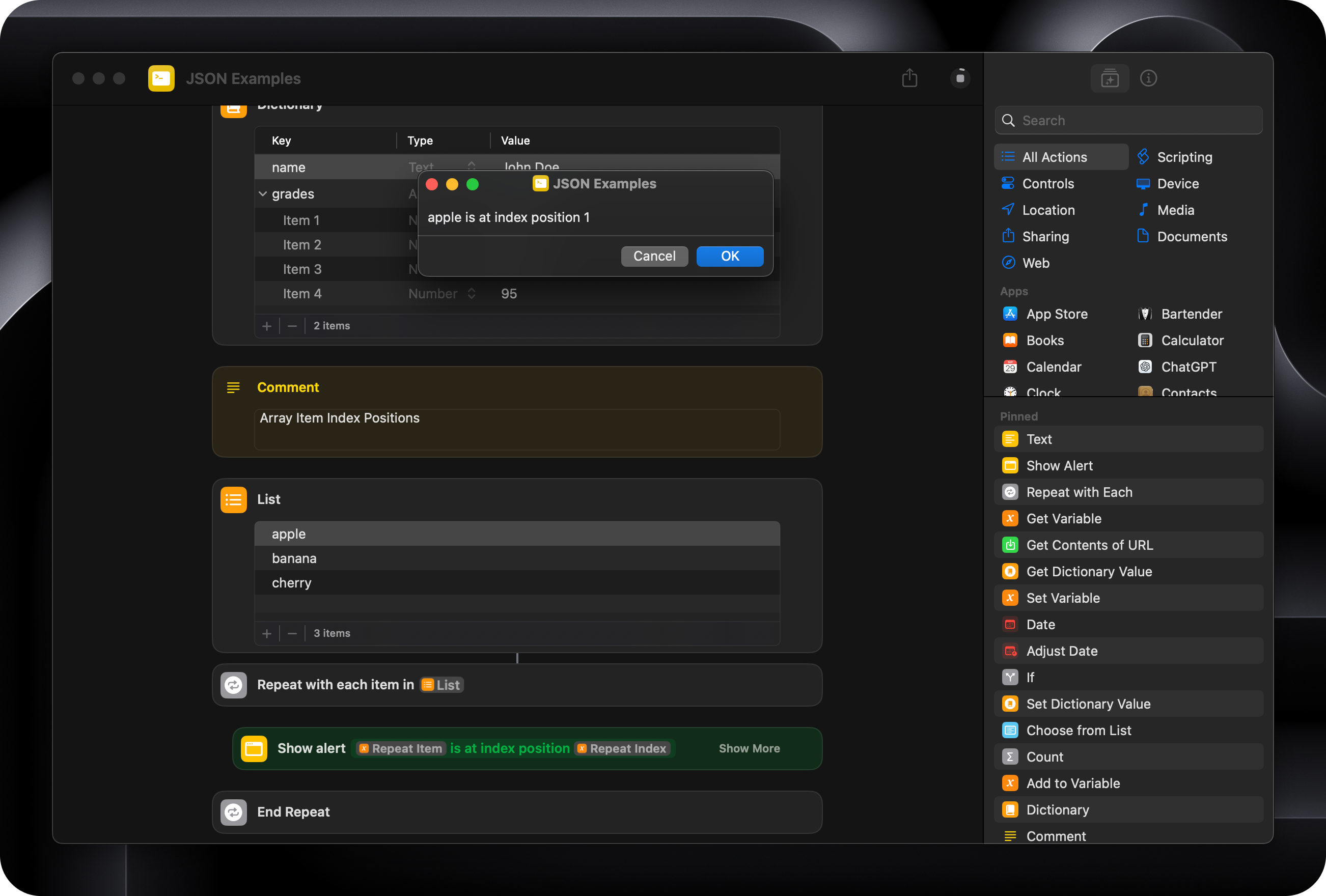
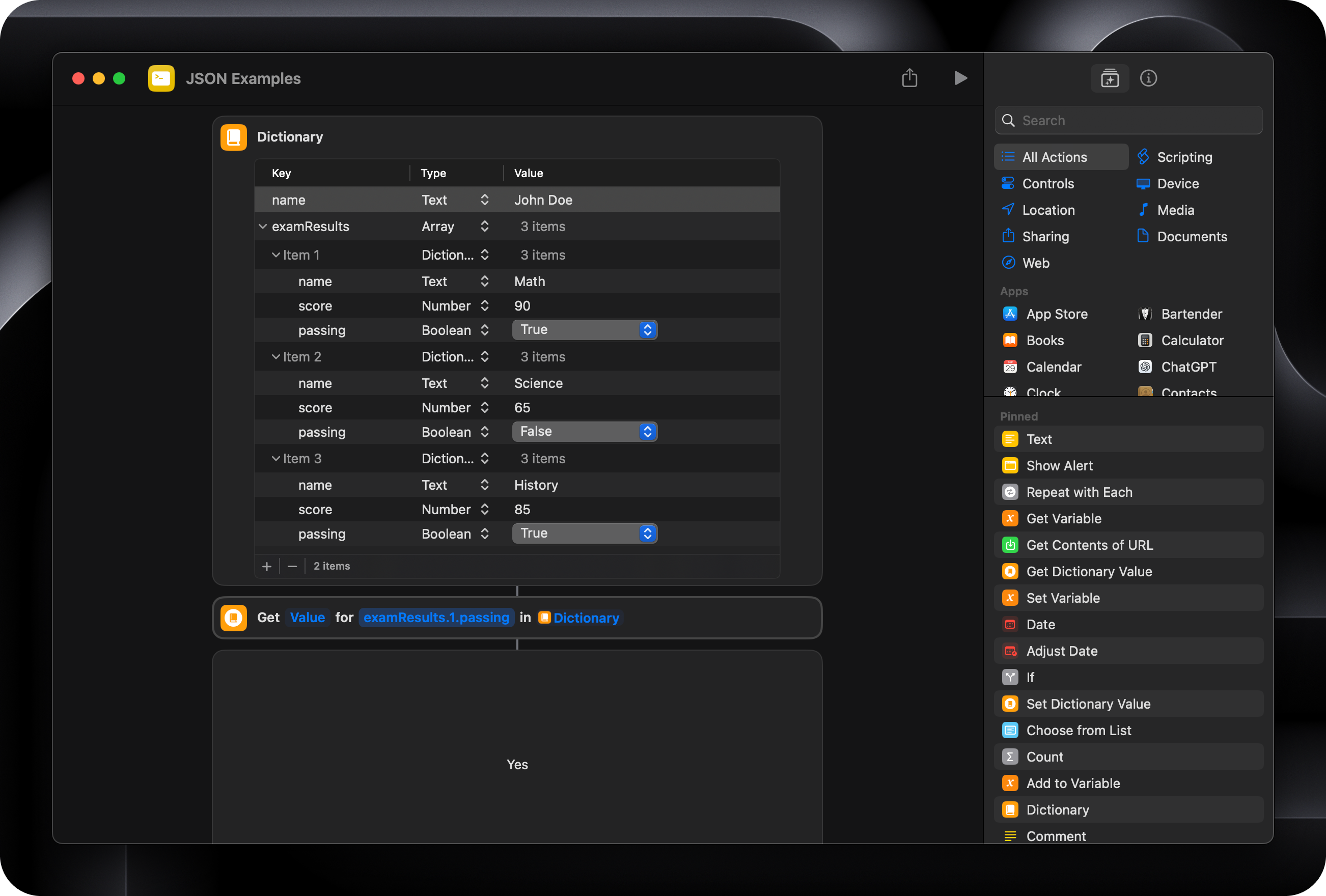
Paths to data from index items are specified like examResults.1.passing
{
  "name": "John Doe",
  "examResults": [
    {
      "name": "Math",
      "score": 90,
      "passing": true
    },
    {
      "name": "Science",
      "score": 65,
      "passing": false
    },
    {
      "name": "History",
      "score": 85,
      "passing": true
    }
  ]
}
But usually you’ll use the Repeat With Each action to process each item in the list.
That’s everything that you need to know about reading, writing and accessing JSON in Apple Shortcuts. If you read every example, you deserve a medal 🏅
No posts
Comments
Nothing yet. Say the first thing.
Sign in to join the conversation.