
I’ve mentioned getting into the details of using git vs github, and I haven’t done that yet. It’s in all of my recent CTAs. Up next….
I don’t have any excuse that would be reasonable to anyone but myself for why I haven’t posted them yet, but life happens, and I am, like you, trying to navigate living, writing, analyzing, Substack, job hunting, and the world. LIFE.
Writing, the way I like - no AI, no IA - has helped me tap back to my intellectual, whimsical, and literary prowess. And I am enjoying it now.
And what better way than to bake that with data science and analysis? Two of my worlds. Which is why I’ll only share what I’m learning and building, the way I am learning it.
And now, it’s all about terminals.
There are so many articles and tutorials you can read online, but this one is for those who want to start from A.1

If you have a laptop, you know what that is; if you don’t, you are the 2nd reason I’m writing this series. The first being Me.
If you do read, and I hope you do, and you spot something wrong or know a cleverer approach, indulge me; I love tips and tricks just as much as the next person. If I were to have another nickname or moniker, it would be “better practice,” haha.
It is a text-based doorway into your computer. Instead of clicking buttons, you type commands (short texts) in your computer’s terminal, and it executes the action as if you had clicked through buttons.
And if you’re wondering: “isn’t that too tedious or more taxing than just clicking buttons?” It’s not and I’ll get to why soon.
And if you’ve ever felt like that’s hard, I agree. But it’s not hard like hard things are, like Java or Python. It’s hard because it’s text-based and case-sensitive and throws off errors when it’s not happy.
These texts are called commands, and you use them to:
“talk” to your Mac
skip the graphical interface (GUI)
and control the computer with words instead of clicks.
Why does it matter? Because the terminal is like the command center of your computer. Every button you click in Finder or system settings becomes an action your OS performs, and many of those actions can be done from Terminal by typing commands. The commands are also translated into actions that your OS performs
Some common everyday uses of Terminal:
to install software
automate tasks
manage Python environments
use Git
run servers
configure tools
run programs
to move around file folders
do things faster than clicking.
And many more.
anyone who owns a computer and wants more control or speed. Others are:
data scientists and analysts
software or ML engineers
devOps engineers
people in cybersecurity
anyone who wants to automate tasks
if you use tools like Git, Python, Node, Docker, etc.
& non-technical people who use it for simple tasks

The most obvious reason I started learning is speed. One command can replace 10 clicks once you know what to do. And the interesting part is, it doesn’t take long to learn the basics.
Access to developer tools: With most modern tools like Python, Git, Docker, and v-env, you will eventually encounter Terminal.
Ability to install anything: Not all software comes with a pretty installer. I’m sure you know the trouble with googling how to install things.
Power. You can do some things that apps can’t do, for example: automations, some configurations, bulk stuff etc.
Automation. In this AI regime, what more can I say? Batch, scripts, etc. All start in Terminal.
And for me, confidence. I wanted to stop being confused and scared of my computer, learning Terminal removed that mystery.
You need to see me now. I no longer feel like my computer is smarter than me.
Terminal is not an IDE (integrated development environment, and if you don’t know what that is, perfect, because this series isn’t for that.)
IDEs like VS code or Jupyter notebooks are environments for writing and debugging code. Terminal is a command interface to your computer’s operating system.
VS code is like the cockpit (I haven’t seen one but I think so), terminal is like talking to the engine. (this one I’ve seen 😁). Shikena.
Terminal is text only, don’t forget that, and is faster for repetitive tasks. It’s also more powerful for automations.
Tools like Git, Homebrew, Python envs, MCP, etc. are usually used through Terminals. I feel like I’m losing you, but stay with me. Once we get these definitions ingrained in our minds, it’s skipping to the store from there.
Terminal also feels “low-level” because you’re closer to your computer's OS. It’s like you’re standing by the engine of your computer, talking to it through texts, and it’s responding.
Can you build full projects in Terminal?
Yes, ma’am. Absolutely. Developers use Terminal to create project folders, run scripts, manage v-env (virtual environments), run servers, install dependencies, use Git, automate tasks, run tools etc.
They still write code in editors or IDEs, but they run things in Terminal.
Terminal = execution + control
IDEs e.g vs code = writing + editing.
This distinction is important because you can’t edit text like a word processor in Terminals. When you run, you runnn.
Since it’s text-based, it uses a language called bash or zsh (zee-shell). They are called shell languages. They are not programming languages, but command languages, and they’re used to run those commands, write scripts, navigate your computer, and automate tasks.
You can run other languages inside the terminal: Python, Node, Ruby, Java etc.
I used to run things with Python, but still didn’t know how to use Terminal itself because I was always scared it would mess up my laptop or OS, or I’ll mistakenly delete something.
Why does Terminal use a shell, why can’t it just use Python? Because the shell is like a translator between you and the OS. When you type commands, the shell interpreters interpret them and pass the requests to the OS.
If you type cd Documents, the shell tells the computer OS: hey, go the documents folder.
Let’s start with the simplest, flimsiest, and corniest, if you will, use of terminals.
When you open your Terminal, the first thing you see is something like this:
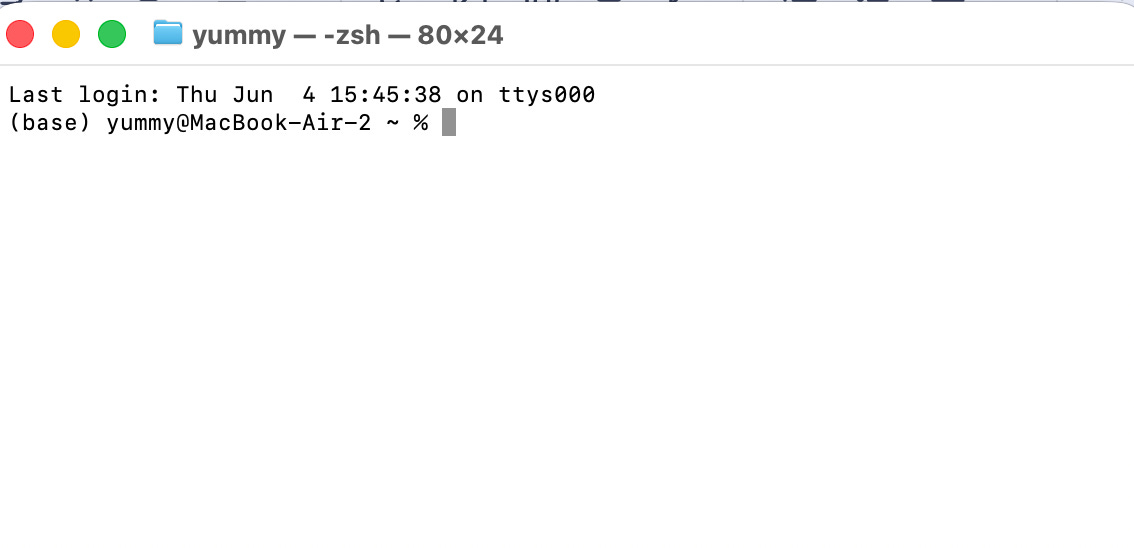
last login — the last time someone opened this Terminal window. It’s informational; ignore it.
Base – this means you’re currently inside a conda environment, specifically the default one called base. This happens because you have previously installed Anaconda or miniconda. Or used a Python distribution that came with Conda. It just means Conda is active, nothing is wrong.
If you haven’t downloaded Conda, you should see something different:
(base) yummy@MacBook-Air-2 ~ % → this is where and who you are.
Yummy → your username
Macbook-Air-2 → computer name
~ → your current location (home folder)
% → the zsh prompt symbol (macOS uses zsh, Windows uses PowerShell or Command Prompt.
Now type whoami and hit Enter — Not bad huh? It prints your name so you know the shell is listening.
Now type pwd — this means print the exact part of the folder I am currently in. you should see something like “/Users/yourname”.
Now type ls — it lists everything in your current folder. Ls means “show me what’s here”. I made that up, but that’s what it does. It stands for “list,” as in “list the contents of this folder.”
Next type cd Documents — You’re inside the documents folder of your laptop.
Type ls again, it will list everything in the Documents folder.
—> To go back to Home or default just type cd or cd ~
Next type cd .. it will take you up by one level. You can click your finder to confirm. But see how many more seconds it took to even click finder or windows ;)
To see your system’s heartbeat, type top — this is a lot. It’s a real-time dashboard of your computer's processor activity.
It will keep updating, so you have to freeze it, and let’s get back to regular prompting. To do so, press q (quit) on your keyboard.
Now, let’s up things. Type mkdir test-folder
What do you see? A new folder.
To delete it, type rmdir test-folder. It’s gone. But this only works if the folder is empty, if you try it with a folder with files, it will fail, because rmdir is picky. It only deletes EMPTY folders.
It’s telling you to clean it up first, before it can delete said folder. This is by design so that beginners don’t accidentally wipe out an entire directory containing important files with a single command.
One thing I should add before i round this up, is Terminal is case-sensitive. You have to write the path and the location correctly.
“Desktop” cannot be “desktop”, and “Downloads” can’t be “downloads”. If not, you will see a bunch of “no such file or directory” errors.
Alright, seeing that I took so much time exalting my writing prowess, it’s time to wrap this one up.
In Part 2, we are becoming Terminal pros.
- 10 commands you should know
- Navigating your computer from terminal
- Avoid breaking anything
Let the fun begin.
Enjoyed this? I’m building some data tools using Python and AI workflow.
Subscribe for the drafts, failures, design choices, and finished product.
Up next on data according to me: Intro to Git vs GitHub…
ICYMI:
Setting up shop for data science in 2026
🔗 Biz and whimsy: https://linktr.ee/amyusifoh
🔗 Free design toolkit: dashboard design toolkit
Data Scientist⬩ Spreadsheet advocate ⬩ Freelancer ⬩
Comments
Nothing yet. Say the first thing.
Sign in to join the conversation.