
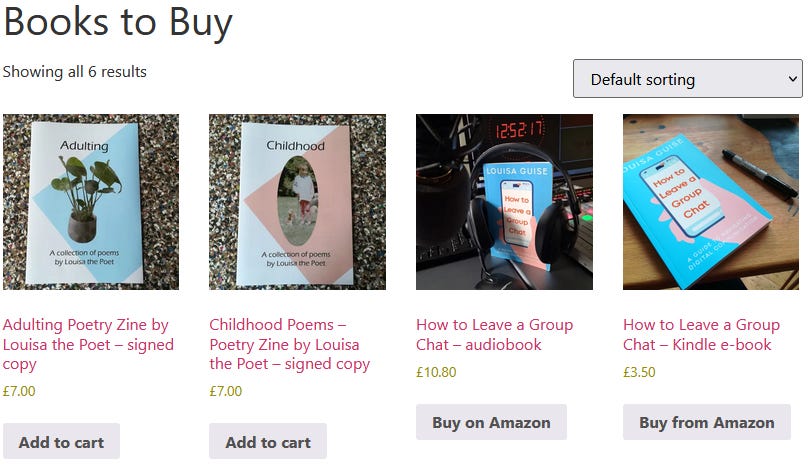
I have a website, but until last weekend I never sold my books directly from it. Instead I used a work-around, creating single product pages (for SEO, obvs!) and linking them to the relevant sites where my paperback book, e-book and audiobook were sold. The dream was always to sell direct to consumer, but it seemed a little above my capabilities and daunting. Did I need to redo my website all over again? Did I need to abandon WordPress and create a whole new Shopify site? I dabbled with Shopify a few years ago but it seemed then a bit more rigid then and not too user friendly – if anyone has a Shopify site and wants to blog about it, get in touch!
As a consumer, I have left websites and purchased from another for the simple reason that I can’t quickly and easily purchase the service that I need directly through the site.I absolutely do not want to fill in a form to have someone get back to me lord knows when, or potentially have to pay over the phone with a credit card. But I had no idea where to begin with a product cart and payment system. And judging by the sheer number of small businesses that don’t have these – from dentists to printing services – I am not alone.
So listen up friends and I’ll tell you how to add Woocommerce to your website. I use WordPress with Elementor and it is very compatible with that. If you use a different CMS, these instructions should be broadly similar, but it might be worth having a google. This tutorial is suitable for people who know their way around WordPress, if you don’t, there are lots of tutorials available online to help you (hint - here’s another guest blogger opportunity!). And as Woocommerce has a lot of functionality, I’ll be going through the key things that you need, leaving plenty for you to discover.
Install Woocommerce from your plugins and follow the prompts in the set up wizard. Once you have Woocommerce, it gives you a nice little checklist.
In my case, my product pages just matched my website theme, but it is possible to build your shop and website within the Woocommerce options. Click on Customize your store and you’ll be offered a variety of designs that you can customise.
Click Add your products, or click “Add new product” in the left-hand navigation bar. In true Wordpress style you’ll have a nice WYSIWYG editor where you can add a nice Product description (I added YouTube videos to mine too).
Below the WYSIWYG, there are more options.
Here you can set your price, and it should be set to your local currency. You also have the option to set a sale price, as well as a time duration for that sale price to apply, which is nice.
In the drop-down menu above your pricing fields, you can choose what kind of product you’d like to list. A simple product is standard, but the affiliate option allows you to link to other pages, which is great if like me you are selling audiobooks or e-books. There are also buttons which allow you to list a virtual or downloadable product.
If you have a lot of similar products, you can duplicate products to reduce the amount of manual inputting that you need to do.
The Woocommerce inventory option allows you to input product codes and things like ISBN numbers for books, as well as track stock quantity.
As the name suggests, this is where you can add sizes and weights, as well as confirm where you’ll be posting to and which kind of postage option you will use.
You can select products to link to the product you are currently listing, but note that they won’t appear until they are live on your site.
I haven’t used this option personally, but it provides some fields for descriptive text for your item.
Here you can rearrange the order of your items, add a little note for customers and enable reviews.
Below Advanced, on my dashboard, I have the options to promote my products across Pinterest, Reddit and Snapchat, which I have of course enabled. This might not be the case on every setup.
This is another WYSIWYG editor where you can add a short description of your product.
In the menu on the left-hand side, you can save your page as a draft or publish it, set your Product image – click on it to go through the usual WordPress upload process, or add an image from your Media Library.
Other images of your product can be added in the same way via the Product gallery option underneath. They appear in a row, so I’m unsure why WordPress has set up these options in this way.
Below the image options, you can add category tags. Create some categories that are relevant to your products. This is even more important if you have lots of products to list.
There are a number of different payment methods that you can accept via your website. One easy method is Woopayments, which you can set up via their wizard. For each it’s worth reading the terms and conditions and deciding which method would work for you, as most online options do mandate a small charge for using the service.
This one, I’ll admit, baffled me. Perhaps because here in Britain we don’t separate taxes, we only sell for a final price that includes the tax rate anyway (you see it on some online websites, but it’s something I’d gloss over). I clicked the option not to collect sales taxes and life went on. If you are living in a country such as America, you might want to pay closer attention to this.
To launch your store, click the “Site Visibility” tab under Settings, then click the Live radio button and save changes.
In the left nav, under Appearance, you’ll find the Menus option. My Woocommerce store page was under the Product categories drop-down. Drag it into the menu wherever you see fit and click Save Menu.
Your individual products should be under the Products drop-down. If you wish you can add these to the menu in the same way.
Do you have an online shop? How have you made it successful? Comment below or find out how you can be featured on the All About Digital Marketing blog.
To feature on All About Digital Marketing, about any marketing or business expertise, please check out the guidelines blog and get in touch. And don’t forget to subscribe.
No posts
Comments
Nothing yet. Say the first thing.
Sign in to join the conversation.