
Note: AI Weekender has moved. New posts are published at ai-weekender.com, and this Substack is now an archive.
To keep receiving weekly issues, please subscribe at ai-weekender.com instead of here.
Google launched Gemma in 2024 as a family of open-weight models, but running small language models (SLMs) directly on mobile devices got much better with the Gemma 4 release in March 2026.
Then in April 2026, they shipped Google AI Edge Gallery to app stores, an open-source app for running supported models directly on your phone.
I’ve been testing this for a week, and I’ve found it’s genuinely useful for specific things with some limitations.
Here’s what actually works, what breaks, and how to download it.
Running LLMs on your phone works, but only for short, bounded tasks (email rewrite, PDF summary, confidential notes).
After 4-5 turns, context fills up and output degrades. Generation takes 5-10 seconds.
Best use cases are for privacy-sensitive work or travel. Use cloud for anything requiring long context or agent loops.
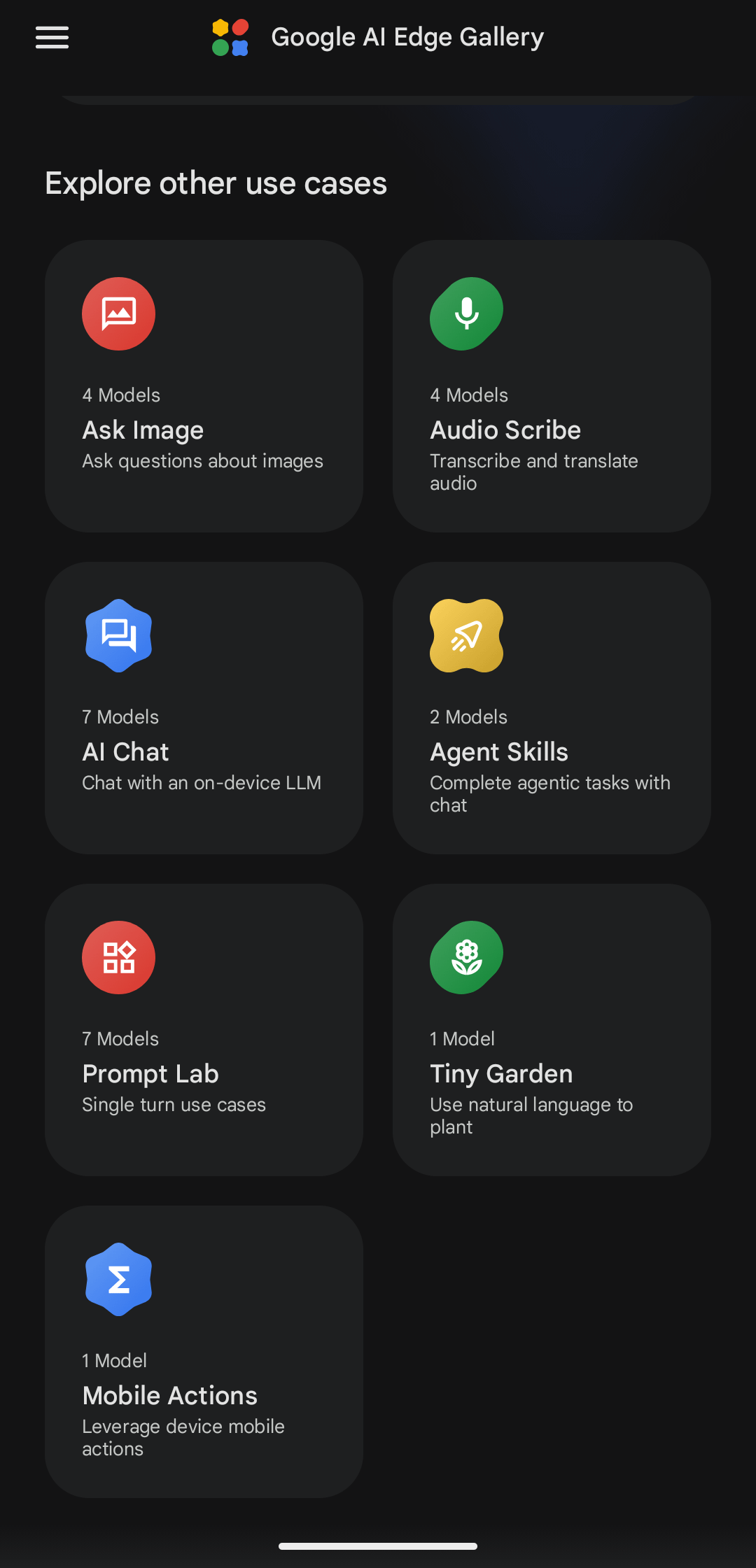
Google AI Edge Gallery is an open-source app with model management, benchmark views, and multimodal features that run on mobile hardware.
You can run core model inference on-device and offline after downloading models. I’m excited about this for three practical reasons:
Privacy and data control: If your use case includes sensitive notes, drafts, or client snippets, local inference keeps prompts and LLM responses locally on your device.
Reliability when internet is bad: You can run models without internet connection, whether you’re on a flight, commuting with weak signal, or in a location with slow Wi-Fi.
Cloud AI business models are shifting: Big AI products are moving deeper into monetization. OpenAI has already started testing personalized ads for some ChatGPT tiers based on usage context.
Local models give you one stable option where your workflow is not shaped by an ad stack.
AI Edge Gallery is more than just a demo chat window. It includes:
Agentic workflows
Model download and management
Multimodal support for image and audio
Prompt Lab to test single-turn prompt variants and tune model settings like temperature and top-k (plus output-length controls where available).
For builders, the biggest value is practical: you can test and run simple agentic workflows on-device, but there are real limitations.
If you are deciding whether this is worth trying, here’s what has worked well for me so far:
Simple local chat for short Q&A, outlining, and translation.
Audio-to-text / lightweight transcription (model-dependent).
Prompt experiments on-device using prompt lab style controls.
Image Q&A (model-dependent) for quick visual parsing and basic text extractions.
Phone-local models are useful, but they are not cloud-scale models. Here are the limitations I hit in real usage:
Generation is slower than cloud: on my phone, I see roughly 5-10 seconds per prompt, while cloud tools feel almost instantaneous these days.
Multimodal context collapses fast: If you’re using images or audio, context fills quicker and output quality degrades fast.
Conversations degrade after 4-5 turns: I tried having a real back-and-forth. By turn 5, output quality dropped and context pressure became obvious. Smaller context settings reduce memory pressure, but you hit limits faster.
Agent loops can stall: I ran an agentic workflow where the model repeatedly called the same tool. After about 7 loops, the app stopped responding on my device.
Most of the phone-friendly models here are small language models (SLMs), even though I’ll use LLM as the umbrella term.
Most people choose the biggest model their phone can barely load, but it’ll take longer to load in your model and get a response.
Instead, pick based on your task and hardware. Here’s how to check your phone specs:
For Android:
Open Settings -> Storage. Check free space before model download.
Open Settings -> About device -> RAM (sometimes inside Status or Battery/Performance). Note your RAM.
If RAM is hidden in your phone settings, use a device info app like CPU-Z to check total RAM and chip details.
To inspect CPU/SoC details, use a device info app (for example CPU-Z) or your phone’s official spec sheet.
For iPhone:
Open Settings -> General -> iPhone Storage. Check free storage.
Identify device/chip from Settings -> General -> About and Apple’s device specs.
Here’s a quick guide on how to choose the right model based on your device’s RAM and available storage:
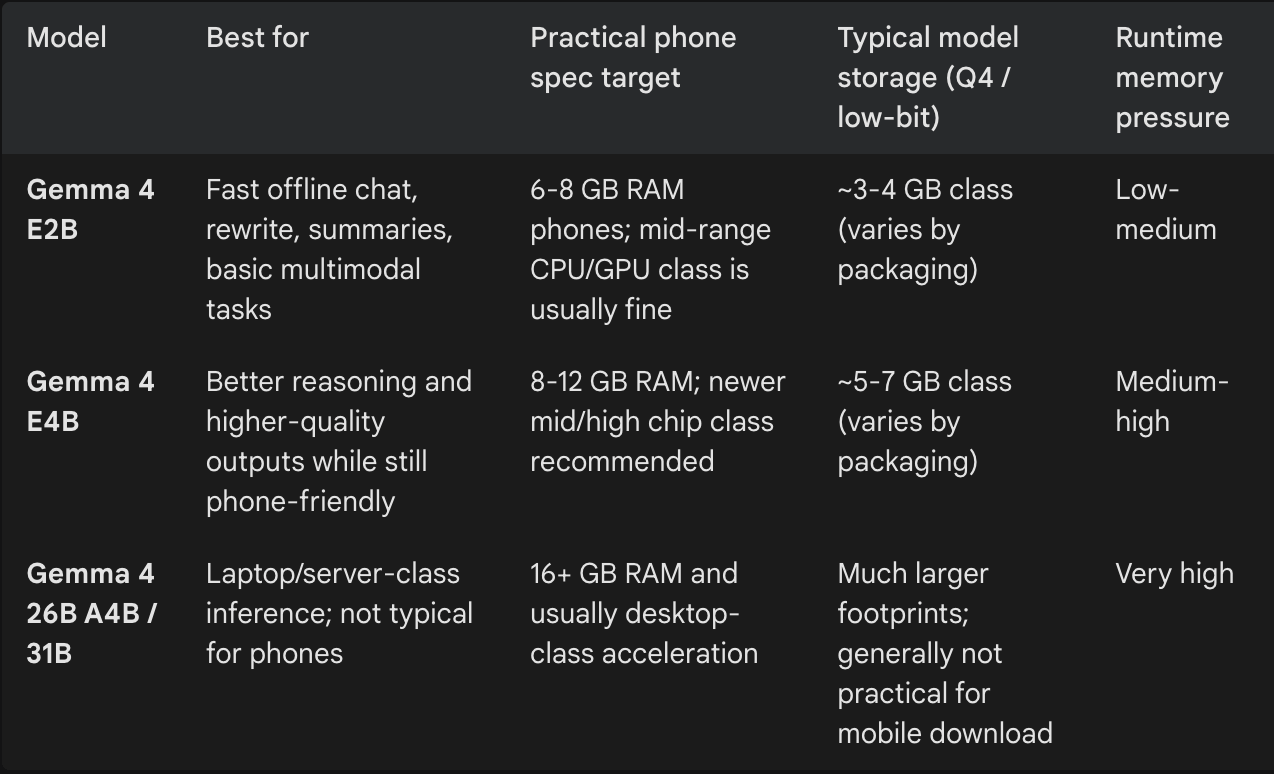
Notes on models:
Download size varies by quantization format and model packaging.
Runtime memory varies by device, backend, and session length.
After deciding on a model, follow these steps:
Install Google AI Edge Gallery from the Google Play Store (Android 12+ devices) or Apple App Store (iOS 17+ devices).
Download one model over Wi-Fi (Start with Gemma 4 E2B).
Load the model and start with conservative settings:
Context window: 2000 tokens (not maximum)
Max output tokens: 500
Temperature: 0.5-0.7This gives you room for a short conversation with less instability. Increase only if your device handles it.
Start with a single-task benchmark: summarize short text, rewrite email, or classify short notes.
Ask follow-ups and watch for first-token delay, total response time, phone temperature, response quality, and whether generation stalls after several turns.
Phone-first local AI is strongest for short, bounded tasks, so don’t start with huge prompts, large PDFs, or multi-step coding tasks.
If chat degrades after 4-5 turns (I saw this on my Android device), I’d recommend the following:
Start a fresh chat every few turns for heavy prompts.
Reduce context window / max input tokens in app settings (if exposed).
Lower output token limit (max new tokens).
Disable heavy reasoning modes for routine chat.
Downshift to a smaller model.
On-device models can feel great for short interactions, but they still have hard constraints:
Slower generation than cloud models.
Limited tool integration compared with full cloud agent stacks.
Context and memory behavior that feels tighter in practice than cloud workflows.
In my testing, chat sessions did not persist reliably after closing the app, and persistent chat history is still an open feature request in the AI Edge Gallery repo.
These constraints are manageable if you plan for them.
I use local LLMs on my phone for confidential notes, quick bounded tasks, and when there’s no Wi-Fi.
The biggest downside is previous chat sessions aren’t persisted in the Google AI Edge Gallery app, so be sure to record useful responses you want to save elsewhere.
You can also load in fine-tuned models, which could be a fun project.
What would you use LLMs locally on your phone for?
If you want to go deeper, I’ve written more on running your own LLMs:
1. How to Run Large Language Models (LLMs) Locally (free)
2. How to Run Your Own AI Models Without Breaking the Bank (paid)
3. My $0 Monthly Local Agentic Coding Workflow (free)
Note: AI Weekender has moved. New posts are published at ai-weekender.com, and this Substack is now an archive.
To keep receiving weekly issues, please subscribe at ai-weekender.com instead of here.
Comments
Nothing yet. Say the first thing.
Sign in to join the conversation.