
I’m going to show you how to unlock visionary logos in minutes with Midjourney. By the end of this guide you’ll be able to conjure captivating designs from a single sentence.
Though I am using MIdjourney as an example it should be noted that this will work well fine for other text to image AI models as well.
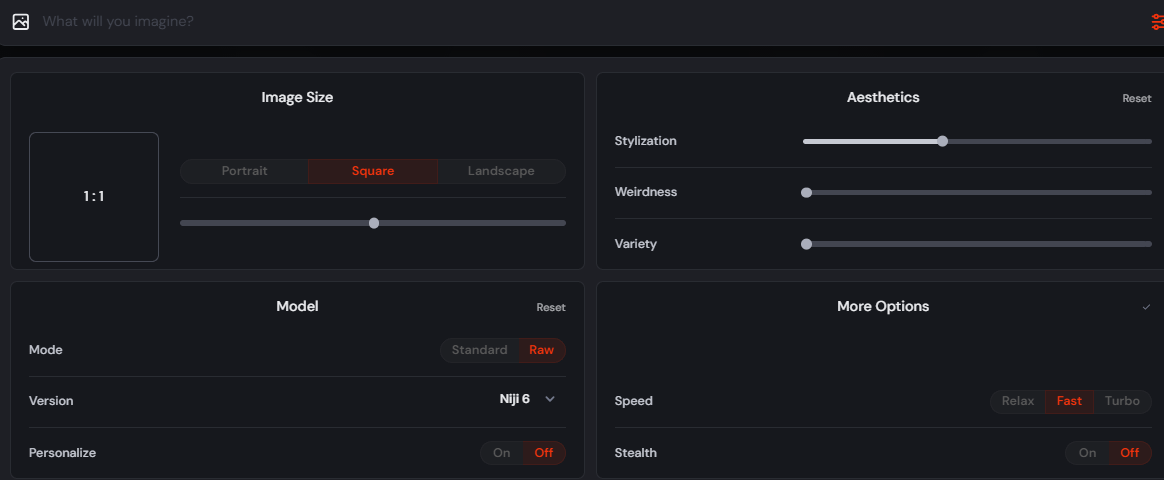
For all of our generations we will use Midjourney Version Niji 6 a model usually reserved for illustration style works. This can be selected from the settings as seen below or you can append this parameter to your prompt to use it —niji 6
The better AI Models such as Midjourney get at understanding human language and nuance, the easier it becomes to get good results from them. Below is an example of a sheet representing logos from various backgrounds and the prompt.
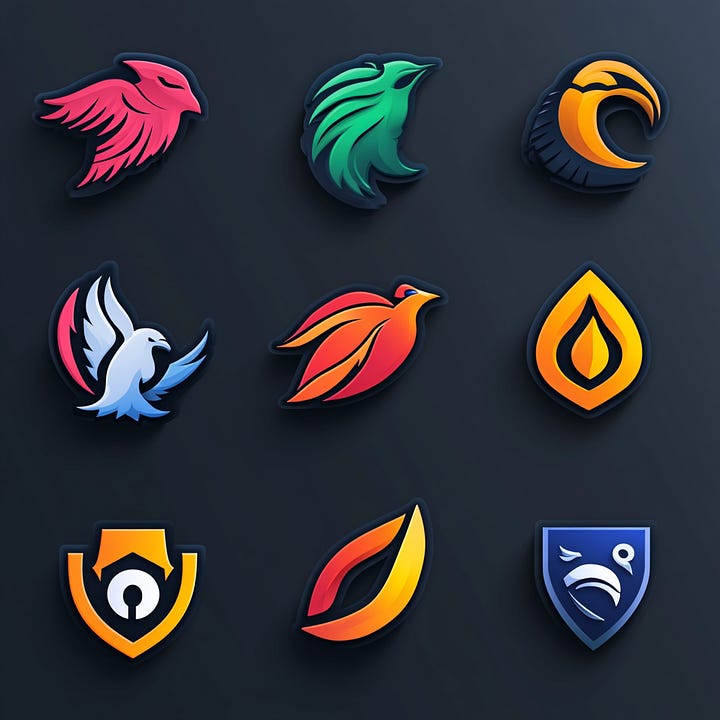
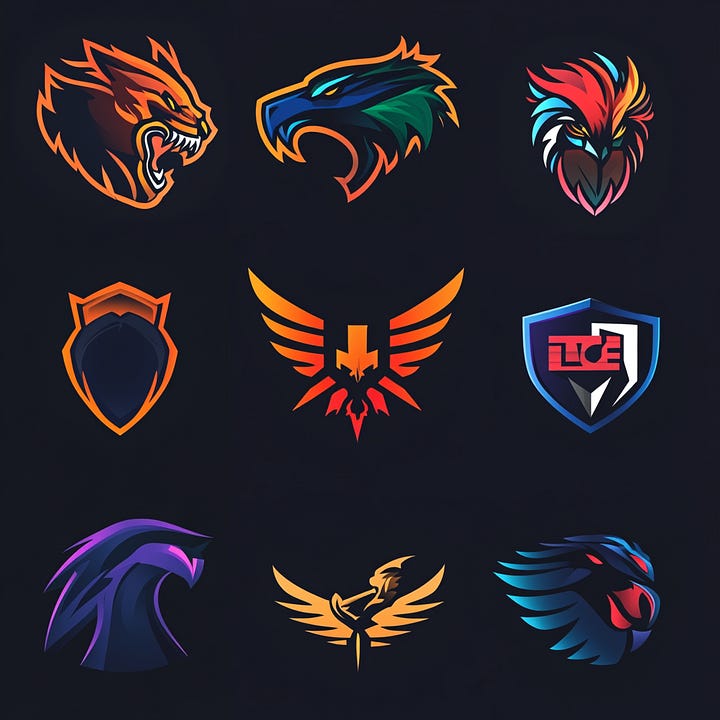
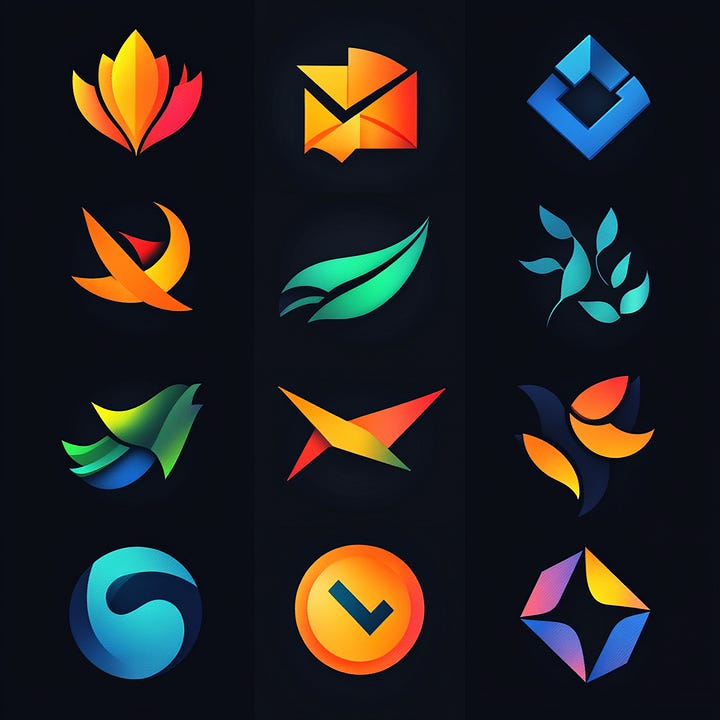
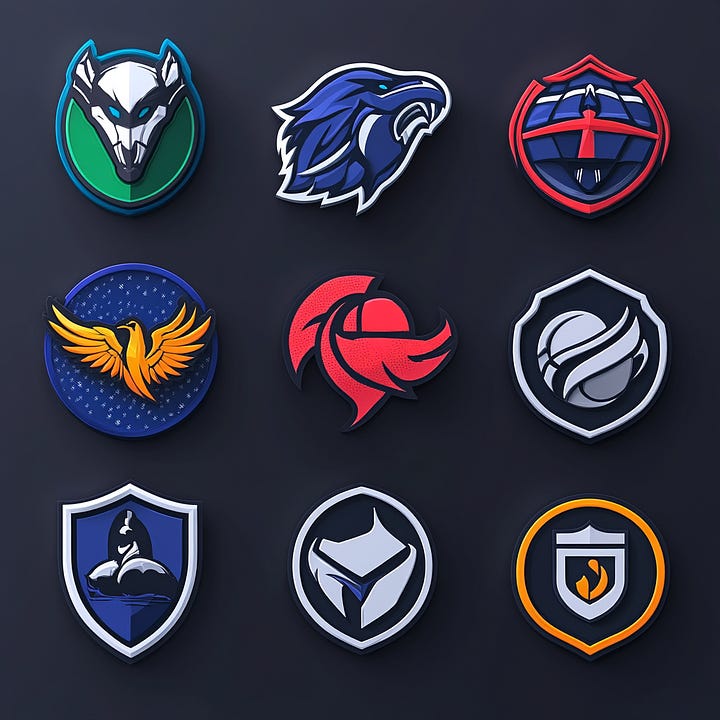
A wide variety because the prompts asks for many instead of a single one but this demonstrates the power of a prompt in natural language. Let’s move on to something more specific.
Single Subject Examples

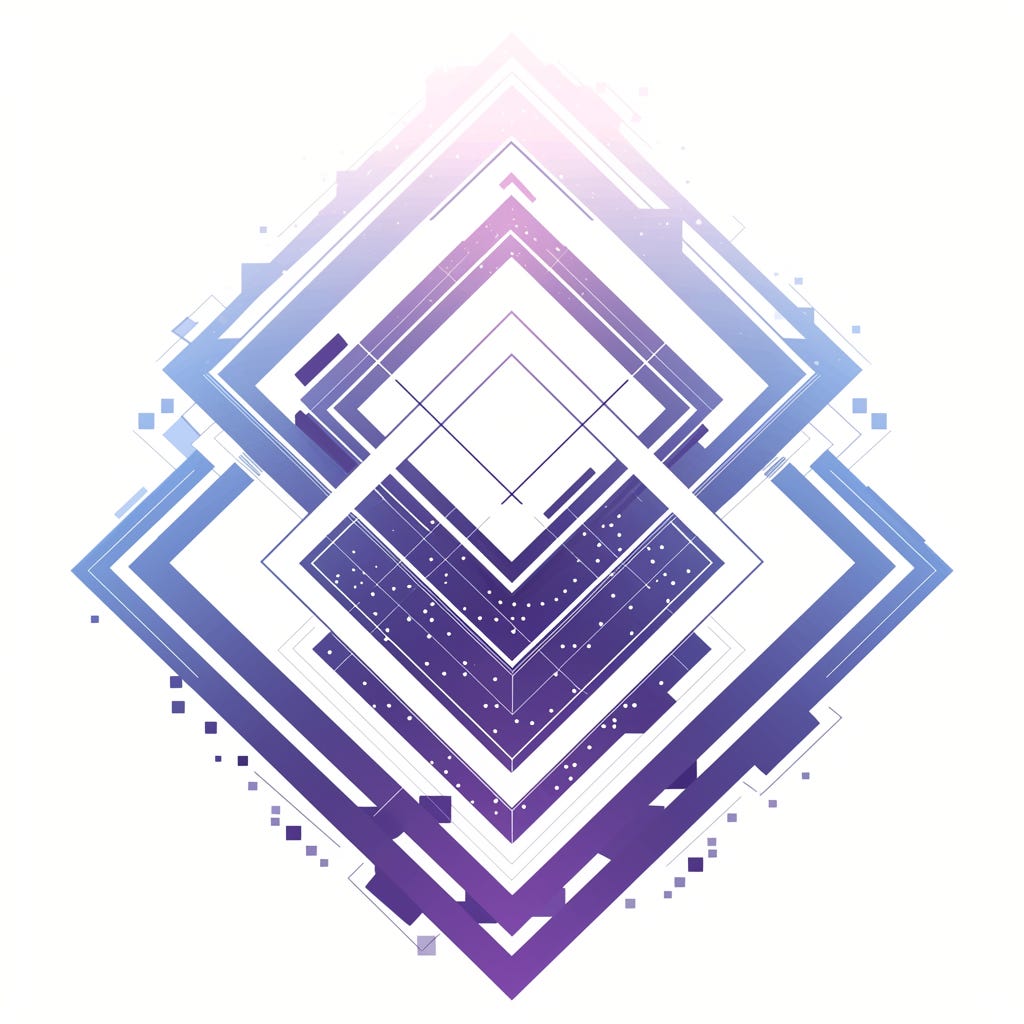

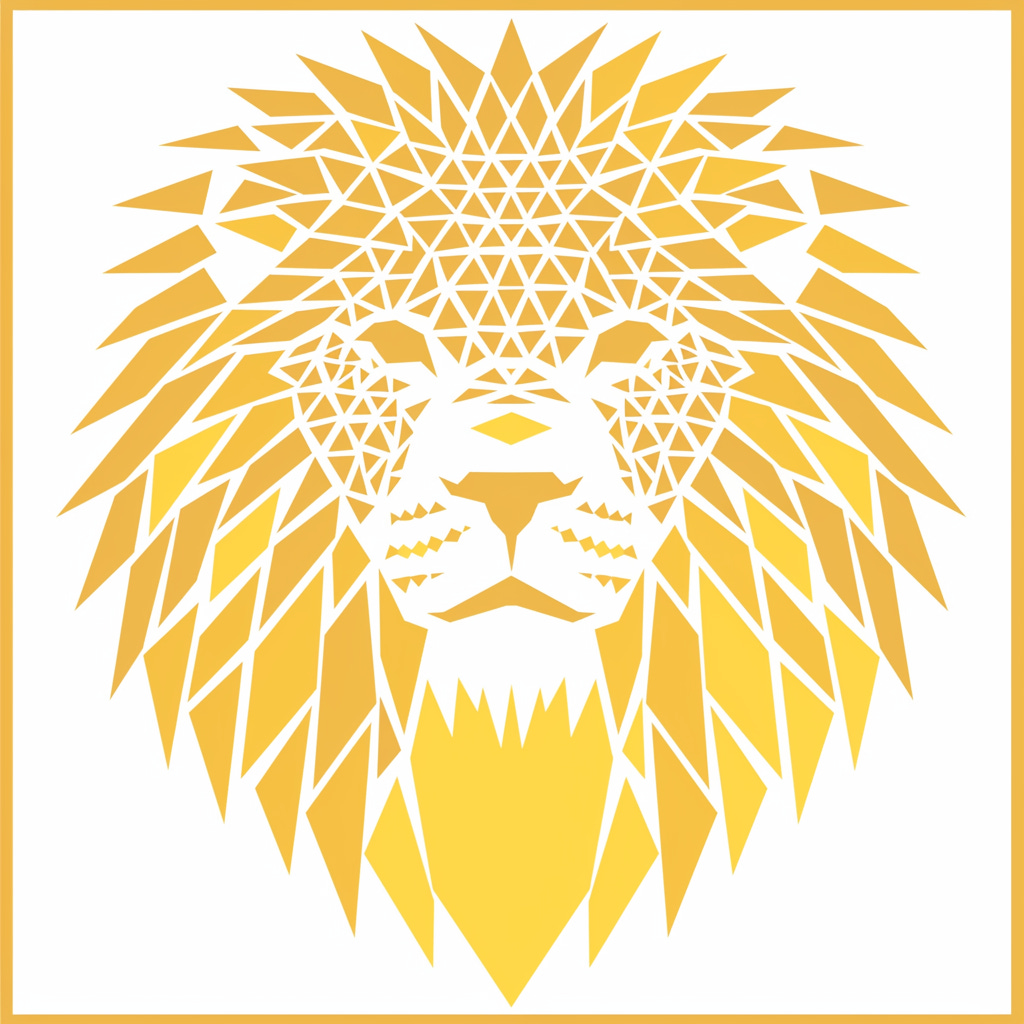
Notice how little we had to change the prompt for changing the subject.
Description - What we want
Context - How we want it
Parameters - control aspect ratio, stylization, etc...
Let’s change the previous Lion Logo.
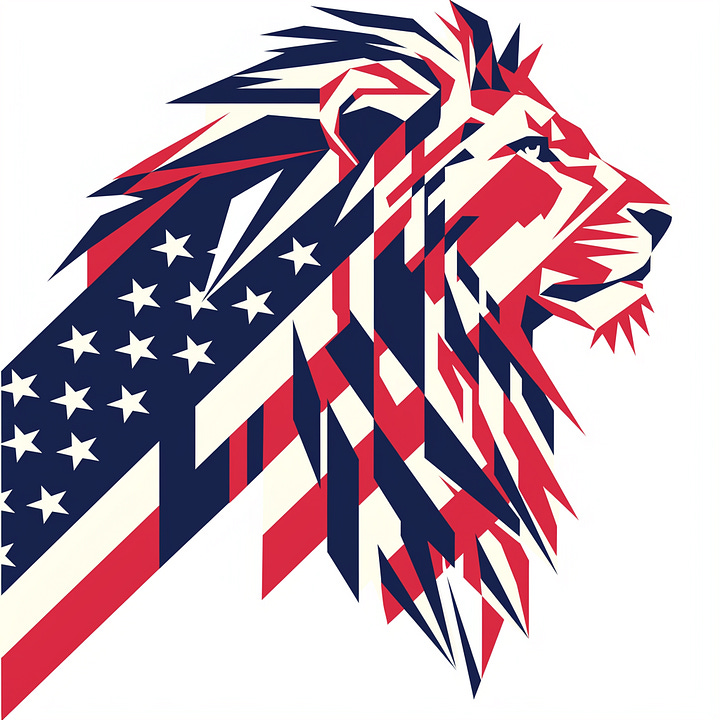
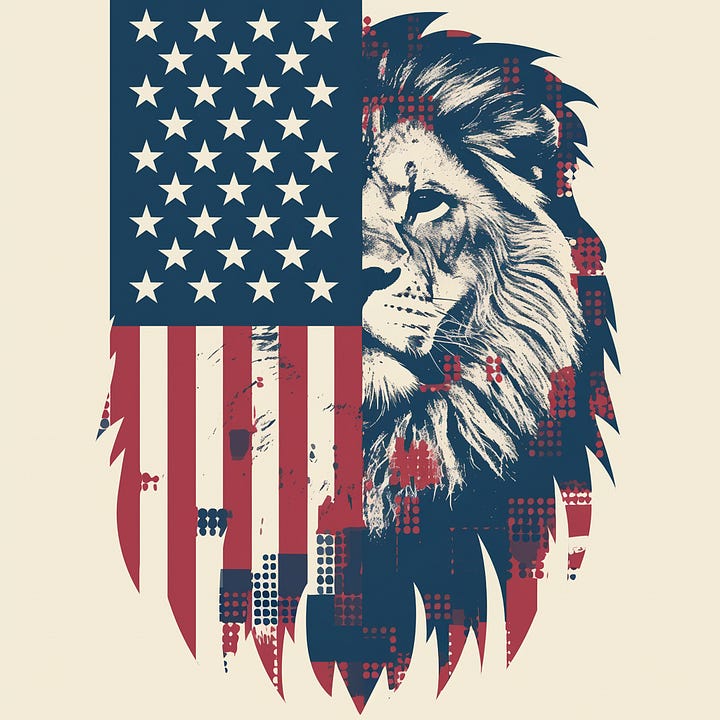
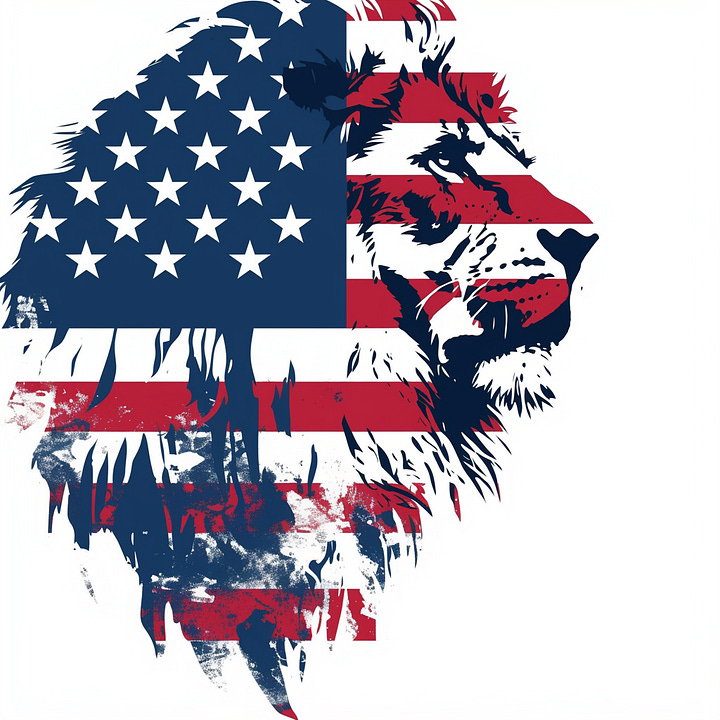
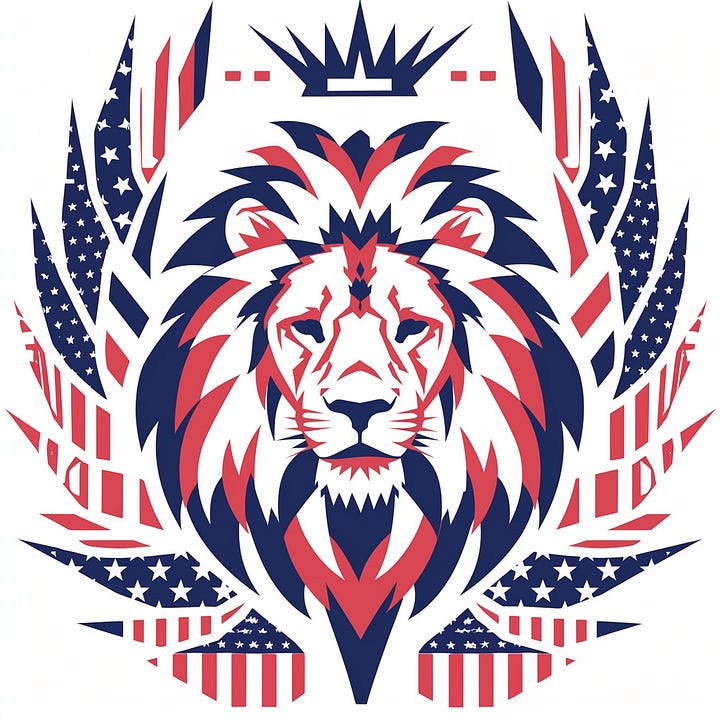


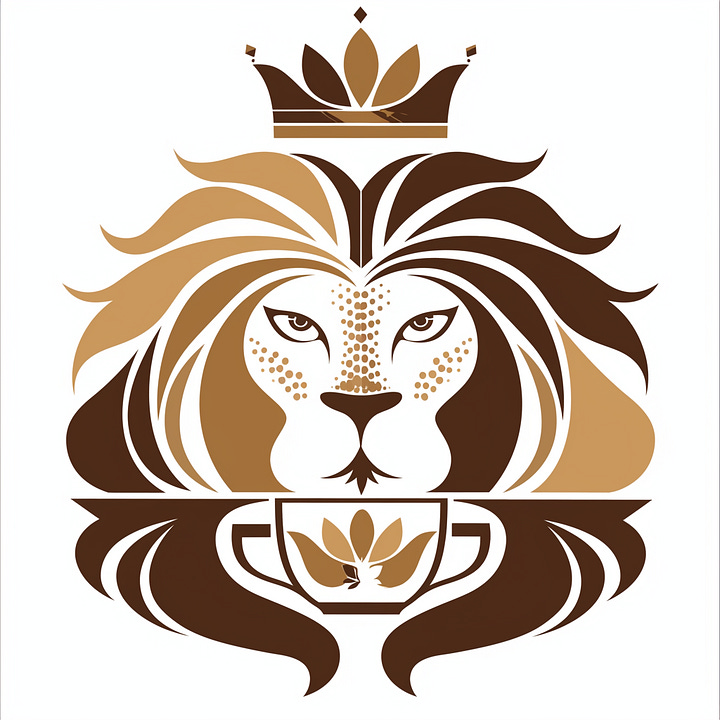
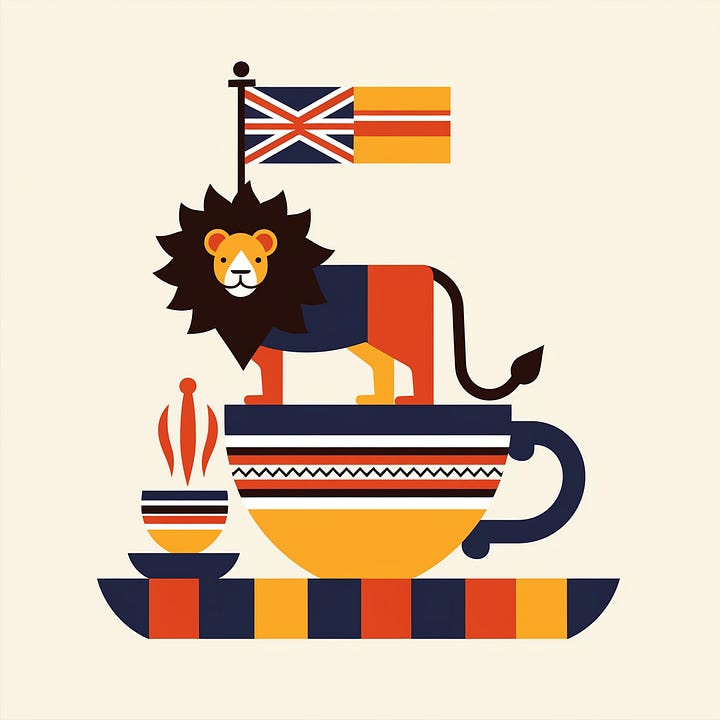
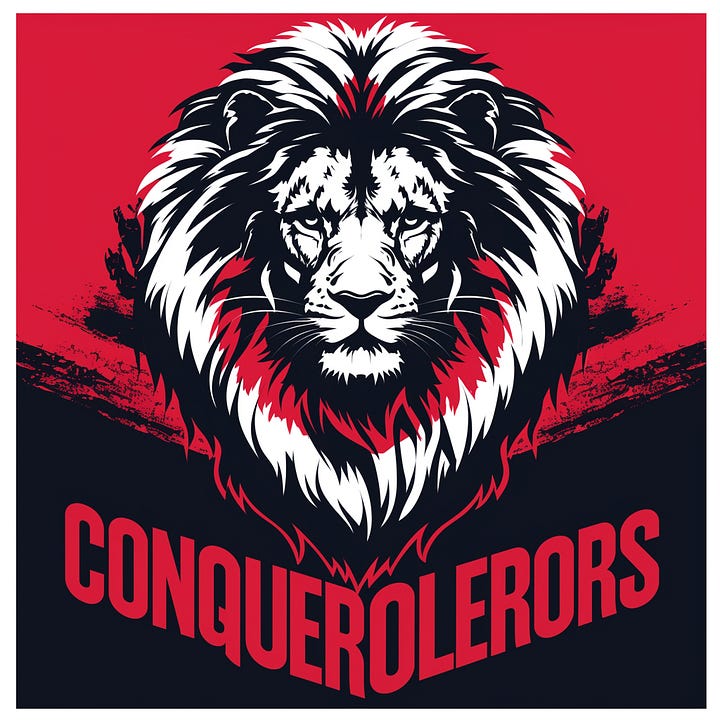
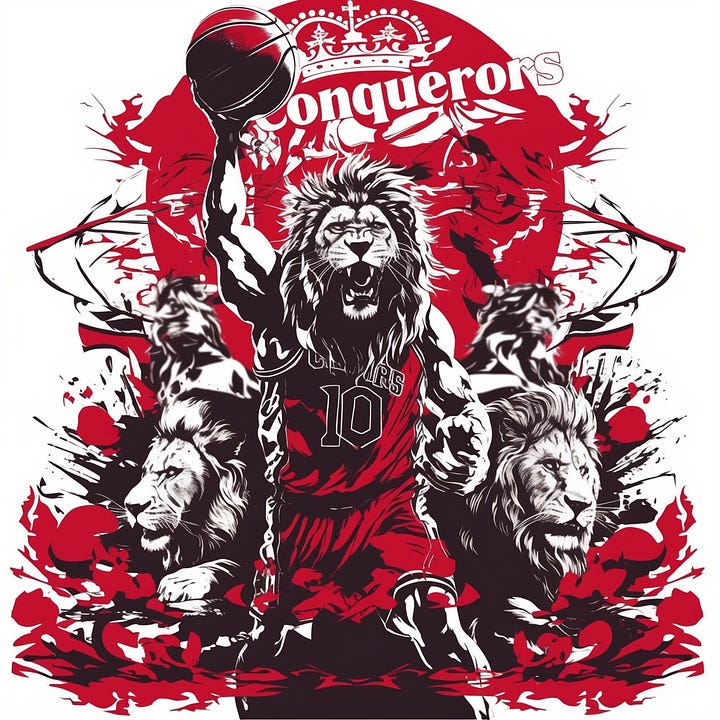
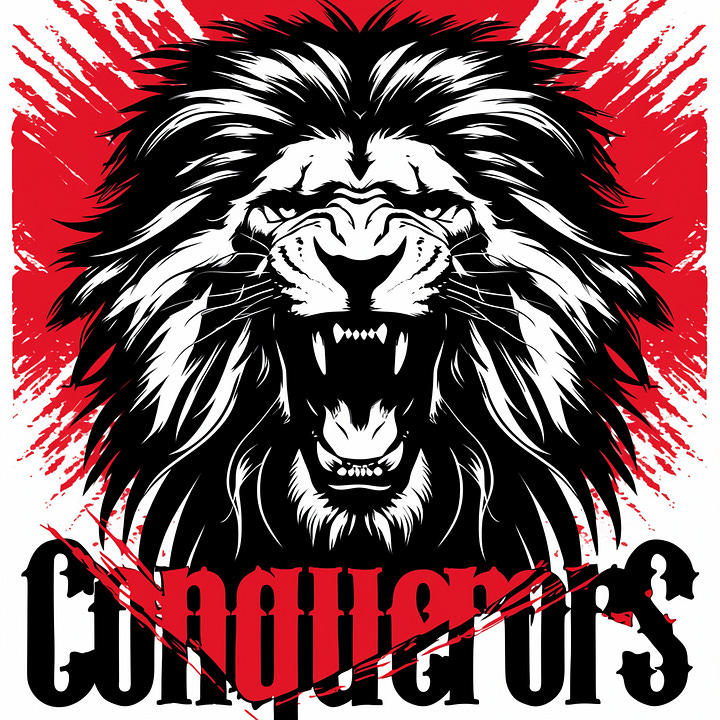
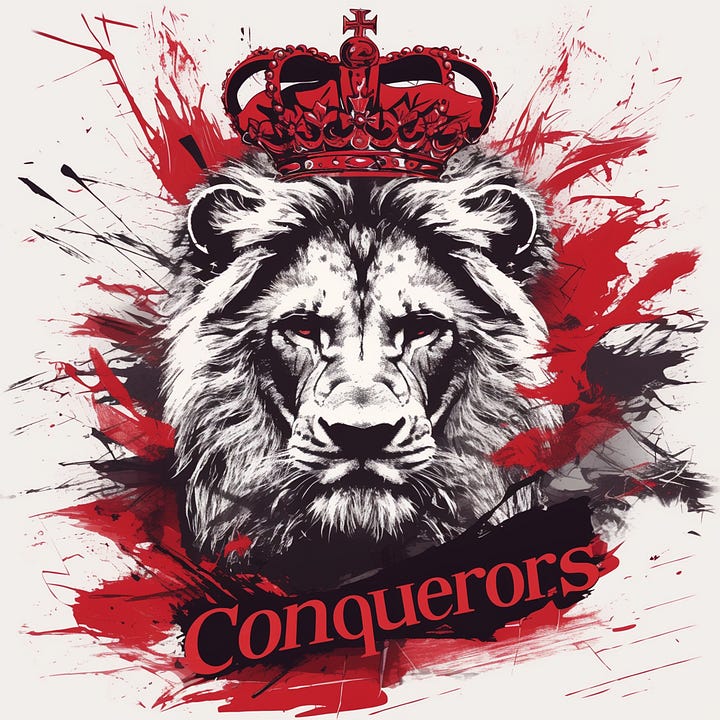
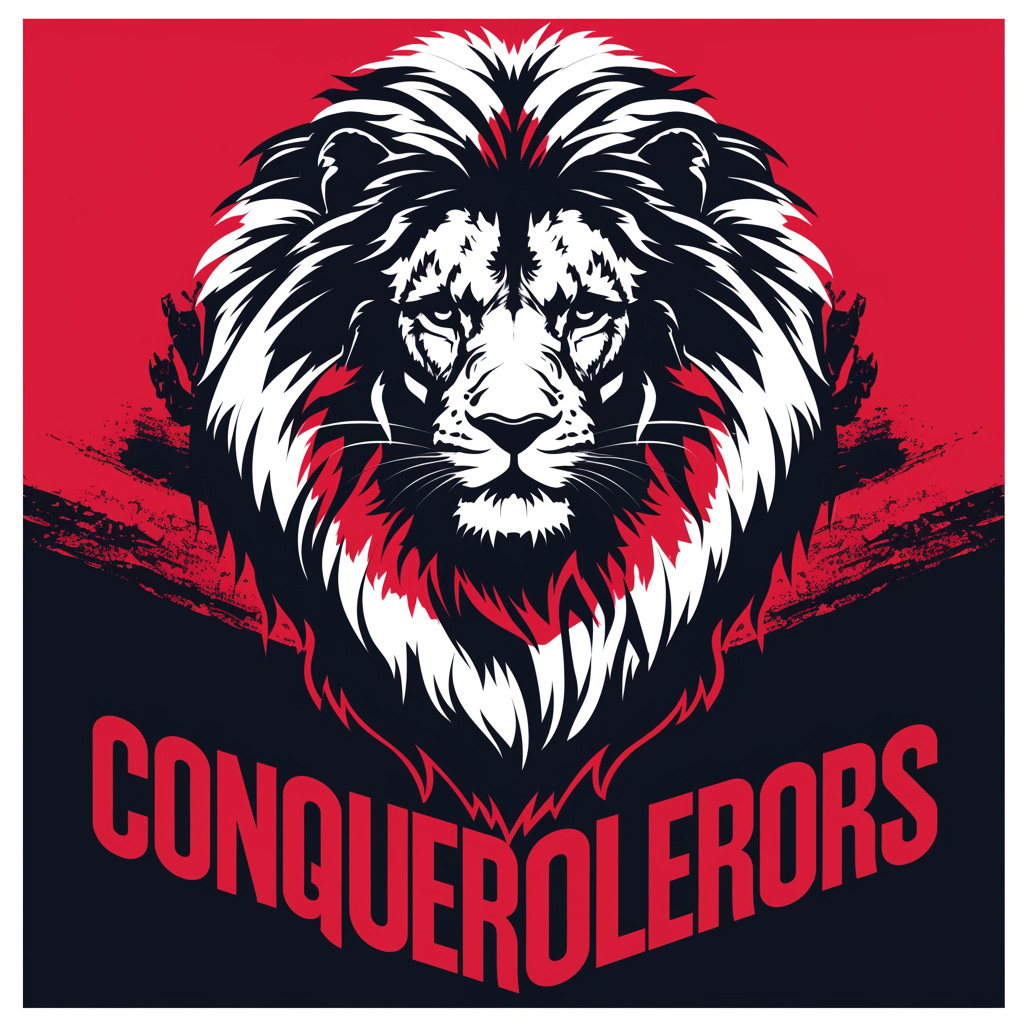
Midjourney is pretty good at writing specific text now but it’s not perfect. Don’t let a misspelling dissuade you from a great design though!
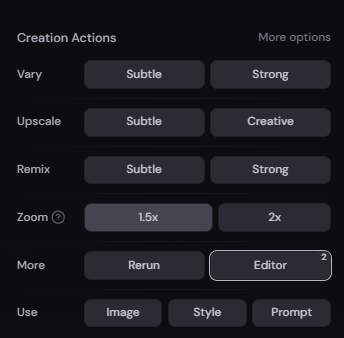
Use the Editor which you can bring up by selecting the image and using options on the bottom right.
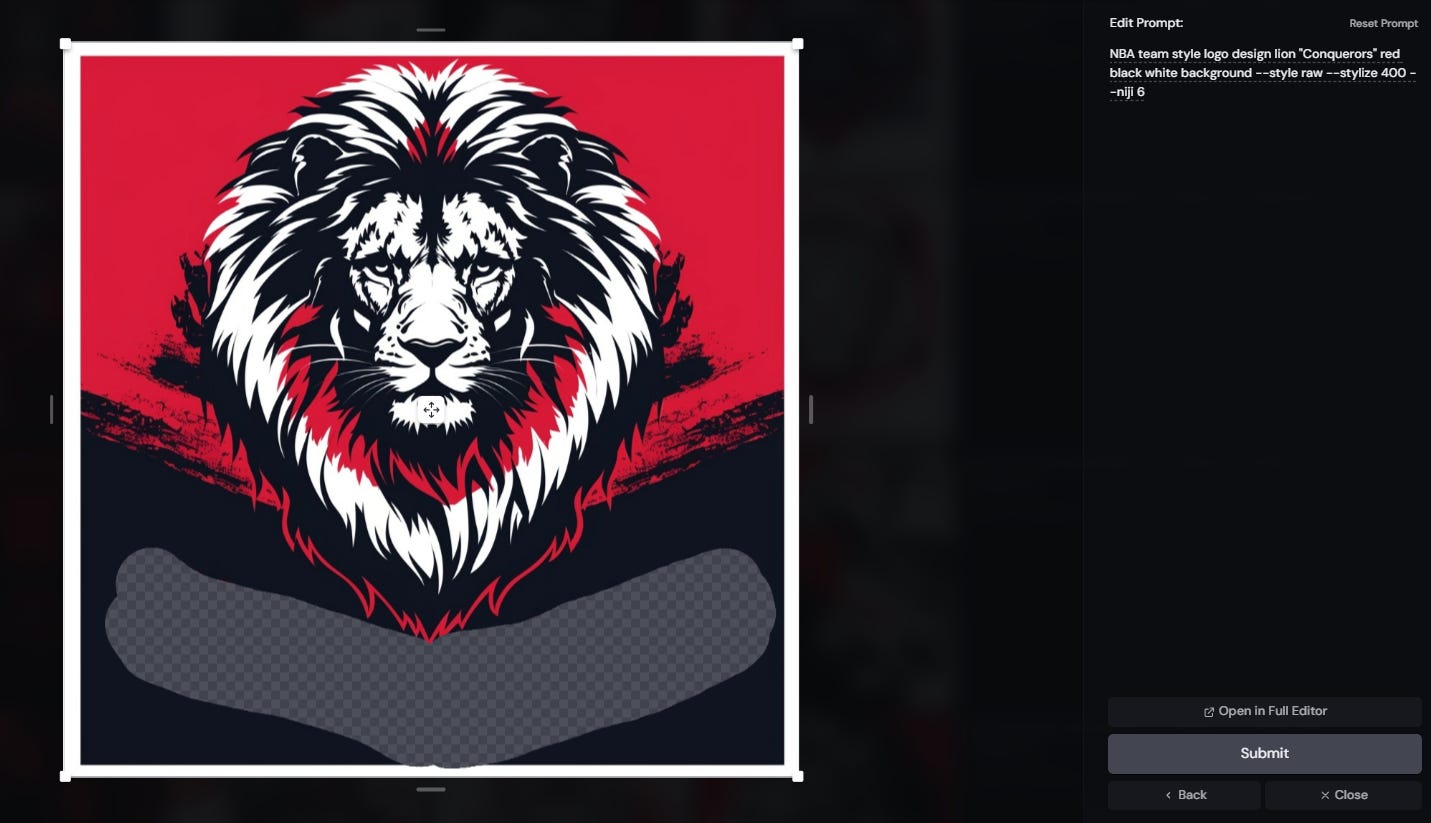
Erase where all the text is and using the same prompt hit submit.
We now have four new options with correct spelling.
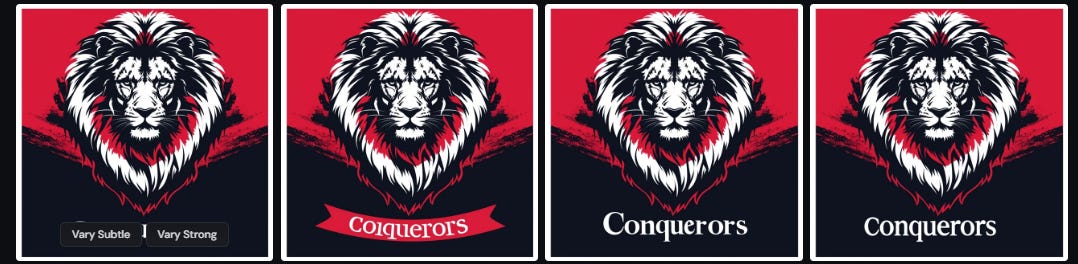
But how do we take this logo and use it elsewhere?
First let’s remove the background Adobe has a free tool that excels at this.
Once you have all the errant space removed you need to upscale the images DPI so that it could be printed on any medium you need. I use Convert Town for this you need to set your image to 300 DPI
By Setting the image to a DPI of 300 we can print this on anything from the size of a billboard to a business card with no loss of quality.
With all that you have everything you need to design and use a logo anywhere.
If you found this helpful at all share, like, and leave a comment below.
No posts
Comments
Nothing yet. Say the first thing.
Sign in to join the conversation.