
TL;DR: ChatGPT has been saving every file you upload and generate into a personal Library you probably never knew existed. If you generate images with reference files, yours is likely full of duplicates. That's slowing your workflow down and eating your storage quota. This post is the 15-minute fix.
A few days ago I became curious and clicked the "Library" menu in my ChatGPT sidebar. My library looked like a crime scene.
Brand-Reference.png (33).
That’s not a typo. Thirty-three versions of the same reference sheet, sitting in my Library. Because every time I opened a new chat to generate an image, I uploaded the file from my desktop. Every. Single. Time.
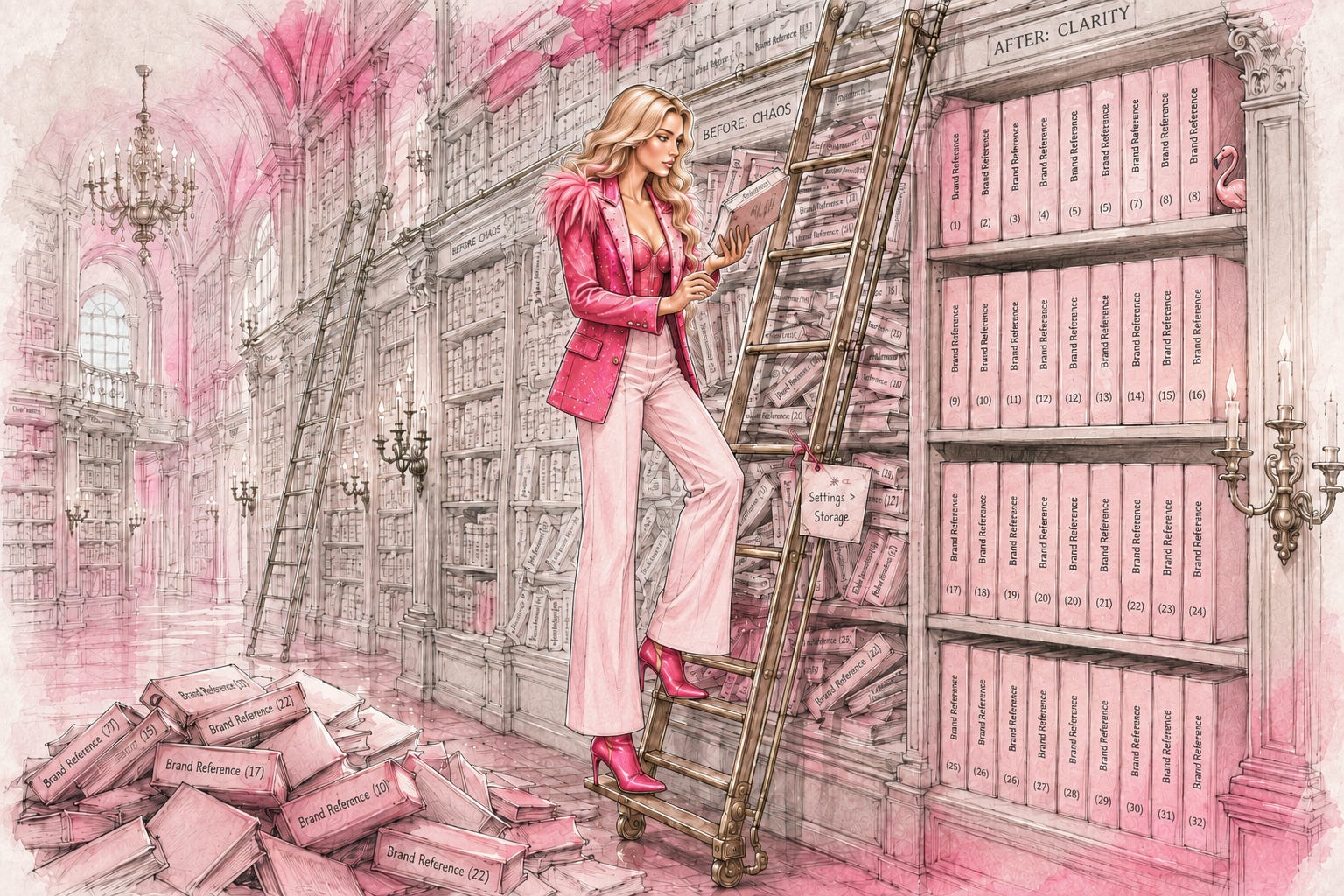
I noticed something was off when my image generations started taking 10 minutes. First I blamed the servers. I blamed peak hours. I blamed the full moon. Everything except the actual problem: I had been filling my Library with the same files, over and over, for months.
The most embarrassing part was the realisation that there is an “Add from Library” button in the ChatGPT composer. I had never used it. Today I’d like to share why you should, and five smarter habits that mean you never have to do this cleanup again.
Hey, I’m Pinkie. I help creators build recognizable Substack brands that drive consistent subscriber growth. I share the exact branding systems, prompts, and workflows I use to transform ideas into distinctive, repeatable output. If you’re new to AI Meets Girlboss, welcome! Honestly, this might be the best time to join. start here! 🩷🦩

What You’ll Learn:
Why your ChatGPT Library is probably full of duplicates, and what that’s actually costing your workflow
The 5-step cleanup that takes 15 minutes and fixes the graveyard for good
Three smart habits (Temporary Chat, Projects setup, auto-referencing, the 12-20 rule, and the rename trick) that mean you never have to do this again

What the ChatGPT Library Is.
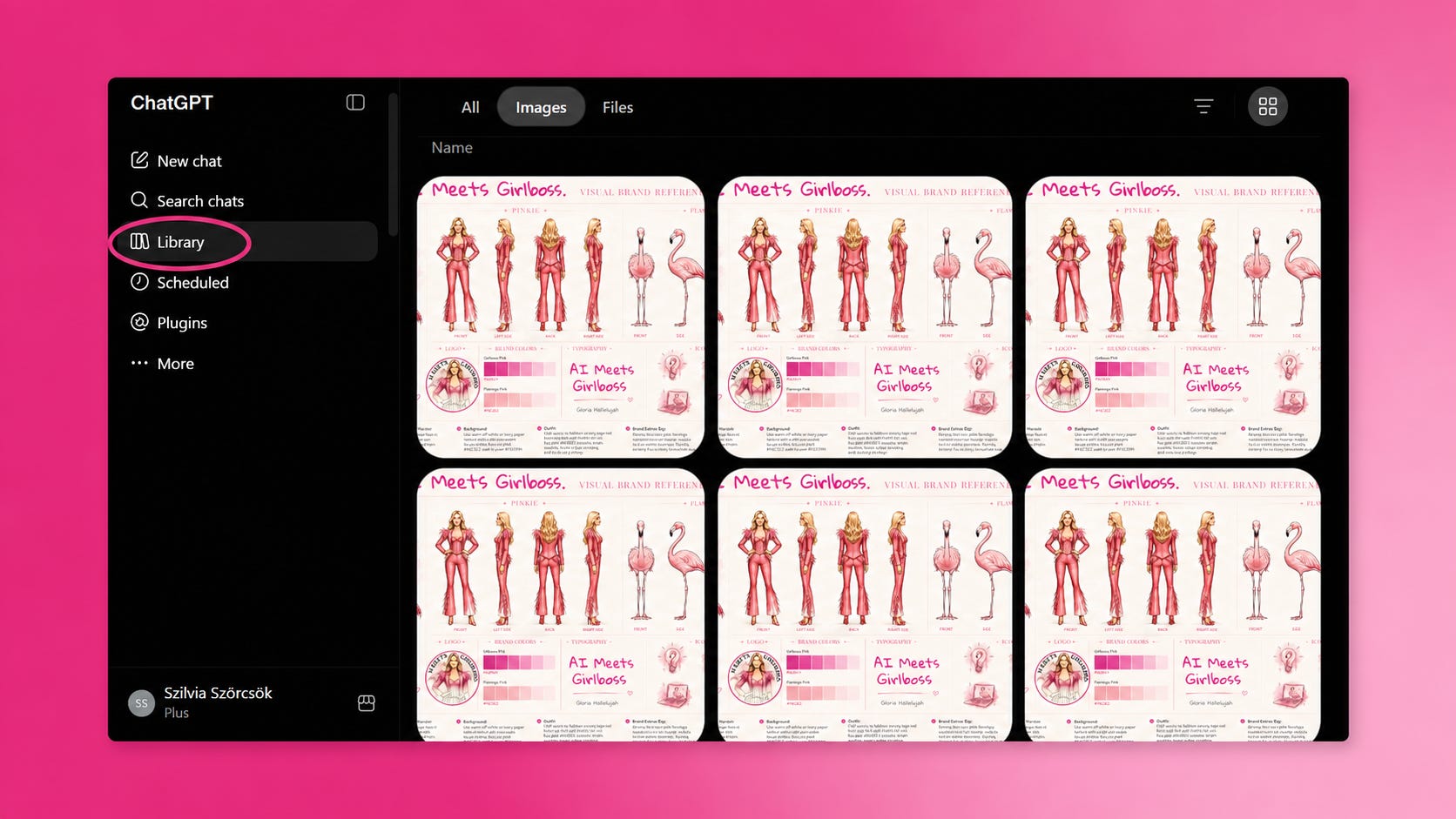
OpenAI launched the Library feature in early 2026: every file you upload or create in ChatGPT gets saved automatically so you can reuse it without uploading again. Documents, images, spreadsheets, generated outputs — all of it, stored in one place, accessible from the ChatGPT sidebar, right here:

I’ll wait until you go check out the mess you probably have sitting there.
If you hit the “+” button in the composer bar, you can pull any image or file from your Library without uploading it again. The problem is that most of us never got the memo. So instead of using “Add from Library,” we kept uploading new copies every single time. My Library just grew. And grew. And grew.
Here’s what makes it worse: deleting a chat does not delete your files. Files stick around until you manually remove them. My Brand-Reference sheet wasn’t spread across 33 different chats. It was 33 separate uploads, all sitting in the same Library, each one taking up space.
If you’re using reference images as part of your visual brand workflow, you’ll want to read How I Built a Visual Brand System With AI first, knowing which files you actually need makes the cleanup twice as fast.
Why ChatGPT Library Duplicates Slow Down Image Generation.
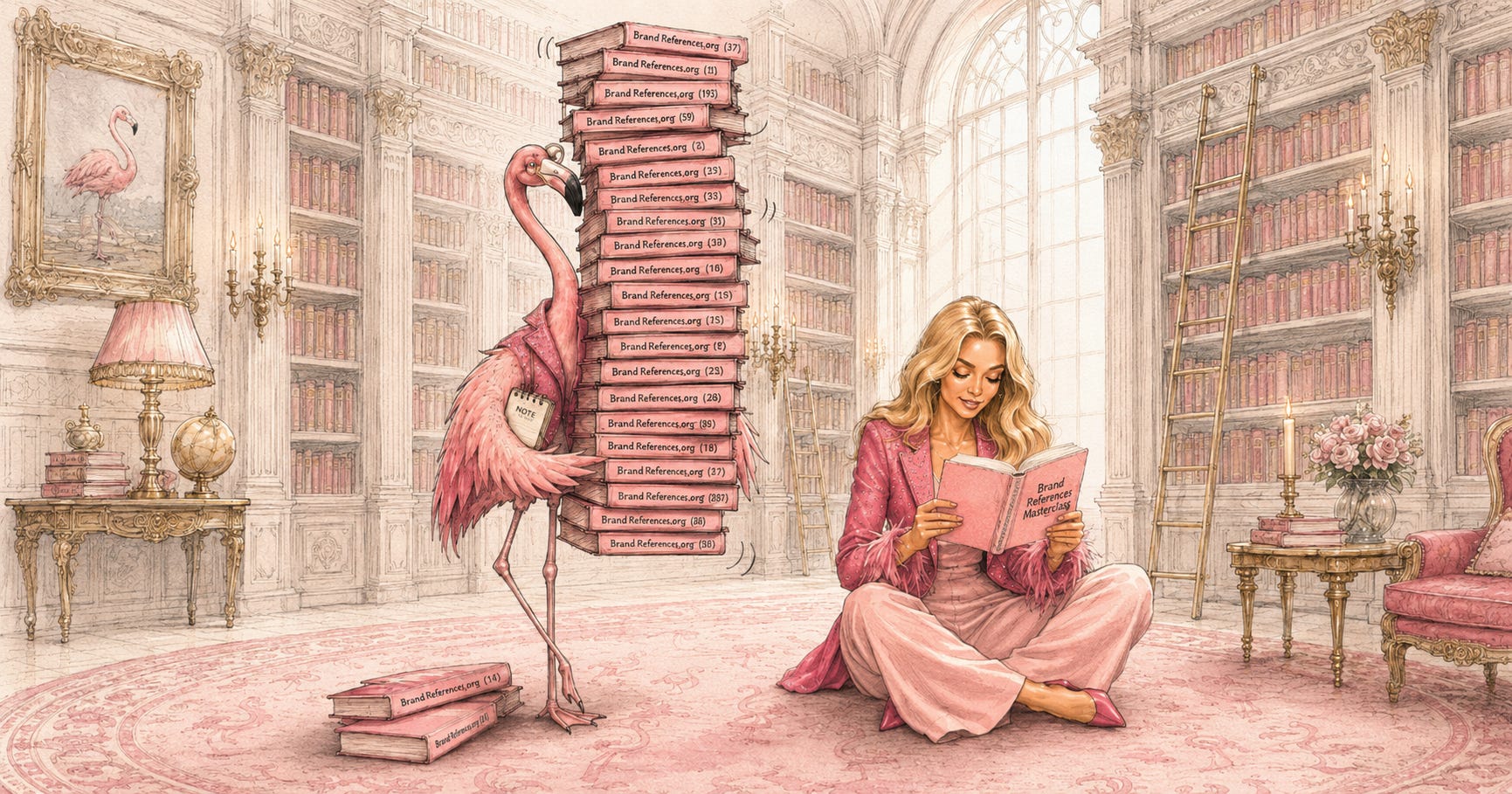
It's not pretty, and if you have OCD like I do, this might be enough of a sign for you to go clean up your Library. But what's worse, a graveyard Library works against your workflow in four ways.
1. It eats your storage quota.
Plus and Business users get 20 GB of Library storage. That sounds generous until you factor in large reference sheets, generated image outputs, and documents. When storage fills, new uploads start failing.
2. ChatGPT may be scanning it on every generation.
If automatic file referencing is on in your workspace settings, ChatGPT checks your Library as context for every response. With 33 identical copies of the same brand reference sheet, it isn’t scanning one file. That overhead adds up.
3. You burn through your upload quota for nothing.
Plus users get 50 image uploads per day and 80 files every 3 hours. Every duplicate you re-upload manually counts against that window. If you're generating heavily, those wasted slots matter.
4. Your workflow gets slower.
Starting a fresh chat and pulling from a clean Library via “Add from Library” is consistently faster than uploading. The duplicate pile makes the whole interface more sluggish to navigate.

Take 15 Minutes To Organize Your Library.
Do this now. You won’t want to do it later and the problem only compounds. Come, I’ll do it with you.
Step 1: Open your Library.
On the web version of ChatGPT, find the Library tab in the left sidebar. Filter by Images to see the damage clearly.
Step 2: Delete duplicates without mercy.
Keep one clean copy of each reference file you actually use. Brand sheet, character turnaround, logo — one copy each. Everything else goes. Select and delete. Files are removed from your account immediately and permanently deleted from OpenAI's systems within 30 days.
Step 3: Rename your keepers before re-uploading.
ChatGPT saves files with their original filenames, and it searches by filename. "Brand-Reference(33).png" is unsearchable. Rename them clearly before you re-upload: AMG-Brand-Reference.png, Pinkie-Reference.png, Flamingo-Reference.png. You can then ask ChatGPT directly — "show me my brand reference file" — and it will surface the right one instantly.
Step 4: Switch to “Add from Library.” Today.
Next time you open a new chat to generate an image, don't upload your reference file. Click the "+" in the composer, select "Add from Library," pull the file you already have. Same result. Zero waste.
Step 5: Check Settings > Storage.
ChatGPT now shows your storage usage and lets you manage it from one place. Bookmark it and check it monthly. Your target number: a well-run Library sits around 12 to 20 files. If you're over that, something needs to go.
For my paid subscribers: your ready-made system.
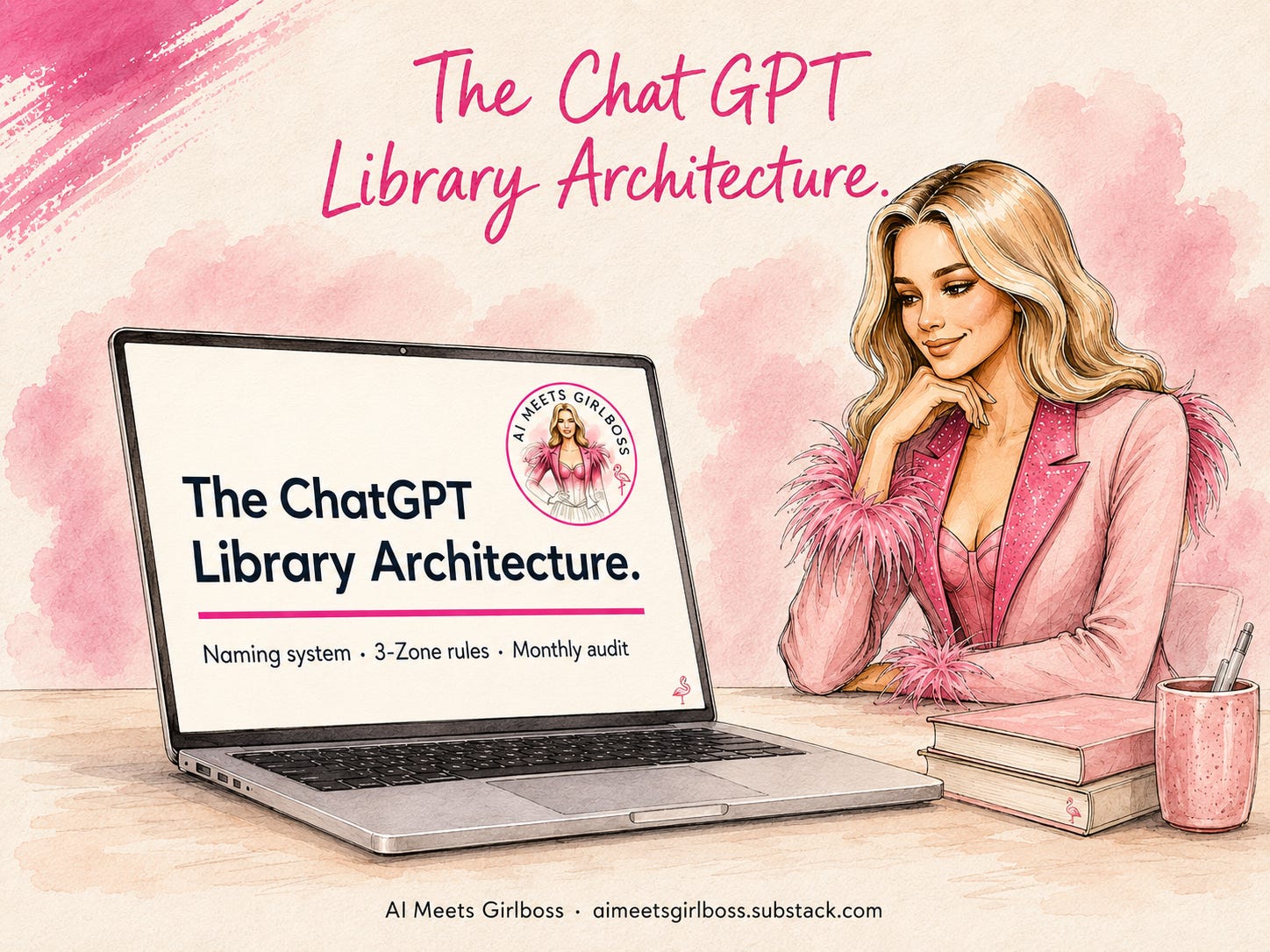
I turned the full system into a cheat sheet you can keep open while you work. It includes the naming convention, 3-zone breakdown, keep/delete rules, and a one-page cheatsheet worth screenshotting.
Upgrade to get 100% off for this tool, and ALL other Substack branding products in my store.
The Rule That Keeps This From Happening Again.
The cleanup fixes the graveyard. The below habits make sure it never comes back.
1. Use Temporary Chat for experiments.
Temporary Chat is a mode where the session leaves no trace — no history, no memory, and most importantly for us: no files saved to your Library. When you close the chat, it’s gone. Think of it as incognito mode for ChatGPT.
To turn it on: open a new chat, then click the model name at the top left of the screen. Select “Temporary chat” from the menu. The composer area will change to say “Temporary Chat” so you know it’s active.
The rule for creators: anything you’re testing, experimenting with, or generating for a one-off prompt, do it in Temporary Chat. Style experiments, prompt tests, things you’re not sure will work. None of it touches your Library. The graveyard problem literally cannot happen there.
Save normal (permanent) chats for image generations you actually want to keep and reuse.
2. Separate your image generation from your writing.
This one is specifically for Substack creators. The short answer: yes, your image generation should be its own Project, separate from your writing.
ChatGPT Projects are persistent workspaces where each project gets its own custom instructions, its own reference files, and its own context. When you write, you want ChatGPT thinking in your brand voice, your post structure, your subscriber context. When you generate images, you want it focused entirely on your visual reference files — Pinkie turnaround, brand sheet, flamingo reference — not bleeding that visual context into your writing sessions.
The setup I recommend for Substack creators:
Project: Writing: post drafts, notes, outlines. Custom instructions: your brand voice, post structure rules. Library files attached: none (you don’t want reference images floating into writing chats).
Project: Image Generation: all visual production. Library files attached: AMG-Brand-Reference.png, Pinkie-Reference.png, Flamingo-Reference.png.
Temporary Chat: prompt experiments, one-off generations, style tests you may not keep.
3. Rename before you upload, not after.
ChatGPT searches your Library by filename. “Final(2).png” is invisible. “Pinkie-FINAL.png” is findable in one second.
The habit: rename the file on your desktop before you upload it the first time, and never upload it again. One file. One upload. One Library entry.
The ChatGPT Library Rule.
Every reference image you use regularly gets uploaded once, named properly, and accessed via Library every time after that.
Experiments go in Temporary Chat.
Image generation gets its own Project.
And every 30 days, you run the “would I reopen this?” test.
In the comments…
How bad is your Library? Are you a 5-copy person or a 33-copy person? Drop your number below.
No judgment. Mild judgment. You know what, full judgment. You’ve had this problem for months and you also didn’t know the button existed. We are the same.
Talk later, Girlbosses.
Pinkie 🩷🦩
If today’s post made you think about your own visual brand, I am running The Branding Flock, a visual brand & identity program for Substack creators who are done being invisible.
Full breakdown posts, real prompts, real outputs. Your color palette, your logo, your brand character, your content system — built step by step alongside the flock.
25% off your subscription if you are brave enough to look in the mirror, and take the brand maturity test developed by a group of very judgmental flamingos.
Comments
Nothing yet. Say the first thing.
Sign in to join the conversation.