
The more direct paths to Claude on your phone, the more you will use it throughout your day.
The more you do anything, the better you get at doing it.
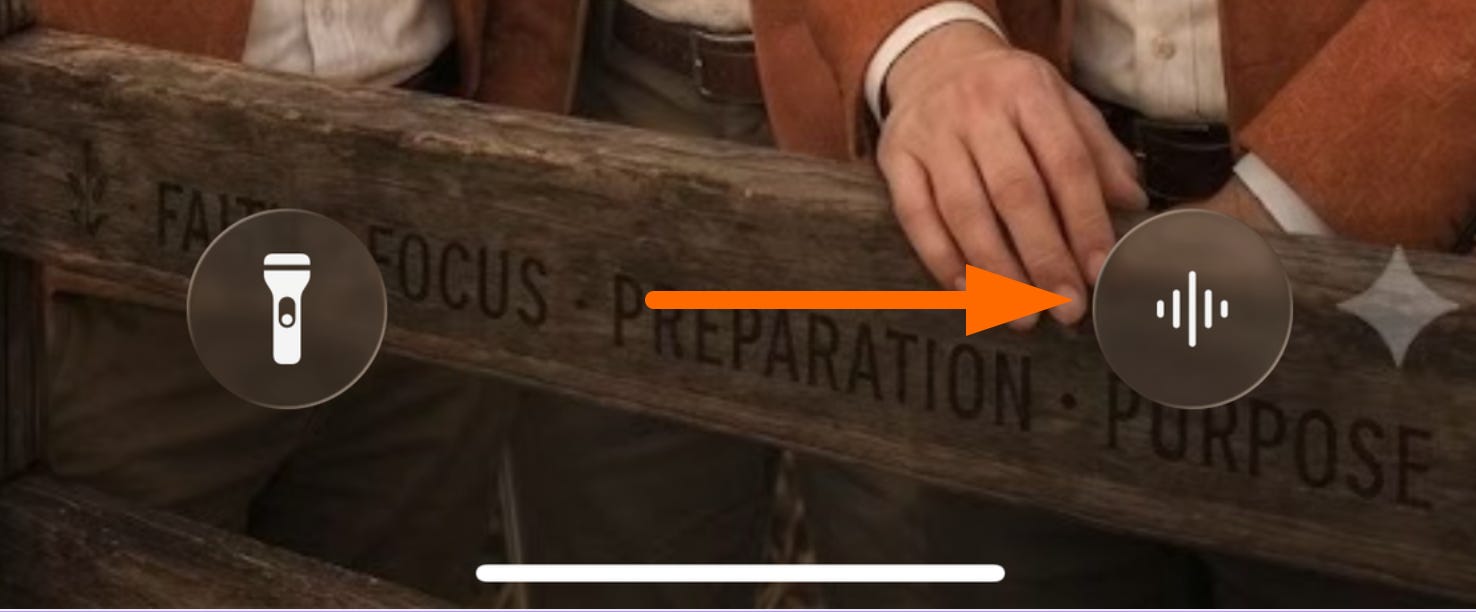
Here’s how it looks on my iPhone with the direct to voice chat function.
Here’s a quick 1-minute walk through (YouTube short) to get you setup right now. Just click the play button to watch.
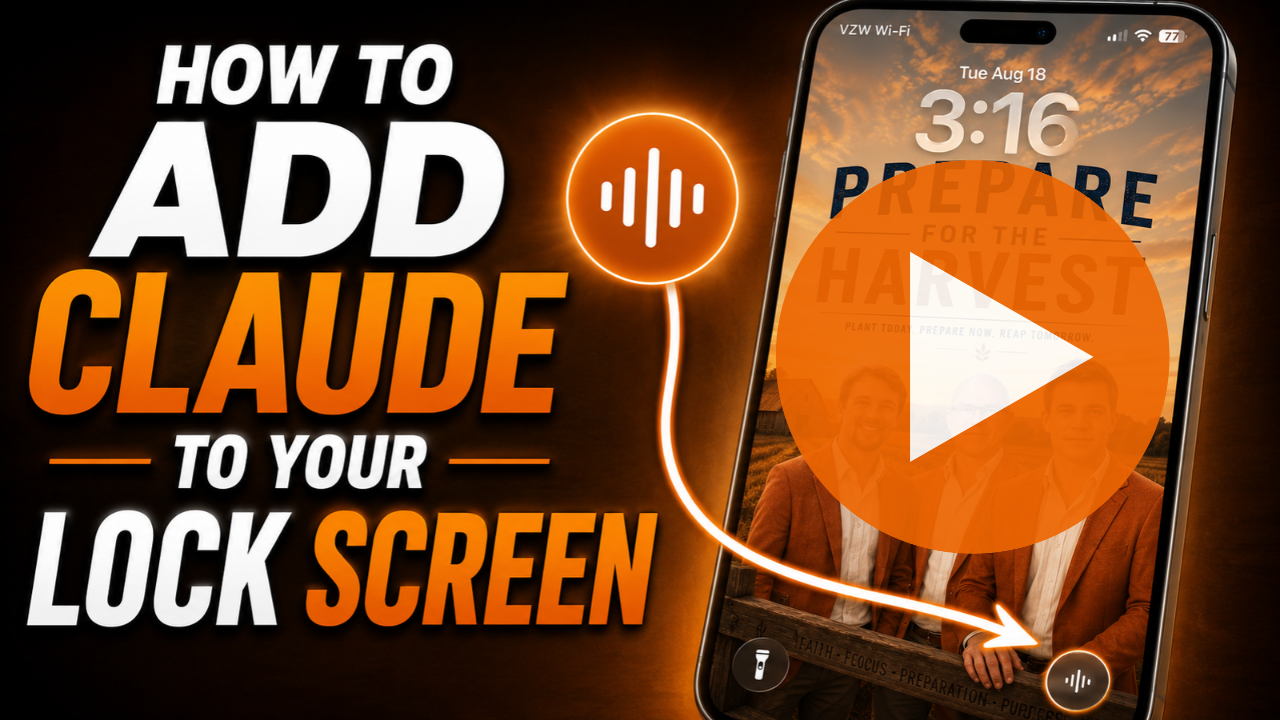
Here are the step-by-step instructions if you do not want to watch the video.
Go to your lock screen and press down until the “Customize Button” pops up at the bottom.
Hit “Customize.”
Click the minus sign (-) in the bottom right circle to remove the app that is in that location.
Hit the plus sign (+) where the app was removed from.
At the top, enter “Claude” in the “Search Controls” input field.
Choose one of the three Claude options (Open Claude, Start a Voice Conversation, Analyze Photo with Claude). I use “Start a Voice Conversation” on my lock screen.
To save your selection, click “Done” in the top right hand corner of the lock screen.
No posts
Comments
Nothing yet. Say the first thing.
Sign in to join the conversation.