
If you’ve been curious about AI tools but felt like they weren’t built for people like you, you’re in the right place. This is a step-by-step guide to building a website with Claude Code. No technical experience required.
“Chapter 1: I am born.”
The literary aficionado in me heard that when I finally figured out what I was doing wrong with Claude Code. The movie fanatic in me heard Melanie read it out loud in, “Gone with the Wind.”
Also “gone with the wind” was time. Weeks, I tell ya. WEEKS. It’s taken me much longer than I anticipated to get the reins of this. But if I can do it, you can do it. It’s much faster if you don’t take the circuitous route that I took. But the saying that “failure is the greatest teacher” is true.
I got on the Claude Code hype train to create and automate tasks. Since I boarded said train, I’ve been doing a lot of experimentation, but have only finished one thing I’m ready to share and decided, “why wait?” Ship now and move on! Thanks to some fine demos and leaders on Substack, I tried out something easier than my other projects, and spoiler alert, it worked!
Today I’m going to give you the workflow, prompts and share (really just demonstrating what I learned from , , , and ) what it was actually like to build my new website from scratch in ten minutes* with Claude Code…having absolutely no coding skills at all. In “dark mode.”
And I’m afraid of the dark (mode).
In my head, “dark mode” (aka CLI - Command Line Interface) is only meant for programmers, tech bros, and regular “dude” personas. Don’t flip out if you’re someone besides one of these characters using dark mode or my impression just doesn’t resonate with your impression. I truly just equate it with a different universe of thinking. Technical. Introverts. Serious. Determined, quiet and contemplative…like people who control the digital rain of the matrix. Mad respect.

Whereas, I’m an end user going about my day with a white background and one large screen. Even though I write all day and my eyes should get just as tired, I like sunshine, light and all things silly. It’s okay to be different. You go be you. This is me.

My close cohort of programmers, tech bros (hey they consider this a badge of honor) and regular dudes tell me that when you code or read all day long, on multiple screens all at once, dark mode is just easier on the eyes. (As they roll THEIR eyes at my white horse prancing through daisies.) I had no idea. I just thought using dark mode made you part of the “cool” club, or that you were hiding something because it’s hard to see across the room. I personally just found it to be intimidating. And, well, dark.
This might take some grit if you’re closer to the “white horse” on the spectrum than the “digital rain” matrix persona, but don’t be afraid.
If you’re interested in trying it out, you actually can generate a pretty great website on your own with Claude Code. The actual tactical part is easy and fast.
Is it actually just ten minutes?

Well, yes.* It takes ten minutes for it to render, or less. But it’s the prep work and edits that take the longest if you are trying to launch a real site as opposed to just an experiment.
Mise En Place
Is there a catch? You betchya. The “mise en place” (the word I learned from ’s cooking days (pronounced meez ahn plahs) is a French culinary term meaning “putting in place” or “everything in its place”. It refers to the “crucial, professional practice of prepping, measuring, and organizing all ingredients (chopped veggies, spices, sauces) and equipment (knives, pans) before cooking begins.”
This part does NOT take ten minutes. Sous chefs out there, feel free to weigh in.
To get something you really want to use, and not just experimenting with, you will want to really think about what you’re including in those files. At a minimum, you’d already want to have a branding style guide, examples of your writing and images you want to use.
More importantly, sticking to my mantra of foundations first, tools second, you need to know the problem you’re solving with the website. What does success look like? What would have to be true? None of that has anything to do with code or prompts. You already need to be crisp on the identity that you want to share with the world on your new website. I don’t mean ask AI all of this. You need to actually know what you want by doing some thinking and reflecting. Exercise those brain cells, take a walk and get some fresh air. One might even suggest to “go touch grass.”
The Boring Part You Don’t Want to Skip
Foundational Must Have to Experiment
Subscription to Claude Pro - $20
A website folder on your desktop: Mine is called “AI Flight Plan Website.” Everything goes in here: your brand guide, writing samples, images and eventually your index.html file. Claude Code only ever looks inside this folder. It doesn’t go anywhere else on your computer or the web.
Image sized correctly: Again, Claude Code will only use images you put into this website folder. Claude Code kind of choked on the size of my images that held up the production of the site the first couple of attempts. Claude Sonnet wrote a script for me that I ended up putting into “Terminal” on my Mac that reduces all the images in about two seconds.
Foundational Considerations (only if you want to launch a live public website)
Website domain: If you want a real URL like www.yourname.com, sort that first. Otherwise, a free hosting site will give you a random URL to experiment with. Wix, Squarespace, whatever you prefer.
Hosting site: Many options are free. I use Netlify and love it because it was quick and easy. Claude recommended it, so it might have been advertising placement, but it works.
Branding style guide: Not just a logo and colors. This is about who you are trying to attract. And more importantly, who are you NOT trying to attract. I share my brand guide prompts for free at the bottom of this post.
Chatbot: Highly recommend having Claude.ai open in one window while Claude Code runs in another. Sonnet can answer your questions and write prompts for Claude Code to execute. I kept them separate to avoid prompt rot. More on this below.
Wait! Why Do I Need Claude Code at All to Create a Website?
Fair question. First, this is, after all, a “create a website using Claude Code exercise” where you actually learn so much more.
But, Claude.ai in your browser can absolutely generate and index.html file off the prompts. So why bother with Terminal?
Consider this a learning exercise to shine some light on the dark (mode).
Reality check:
Claude Code is designed for people who are comfortable with project folders, terminals, and concepts like “run this command” or “apply this change across 30 files at once.” People not afraid of the dark. It shines when you already think like a developer and want tight control over what’s happening, step by step. For non‑technical folks, that environment is easy to break and hard to understand when something goes wrong, so it often feels less safe in practice, even if it’s not “worse” from a data‑privacy standpoint.
Cowork, by contrast, is deliberately built “for the rest of us”: you give it a folder and an outcome (“organise these documents”, “draft me a website”, “summarise these reports”), and it handles the messy multi‑step work with a friendlier interface and clearer guardrails. If you’re not technical, the usual guidance is: use normal Claude chat and Cowork as your default, and only use Claude Code when you’re collaborating with a developer or you’re ready to learn more technical workflows.
There’s a free Claude for light use. For serious work, most people pay about $20/month (Pro), which unlocks the coding assistant (Claude Code) and the smarter coworker mode (Cowork) on desktop. Very heavy users or teams can pay more (around $100–$200/month per power user, or business seats) for much higher limits and priority.
By the way, I don’t work for Claude or Anthropic and have absolutely no connection. Just sharing what I use right now and what I’ve learned.
Onward! Let’s get some lights on.
How to Create Your Index.html File: Pick your path.
Path 1: Vibe with your chatbot (the way I did this)
This is where your website will live and get edited. Before you go anywhere near Terminal,
Open Claude.ai in your browser.
Upload your brand guide, paste in some samples of your writing, a profile picture and any images you want to use.
Type this prompt:“I’m going to describe my business and give you my brand guide. Please build me a simple single-page website with sections for Home, About, Services, and Writing. Use the colors, fonts and tone from my brand guide. Save it as index.html.”
Download the html file from Claude.ai (if you want to see the website preview, just double-click on it and it opens in your browser)
Rename it index.html if it isn’t already and put it in your website folder with images etc.
Open Terminal to navigate to that folder
Drag the folder into Terminal
Type this in: claude
Now Claude can see your html file. You can now make edits to what you saw in the preview. See below.
Path 2: Let Claude Code Build It From Scratch ( for the tech-savvy)
Skip the browser entirely. Put your brand guide, images and profile pic headshot straight into your website folder. Then follow the install steps below, navigate to the folder, type claude and use this prompt:
“I have a brand guide, headshot, and images in this folder. Build me a simple single-page website with sections for Home, About, Services, and Writing. Use the colors and fonts from the brand guide. Save it as index.html.”
Claude Code builds the whole thing right there. When it’s done, go to your website folder in Finder and double-click the index.html to see it in your browser.
Both paths work. I just liked having the conversation with Claude.ai along the way.
Install and Launch Claude Code (Mac)
Press Command + Space on your keyboard. A search bar appears in the middle of your screen. Type “Terminal” and hit Enter.
*Paste this command and hit enter: curl -fsSL https://claude.ai/install.sh | bash
Claude Code installs itself. You’ll see text scrolling. When it stops, its done.
Type “claude” and hit Enter to launch it
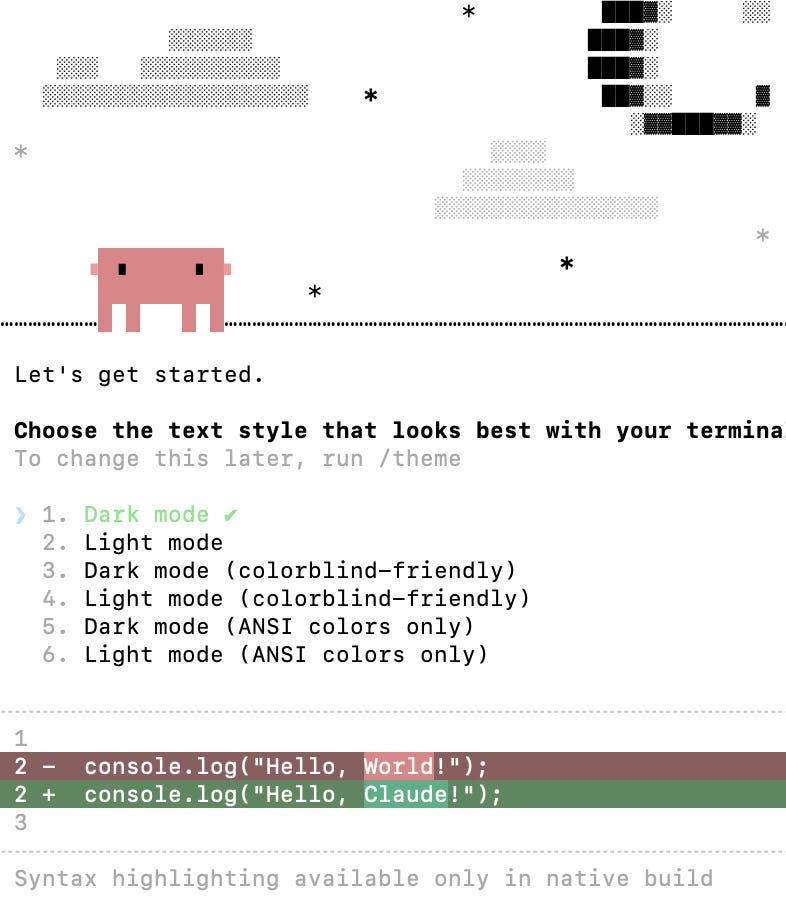
You will see a welcome screen asking you to pick a theme (dark or light mode). Use the arrow keys to choose either, hit Enter. The first time, it will ask you to log in with your Anthropic account, which is the same one you used to get Claude Pro.
The Workflow: Foundation, Website, Editing
Step 1: Point Claude Code at Your Website Folder
Once Claude Code is running, you need to navigate to the folder where your website files live (index.html).
Type the letters cd followed by a space in Terminal, then drag your folder form finder straight to the Terminal window. The full path fills in automatically. Hit Enter.
Type claude and hit Enter. Now Claude Code can see everything in that folder.
Step 2: View Your Website
You don’t need Terminal for this. You can actually do this at any time by double-clicking on the index.html file in your website folder.
Step 3: Talk to Claude Code
Type your prompt and hit enter. Claude Code will tell you what it’s about to do and ask your permission before it changes anything. Type yes and hit enter to approve. It edits the file directly.
Step 4: Edit Loop
Type instruction - Approve - Refresh - Repeat until you love it. That’s the whole loop.
If you have Claude.ai open in another window, you can screenshot your browser preview and paste it into the chat to ask Sonnet for advice on what to change next or discuss what you wish to change. Then take that prompt into Terminal. Two screens, two tools, one website.
Why It Took Me Weeks (So It Doesn’t Take You Weeks)
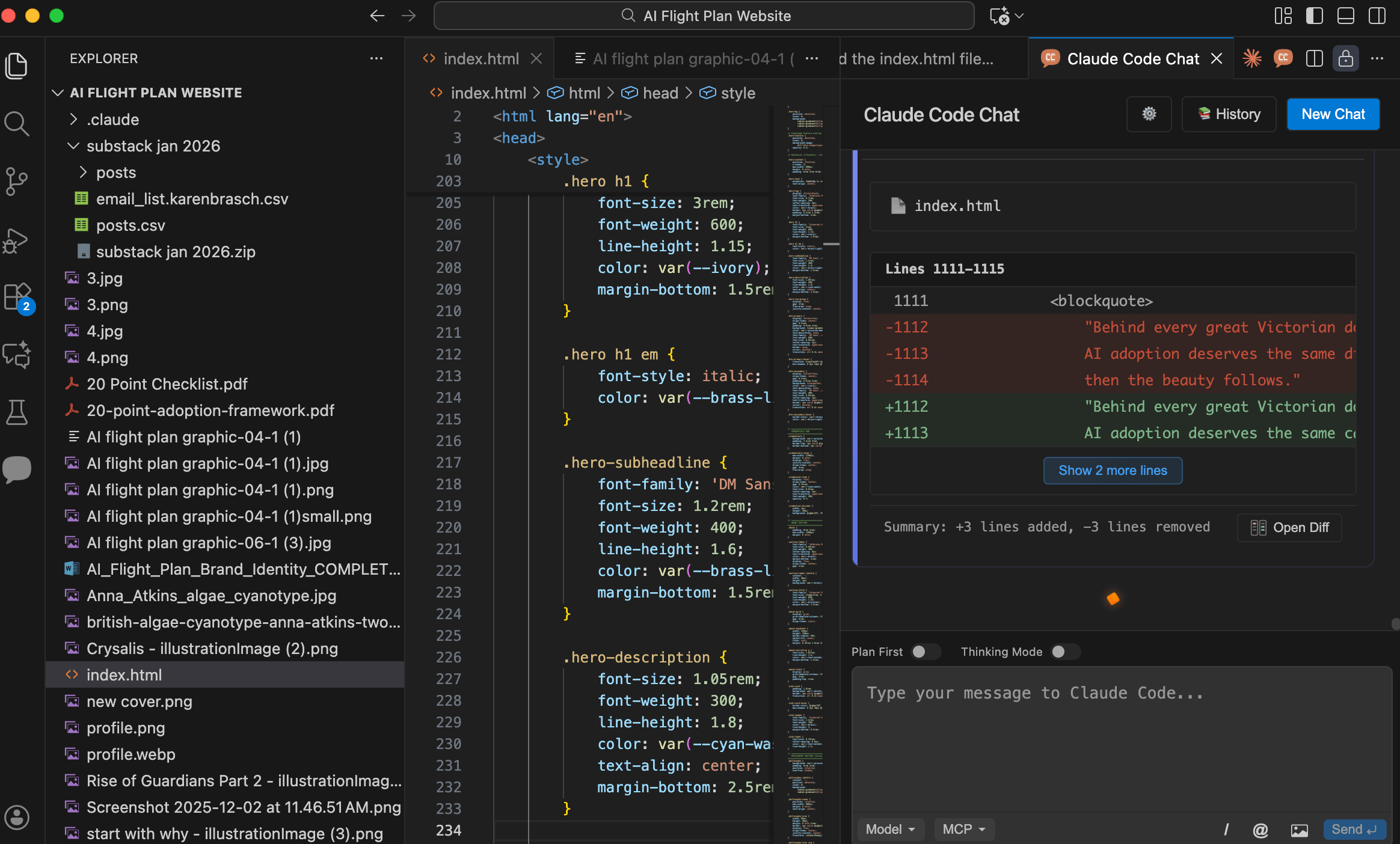
I didn’t understand that Claude Code was a terminal-only tool. I searched around for best practices and found something called Visual Studio Code, which is a fullcoding application that wraps a visual interface around Terminal. Then spent the better part of an afternoon installing it, navigating GitHub popups, and feeling very serious and technical with my dark panels and file trees. Then I’d get afraid of the dark and go do something else. Eventually, sneaking back to it with apprehension and finally the grit of “I’m going to do this.” Only to discover later that it was an entirely optional scenic route.
The VS Code extension and the plain Terminal version are just two doors into the same room. I just happened to find the one with the revolving door, the coat check, and the confusing valet situation first. You’re welcome.
You don’t have to build a website this week. You don’t have to do any of this today. But if you’ve read this far, something in you is curious enough. That’s the only qualification required.
Your one step: create a folder on your Desktop. Name it whatever you want. Put something in it. That’s it. The rest will follow when you’re ready.
This is what foundations over fads looks like in practice. Welcome to the light.
This is a link to the Website I created with Claude Code: AI Flight Plan

Thanks for reading AI Flight Plan! If something resonated with you in this post, please share the love.
Comments
Nothing yet. Say the first thing.
Sign in to join the conversation.