
Every week, I make a visual map of my learning journey — I share what I learn, how I learned it, and how you can too.
Dear Copy-Paste,
We’re 145 days away from 2025. We have self-driving cars and AI bots capable of stealing some of our jobs… so why is copying and pasting still a thing in corporate America?
I rarely talk about my job in this newsletter but, if you don’t know yet, I work at a software company where I mostly deal with live, automated databases. But this week, I realized something baffling. Even with all of the technology we have today, there are teams who are still manually copying and pasting data from CSVs, Excel sheets, or worse PDFs as part of their regular routine.
In the age of “AI might steal your job”, I’m constantly trying to think of ways to automate the busy work. So this week, I decided to use what I’m learning from Python to automate my copy-paste tasks.
I started learning how to extract data from CSVs using Python — which wasn’t as challenging as I thought. There’s only 4 surprisingly intuitive steps:
Step 1. Import the CSV module
Python has a thing called modules, which are like on-demand superpowers.
Analogy: Imagine you’re in standstill traffic, wouldn’t it be nice to magically tap into a “flying superpower” that gives your car the ability to fly over the traffic straight to your destination?
That’s basically what modules do for Python — modules give Python additional functionality to avoid writing many lines of code. For example, there’s a CSV module that gives Python the superpower to write or read data that is stored in a CSV format.
To harness these CSV functionalities, we simply need to import the CSV module into Python like this:

Step 2. Open the CSV
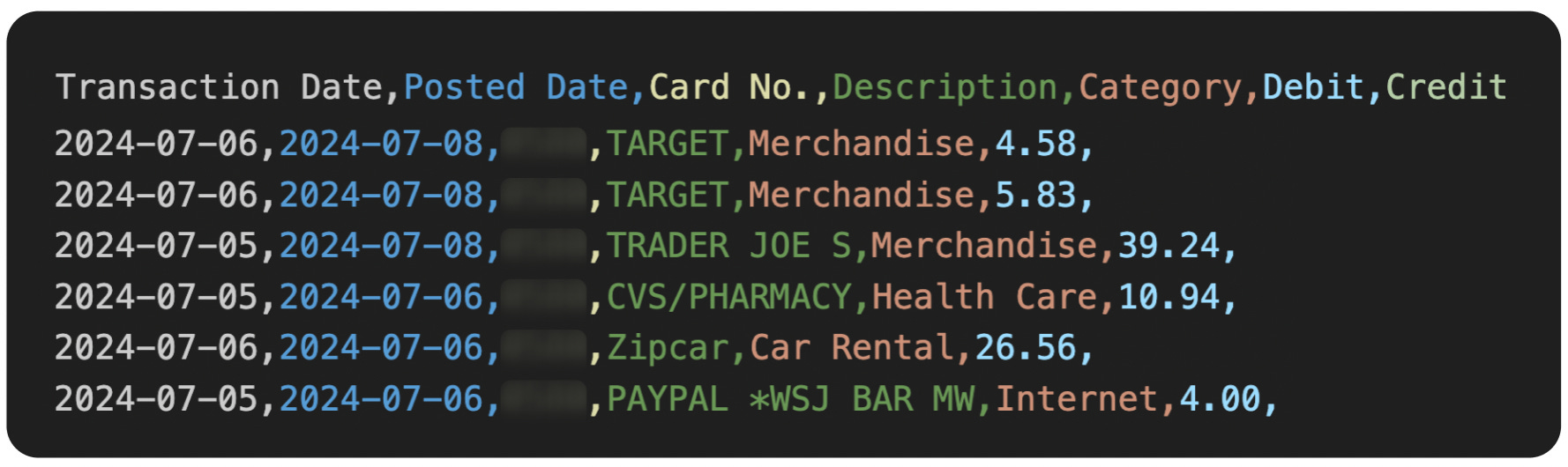
To practice with real data, I downloaded my past credit card transactions from my bank account as a CSV file.
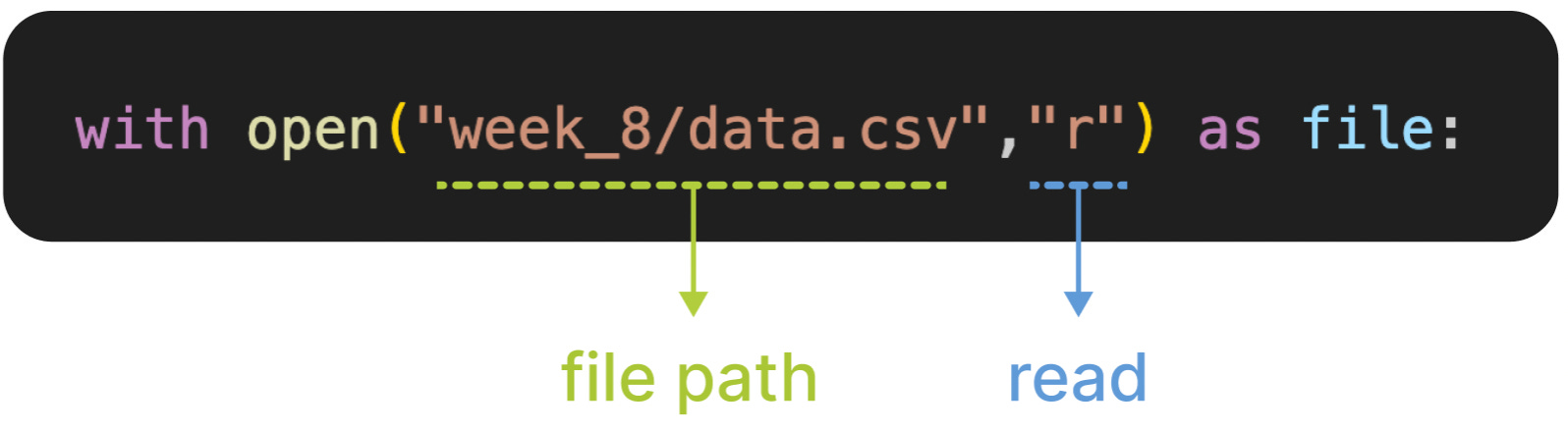
Once I had the file saved to my computer, I could ask Python to open the CSV by using the open() function. Within the function, there’s two components: the file path of my CSV and “r”, which stands for reading, to allow Python to read the file.
Step 3. Read CSV file
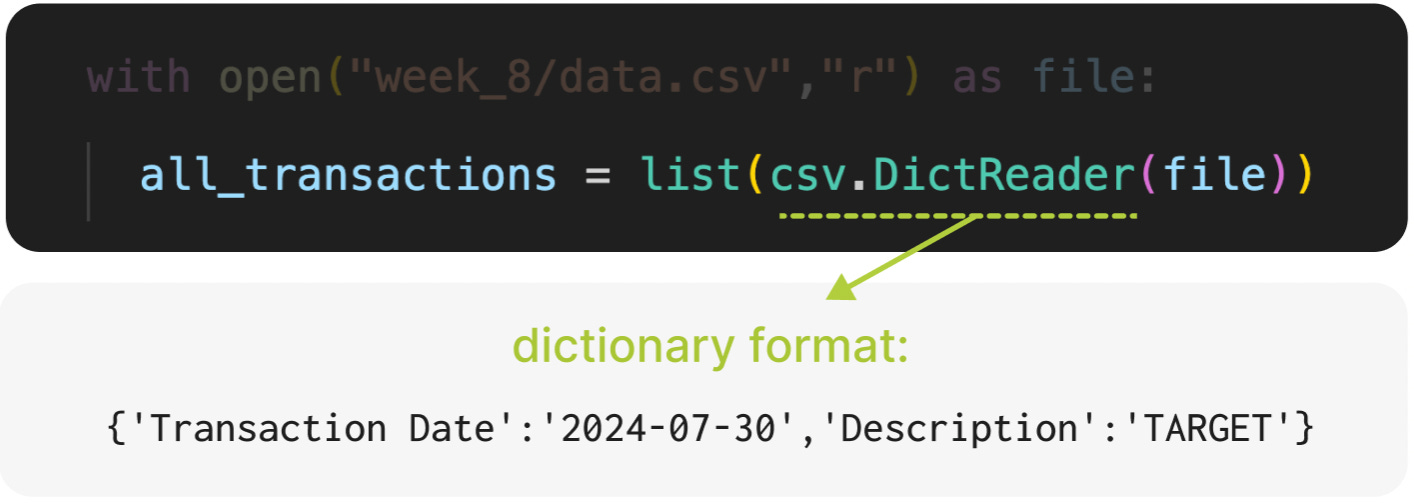
Once the file is opened with reading access, it’s time for step 3 — actually reading the file. To do that, we use a CSV superpower called DictReader, which converts the CSV into a dictionary format within a list.
Step 4. Print the file
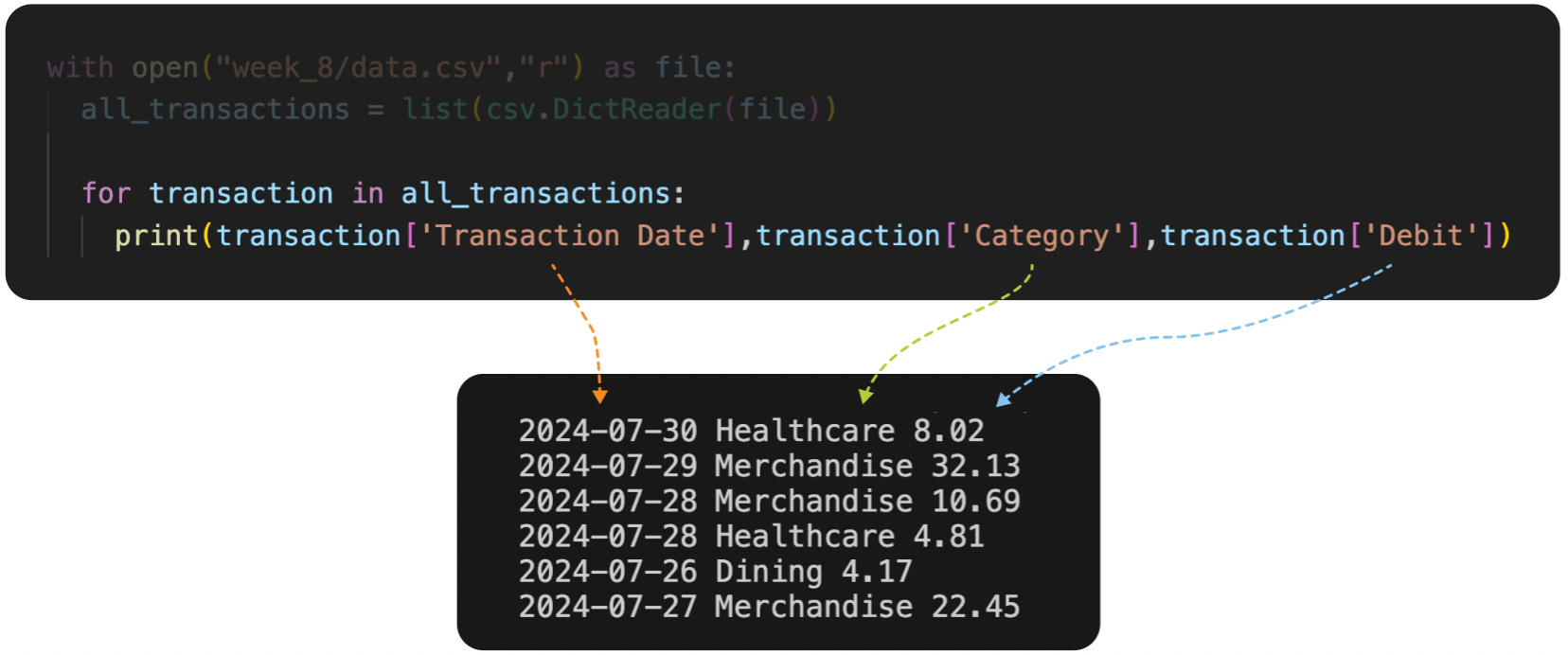
Once we have all of our transactions in a list, we can extract and print specific columns in the CSV using a for loop.
While these are just the basics, I have bigger ambitions — I want to automate nearly all of my copy-paste work. Next week’s goal will be to create a Python script that extracts specific data from CSVs and adds it into a Google Sheet with just a few clicks.
I learned by using the Complete Python Mastery course, “Section 9: Python Standard Library”. Unfortunately, the videos were pretty high-level so I started downloading sample datasets from Kaggle to practice transferring CSVs into SQLite databases.
PSA: If you’re not learning Python

Even if you’re not learning Python, you can automate manual workflows using tools, like Zapier or Make, that help you connect information from one source to another. For example, if you want to automatically save email attachments into a Google Drive folder, you can set up a Zapier or Make trigger to automatically do that.
As Monday rolls around, try to think of tasks that you can automate away. It’s 2024 and nobody has time to be held back by busy work.
Comments
Nothing yet. Say the first thing.
Sign in to join the conversation.