
There’s a certain irony that now, on the cusp of digital awareness, Apple has dredged up a navigation tool for your Photos Library that goes back over 2 millennia.
The Table of Contents.
To be sure, Apple has put their own spin on it, but anyone who’s cracked open a high school history textbook, Volkswagen repair manual, or Silver Palette Cook Book will recognize the form and function just as it was conceived by Roman scholars.
You want to see XXX? Here is where to find it.
Even back then, readers wanted to avoid endless scrolling.
For real.
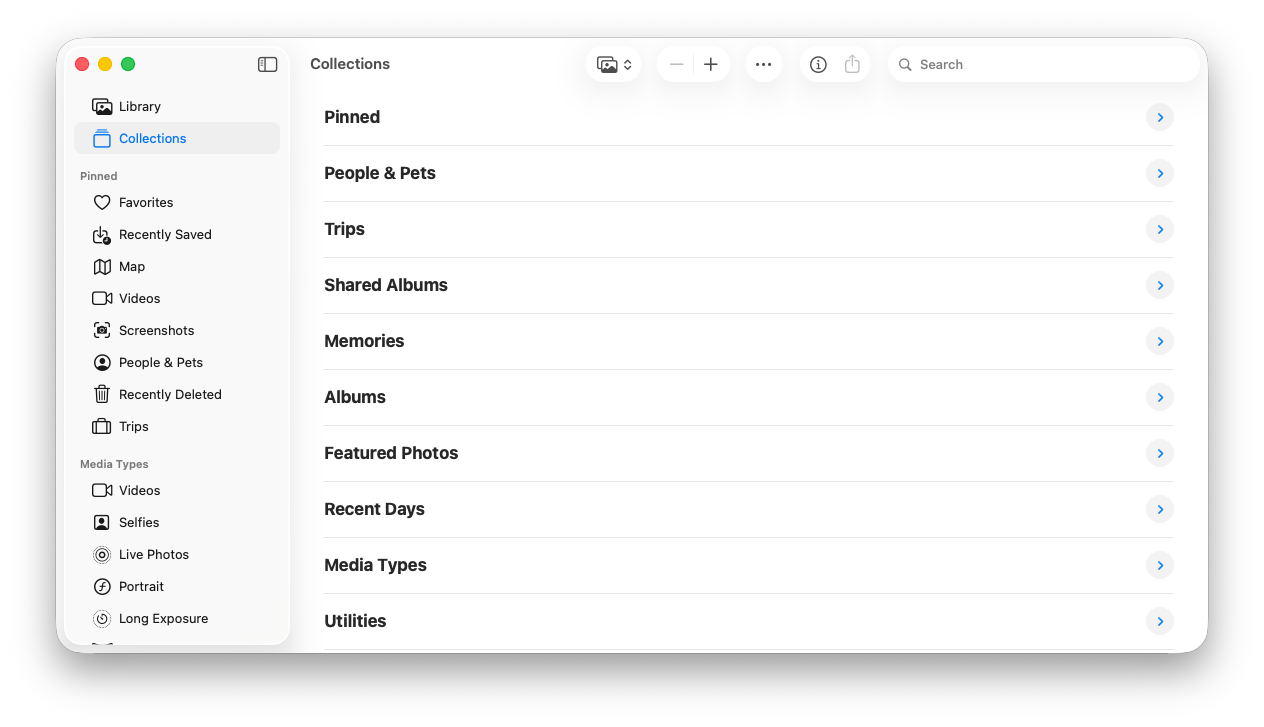
It may seem like a step back in photo management, what with object recognition and search improving at the speed of light, but for many of us, getting into the right neighborhood is fine. We don’t mind browsing the last block or so. And Collections does that.
For many years, an organized digital photo collection was dependent on us. We had to create a folder structure with albums to hold the pictures. For any effective photo management we needed to craft the navigation ourselves. That took time to create and more time to maintain. And - more irony - those of us who most needed the organization were often worst at creating it.
Collections is like a living Table of Contents. And this is where the Apple magic comes in. Instead of a static reference, like Desserts in a cookbook, Collections is always on the lookout for topical changes - additions and deletions - of what it’s going to share with you. It’s always current. As you take and import new photos they get included in the appropriate groupings.
So Collections is just there to narrow your search. To get you to the right chapter.
Some quick hits are:
People & Pets
Trips
Recent Days
Recently Viewed
Recently Shared
Map (locations)
You can also choose by Media Types if that’s how you think of them.
Selfies
Portraits
Video
Panorama
Screenshots
And so on.
You can even include Collections you created like favorite Albums and Memories.
The point is that by using the Collections tab as a Table of Contents, you can quickly get to the photos you want in a jiffy.
And the sweetener is that you can even customize the Collections Table of Contents with the Pinned Collection. Putting your Favorite content categories just a tap or two away.

Have you Pinned your favorite Collections in Apple Photos? What are you top 3 collections and how has that changed your photos experience?
Comments
Nothing yet. Say the first thing.
Sign in to join the conversation.